

After you emptying your external hard drive, you realize the permanently deleted isn’t just junk files, instead, you lost your files. If you’re preparing to present a proposal to a client or hoping to revisit family holiday video, you plug in your external hard drive only for a message to flash on the screen: “External Disk not formatted. Do you want to format it now?” Faced with such unexpected deletions of vital files or disk formatting prompts, people always feel anxious about these unforeseen circumstances and search for ways how to recover deleted files from hard drive.
If you encounter such external disk data loss issues, please stop writing new data to the hard drive to prevent further damage. Whether you need to rescue files from hard drive, provided the hard drive hasn’t suffered severe physical damage, by using the professional recovery methods summarized in this article, you have an extremely high 99% probability of recovering deleted files from a hard drive.
1. How to recover deleted files from an external hard drive?
There are three distinct methods to choose :
- Method 1: Use the CHKDSK command
- Method 2: Recover Data From External Hard Drive Free
- Method 3: Data Recovery from External Hard Drive Software Free Download
Method 1: Use the CHKDSK command
If you get error messages or can’t read/write to your drive, run CHKDSK. While not a recovery tool, it fixes drive errors that hide your files, making them accessible again.
CHKDSK steps:
- Right-click Start and open Command Prompt (Admin).
- Type chkdsk D: /r, with your drive letter, then press Enter.


Method 2: Recover Data From External Hard Drive Free
Files hidden by viruses or system errors aren’t gone, they are often just marked as “hidden” or “system” files. The ATTRIB command can force these files to reappear. If you are wondering how can I recover data from a hard drive for free, follow these steps:
1. Open Command Prompt (Admini)
Press Win + S.

Type cmd.Right-click “Command Prompt” and select “Run as administrator”.

2. Locate your external hard drive
Identify your external drive letter (e.g., D:). Type the letter followed by a colon (e.g., D:) in the command window and press Enter. The prompt will change to D:\>.

3. Enter the ATTRIB recovery command
Run the recovery command. Type the following command and press Enter: attrib -h -r -s /s /d *.*

Method 3: Data Recovery from External Hard Drive Software Free Download
If CHKDSK or ATTRIB don’t work, your file indexes are likely corrupted. In these cases, using iToolab RecoverGo Windows Data Recovery is the most reliable way of recovering deleted files from a hard drive. It bypasses system errors to find data that built-in tools can’t see.
Using professional-grade iToolab RecoverGo Window data recovery software remains the most effective approach to recover lost data. Among numerous tools, iToolab RecoverGo Windows Data Recovery stands as the preferred solution for external hard drive recovery, thanks to its excellent scanning depth and high success rate.
Why choose iToolab RecoverGo?
- RecoverGo finds your files even if the drive shows as “RAW” or the partition is lost.
- Supports 1000+ file types, including photos, videos, documents, audios, emails, and more.
- With its advanced scan and recovery technology, it can recover lost files with a 99% success rate.
- 3-Step Simple Recovery: You don’t need to be a tech expert.
Easy-to-use Steps
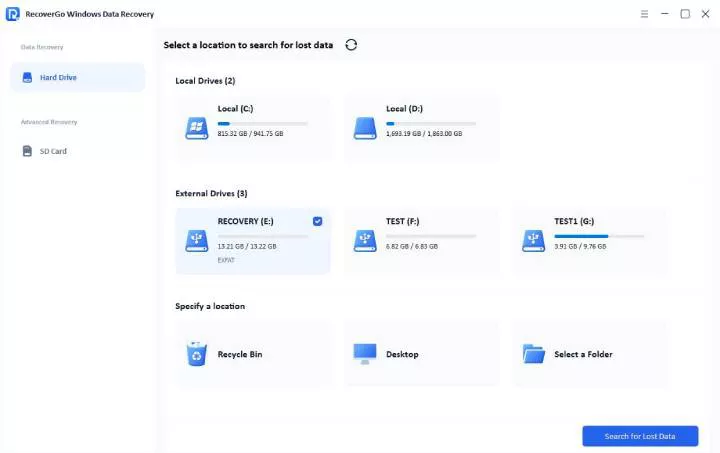
Step 1 Select the location
After launching the software, choose your external hard drive on the main interface. Ensure it is securely connected to your computer to prevent recognition issues.
Step 2 Scan the External Hard Drive
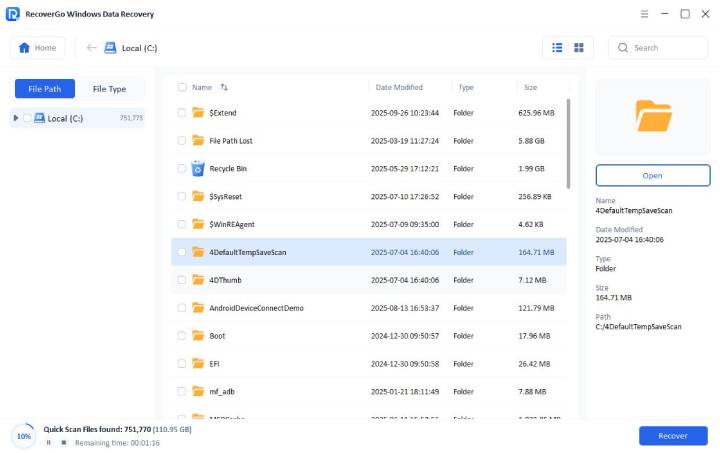
Click “Search for Lost Data”. The software will automatically run an advanced scan to thoroughly search for hidden or accidentally deleted fragments.
Step 3 One-Click Recovery
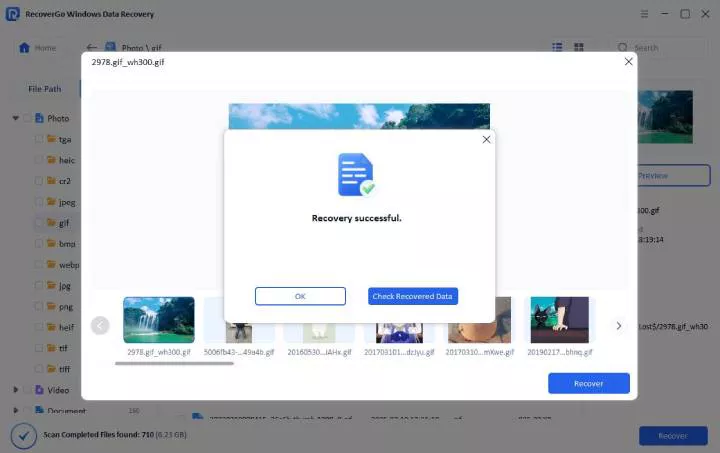
After scanning completes, preview photos or documents directly. Tick the files you require and click the “Recover” button. Ensure recovered files are saved to your computer’s local disk or another drive. Never save them back to the original external hard drive to prevent data overwriting.
2. How to Choose the Best Hard Drive Recovery Tool?
In data recovery, choosing the right tool often depends on the specific type of “disaster” you face. With increasing hard drive capacities and evolving underlying storage technologies, effective recovery strategies depend not only on the tool, but also on the correct operational procedures, addressing scenarios, ranging from simple accidental deletion to complex partition corruption.
Key Factors for Selection
To find the best tool, you should evaluate the following criteria:
Prioritize Ease of Use: Look for an intuitive interface. A good tool should guide you through the recovery process without needing deep technical knowledge. You should be able to start a scan with just a few clicks. You do not need to be a tech expert to use it.
Features: Ensure the hard drive recovery tool supports diverse file types like photos, videos, audios, and documents. Advanced tools should also offer deep scanning for formatted drives. Compatibility: It should work seamlessly with external SSDs and USB flash drives. Ensure that the connection and data reading/writing processes are smooth and uninterrupted. Recovery Rates: Choose a tool with a high success rate. Reliable software can often reconstruct file signatures even from corrupted partitions. Support Options: Good technical support is a safety net. Choose a provider that offers detailed user guides, video tutorials, and responsive email or live chat support. Free Trial Limits: Most tools offer a free trial. Check if the trial allows you to preview files or recover a small amount of data for free before buying.3. Conclusion
During critical moments of hard drive data loss, adopting a scientific approach proves more crucial than blind experimentation. Industry experts recommend the following four-part best practice:
- Stop Using it Right Away: Don’t save anything else to that drive to avoid overwriting.
- Don’t Install Software on that Same Drive: Use a different computer or a thumb drive.
- Pick a New Location to Save: Send files to a different drive or the cloud.
iToolab RecoverGo has high success rates in external hard drive data recovery. It supports over 1,000 file formats and guarantees 99% secure data recovery. Any incorrect operation may increase the risks of data loss. Stop using your external hard drive immediately and download iToolab RecoverGo Windows Data Recovery.