

Did you lose important data on Windows 10/11 due to a system crash or partition loss? Or maybe you accidentally deleted the file and also emptied the Recycle Bin? Some users also use the “Shift+Delete” to delete data, which skips the Recycle Bin altogether.
Well, the good news is that data recovery is still possible in all of these cases as long as the drive is not physically damaged! As long as you choose the right type of file recovery software for PC, you can safely recover all of your important data on Windows 10 and 11.
But, which Windows data recovery software to use when there are so many out there? To make it easy for you, we have covered the 5 best data recovery tools for Windows.
Part 1: Top-Rated PC Data Recovery Software at a Glance
Note
We tested all the 5 data recovery tools on both Windows 10 and 11 systems. We used the common data loss scenarios like Shift+Delete, formatted partitions, corrupted drives, and accidental deletion. Also, all the tools were used on the same machines to ensure consistency.
Part 2: The 5 Best Free Data Recovery Software for Windows
A quick search will show you there are thousands of data recovery software for Windows. But, here’s the truth: Not all of them are created equal & you should only use a good file recovery software for PC that offers a high success rate.
With that in mind, we have tested and ranked the 5 best free file recovery software for PC you can use in 2026:
- Tool 1: iToolab RecoverGo Windows Data Recovery
- Tool 2: Disk Drill
- Tool 3: Recuva
- Tool 4: EaseUS Data Recovery Wizard
- Tool 5: Stellar Data Recovery
Tool 1: iToolab RecoverGo Windows Data Recovery

The first name in our list is iToolab RecoverGo Windows Data Recovery, a lightweight data recovery tool for Windows 11/10/8/7. What makes the iToolab RecoverGo Windows Data Recovery stand out is that it’s very easy to use & allows for fast scans of deleted files.
iToolab RecoverGo Windows Data Recovery has these powerful features:
- Recover videos, photos, documents, audios, and more.
- Recover files deleted via any type of data loss.
- Supports all the file extensions.
- Lightweight and really fast.
User experience
A home user accidentally deleted important image files using Shift+Delete. They later realized that the files also bypassed the Recycle Bin. By using RecoverGo Windows Data Recovery, they ran a deep scan on the drive and were able to recover all the image files in very little time. The preview feature was also very useful as it made it easy to view image files before recovery.
In our testing, we also found that RecoverGo Windows Data Recovery is fully compatible with the latest Windows 10/11 updates. Also, the tool managed to recover files lost in various scenarios with a 99% success rate. The tool managed to recover both small and large files with the same efficiency.
- User-friendly interface.
- Supports more than 1000 file types.
- Lightweight and fast.
- The trial version only allows file preview.
Tip
Stay calm and stop using your drive right away! Using iToolab RecoverGo immediately gives you a 99% shot at saving your files before they’re gone for good.
Tool 2: Disk Drill
Disk Drill has been around since 2010 and is a popular choice for data recovery on Windows OS. These data recovery tools can easily handle data recovery in different scenarios.

Although the setup size is 500 MB, it does come with powerful features like:
- Create image files of partitions + disks.
- Recover 400+ types of files.
- Quick scan and deep scan.
- One click restore.
User experience
A small business owner deleted important .docx documents from an external hard drive. By using Disk Drill, they ran a scan and found all the lost files in just 2 minutes. Since the data was under 500 MB, they were able to recover all the files using the one-click restore option.
Our tests showed that Disk Drill was able to successfully recover files via the one-click restore option. Also, it was able to successfully scan multiple file types in very little time.
- Shows real-time disk health.
- Allows file preview before restore.
- Deep scanning.
- Free version only recovers up to 100 MB.
- Doesn’t support the creation of boot disks.
Tip
Try creating a disk image with Disk Drill first. It’s the safest way to rescue files from a glitchy drive without making the hardware damage worse.
Tool 3: Recuva
Do you want a file recovery software for PC that’s totally free and offers unlimited recovery? Then, Recuva is a good choice as it is a freemium app and it also supports all file systems (FAT, NTFS, and ExFAT).
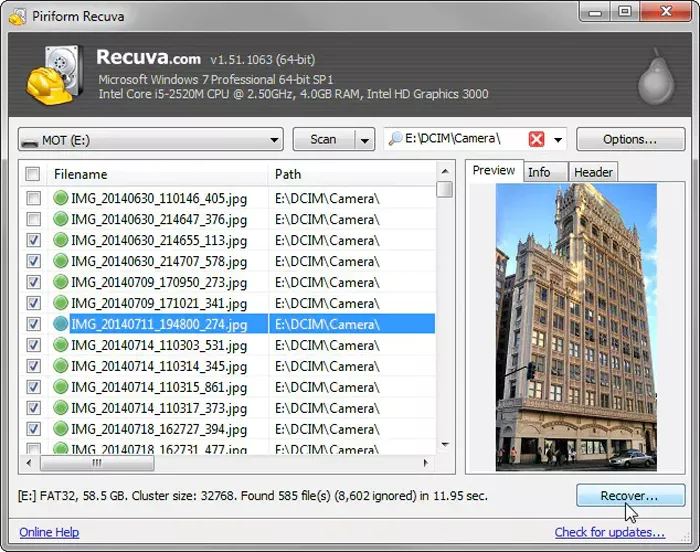
Recuva is not only free but also offers these features:
- Unlimited data recovery.
- Supports all popular file extensions.
- Fast & deep scan modes.
It’s worth mentioning that Recuva hasn’t received any major updates in the last few years, so be ready for a low chance of recovery, as it has a success rate of only 35%. If you want to try a free tool and don’t mind the success rate, you can give this tool a try.
User experience
A university student formatted their USB flash drive only to realize it contained important .mp4 files. After running a deep scan, they were able to find and restore most of the files. However, some large media files could not be recovered, but Recuva managed to handle basic recovery tasks quite well.
In our hands-on testing, we managed to recover both small and medium sized files. However, the tool failed to recover fragmented files as its recovery success rate is lower than other tools.
- Lightweight and only uses minimal resources.
- No limit on scanning and recovery.
- Fast scanning.
- Only scans partitions.
- Doesn’t work on raw disks.
Tip
Always turn on deep scan in Recuva. It takes a bit longer, but it’s the best way to find those tricky, hidden files that a quick scan might miss.
Tool 4: EaseUS Data Recovery Wizard
EaseUS Data Recovery Wizard is a good file recovery software for PC because of its user-friendly interface. Also, it allows users to recover 2 GB of data for free, which is a good thing for beginners or those who just want to recover files without buying a license.

The key features of EaseUS Data Recovery Wizard are given below:
- Good success rate on all file systems.
- 1000+ file types supported (image, video, documents, & more).
- Free recovery (up to 2 GB).
User experience
A video editor accidentally deleted .mp4 files and raw clips while organizing a client project. The files were also deleted from the Recycle Bin, which forced them to use a recovery tool. By using EaseUS Data Recovery Wizard, they were able to locate all the files successfully. However, recovering large video files took extra time, and the software felt a little slow.
Tests showed that EaseUS Data Recovery Wizard is very quick at scanning for deleted files. However, the software is a bit slow when it comes to recovering and storing the data in a new destination. But despite this, it is a very impressive tool for casual data loss cases because of its user-friendly UI and free recovery.
- Very fast scanning.
- Good customer support.
- Supports data recovery during scanning.
- Preview doesn’t work for many photo formats.
- Preview is limited to 100 MB.
- The remaining scan time isn’t accurate.
Tip
Don’t install EaseUS on the same drive you’re trying to fix! If you do, the software itself might overwrite the very files you’re trying to get back.
Tool 5: Stellar Data Recovery
The next entry in our list of best free data recovery software for Windows is Stellar Data Recovery. It is ideal to recover corrupted photo and video files up to 1 GB for free.

Stellar Data Recovery was first launched in 2000 and has been going strong ever since! Why? Because it comes with these cool features:
- Supports all file systems (FAT, NTFS, ExFAT).
- Very simple user interface.
- Supports 300+ file types.
User experience
A photographer accidentally formatted an SD card containing 4K videos and raw photos. By using Stellar Data Recovery, they were able to scan and retrieve most of the images and video clips. The simple UI of the tool proved to be a game-changer as it allowed the photographer to recover files with no prior knowledge of data recovery.
Testing showed that Stellar Data Recovery is actually very fast and accurate despite the simplistic UI. We successfully recovered photo and video files that were even deleted from the Recycle Bin. The only downside is that it doesn’t support auto-scan resume if you stop the process for some reason.
- Very good at recovering photos & videos.
- Multiple configuration options for scanning.
- The preview feature is very useful.
- The user interface is a little too basic.
- Scanning large drives takes a lot of time.
Tip
Start with a standard scan in Stellar to save time. Only switch to “Deep Scan” if you’re dealing with really stubborn or corrupted photos and videos.
Part 3: Step-by-Step Guide: How to Recover Lost Files on Windows 10/11
If you don’t want to deal with complicated & resource-heavy tools, then we highly recommend iToolab RecoverGo Windows Data Recovery. It is light-weight, fast, and has a success rate of 99% which makes it stand out from other file recovery software for PC.
Here’s a quick list of steps on how to recover lost files on Windows 10/11 with RecoverGo Windows Data Recovery:
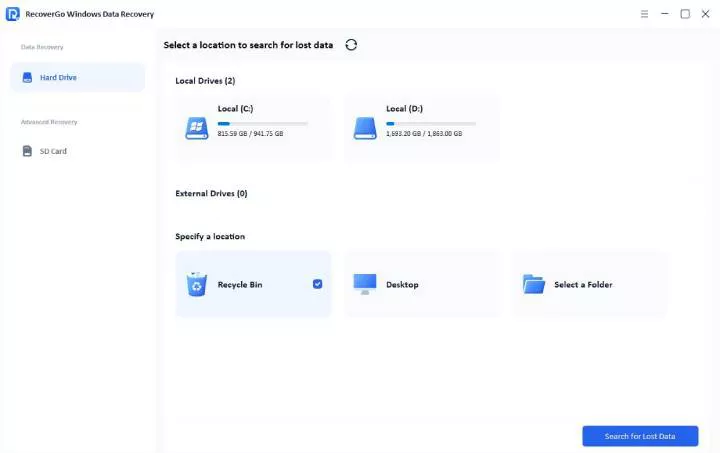
Step 1 Select a location
Launch iToolab RecoverGo and choose the specific drive or folder where your files were lost. It’s the quickest way to let the software exactly know where to start the rescue mission.
Step 2 Scan your device
Let the tool scan the drive’s sectors to find hidden data. You’ll see the deleted files pop up in real-time as the software tracks them down.

Step 3 Recover your data
Check your files and make sure they’re intact. Once you’re ready, just click “Recover” to save everything back to a safe spot.

Part 4: FAQ
What is the best data recovery software for Windows 10?
All five tools we have mentioned in our list are good & trustworthy. However, iToolab RecoverGo is the top data recovery software for PC. Why? It has a high success rate (99%), easy-to-use UI, and support for 1000+ file types.
Is there a free data recovery tool for Windows?
Yes, Recuva is free & doesn’t limit how much data you can recover. This tools is also very fast at scanning or recovery and offer access to a lot of useful features.
Can I recover deleted files on PC without software?
Yes, it is possible to recover deleted files without a file recovery software for PC in some cases. You can check the Recycle Bin and restore files if they are present there. Another option is to restore the files via the File History/Previous Version or via cloud backups. But if you still can’t recover the files via these options, then the only option is to use data recovery software.
Part 5: Conclusion
We have listed everything from Recuva’s unlimited freebies to Stellar’s handy media repair tools. Each of these apps has its own “superpower.” But, if you just want something that gets the job done without the headache, you’ve got to try iToolab RecoverGo Windows Data Recovery. It’s easily our top pick—it’s super fast, incredibly reliable with a 99% success rate, and just makes the whole recovery process feel like a breeze.