

An external hard drive makes it real easy to store and move large amounts of data. But sometimes one needs to change the file system, clear old data, or set a new drive. If any of this defines you, the only viable option is formatting the drive.
In Windows 10 and 11, a format erases all the data on the drive & sets up the file system. So in a sense, we can say that a format gives your hard drive a fresh start! That’s why it is also important to back up your data before attempting the format.
In this guide, we will show you how to format external hard drive on Windows 10 and 11. Next, we look at how to format a drive that’s invisible! Also, you will learn how to reformat a external hard drive without losing data (just few steps).
How to Format an External Hard Drive on Windows 10/11
There are many native Windows tools that can be used for formatting. After extensive testing with different external drives, we have found that these are the best options for formatting the external hard drive:
- Method 1: Using File Explorer
- Method 2: Using Disk Management
- Method 3: Using Command Prompt (Diskpart)
Method 1: Using File Explorer
If you are wondering how to format an external hard disk in few steps, then the file explorer method is ideal.
Here’s a list of steps on how to format a portable hard drive:
1.Open File Explorer
Connect the external hard disk to your Windows computer. Next, open “file explorer” by clicking on folder icon.

You can also press the Windows key + E.
2.Select Storage Drive
Click on This PC to view all the available internal and external storage drives. After that, locate the external hard drive and then right-click on it to choose “Format”.

3.Format Options
You will now see several format options on the screen. You can select a file system, file label, and several other options. If you have old PC, then choose the exFAT file system. The NTFS is ideal for newer PCs & offers more features.
Next, enter a name under the Volume label field and make sure the “Quick format” box is checked. Press the start button once everything is set up.
You will see one last warning to confirm if you really want to go ahead with the format. Just click on OK.
Depending on the size of your external drive and how much data is on it, the process can take a few seconds to several minutes. And that’s how to format a Seagate external hard drive or any other brand of storage device.

Method 2: Using Disk Management
Windows OS also has a tool called “Disk Management” which can be used to shrink volume, add volume, change drive letter, and format.
Let’s explore how to format external hard drive via Disk Management:
1. Open Disk Management
Press both the Windows Key + R > type diskmgmt.msc. After that, click on OK to open it. It can also be accessed it by right clicking on “This PC” and then choosing Manage. From there, click on Storage and then Disk Management.

2. Format
You will see all of your storage devices on the screen. Find & select the external drive and then choose the format option. Now, you can select the file system, drive name, and all the other options that are needed for the format process.
Method 3: Using Command Prompt (Diskpart)
Another method to format an external drive is via DiskPart. It is a built-in command line tool available by default on Windows 10/11.
You should use DiskPart when you cannot format the drive via File Explorer or Disk Management. And since this process involves the command prompt, it is best suited for advanced users.
Here’s a list of easy steps on how to format external hard drive via the command line (Diskpart):
1. Launch Command Prompt
Press Win + S simultaneously and type Command Prompt. From the options, select the “run as administrator”.

2. Open Diskpart
Type diskpart in the command prompt > hit Enter. This will launch the Microsoft DiskPart (command line tool).

3. Select Drive
Type list disk and press Enter to view all the available disks. From the listed disks, find your external drive by its size. After that, type select disk X (replace the X with the correct disk number) and hit Enter.

4. Run These Commands
Now run the following commands: clean create partition primary

5. Format Drive
At this stage, you need to format the drive by using your preferred file system:(Format as NTFS)format fs=ntfs quick or (Format as exFAT) format fs=exfat quick

6. Assign Drive Letter
Type assign and hit Enter to assign a drive letter. In the end, type exit and press Enter to close DiskPart.
Congratulations! You have formatted your external hard drive and it is ready for use. So if you were wondering how to format external hard drive without file explorer/disk management, then you can try DiskPart.
How to Format an External Hard Drive That Is Not Visible
In some cases, one can not see the external hard drive under the “Devices and drives”. But why? Hardware issues, unallocated space or no drive letter are three key culprits for this.
Let’s look at how to make the external hard drive visible and then format it via Disk Management:
1. Open Disk Management
Reboot the computer. Next, press the Windows key + X and choose Disk Management.

2. Initialize Disk
If the external drive shows Not Initialized, then right click on it and choose the Initialize Disk option. After that, choose the GPT.

3. Create a Volume
If the disk is marked as Unallocated, then right-click on it and choose New Simple Volume. After that, just complete the wizard.

4. Assign a Drive Letter
In some cases, the issue is as simple as the volume having no drive letter. If that’s the case, then right-click on the drive and select Change Drive Letter and Paths.

5. Bring the Disk Online
If the disk shows its status as Offline, then right-click on it and select Online.
6. Format
You will now see the external disk drive under “This PC.” So, just locate the drive and select the Format option by right-clicking on it. And that’s how to format external hard drive easily, even if it doesn’t show up in File Explorer or the My PC. But if you still don’t see it, then it is most probably a hardware issue.
Can I Reformat an External Hard Drive Without Losing Data?
You may need to reformat an external hard drive due to corruption, incompatibility, or preparing it for reuse. But it’s important to know that formatting it again will erase all the stored data. The good news? You can still recover your files by using a tool like iToolab RecoverGo Windows Data Recovery & then safely reformat the drive without losing your data.
RecoverGo Windows Data Recovery is a very useful tool that can be used to recover all types of files. It also supports both internal and external storage drives such as hard drives, USB flash drives, SD cards, and more.
Key features:
- Recover deleted/lost documents, photos, videos, audios & more.
- Recover files with a high success rate of 99%.
- Very easy to use, recover data in just few steps.
- Supports internal & external storage devices.
Testing Process
We tested the RecoverGo Windows Data Recovery to deep scan a 1TB Seagate external drive that was recently formatted. After the scan was complete, the tool found & recovered all the lost/deleted files (documents, photos and game files). After the recovery, we safely reformatted the drive without losing any precious data. Overall, the test confirmed that RecoverGo reliably retrieves files that would otherwise be lost.
Tester’s Verdict
RecoverGo works well for users who have accidentally formatted a drive & now must recover files before reformatting. Its high success rate (99%) is ideal for those who are worried about losing irreplaceable data.
How to Use RecoverGo Windows Data Recovery:
Let’s look at how to format external hard drive without losing data using RecoverGo Windows Data Recovery:
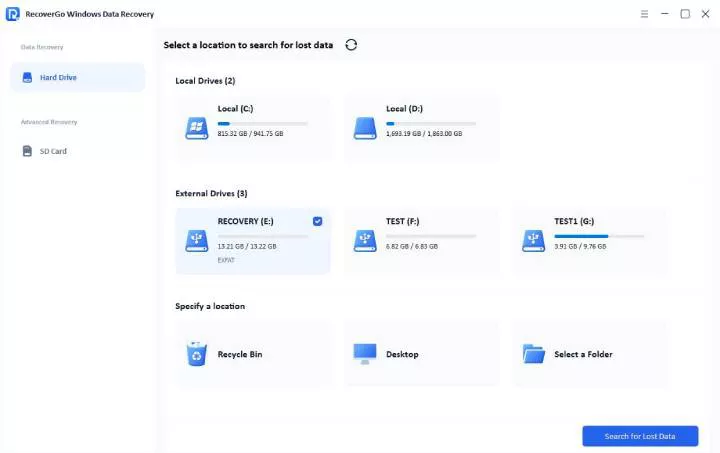
Step 1 Select the external hard disk and then click on “Search for Lost Data” to start the scanning process.
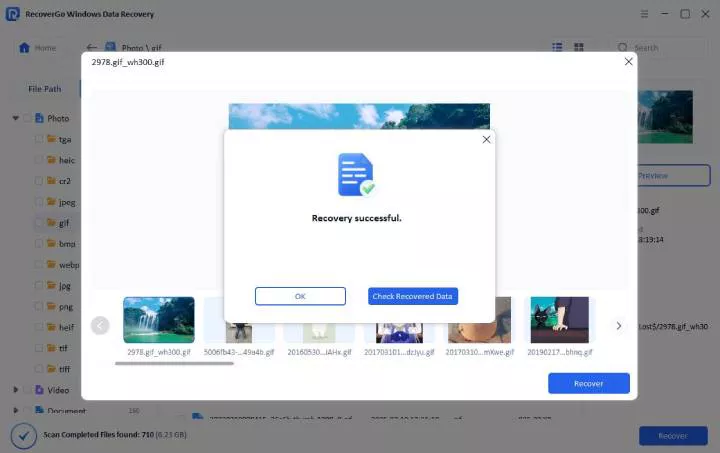
Step 2 Once the scanning is complete, you can preview and recover the files.

Step 3 Once recovery is complete, you can safely format or reformat the external drive by using File Explorer, Disk Management, or command prompt (diskpart).
User Experience
A student accidentally formatted the external drive containing important documents & images. They used RecoverGo Windows Data Recovery to run a deep scan and managed to recover the deleted files within a few minutes. The preview option was very helpful as it enabled them to restore only important files. After recovery, they safely reformatted the drive without data loss.
FAQ
How long does it take to format a 1TB external drive?
The exact time it takes to format a 1TB external drive depends on:
- Format type
- Drive type
- Connection speed
- Computer’s process
Normally, quick format only takes a few seconds to a few minutes on an HDD. For a full format on an HDD, it takes around 20 to 60 minutes for USB 3.0 and around 2-3 hours for USB 2.0. Using the full format option, SSD is normally faster and will only take 30 to 40 minutes on average.
Why can’t I format my external hard drive on Windows 10?
Facing issues like being unable to format external hard drive can be due to:
- File system errors
- Hardware issues
- Drive is write protected
- Drive is in use
How to fix? Reconnect the drive and make sure no program or file is open (that was installed on that drive).
Conclusion
We have shared different ways to format an external drive. So, if you had a question like how to format an external hard drive, the answer is to use built-in tools (File Explorer, Disk Management, & DiskPart).
However, you should remember that formatting erases the stored data. So, always back up or recover important data before proceeding with formatting. We recommend you try iToolab RecoverGo Windows Data Recovery, which can prioritize recovering your files without data loss, after which you can safely reformat the drive.