

Google Photos is often used as both a photo gallery and a cloud backup. Because of that, deleted photos are not always gone immediately. In many cases, images removed from a phone, tablet, or computer can still be recovered, depending on how the deletion happened and how much time has passed. Many people searching how to recover deleted photos from google photos or how to recover deleted photos google photos assume files are erased instantly, but Google Photos works differently.
If you are searching how to recover deleted Google Photos, this guide walks you through every recovery option that is still worth trying. It also explains how to recover photos deleted from google photos across devices and timelines. You will see how Google Photos handles deleted files, how long photos remain recoverable, and which steps work on a computer, Android device, or iPhone. When photos are no longer available in Google Photos and support cannot assist, this guide explains how to recover permanently deleted photos on google photos using remaining recovery paths.
Part 1: Can I Recover Deleted Photos from Google Photos?
Yes, deleted photos can often be recovered from Google Photos, but recovery depends on timing and backup status. Anyone trying to recover deleted photos from google photos should understand how deletions work before taking further steps.
When you delete a photo in Google Photos, the file is not erased right away. Instead, it is moved to the Trash folder. This applies if you delete images from a phone, tablet, or computer. During this time, it is still possible to recover deleted photos google photos without any extra software.
How long photos stay in Trash depends on backup status:
- Backed-up photos remain in Trash for 60 days
- Photos that were not backed up remain in Trash for 30 days
This matters because Google Photos syncs across devices. Deleting an image on one device can remove it everywhere. Many people searching recover deleted pictures in Google Photos discover later that the photo was still recoverable inside Trash.
It is also worth checking the archive section to know how to recover deleted pictures on Google Photos.
Archived images are not deleted and do not appear in Trash. Photos placed in archive often confuse users trying to recover deleted photos on Google Photos when the files were never deleted in the first place.
Once the Trash retention period ends, Google removes photos from visible cloud storage. At that point, users begin searching recover permanently deleted photos from Google Photos, which requires different steps.
Part 2: How to Recover Deleted Photos from Google Photos on a Computer?
If photos disappear from Google Photos on a computer, recovery depends on where the deletion occurred. Understanding how to recover deleted photos on google photos starts with identifying if the photo was removed from the cloud or deleted locally after download.
Way 1: Recover Deleted Google Photos from Trash
This is the most direct way to recover deleted pictures google photos when the images were removed from Google Photos itself. As long as the photos are still in Trash, recovery is simple and does not require additional software.
Steps to recover deleted Google Photos from Trash:
- Open your browser and go to photos.google.com
- Sign in with the Google account linked to the missing photos
- Click the Trash icon in the left-hand sidebar
- Hover over the photo you want to recover and select it
- Click Restore in the top-right corner


Once restored, the photo returns to its original location and becomes available again across synced devices.
This process helps recover deleted photos on Google Photos as long as the files remain in Trash. Once restored, the images return to their original location and sync across devices. If Trash is empty, users often start searching how to recover permanently deleted photos from Google Photos, which requires checking backups or local storage.
Way 2: Use a Photo Recovery Tool
If photos were downloaded from Google Photos and later deleted from a Windows computer, Google Photos cannot restore them. This is one of the most common reasons people search recover photos deleted from google photos without success. For users wondering recover deleted photos google, local file recovery becomes the only option.
Why choose iToolab RecoverGo Windows Data Recovery?
iToolab RecoverGo Windows Data Recovery is designed for situations where cloud recovery is no longer available and helps recover permanently deleted photos google photos from local storage.
- Supports over 1000 file types, including JPG, PNG, TIFF, RAW, CR2, NEF, and DNG
- Recovers data from internal drives, SSDs, external hard drives, USB flash drives, and SD cards
- Offers free scan and preview before recovery
- Includes file filtering and search tools for faster photo identification
Steps to recover deleted photos using iToolab RecoverGo
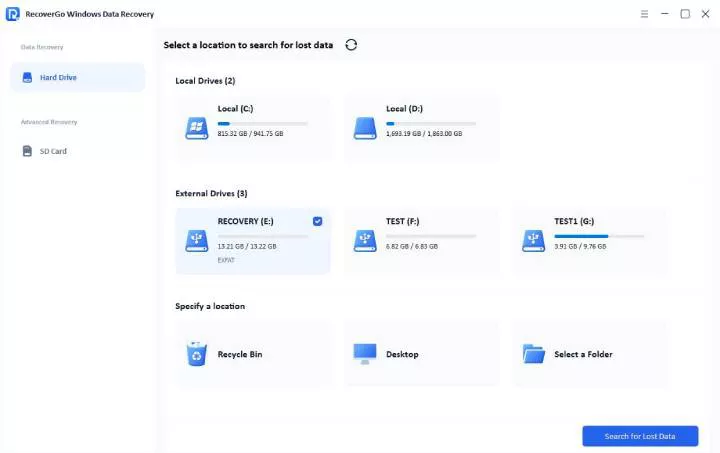
Step 1 Launch the program and select the drive where the photos were stored, click “Search for Lost Data” to begin scanning.
Step 2 Filter results by photos or search by file name, and click “scan”.
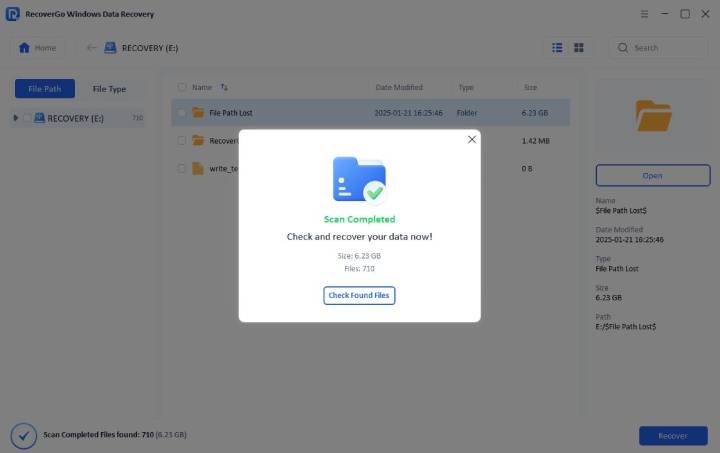
Step 3 Preview images and click “Recover”, saving files to a different drive.

Tester’s verdict
iToolab RecoverGo Windows Data Recovery is best suited for users who downloaded Google Photos to a Windows computer and later deleted them without a backup.
Testing and user experience
The program was tested on a Windows machine where images obtained from Google Photos were removed from the desktop and Recycle Bin in order to assess recovery accuracy. Deleted JPG and PNG files from popular folders, such as Downloads and Pictures, were accurately recognized by the scan. Before recovering images, it was simple to verify if they were recoverable because preview results matched original file sizes and timestamps. When cloud backup is not accessible, recovery is finished without impacting already-existing files, mimicking real-world use.
Part 3: How to Recover Deleted Google Photos After 60 Days?
Trying to how to recover deleted google photos after 60 days is common. Once photos pass the Trash retention period, Google removes them from visible cloud storage. This is when users begin asking how to recover permanently deleted photos on google photos.
Contact Google Support Within a Limited Window
In some cases, Google retains internal copies briefly after Trash expiration. Contacting support quickly may help users trying to recover permanently deleted photos from google photos, especially if deletion occurred due to a sync issue.
Check Local Backups and Archived Copies
Photos may still exist in overlooked locations:
- Downloads or Pictures folders on your computer
- Google Takeout archives created in the past
- External drives or USB devices
- Older computers used for photo transfers
After 60 days, recovery depends less on Google Photos and more on existing copies elsewhere.
Part 4: How to Prevent Photo Loss?
Once photos are recovered, prevention helps avoid repeating the same problem. Many users searching how to recover deleted photos google photos later realize the issue was caused by settings or sync behavior.
1. Confirm Backup is ON and the correct account is selected.
Open Google Photos, go to settings, and check that Backup is enabled. Also confirm you are signed into the Google account you actually use for photo storage, because switching accounts can make photos look “missing” when they are simply in a different library.
2. Check storage and syncing status.
If your Google storage is full, backups may stop. Make sure there is enough space, and check the app status message to confirm new photos are uploading without errors.
3. Do not empty Trash until you review it.
Trash is your recovery window. If you empty it, recovery becomes much harder. Scan Trash before clearing anything, especially after a large delete.
4. Check Archive and hide settings when photos “disappear.”
Archived photos are not deleted, but they do not show in the main feed. Also check device folder settings if you use “Hide clutter” or “Hide all,” because photos may still exist but not be visible.
5. Use Recently Added as a quick health check.
Open Recently Added to confirm that today’s photos are appearing in the correct order. This helps you spot backup problems early.
6. Keep a secondary backup.
Save important photos to an external drive or another cloud service. Even a monthly copy can protect you if one service fails or a sync mistake happens.
When something does go wrong, these habits mean recovery stays possible instead of becoming a last-minute scramble. Over time, this approach turns photo protection into a normal part of using Google Photos rather than a problem you only notice after files disappear.
Conclusion
Recovering deleted Google Photos is possible, but success depends on timing and where the photos existed before deletion. Recently deleted photos can usually be restored from Trash and those deleted from a Windows computer may still be recoverable from local storage.
When photos were downloaded and later deleted locally, iToolab RecoverGo Windows Data Recovery provides a reliable way to scan devices, preview recoverable images, and restore important files when cloud recovery is no longer available.