

It is disappointing and annoying to lose Snapchat photos when an invaluable Memory is deleted without reason. Many users delete saved Memories accidentally or even lose exported Snaps when the app becomes faulty. Sometimes these moments have a personal meaning and cannot be easily substituted. That is why people find ways to recover deleted Snapchat photos. One of the most efficient recovery options nowadays is still the use of a computer. In this article, we will discuss how to recover deleted photos from Snapchat.
Can You Recover Deleted Pictures from Snapchat?
Yes, you can recover deleted Snapchat photos, but this depends on the timing and type of storage. Snapchat temporarily stores data in system files and cache and deletes it. Such files are potentially left short-term after removal. That is why it is important to act fast. Old files may be overwritten by new files and become impossible to recover.
Snapchat Memories is stored in the cloud and not in your phone. Instead, photos are stored locally in your Gallery or in your Camera Roll. These two types of storage are different. The question many users pose is, are there any recycle bins in Snapchat? No, Snapchat has no recycle bin where deleted material can be found. Nevertheless, knowledge of storage helps to recover deleted photos from Snapchat.
How to Recover Deleted Photos from Snapchat (iOS & Android)?
One can recover deleted photos on Snapchat on both iOS and Android safely using several methods. Such as:
- Method 1: Check Snapchat Memories (Android)
- Method 2: Restore Snapchat Photos from iCloud Backup (iOS)
Method 1: Check Snapchat Memories (Android)
Even when you delete photos in Snapchat, they remain in Memories. This is the first place to make checks. In case the picture is still saved here, you can easily recover it without a tool or any additional functionality. Recovery steps of Snapchat Memories (Android):
- Open Snapchat and swipe up from the camera screen to open Memories.
- Browse the All, Snaps, and Stories tabs to find your missing photo.
- Tap My Eyes Only in the top right to check hidden or encrypted photos.
- If you find the photo, long-press it and choose Export or Save.
- The photo will be saved to your device’s gallery.


Method 2: Restore Snapchat Photos from iCloud Backup (iOS)
If your iPhone performed a regular backup to iCloud before removing the photos, then you can restore it. iCloud backups may contain app data and Camera Roll photos that were stored during the last backup. But recovery from iCloud will wipe the existing data and put the older backup in place. Steps to restore from iCloud backup (iOS):
- Go to Settings > General > Transfer or Reset iPhone on your iPhone.
- Tap Erase All Content and Settings and confirm.
- After the phone restarts, follow the setup prompts.
- On the Apps & Data screen, choose Restore from iCloud Backup.
- Sign in with your Apple ID.
- Select the backup that was made before your Snapchat photos were deleted.


How to Recover Deleted Photos from Snapchat via Computer?
There are ways to recover deleted Snapchat photos using a computer, too. Such as:
- Method 1: Using iToolab RecoverGo Windows Data Recovery
- Method 2: Using the Snapchat “My Data” Feature
- Method 3: Checking Windows Backup and File History
Method 1: Using iToolab RecoverGo Windows Data Recovery
There is a desktop version of Snapchat. In case you lose Snapchat data and can not find it on a laptop or PC, use data recovery software. These recovery tools can scan deeper storage areas and locate files that have been overwritten. iToolab RecoverGo Windows Data Recovery is one of the trustworthy alternatives. It is capable of scanning the computer to detect deleted photographs, videos, and application data. It provides an easy and quick recovery procedure for beginners.
Why choose iToolab RecoverGo Windows Data Recovery?
In case you save your Snapchat photos on your PC or laptop but lose them, iToolab RecoverGo Windows Data Recovery can assist you.
- It will scan deeper drives on your computer and detect files that other basic methods may overlook.
- Recover Snapchat photos easily and quickly through a simple three-step process.
- Support various storage devices, such as hard drives, SD cards, and USB drives.
Here are the steps to recover deleted photos from Snapchat using iToolab RecoverGo Windows Data Recovery:
Step 1 Select a Location
Open RecoverGo and select the location where you have lost the photos. Then click on the “Search for Lost Data” button to begin the process of scanning.

Step 2 Scan Your Device
After completion of the scan, find deleted or lost photos on that drive.

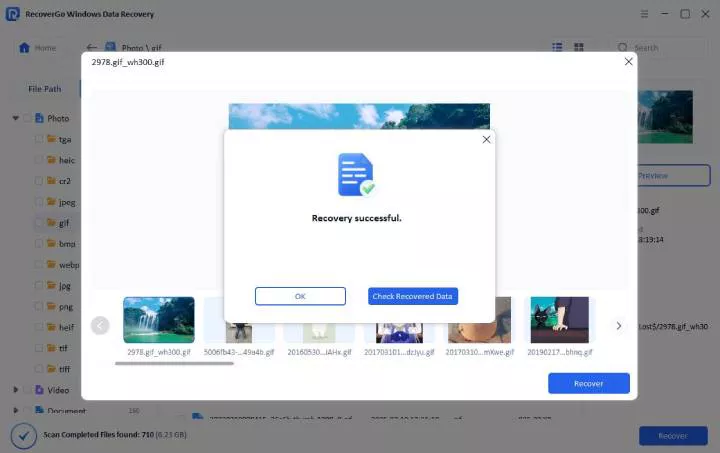
Step 3 Recover Your Data
Once the deleted photos have been found. Then click “Recover” to restore them.
Method 2: Using the Snapchat “My Data” Feature
Snapchat also allows you to request your account data either through the web portal or through the app. This covers Memories and other saved materials. Once you place the request, a download link is emailed to you by Snapchat. Then, you may open the archive of the computer to see whether there are deleted photos. Here’s how to use the Snapchat “My Data” feature:
- Open a web browser and go to accounts.snapchat.com.
- Sign in with your Snapchat account.
- Go to Settings > My Data.
- Make sure Memories and other needed categories are turned on.
- Scroll down and tap Submit Request.
- Wait for an email from Snapchat (it may take up to a day).
- Download the ZIP file once the link arrives.
- Extract the ZIP folder on your computer.
- Open the index.html file in your browser.
- Go to the Memories section and download the photos you need.

Method 3: Checking Windows Backup and File History
Windows File History is able to save copies of your files as time goes by. This feature can be useful in case you transferred Snapchat photos to your PC. It is possible to restore a folder to a previous state. This can only work when File History is turned on before the loss of the photos. To use Windows File History, follow the following steps:
- Open File Explorer and go to the folder where the photos were saved.
- Right-click the folder and choose Show more options > Restore previous versions.
- A list of backed-up versions will appear.
- Pick a version from before the photos were deleted.
- Click Restore to recover the folder.

How to Back Up Snapchat Photos to Prevent Future Loss?
Pictures on Snapchat may get lost at any time. Regular backups can save your memories and allow them to be restored later.
Enabling Snapchat Memories Auto-Save
Go to Snapchat settings and open Memories. To save all snaps to Memories, turn on Auto-Save Snaps. Moreover, also enables saving to Camera Roll. This will make sure that your photos are never lost in case the app fails or is deleted.
Periodic Desktop Backups
Periodically transfer your Snapchat pictures to a hard disk or a computer. Export all your memories and store them in a folder. It gets you a duplicate of your files. It secures you against accidental loss.
Using Cloud Integration
Sync your Snapchat folders in Google Photos or iCloud. Turn on automatic backup of the Camera Roll or Memories folder. This secures your photos on the web. They are available on all devices and easily recoverable.
Conclusion
It is possible to recover deleted Snapchat photos with the proper approach. The fastest way to go is to check Snapchat Memories. iCloud backup is a possible option to restore photos on an iPhone. The Snapchat My Data option is also beneficial.
iToolab RecoverGo Windows Data Recoveryis the most effective solution for PC users. It is capable of scanning your computer and retrieving exported or deleted Snapchat photos. If you want a reliable recovery tool, download iToolab RecoverGo and try it today.