

Have you forgotten to save your valuable sheet in Excel? This issue usually occurs due to crashes, electricity outages, or abrupt computer closures. Some users also lose files due to accidentally closing the Excel windows. The loss of unsaved information is stressful and wastes time. In this article, we will discuss how to recover unsaved Excel files in easy ways. It includes built-in Excel recovery features. Let’s dive in.
Can I Recover Excel if I Didn’t Save?
Yes, sometimes it is possible to recover unsaved Excel file, but not always. The recovery feature of Excel could be used in case the application or PC crashes. Unless you have saved the file at least once, recovery becomes even more difficult, yet sometimes a temporary copy can be found.
When Excel is open, and you perform some editing without saving files, it can create temporary or AutoRecover file versions. These files are available on your computer to enable Excel to resume work after a crash. On Mac, AutoRecover files on Excel are stored in a hidden file, which can be opened using Finder.
How to Recover Unsaved Excel Files?
These techniques assist you to get back lost Excel files. You can use them to recover unsaved Excel files under different situations.
- Method 1: Use the “Recover Unsaved Workbooks” Feature
- Method 2: Utilize the AutoRecover Functions
- Method 3: Retrieve via OneDrive or SharePoint
Method 1: Use the “Recover Unsaved Workbooks” Feature
The technique is applicable when you exit Excel without saving the file. Excel also holds up temporary work occasionally. This copy can be located in the Recover Unsaved Workbooks. This is the most suitable way to retrieve unsaved Excel files:
Steps
- Go to File.
- Click Open.
- Select Recent.
- Scroll down and click Recover Unsaved Workbooks.
- Choose the file and open it.
- Save the file immediately with a new name.


Method 2: Utilize the AutoRecover Functions
AutoRecover is useful in case of the accidental closure of Excel, such as a crash or power outage. When Excel is restarted, you can see a recovery pane with your unsaved work. It is also possible to modify AutoRecover settings to save your file more frequently.
Steps
- Open Excel again after the crash.
- Look for the Document Recovery pane on the left side.
- Check the available recovered files in the list.
- Click the file to open and review your data.
- Save the recovered file immediately.
- Go to File > Options.
- Select Save from the left menu.
- Enable AutoRecover and set the interval to 5 minutes or less.
- Click OK to apply the changes.


Method 3: Retrieve via OneDrive or SharePoint
This approach is effective when your Office Excel file is saved in OneDrive or SharePoint. When AutoSave is on, Excel automatically saves the changes online. Version History enables you to make older versions of a document. This assists you to retrieve work at the exact moment.
Steps
- Open the Excel file stored in OneDrive or SharePoint.
- Click File in the top menu.
- Select Info from the left side.
- Click Version History to view saved versions.
- Choose a version from the list based on date and time.
- Click Restore or Open version to check the file.
- Save the restored version as a new file if needed.


Best Way to Recover Overwritten or Deleted Excel Files
When files have been permanently deleted, overwritten, or emptied from the Recycle Bin, a stronger solution might be required. Temporary copies might not exist in such cases. A professional data recovery program will be able to scan your storage and recover the lost Excel files. iToolab RecoverGo Windows Data Recovery is a solid choice in this case.
Why chooose iToolab RecoverGo Windows Data Recovery?
- Restore lost files under numerous circumstances.
- Recover permanently deleted files with 99 percent success rate.
- Restore your files within 3 easy steps.
- Supported with more than 1000 file types and formats that include Excel.
- Recover deleted files from HDDs, SSDs, USB flash drives, and many storage devices.
How to use iToolab RecoverGo Windows Data Recovery:
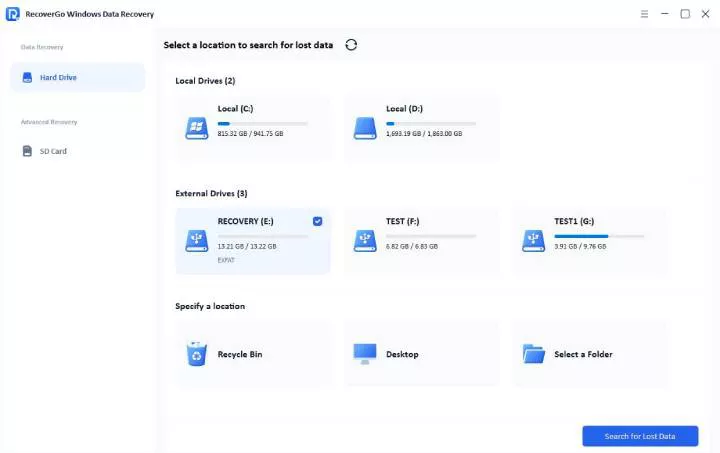
Step 1 Select a Location
Open RecoverGo and select the location where you have lost the Excel file. Then click on the “Search for Lost Data” button to begin the process of scanning.
Step 2 Scan Your Device
After completion of the scan, find deleted or lost files on that drive.

Step 2 Recover Your Data
Once the deleted files have been found, click on Preview to examine the files. Then click “Recover” to restore them.

FAQs
Where is Excel’s default location for unsaved files?
Excel keeps unsaved files in the Auto Recover folder. It is commonly found at Windows under:
C:\Users\[YourName]\AppData\Local\Microsoft\Office\UnsavedFiles.
On Mac, it is in: ~/Library/Containers/com.microsoft.Excel/Data/Library/Preferences/AutoRecovery/. It is also openable using the recovery options in Excel.
Can unsaved Excel files be recovered after a computer crash and restart?
Yes, files that are not saved can be recovered frequently in case of a crash. The Excel may display the Document Recovery Pane when restarted. You are able to open the listed files and save them. In case the pane is not visible, check the AutoRecover folder to find the displayed copies.
Can unsaved files from days ago still be recovered?
Typically, it is not possible to restore unsaved files older than a couple of days ago. AutoRecover files are temporary data and can be deleted over time. But in case the file was saved once or stored in one drive/SharePoint, you can use Version History to recover older versions. Otherwise, the probability of recovery reduces considerably.
Conclusion
To conclude, Excel files can be frequently restored with the help of built-in functions such as Recover Unsaved Workbooks, AutoRecover, or OneDrive Version History. In addition, iToolab RecoverGo Windows Data Recovery assists in restoring deleted or overwritten Excel files in just a few minutes.