

Finding yourself unable to access important work documents or precious family photos because your drive is acting up, a digital nightmare. Whether it was a carelessly hit “Shift + Delete” or a sudden “Drive needs formatting” error, the panic is real. Many users run to the forums with queries like “how to recover deleted files from USB drive” after some virus causes their folders to vanish or when a minor bump leads to failure in connections. Your files remain accessible because they exist in a hidden state which requires you to perform recovery to access. The guide presents multiple methods for USB drive data recovery which include Windows built-in tools and specialized recovery software.
Part 1: Why Recover Data from USB Timely Matters?
The clock begins to run at the instant when you discover that your files have disappeared. People do not understand that fast recovery methods serve as the most effective approach to restore data from USB flash drives. The continuous usage of the device will lead you towards impending danger.
Is the data actually gone?
It’s very important to note that once you delete a particular file on a Windows operating system, it does not erase that particular data on the physical flash drive. It simply designates that space as free to be used by another bit of data. Therefore, if you continue saving more files on that particular flash drive containing your deleted files, you are essentially overwriting more files, thus creating a situation where it’s impossible to restore data stored on a flash drive.
USB Data Loss: Scenarios & Risks of Delayed Recovery
Understanding the “why” behind your data loss helps in choosing the right recovery path.
If the procedure is delayed, the “background” system saves or even accidental saves will overwrite these supposedly “available” sectors, which are actually lost for good.
Part 2: How to Recover Data from USB Flash Drive?
There are different ways to access the data back from the USB device. These ways may involve using the command line or using software that one can see.
- Method 1: Utilising CMD Command Line to Retrieve Data from USB Drive
- Method 2: Recovery via the “Restore Previous Versions” Feature
- Method 3: Using USB Flash Drive Recovery Tool
Method 1: Utilising CMD Command Line to Retrieve Data from USB Drive
Through CMD users can retrieve data from their USB drives. The Command Prompt or CMD allows users to recover their lost files without any costs. The software solution assists users in reclaiming lost files which resulted from malware attacks or system failures. The “attrib” command enables users to modify their file operational settings through this method.
The process requires you to connect your USB stick to your computer. You will need to access the command prompt to proceed with this process. You can access it by pressing the keys “Windows + S” at the same time to search for “cmd.” At this stage, you will need to select your USB device. You need to enter your USB drive letter which should be E: to proceed.
The fourth step is where you actually do something with your USB drive. You need to type in a command. Then press Enter. The command you need to type is attrib -h -r -s /s /d *.*.

So what does this command do? It explains that the -h part of the command removes the hidden attribute. The -r part of the command removes the read attribute.
The attrib command -s: is used to remove attributes from the files on your USB drive. The changes will be applied to all files and subfolders through the /s and /d commands.
The method serves as a traditional method that enables users to recover lost data from USB sticks when their files become invisible because of malware attacks. The CMD command cannot restore erased data from USB flash drives because it requires access to deleted information that exists in the directory.
Method 2: Recovery via the “Restore Previous Versions” Feature
The Windows operating system provides its users with an integrated backup solution, which it designates as File History. The feature operates in the background after users enable it because it creates automatic file backups to their system. Users can retrieve lost data from USB drives by accessing backup copies that their system has preserved.
- Connect the USB drive to your computer system.
- Access either This PC or File Explorer.
- Find the directory that contained the deleted files.
- Select Properties from the right-click menu after selecting that folder.
- Access Previous Versions through this tab.
- The system presents a chronological display of available backups to users.
- Select the backup that occurred before the file deletion process and then proceed to select Restore.

The present method enables file restoration to its original state when File History operated during that specific time.
Method 3: Using USB Flash Drive Recovery Tool
When built-in tools fail, professional software is the most reliable way to recover data from a flash drive. iToolab RecoverGo Windows Data Recovery is designed specifically for deep scanning and retrieving lost data from various storage media.
Why choose iToolab RecoverGo?
- 99% Success Rate: It utilizes advanced algorithms to scan the deepest sectors of your drive, far surpassing standard Windows tools.
- Support for 1000+ File Types: Whether it’s a rare video format or a standard Excel sheet, RecoverGo can identify and retrieve data from a USB drive.
- Preview Before Recovery: You don’t have to guess. The tool helps users view images and documents in advance of making any decision to go into the process of recovery, ultimately helping them save time as well as space.
- No Technical Skills Required: The interface is designed specifically for the average user. The process required to recover data from USB devices has three steps – scanning, preview, and restore.
Step 1 Select the location
After launching the software, choose your USB flash drive on the main interface. Click “Search for Lost Data”.
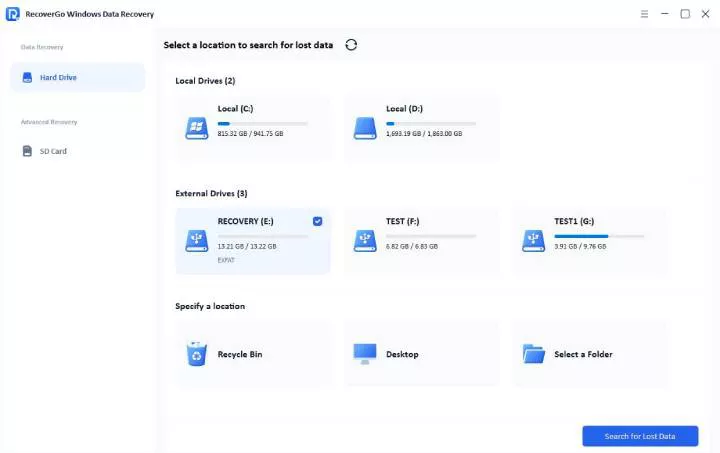
Step 2 Scan the USB flash drive data
Run an advanced scan to thoroughly search for hidden or accidentally deleted fragments.

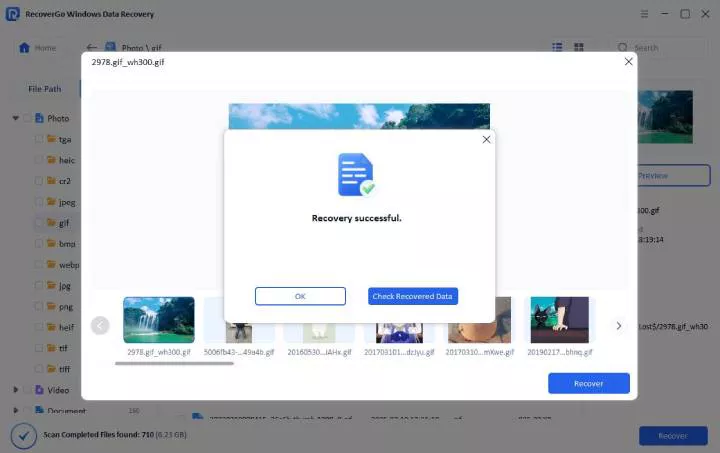
Step 3 One-click recovery
Tick the files you require and click the “Recover” button. Ensure recovered files are saved to your computer’s local disk or another drive.
Testing Methodology & User Experience
We conducted tests on iToolab RecoverGo to verify whether it fulfilled our testing requirements by using a Kingston USB drive, which had undergone “Quick Formatting,” as our test object. The installation process required less than two minutes to complete.
The software created three file categories during the scan process, which included Graphics and Video and Documents, making it simple to navigate through the results. We retrieved 95 percent of deleted JPEG files and all PDF documents without experiencing any file corruption.
The “Expert Opinion” for this tool recommends it as the top choice for users who need to operate without command-line interfaces because it provides them with the highest chance of achieving successful outcomes.
Part 3: How to Enhance the Success Rate of Recovering Data from USB Flash Drives?
The results from file recovery depend more on your initial actions than on your choice of recovery software. The permanent fate of a deleted file depends on the new data that overwrites it, so you must proceed with caution.
Cease Writing New Data Immediately
The USB drive must be completely stopped from receiving any write operations, which needs to happen right away. The drive should not be used for saving files or copying data or installing programs or performing backup operations.
The stick creates system files whenever users browse the web while it remains connected. You should disconnect the drive safely and wait until you need to recover data from it.
Write operations to the system must be completely prohibited through a single operational rule. The rule requires you to avoid saving work or opening files from the drive or performing actions that enable the system to create thumbnail images or perform indexing functions. You improve the chances for recovery tools to detect your deleted files through that process.
Verify Hardware Connections and Driver Status
The computer fails to read the USB drive which leads to the belief that files have vanished. The drive will also be shown as an unchecked device, and the reason for this will be clear as the system will not have the ability to make use of this device because of the presence of these three specific problems, which are the faulty port, the disconnected cable, and the missing driver.
Troubleshooting steps
Users should connect their desktop computer through its back ports which provide direct connection to the motherboard instead of using front-panel or external hub ports. Users should connect their laptop through its available ports to test different connection options.
- Users should update the driver through the Start button, which they can right-click, and select Device Manager. The users must navigate to Disk drives in Device Manager to right-click their USB device and choose the update driver.
- Users need to open Disk Management through the Start menu by selecting Start and Disk Management. The drive appears here but does not show up in File Explorer.
- The information about the drive needs to be recorded. The file system has sustained damage when the drive status displays either “Unallocated” or “Offline” status. The system needs to check again after you assign a drive letter to the device which appears without one.
The drive needs testing on another computer while you check the cable and adapter if those steps do not work. The Disk Management shows “Unallocated” status which requires professional recovery software or data recovery service, because unprofessional attempts to fix the problem will make the recovery process more difficult.
Conclusion
People experience stress when they lose essential documents, but this situation does not have to end in permanent loss. The chances of successful recovery work increase when you start emergency actions and stop writing new data. Your options include using the attrib command to access hidden files and Windows File History to recover recently deleted items.
The iToolab RecoverGo Windows Data Recovery software provides users with the best success rate and most convenient operation, according to our recommendation. The solution eliminates uncertainty while delivering professional-level capabilities directly to your device.