

Accidental email deletion happens very often. Many users think emails are gone forever after leaving the Trash folder, this is not true. Emptying the Trash manually makes recovery more difficult. However, individual users can still try different methods to find their emails. This article explains several recovery techniques. These steps help you save important data even after emptying the Trash.
Can You Recover Emails Deleted From Trash?
The ability to recover deleted emails depends on how the emails were deleted and where the email data is stored. Gmail stores deleted emails in the Trash folder for up to 30 days before permanent deletion. During this period, recovery is possible, but success is not guaranteed. Even though Gmail provides recovery options, their availability does not ensure successful restoration. This section explains the difference between deletion and permanent deletion, recovery possibilities within Gmail, and when third-party tools such as RecoverGo Windows Data Recovery may be helpful.
Distinction Between Deletion and Permanent Deletion
When an email is deleted in Gmail, it is not removed immediately. It is first moved to the Trash folder, where it remains temporarily. Emails stay in Trash until the folder is manually emptied or the 30-day retention limit is reached. During this time, emails still exist and can be restored if the correct recovery method is used.
Recovery Likelihood
- Within the retention period (Trash): The chance of recovery using Gmail’s built-in recovery options is high.
- Locally stored or synced data: Recovery may still be possible if the email data exists in synced email clients or browser cache files on the computer.
- Permanently deleted on Gmail servers: If the data has been fully erased or overwritten on Gmail’s servers, it cannot be recovered through Gmail.
In summary, deleted emails in Trash can be recovered, but only under specific conditions. Therefore, understanding how to recover emails deleted from Gmail Trash is essential.
How to Recover Emails Deleted from Trash in Gmail?
Gmail does have several recovery features, albeit rather few and limited, but only effective in cases in which the deleted emails were retained in the system of Gmail. If the emails are also deleted from trash, the following ways might assist you in restoring the lost messages. Nonetheless, after permanent deletion of emails, Gmail native tools do not provide much or no help. So below are methods when you want to know how to recover trash in Gmail.
Method 1: Use Search Filters
Deleting emails permanently will ensure that it will remain on Google backup servers temporarily and you can ask to have the emails restored as long as they are available. These steps will be similar to restoring deleted emails from the Trash folder in Gmail.
- Log into the Gmail app.
- Go to the search bar on the top of your screen and initiate an Advanced Search by clicking on the arrow on the left of the search bar.
- Add information such as sender, keywords and subject. Write in as much information as you can recall.
- Hit Search to see your deleted email that was permanently deleted.
Method 2: Gmail Support Request (Limited Cases)
Gmail also allows users to file a recovery request for lost emails due to system errors or security breaches. Only works in exceptional and isolated cases. Recovery is not guaranteed. Unproductive after prolonged use or Trash deletion that is carried out manually. These are the limitations that make most of the users go outside of Gmail in attempting to restore Gmail trash or to recover emails in Gmail trash.
When Gmail Recovery Fails: Using Data Recovery Software
When emails are deleted forever on Gmail, they can not be restored by Google. Nevertheless, email information is potentially present on the hard disc on your computer, particularly when you use Gmail via the browser or email client. Follow the guide to know how to recover deleted mail from trash.
The Reason Why Gmail Can Never Recover Permanently Deleted Emails
Gmail deletes messages in its servers upon expiry of the holding period. By that time only traces that are stored locally may be left.
Reasons Why Email Data Can Also Be Left on a Local Drive
Cached browser files. Synced email clients. Short-term storage in hard drives. RecoverGo Windows Data Recovery will be useful here.
Methodology of Testing (Experience and Trust Signal)
In order to test RecoverGo, the program was put to test on a Windows system where Gmail emails were deleted and Trash deleted. The testing was carried out by pause of further disk activity to avoid overwriting, mounting RecoverGo in a different partition, and the search of the primary drive. Several file types related to email were found in the scan, previewed, and were retrieved successfully to an external disk. The speed of recovery, preview accuracy and user interface clarity was evaluated by real-world recovery situations, in order to have hands-on experience and practical reliability.
Step-by-Step Guide to Recover Emails Using RecoverGo
iToolab RecoverGo Windows Data Recovery is an effective application that can be used in recovering lost or deleted files on PC or in other storage drives with ease and within a short period of time. The feature of RecoverGo Windows Data Recovery as follows.
- You can recover email, photos, audios and videos easily.
- A 99% success rate ensures your trashed emails are restored.
- Recover deleted emails in three simple clicks: select, scan, and recover.
- In addition to recovering Gmail emails, RecoverGo can also recover emails from Outlook and Yahoo.
To start with, you have to download and install the Windows data recovery tool on your Windows computer. It is compatible with all Windows systems with 64-bit. After doing that, do the following steps:
Step 1 Select a Location

Install iToolab RecoverGo and select the drive or folder of which you have lost your email data or any trash folder where it was previously present . It is the fastest method of allowing the software to precisely know where the recovery process begins.
Step 2 Scan Your Device

Allow the tool to scan the sectors of the drive and trash folder, in order to identify concealed data. The deleted files will appear in real-time being hunted by the software.
Step 3 Recover Your Data
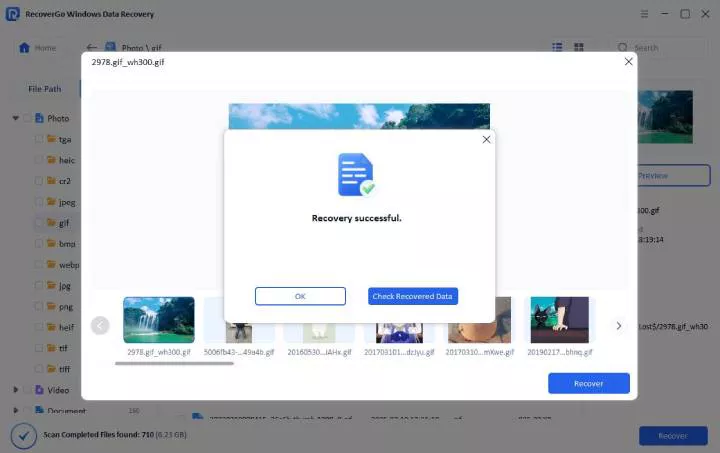
Verify your files and ensure that they are clean. When you are ready simply press the Recover button and all is saved back to a safe place.
RecoverGo Windows Data Recovery – Product Review
RecoverGo Windows Data Recovery (by iToolab) is a purpose-built application that retrieves lost data and deleted data out of both Windows-based computers and other external storage. By 2026, it has been known to be highly compatible with the current Windows environments and capable of accommodating over 2,000 varieties of storage devices.
Key Features (2026-Specific Tech)
- Versatility of the devices: Supports the data recovery of PCs/laptops (Windows 7/8/10/11), external hard drives, USB flash disks, SD disks, and digital cameras (Canon, Nikon, Fujifilm, etc.).
- Broad File Support: Can be used to recover all types of file systems such as NTFS, FAT32 and exFAT.
- High Success rate: Has an optimal data recovery success rate of up to 90%.
User Experience
User experience (UX) reviews for iToolab RecoverGo are generally positive, with users highlighting its user-friendly interface and effectiveness in data recovery.
At the time of testing, the RecoverGo provided a hassle free recovery process with progress indicators and easy navigation. The preview feature allowed finding pertinent data in emails even prior to the recovery process, eliminating unnecessary file recovery.
Tester’s Verdict
RecoverGo can be used by the user when he/she wants to retrieve emails that are lost in the trash and Gmail native recovery features fail, particularly when the email is stored locally on Windows platforms.
FAQ
Would it be possible to recover Gmail emails after 30 days?
Gmail does not restore emails after 30 days but it can be restored with data recovery software provided the local traces are available.
Are email recovery applications secure?
Such third-party software as RecoverGo can be trusted, as it is secure to download and utilize properly.
What types of email files can be recovered?
RecoverGo is compatible with common email formats, such as synced email client files and the browser-based cache data.
Conclusion
The first alternative to recover trash Gmail data would be Gmail built-in tools in case the emails are still in their Trash folder. Gmail, however, is not able to rescue permanently deleted emails. RecoverGo Windows Data Recovery is the solution of these situations because it is able to restore the lost email data, email trash deletion, and provide access to the important information. Downloaded freely, previewed and then recovered.