

I have been working on a menu for a coffe shop and i was saving every 2 or 3 minutes. Illustrator started acting up, so I saved and closed the program. When I reopened it, illustrator said it recovered from a crash and the save file went back to the state it was about 2 hours ago. Is there anything I can do? Adobe people have been utterly useless.
— From Reddit Community
It is frustrating when Adobe Illustrator crashes or closes before you save your project. Hours of detailed work can vanish in an instant, which leaves you wondering if you have to start over from scratch. You rarely have to because Illustrator includes an AutoSave built-in safety net and several ways to restore your work.
Hence, whether your app crashes or you accidentally delete the file, this guide will explain detailed methods to recover files from Illustrator. Get to know the basics first and learn which of the 7 ways proves effective for you.
Part 1: What Is an Adobe Illustrator File?
An Adobe Illustrator file is a graphic file created and saved using Adobe Illustrator, a vector design program. These files are primarily in the .AI format, which is the native vector file type for Adobe Illustrator, according to Adobe. The AI files store vector graphics rather than pixels and include vector paths, text effects, layers, and swatches.
Since the artwork is made from paths and shapes, it stays sharp no matter how much you resize it. Even though .AI is Illustrator’s main format, the program can also open, save, and work with other file types. According to Adobe’s official list of supported formats, it supports formats such as EPS, SVG, PDF, etc. Due to this flexibility, Illustrator files are widely used for logos, print materials, and digital graphics.
Part 2: Is It Possible to Recover Lost Illustrator Files?
Yes, it is possible to recover an Illustrator file after a crash or if the file was closed before you saved it. The methods can range from automatic crash prompts to manual folder navigation. Nonetheless, review the 5 mentioned reasons to know the causes of Illustrator files being lost:
- Sudden App Crash: Illustrator can close unexpectedly while working, especially with large or complex files. If you haven’t saved yet, your latest changes may be lost because of an outdated app version or a version mismatch.
- Accidental Deletion: It’s easy to delete files when you clear folders or free up space. Deleted files usually remain on the drive until they’re permanently removed or overwritten by new data.
- Power Loss or Improper Shutdown: A sudden power cut or forced shutdown while Illustrator is open can interrupt the save process. This leaves the files unsaved, incomplete, or corrupted in most cases.
- Storage Drive Issues: Problems with your hard drive or external drive can make saved files disappear or become unreadable. In some cases, the drive appears empty or asks to be formatted, even though files are still there.
- File Overwritten or Saved Incorrectly: Saving the file under the same name as the old one or storing over a version by mistake replaces the original content. This type of loss is harder to reverse than a simple deletion.
Part 3: 7 Effective Ways to Recover Unsaved or Deleted Illustrator Files
Given the reasons, follow the 7 mentioned ways if you wonder how to recover a file in Illustrator.
- Method 1: Recover Illustrator Files from the Recycle Bin
- Method 2: Restart Illustrator to Recover Illustrator Files
- Method 3: Restore Illustrator Files from AutoSave Data
- Method 4: Recover Illustrator Files from Backup
- Method 5: Restore Deleted Illustrator Files with iToolab RecoverGo👍
- Method 6: Restore the Previous Version of an Illustrator File Using the Revert Option
- Method 7: Recover Illustrator Files from Recent Files
Method 1: Recover Illustrator Files from the Recycle Bin
Since deleted files are temporarily stored in the Recycle Bin or Trash, check it first. The method is quick, free, and needs no extra tools or technical skills. In addition, the files restored in this manner don’t change or become damaged and here are guided below:
- Open the Recycle Bin directly or press Win + R, type shell:recyclebinfolder, and click Enter.
![open Recycle Bin with Windows Run command]()
- Locate the .AI files and right-click the desired one, then choose the Restore option.
![restore Illustrator file from Recycle Bin]()


Method 2: Restart Illustrator to Recover Illustrator Files
After the crash, this is the easiest solution to recover an Illustrator file. The app has a built-in prompt that offers to reopen your last unsaved work. Additionally, it can save you from redoing hours of work once you follow the mentioned steps:
- Close Illustrator completely via Task Manager on Windows, then reopen the app. Press the Ok button in the recovery prompt, then review the file to select the File and Save As option.
![save recovered Illustrator file after crash]()
- In the pop-up, choose the Save As option and click on Save to export.
![choose Save As location for Illustrator file]()


Method 3: Restore Illustrator Files from AutoSave Data
If the crash recovery prompt does not appear, note that Illustrator saves backup copies to a local folder as you work. This method saves the most recent changes because AutoSave keeps updating the backup at the set interval. Nonetheless, this option only works if the AutoSave option was enabled beforehand, as demonstrated:
Before recovering files in Illustrator, check if the AutoSave option was turned on.
- Go to Edit and Preferences and click on File Handling to open the File Handling window.
- Check if the box for Automatically Save Recovery Data Every: is set to the desired interval.

- Press Win + R, type the command %AppData% and choose the Ok option.
![open AppData folder for Illustrator recovery]()
- In the File Explorer, go to: Roaming\Adobe\Adobe Illustrator [Your Version] Settings \en_US\x64\DataRecovery. There, find the .AI file, rename it, and open it in Adobe Illustrator as you recover.
![find Illustrator AutoSave data recovery file]()


Method 4: Recover Illustrator Files from Backup
Another option to check your computer backups if they were enabled before the file was lost or damaged. Through this method, you can restore the complete working copy, and it does not depend on the app being open or a crash prompt, as shown below:
- Search for the Control Panel and click on File History to choose the Restore Personal Files option in the new window.
![open File History restore personal files]()
- Browse and choose the .AI files and press the green Restore button to choose the Restore To location.
![restore Illustrator file from File History]()


Method 5: Restore Deleted Illustrator Files with iToolab Recovery Software
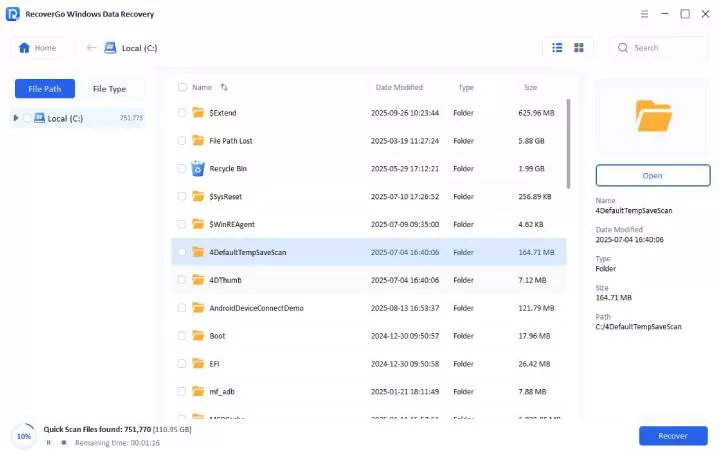
If you cannot find your Illustrator files after accidental deletion, formatting, or a system issue, iToolab RecoverGo Windows Data Recovery can help. The tool is designed to handle most scenarios, such as accidental deletion or RAW partitions. Along with the .AI files, you can also use this tool to recover 1000+ file types across 2000+ devices. In this regard, RecoverGo offers a free scan that does not overwrite or alter the original data.
In addition, this data recovery tool is compatible with all computers, hard drives, USB flash drives, and other devices. After the recovery, you can filter .AI and other files by path and date modified to retrieve them in 3 simple steps.
Key Features:
- Allow you to resume or pause the scan you choose.
- Recover deleted or lost Adobe Illustrator (.AI) files up to 99.7% success rate.
- Recover lost .AI files with a simplified 3-step recovery process.
- Quickly scans hundreds of GB of data in just minutes.
Guide on How to Recover Illustrator Files with RecoverGo
Follow the given guide and learn how to recover Illustrator files using this recovery tool:
- Choose the Location of Lost .AI Files
Choose the lost file location from the External Drives or Local Drives section and click on the Search for Lost Data option.
![Search for lost data]()
- Start the Scan in RecoverGo
Based on the location, the tool will scan the drive and wait until you get the Scan Complete alert.
![scan local disk]()
- Press Recover to Export .AI Files
Filter and preview the recovered .AI files, and choose the Recover button to export and open in Illustrator.
![external drive preview photo]()


Method 6: Restore the Previous Version of an Illustrator File Using the Revert Option
The Revert option lets you undo unwanted changes and return the file to the last saved state. You cannot just restore the version, but undo mistakes that are hard to fix with regular undo options, and here are guided below:
- Choose the Files option and press the Revert option or the F12 key on the keyboard.
- Confirm the action by selecting the Revert option in the pop-up menu.

Method 7: Recover Illustrator Files from Recent Files
As another “Adobe Illustrator crash recovery file” solution, use the Recent Files option to find the .AI file that hasn’t been deleted, just misplaced. Since it’s built-in, there is no need to search through folders, follow the instructions below:
- Choose the Open Recent Files option after you press the Files option.
- Pick your project from the new menu.

Part 4: How to Prevent Illustrator File Loss?
Once you are familiar with all the “Adobe Illustrator crashed how to recover file” methods, follow the given tips to secure them in the future:
Conclusion
While built-in recovery options may help in some cases, they may not always find your lost .AI files. For a faster and easier recovery process, iToolab RecoverGo Windows Data Recovery is a practical choice. Whether your .AI files were accidentally deleted, lost after a crash, or disappeared from a storage device, RecoverGo provides a simple way to get your files back. Try iToolab RecoverGo Windows Data Recovery today and recover your lost Illustrator files with just a few clicks.