

I want to recover deleted data from my recycle bin . they were screenshots in the form of jpeg , png and jpg . they were in screenshots folder in windows c drive.
— From Reddit Community
How to recover photos deleted from the Recycle Bin is a common worry after accidentally emptying it. A Reddit user recently deleted an entire 6GB Images folder by accident. Now, he is searching desperately for a quick and reliable way to recover them. Such scenarios raise an important question that many Windows users often face. This article covers 4 simple ways to retrieve deleted images easily.
Part 1: Can You Recover Photos Deleted from the Recycle Bin?
You can recover photos deleted from the Recycle Bin in many cases. Emptying the Recycle Bin does not erase your photo files right away. Windows marks storage space as available for new data files. So, recovery is possible before that space gets overwritten by new data.
Many data recovery tools can scan drives for these deleted photo files. These tools help you find out how to get back pictures deleted from the Recycle Bin quickly. Moreover, you should not wait too long before you start the photo recovery process.
Part 2: What to Do Immediately After Deleting Photos?
Many users wonder how to recover files deleted permanently from the Recycle Bin after accidental deletion. Before deleted photo data becomes permanently overwritten, follow these immediate actions:
- Stop Writing New Data: You should avoid creating any new files to protect your original lost images. New data can easily overwrite your hidden photos on the hard drive.
- Avoid Installs: Do not download new recovery tools directly onto your damaged system drive. Instead, use a separate external drive to keep your data safe.
- Disconnect Drive: Users must disconnect external drives or memory cards immediately to prevent data overwriting. This simple precaution protects your deleted photos from being permanently lost.
- Avoid Formatting: Never format the affected drive, as it complicates deleted photo recovery afterward. Formatting erases the file system and greatly complicates the entire recovery process.
- Check Backups: Check available cloud services or backup folders before attempting advanced recovery methods. Existing backups often restore deleted photos faster without requiring recovery software or tools.
Part 3: How to Recover Photos Deleted from the Recycle Bin on Windows?
Windows offers several practical methods for recovering your permanently deleted photo files. Below are 3 proven methods you can try to retrieve your deleted photos:
- Method 1: Recover Photos Using File History
- Method 2: Recover Photos from Cloud Backup
- Method 3: Recover Deleted Photos Using Windows File Recovery
- Method 4: Recover Permanently Deleted Photos with RecoverGo
Method 1: Recover Photos Using File History
Best for: Users who enabled File History earlier and need quick photo recovery without recovery tools.
File History is a native feature that can restore earlier versions of deleted files, per Microsoft Support. When enabled, File History automatically backs up folders such as Pictures. This method also works without third-party tools and keeps the recovery process simple. So, go through the following guide to find out how to restore images deleted from the Recycle Bin:
- You need to access File History after searching for it through the Start Menu. Here, choose Restore Personal Files to view all saved backups.
- Explore the backed-up files to select the desired photos and click Restore to save them directly to their original location.

Method 2: Recover Photos from Cloud Backup
Best for: People who synced their photo to online platforms prior to deleting important files.
Cloud backup can also restore photos quickly when syncing was enabled beforehand on devices. Services like OneDrive or Google Photos often keep deleted items temporarily. Microsoft officially confirms OneDrive stores deleted files for 30 days before permanent removal. While learning how to get back pictures deleted from the Recycle Bin, explore these simple recovery steps to restore your deleted cloud photos:
- From the OneDrive account, find the deleted photo in the My files section.
- After that, press the Three Dots next to the deleted photos and click Download.

Method 3: Recover Deleted Photos Using Windows File Recovery
Windows File Recovery uses the command line to find deleted photos on your computer. Unlike most recovery tools, it doesn’t have a graphical interface, so beginners may need some time to get familiar with the commands.
Here’s how to recover deleted photos using Windows File Recovery:
- Install and open Windows File Recovery from the Start menu.
- Launch Command Prompt as Administrator.
- Run the winfr command to scan for deleted photos. Select the drive where your photos were lost and choose another drive to save the recovered files.
- Choose a scan mode from Regular Mode and Extensive Mode :
- Check the destination folder after the scan finishes to find your recovered photos.
winfr source-drive: destination-drive: /mode /switches

Note:
For recently deleted photos, try /regular mode first — it’s faster. If that doesn’t find your files,
use /extensive mode but expect a longer scan time.
Method 4: Recover Permanently Deleted Photos with RecoverGo
Best for: Users with no backups who have permanently deleted photos by emptying their Recycle Bin.
If you’re not comfortable with complex commands, data recovery software becomes the most practical option. For that, you can use tools like iToolab RecoverGo Windows Data Recovery, which can provide reliable photo recovery. It handles accidental deletion, emptied Recycle Bin cases, formatted drives, and RAW partitions effectively. It offers 3 scan modes, including quick, deep, and advanced scanning options.
In addition, you can freely access and preview recoverable files before recovery. A file filter helps you quickly locate specific photos using the required file type. You can also pause recovery at any time and resume the process whenever convenient. Moreover, there are no limits on file size or total recovered quantity.
Key Features:
- Recovers permanently deleted photos from HDDs, SSDs, USB drives, memory cards, and other Windows storage devices.
- Supports recovering JPG, PNG, RAW, TIFF, BMP, GIF, and many other popular photo file formats.
- Recover deleted photos from formatted or emptied Recycle Bin drives up to 99.7% success rate.
- Recovers photos without changing the original file quality, preserving image resolution, metadata, and folder structure whenever possible.
Guide to Recover Permanently Deleted Photos with RecoverGo
Now, follow these simple steps to find and recover your missing photo files using iToolab RecoverGo:
- Choose the Drive for Photo Recovery
From the Hard Drive tab, select the drive where your deleted photos were stored, then click Search for Lost Data to begin scanning.
![Search for lost data]()
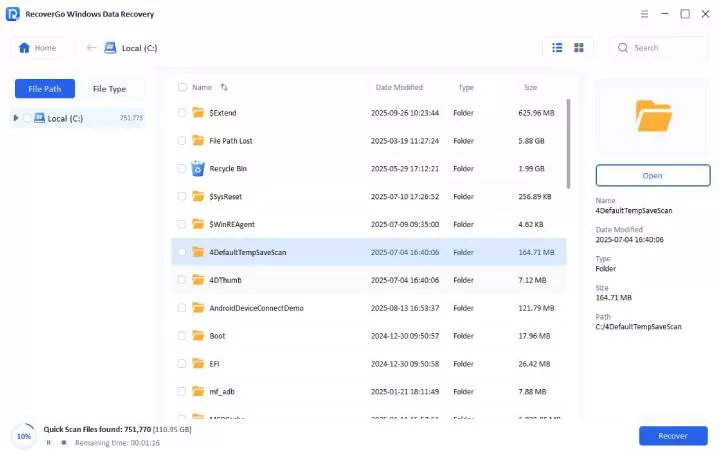
- Scan Your Drive
Now, the software begins the scan. Depending on your drive’s condition, this process may take a few minutes or longer.
![scan local disk]()
- Get Back the Deleted Photos
Moving forward, preview the photos you want to recover and click Recover. Finally, select a different drive as the save location and press OK to complete the process.
![external drive preview photo]()


Part 4: How to Prevent Future Photo Loss?
Everyone must also take active steps to avoid losing their photos again. After recovering your photos, follow these tips to reduce future data loss.
Final Thought
To sum up, this guide covered how to recover photos deleted from the Recycle Bin using 4 methods. As explored, File History and cloud backups work great when set up beforehand. Without backups, permanently deleted photos may still be recoverable. In that case, utilize Windows data recovery tools such as iToolab RecoverGo Windows Data Recovery for reliable photo recovery. Download RecoverGo and run a free scan to see which photos are still recoverable before it’s too late.