

I copied the videos folder from the desktop to a USB flash drive. After that, I permanently deleted the original folder. It was too large for the Recycle Bin. Just now, I noticed that some videos are missing from the USB drive. Now, how can I restore the accidentally deleted files?
It is common for users to delete files by mistake. Windows is designed to be user-friendly, but that convenience also makes it easy to remove files accidentally.
Do not panic. Recovering deleted files is possible in many cases. In this guide, we will show you 5 easy and effective ways to restore deleted file data on Windows 10 and Windows 11.
Quick Answer: Which Recovery Method Should You Try First?
There are multiple ways to get back your deleted data. The best approach depends on how the data was deleted and where it was stored. Use this table to find the best recovery option:
How to Restore Accidentally Deleted Files on Windows 10/11?
There are multiple ways to recover recently deleted or even permanently deleted files. You can start with the simple methods and then move to the advanced solutions:
- Method 1. Restore Files from Recycle Bin
- Method 2. Use Ctrl + Z or Undo Delete
- Method 3. Recover Files from File History
- Method 4. Restore Deleted Files from Cloud Backup
- Method 5. Recover Deleted Files with RecoverGo🔥
Method 1. Restore Files from Recycle Bin
Most deleted files go to the Recycle Bin. The deleted files remain there until the Recycle Bin is emptied. However, large files or files deleted with Shift + Delete do not go into the Recycle Bin.
Here is how to restore files deleted from Recycle Bin on a Windows PC:
- Open Recycle Bin from the desktop.
- Review the deleted files. You can also use the search box to find a specific file.
- Select the files you want to restore.
- Right-click the selected files and choose Restore.
- The files will be restored to their original location. You can open the original folder to verify the restored data.

Note: Data deleted from an SD card, flash drive, or external storage device does not go to the Recycle Bin. The ideal option in that situation is a data recovery tool.
Best for: Files deleted normally from Desktop, Documents, Downloads, Pictures, Videos, or local folders.
Method 2. Use Ctrl + Z or Undo Delete
Windows offers an option to undo recent actions. If the file was deleted recently, you can press Ctrl + Z to reverse the deletion.
Follow these steps to restore files with this method:
- Go to the folder where the deleted files were originally stored.
- Right-click an empty space and choose Undo Delete.
- This simple action will restore the recently deleted files.

This method only works if deleting the file was your last action. It will not work if the data was deleted with Shift + Delete.
Best for: Files that were deleted just recently in File Explorer.
Method 3. Recover Files from File History
File History is one of the backup solutions offered by Windows. This feature can automatically make copies of your files.
If you enabled File History before file deletion, you can use it to get back your data. This option is available in Windows 10/11 and is used by many people.
File History normally makes copies of files in these folders:
- Desktop
- Pictures
- Documents
- Videos
- Music
However, it can also be set up to back up data from other folders. This feature keeps different versions, or copies, of the data.
Now, let’s explore how to restore accidentally deleted files with File History:
- Navigate to the folder from which data was deleted.
- Right-click the folder and select Restore previous versions
- You will see the available previous versions with their dates.
- Select a previous version that contains the deleted data. For example, if you deleted the files today, select a version with an earlier date.
- After selecting a version, click Restore.

Note: This process will replace the current version of the folder with a previous one. Make sure you choose the right version before restoring.
Best for: Files deleted from a folder with File History, backup, or restore-point related previous versions.
Method 4. Restore Deleted Files from Cloud Backup
Many users use cloud storage services like OneDrive to sync data. If the deleted data was backed up to OneDrive, you may still be able to recover it.
When synced data is deleted from local storage, it may also be deleted in OneDrive. However, OneDrive keeps deleted items for up to 30 days before removing them permanently.
Follow these instructions to restore accidentally deleted files from the cloud:
- Sign in to OneDrive.
- Open My File from the left sidebar.
- Select the file or folder, or use the search feature.
- Select the data and click Restore.
- The restored file will return to its original location in the cloud. It will also sync back to your Windows PC.

If you uploaded files manually to the cloud and did not use sync, check the cloud storage for a backup. You can simply download a copy from the cloud.
Best for: Files deleted from Desktop, Documents, or Pictures if they were synced with OneDrive. You can also follow the same steps for Google Drive or other services. The only difference is that the deleted data may be stored in Trash or Bin.
Method 5. Recover Deleted Files with RecoverGo – 99.7% Success Rate
If none of the above methods work, your best option is iToolab RecoverGo Windows Data Recovery. It is a data recovery software that can help you locate and recover deleted data.
When a file is deleted, it becomes hidden from view. However, it remains on the drive until it is overwritten with new data. A good recovery tool can help you retrieve deleted files, including cases where you need to recover Shift deleted files.
RecoverGo supports a wide range of files and uses advanced algorithms. This allows it to find data that is often missed by other tools.
Key Features
- Up to 99.7% recovery success rate for deleted, formatted, and lost files.
- Recovers 1,000+ file types, including deleted photos, documents, videos, audio, emails, archives, and more.
- Supports HDD, SSD, external hard drive, USB flash drive, SD card, digital camera, and other storage devices.
- Offers free scan and preview.
- Lets users filter by file type, file path, date modified, and other criteria, making it easy to find the data you need.
- Supports multiple data loss scenarios, such as Shift + Delete, emptied Recycle Bin, accidental formatting, RAW drives, partition loss, and system crashes.
How to Use RecoverGo
Step 1 Download and launch RecoverGo.Select the location from the main screen. You can select a drive or a specific folder that had the deleted data. After selecting a location, click Search for lost data.

Step 2The program will scan the drive and list all recoverable files. The scan time depends on your drive’s condition.
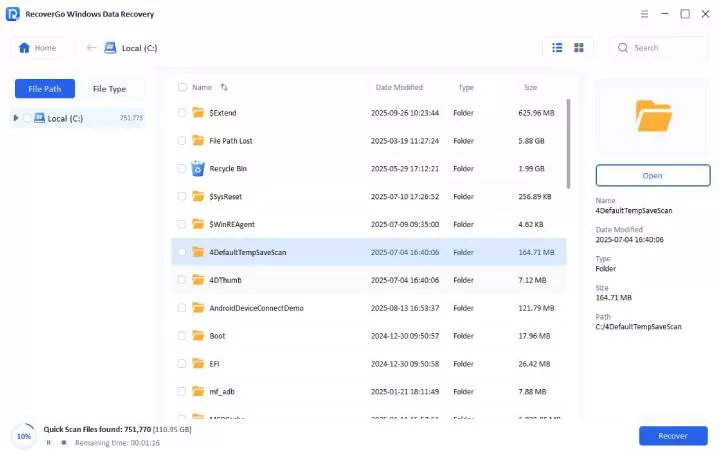
Step 3 After that, you can preview the files and click Restore. Finally, select a location to save the restored data.

Bonus Tips: How to Prevent Accidentally Deleted Files
Deleted files are recoverable in many cases, but data loss can still be frustrating. Recovery can also take time. Follow these simple habits to avoid data loss in the future:
- Enable File History. This option automatically backs up important folders, so you can restore a previous version after data loss.
- Use cloud storage. Sync important files with OneDrive or another service to keep an extra copy online.
- Back up regularly. Make routine backups to an external storage device.
- Avoid Shift + Delete. This shortcut permanently deletes files and bypasses the Recycle Bin.
- Check the Recycle Bin. Review its contents before emptying it.
- Safely remove external drives. Ejecting a USB flash drive or external drive without safe removal can cause data loss. Avoid ejecting the drive while copying or moving data.
Wrap Up
Just because a file is deleted does not mean it is gone forever. On Windows 10 and 11, there are multiple ways to get back deleted files.
For recently deleted files, check the Recycle Bin. Also try Ctrl + Z to see whether it reverses the deletion. If File History is enabled, you can rely on it to restore a copy of the data. If you use a service like OneDrive, check online storage to find deleted data.
However, the most straightforward way to restore deleted data is to use iToolab RecoverGo Windows Data Recovery. It is a modern data recovery tool that allows you to recover data in 3 simple steps. If you are wondering how to restore accidentally deleted files, choose RecoverGo. It has a 99.7% recovery rate and support for all known file formats.