

I was drawing in Photoshop for the first time in a long time, so I didn’t remember to save. I had multiple files open and I was closing some of them. I didn’t worry about saving them because they were just reference pictures and files that I’d already saved. But I accidentally clicked “no” when it asked me if I wanted to save the drawing I was working on because I thought I was closing something else. I can’t find the drawing in my cloud documents and it doesn’t show up in my recent files. Is there any way I can recover it? Any way at all? I don’t remember if I had autosave on. I just want to get the drawing back. Please help. I spent way too much time on it to lose it from making such a careless mistake
— From Reddit Community
A PSD file can represent hours of detailed work, so losing one hurts more than losing an average file. Photoshop crashes or an accidental delete can make that work disappear in seconds. In this situation, users wonder how to recover a PSD file or if this is even possible.
Photoshop and Windows both keep temporary and backup copies in places most users never check. Thus, this guide starts with why PSD files get lost, then walks through where Photoshop actually stores your work.
Part 1: Why Do PSD Files Get Lost or Deleted?
Knowing why PSD files disappear leads you towards the fastest way to get them back. Review the following causes in detail to figure out how to recover deleted PSD files.
- Accidental Deletion: This happens while cleaning up a crowded project folder or emptying the Recycle Bin without a second thought. One wrong click, and the file is gone for good from your device.
- Application or System Crashes: Photoshop or Windows can crash unexpectedly while you’re working or saving a project. If the crash happens before the file finishes saving, the PSD can end up unsaved or damaged.
- Unsaved Changes: Closing a file without saving often happens from dismissing a save prompt reflexively while switching between several open documents. The work exists only in memory until saved, so a crash erases it completely.
- File Corruption: A failing disk, an interrupted file transfer, or Windows shutting down improperly mid-write can all leave a PSD file unreadable. The file may still exist on the drive, but Photoshop can’t open it in its current state.
- Power Loss: A sudden outage or voltage surge cuts power before Photoshop finishes writing your latest changes to disk. Desktops without a battery backup are especially exposed, since even a short interruption can end a session mid-save.
Note:
Stop saving new files on the drive where the PSD file was stored as soon as you notice it’s missing. Every new file you save risks overwriting the data you’re trying to recover.
Part 2: Where Are Lost PSD Files Stored in Photoshop?
It depends on where your PSD file ends up or how it is saved. Files that are personally saved go according to the user’s choice. For unsaved work, Photoshop’s AutoRecover feature backs up all the data in a hidden folder inside “AppData.” To check that folder, enable the “Hidden Items” option from the “View” tab in File Explorer:
C:\Users\[YourUsername]\AppData\Roaming\Adobe\Adobe Photoshop [Version]\AutoRecover
Part 3: How to Recover Deleted or Unsaved PSD Files?
This section explains how to recover a PSD file that you have already saved but then lost or deleted.
- Method 1: Recover Unsaved PSD Files from Photoshop Auto Recovery
- Method 2: Recover Unsaved PSD Files from Recent Files
- Method 3: Search the Windows Temp Folder
- Method 4: Restore from the Recycle Bin
- Method 5: Recover from Previous Versions
- Method 6: Use PSD Files Recovery Software
Method 1: Recover Unsaved PSD Files from Photoshop Auto Recovery
Photoshop’s AutoSave feature periodically saves recovery information while you work. It works whether the file crashed, was closed by accident, or was simply never saved. As long as the feature was already on, here is how it helps recover the files:
Note: Check if AutoSave is enabled as you go to “Edit > Preferences > File Handling > Automatically Save Recovery Information Every.”

- Access File Explorer and navigate to: C:\Users\[Your Username]\AppData\Roaming\Adobe\Adobe Photoshop [Version]\AutoRecover
![Open Photoshop AutoRecover folder in File Explorer]()
- If you see any unsaved files in .psd format, right-click and choose the “Open With > Adobe Photoshop” option.
![Open unsaved PSD file with Adobe Photoshop]()


Method 2: Recover Unsaved PSD Files from Recent Files
The “Open Recent” feature in Windows makes it easier to recover a PSD file after a crash. The Recent Files folder can work after reopening Photoshop, only if the recent file is not cleared. Since this is the fastest method to recover your deleted file, follow the instructions:
- Go to “File > Open Recent” and look for the file in the list.
![Access Photoshop Open Recent menu]()
- After that, press the “File > Save As” option to save the copy right away.
![Save recovered PSD file as a copy]()


Method 3: Search the Windows Temp Folder
When AutoSave fails or isn’t turned on, Photoshop can still leave temporary working files behind in Windows’ Temp folder. These files aren’t permanent, though, so Windows may clear them out after a restart; it works best after the crash. Follow these steps:
- Open File Explorer and go to “C:\Users\[YourUsername]\AppData\Local\Temp.” You can also press “Win + R,” type “%temp%” and press the “Enter” key.
![Open Windows Temp folder for Photoshop files]()
- Look for files starting with ~pst (like ~pst1234.tmp ) or files that look like Photoshop temp data, and try renaming the extension to .psd.
![Find Photoshop temporary PSD file]()


Method 4: Restore from the Recycle Bin
This is the quickest way, since Windows moves deleted files to the Recycle Bin rather than erasing them immediately. You can use the “Restore” option, go through these instructions for this free recover PSD file solution.
- Open the Recycle Bin from your desktop and search or sort by name to find your “PSD” file.
![Search PSD file in the Recycle Bin]()
- Right-click the file and select “Restore” to send it back to its original folder.
![Restore PSD file from the Recycle Bin]()


Method 5: Recover PSD Files from Previous Versions
If File History is enabled on your Windows device, it quietly keeps earlier versions of your files. When asked about how to recover a PSD file with File History, here’s how to do it:
- Right-click the folder that used to contain the PSD file, and choose “Show More Options > Restore Previous Version.”
![Restore previous version from folder menu]()
- Browse the available versions by date, select the version you want, and then click “Restore.”
![Restore PSD from the Previous Versions tab]()


Method 6: Use PSD Files Recovery Software
When AutoRecover, Recent Files, the Temp folder, and Windows’ own backup tools all come up empty, a PSD files recovery tool is the next step. This especially applies to a permanently deleted or overwritten PSD file. iToolab RecoverGo Windows Data Recovery scans the drive directly for recoverable data instead of relying on Windows’ own file records. That’s why it can often find files built-in tools can’t.
This data recovery software also works on drives that are formatted or show up as RAW. RecoverGo doesn’t make any changes to the drive it’s recovering from while scanning, so there is no risk in using it. Overall, the tool does not require any learning curve, making it the easiest option.
Key Features:
- Recover your lost PSD files up to 99.7% success rate.
- Recovers files from internal HDDs and SSDs, external USB drives, and memory cards.
- Lets you preview each recoverable PSD file before recovery.
- Covers over 1,000 file formats beyond Photoshop, including documents, photos, and videos.
- Allows you to filter PSD files by file type, file path, and date modified.
Guide to Recover PSD Files with iToolab RecoverGo
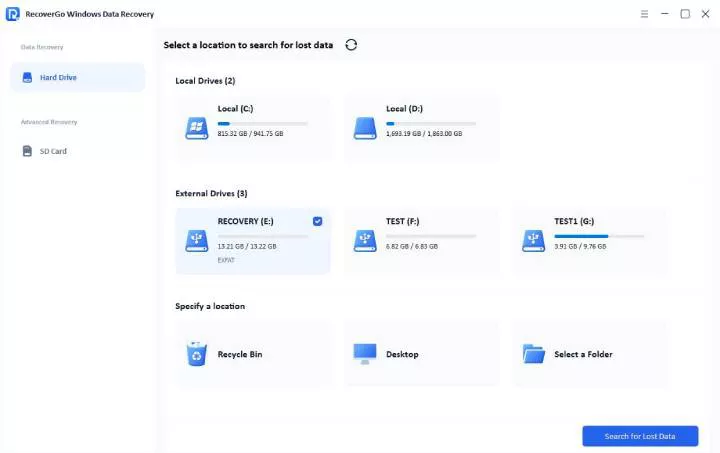
- Choose the PSD File Location on the Tool
From the “Hard Drive” tab, choose the location where you lost the PSD files and press the “Search for Lost Data” option.
![Search for lost data]()
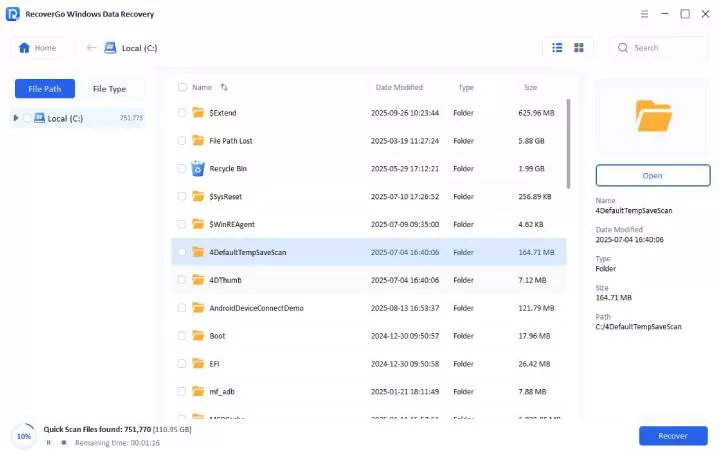
- Wait for the Scan to Complete on RecoverGo
After this, RecoverGo will start the data recovery scan. Wait until you get the “Scan Complete” alert.
![scan local disk]()
- Recover the Required PSD Files
Filter the PSD files, preview the one you want to save, and press the “Recover” button to choose the export location.
![external drive preview photo]()

Part 4: How to Prevent PSD File Loss on Windows in the Future?
After you learn how to recover a PSD file, a few practical habits can save you from ever needing these fixes again:
Conclusion
Many deleted or unsaved PSD files are recoverable through Photoshop AutoRecover, Windows backup features, or dedicated recovery software. iToolab RecoverGo Windows Data Recovery is the most recommended method because it scans the drive directly. Start with whichever method matches your need, but don’t save anything new to the same location until you’ve got it back.