

I am facing SD card detection issues. It doesn’t appear in File Explorer when I connect it to my computer via a card reader. But it appears in Device Manager. I was using it with my camera to take photos from a recent family trip. Why is the SD card not showing up? How to fix it? At the very least, I would like to recover the photos!
— From Reddit Community
This question is from a concerned user worried about their SD card issue. It is actually quite common and can happen due to different reasons. It can be a missing drive letter, a file system error, faulty drivers, and so on.
In this guide, we will look at all the reasons why the SD card does not show up. We will also provide step-by-step instructions on how to fix the SD card issue and use SD Card data recovery tool to recover your data.
Part 1: Why Is My SD Card Not Showing Up?
There can be one or multiple reasons why the system fails to detect the SD card. Let’s look at the possible reasons:
- Logical corruption: It is common to use the SD card on different devices and operating systems. This usage on different devices can break the card’s file system. Other triggers are power failure, malware, or removing the card during transfer. So, one reason why the card is not detected by the system is logical corruption.
- Poor connection: Another reason is poor connection between the card and the device. If you look closely, an SD card has a series of metal pads. It communicates with the device via these metal pads. But these pads are worn out over time and can cause connection issues.
- Faulty SD card reader: There are cases where the SD card is totally fine. The only culprit is a malfunctioning SD card reader. If you think about it, a card reader is the bridge between the computer and the SD card.
- Mechanical damage: SD cards are surprisingly sturdy despite their plastic construction. But still, they are not immune to mechanical damage. Some of the common cases of damage are cracked casings, broken switches, and internal components. You are likely to see these issues across the board, including the SD cards from SanDisk, PNY, Sony, and Samsung.
Part 2: Quick Check – Is Your SD Card Detected at All?
The first thing you should do is check if Windows can detect your SD card. The answer to this will determine which troubleshooting step you should follow.
You can easily check it with these steps:
- Insert the SD card into the computer.
- Press Win + X. Open Disk Management.
- Look for the SD card in the list of drives. It may be labelled as: Removable, unknown, RAW, or unallocated.
What do you see?
- The SD card appears in Disk Management but not in File Explorer: This means Windows can detect it at a low level. You should check the fixes mentioned under Case A.
- The SD card does not appear in Disk Management at all: This indicates a connection issue, driver problem, or failed card. You should try the fixes from Case B.
Important Note:
Recover the data from the SD card before trying any repair methods. You can skip to Part 5 to recover your files first, then return to the appropriate fix.
Part 3: How to Fix SD Card Not Showing Up?
No one likes the feeling when the SD card doesn’t show up. You can use the table below to find the right solution based on what your computer is doing:
Case A: SD Card Shows in Disk Management but Not in File Explorer
This scenario means Windows can detect the storage device. However, you cannot access it normally. It could be due to a corrupted file system, partition issues, and so on.
You can solve all of the issues causing the SD card not showing up in Windows 11 and 10:
Fix 1: Assign or Change Drive Letter
No storage device will show up in File Explorer without a unique drive letter. The OS is supposed to assign a drive letter to every storage device. But the OS fails to assign a drive letter in some cases. Multiple devices having the same drive letter can also cause conflicts.
Follow these steps to assign a new drive letter:
- Press Win + X. Access Disk Management.
![Open Disk Management from the Windows menu]()
- Right-click on your SD card. Choose Change drive letter and paths.
![Change drive letter and paths for SD card]()
- Select a new drive letter. Click OK.


Fix 2: Check and Repair File System Errors
CHKDSK is a command-line tool for repairing the file system errors. It can also be used to fix a corrupted SD card and get rid of any detection issues.
For some people, the interface may be intimidating. But you only need to run a few commands to repair the card.
Note: CHKDSK may delete corrupted directory entries and damaged files. So, recover your data before running this tool.
These are the instructions to run CHKDSK:
- Press Windows + X. Open Windows PowerShell (admin).
- Run this command:
chkdsk A: /R (Replace A with SD card’s drive letter)![Run CHKDSK command for SD card repair]()
- Wait for the tool to scan and repair bad sectors. It can take a few minutes up to several hours. The time depends on the size and speed of the memory card.
- In the end, open File Explorer and see if the SD card not showing up error is fixed.

Fix 3: Enable and Initialize the SD Card in Disk Management
Is the SD card displayed as either Not Initialized or Unknown in the Disk Management panel? That’s probably the reason why you are facing detection issues.
You can easily fix this issue by initializing the SD card again:
- Press Win + X. Open Disk Management.
- Scroll down to the lower half of the window. Right-click on the SD card. Select Initialize Disk.
![Initialize SD card in Disk Management]()
- Select a partition table (MBR or GPT). Click OK. This will initialize the disk.
- Now right-click on the unallocated space. Select the New Simple Volume option.
- Partition the card to complete the process.

Fix 4: Create a New Partition on the SD Card
Another easy fix is to create a new partition. However, you should only try this method after recovering any data on the storage device. Why? Because creating a partition can erase any remaining data on the card.
Follow these steps to fix the SD card not showing up issue by creating a partition:
- Press Win + X. Open Disk Management.
- Locate your SD card. Right-click on it and choose Delete Volume.
- Right-click on the unallocated space. Choose the New Simple Volume option.
![Create New Simple Volume for SD card]()
- Complete the partition creation wizard. Choose exFAT or FAT32 when asked to pick a file system. Just make sure that the Quick Format option is checked.
- Click on Next and then Finish.

Fix 5: Format the SD Card
The card is still not appearing in the File Explorer? Then you should format the SD card. A quick format erases all the data and adds a new file system. This is enough to fix most of the logical issues associated with the memory cards.
This option should be used as a last resort. It will erase all the data. So, remember it as you follow these step-by-step instructions:
- Open Disk Management.
- Right-click on the SD card and choose Format.
![Format SD card from Disk Management]()
- Select the file system and a volume label. Just make sure that the quick format is checked.
![Choose SD card file system before format]()
- Click on OK to format the device.


Case B: SD Card Not Showing Up in Disk Management at All
If the memory card is also not in Disk Management, this means one thing. Windows can’t detect the device at all. It can be due to loose connections, a faulty card reader, or even a hardware issue.
Let’s look at how to fix the SD card not showing up in Windows 10/11:
Fix 1: Check Cable Connections
There are many cases where the SD card is fine. The actual issue lies with the card reader, USB port, or the computer. So, before you start thinking of getting yourself a new memory card, try these steps:
- Remove the SD card. Reinsert it securely into the card reader.
- Connect the card reader to a different port.
- Try a different card reader.
- Clean the metal contacts of the memory card with a Q-tip.
- Connect the SD card to another computer.
Fix 2: Reinstall SD Card Driver
You would be surprised to know that most detection issues are not due to SD cards. Instead, they are caused by the SD card readers and faulty drivers.
You can easily rule out this issue with these steps:
- Press Win + X. Open Device Manager.
- Find the SD card under the Disk drives section.
- Right-click on the memory card and select Update driver.
![Update SD card driver in Device Manager]()
- Select the option that allows Windows to automatically search for the right driver.
- Wait for the driver to be updated. After that, restart the computer and check if the SD card now shows up.

Fix 3: Use Device Manager to Scan for Hardware Changes
Windows can automatically detect a new storage device once it is connected. However, sometimes Windows fails to detect the memory card. But you can force it to look for newly connected devices with these steps:
- Press Win + X. Open Device Manager.
- Click on Action in the menu. Select the “Scan for hardware changes” option.
![Scan for hardware changes in Device Manager]()
- Windows will search for any newly connected hardware (including the memory card).
- Check if the memory card shows up in Disk Management or File Explorer.

Part 4: Video Guide to Fix SD Card Not Showing Up
Part 5: How to Recover Data from SD Card Not Showing Up?
Just because you are facing SD card detection issues doesn’t mean the data on it is gone. In most cases, recovery of the data from the SD card is possible with iToolab RecoverGo Windows Data Recovery.
iToolab RecoverGo is a good choice because it uses a read-only scan. So, the original data on the card is not modified or overwritten. Another good thing about RecoverGo is its 99.7% success rate.
It supports recovery even if the file system is damaged or the partition is unrecoverable. You can use it to recover 1000+ file types (photos, videos, documents, audio, etc.). This includes the RAW photo formats made by Nikon, Canon, and other cameras.
RecoverGo also supports cards that appear as RAW, unallocated, or unknown. Overall, it is the ideal solution if you really want to recover your data.
Key Features:
- Find lost files faster with advanced search and filtering options.
- Enjoy a simple and user-friendly recovery experience, even without technical skills.
- Recover deleted files effortlessly with a simple 3-step workflow.
Note:
The data is often more valuable than the card itself. So, before attempting any fix, recovering your data should be the priority. Any repair method can permanently overwrite files still stored on the drive.
How To Use:
Step 1 Connect the SD card to the computer via a card reader. Launch RecoverGo. Select the SD card from the main screen and click on Search for lost data.

Step 2 The tool will begin scanning your SD card. Three scan modes increase the recovery rate.
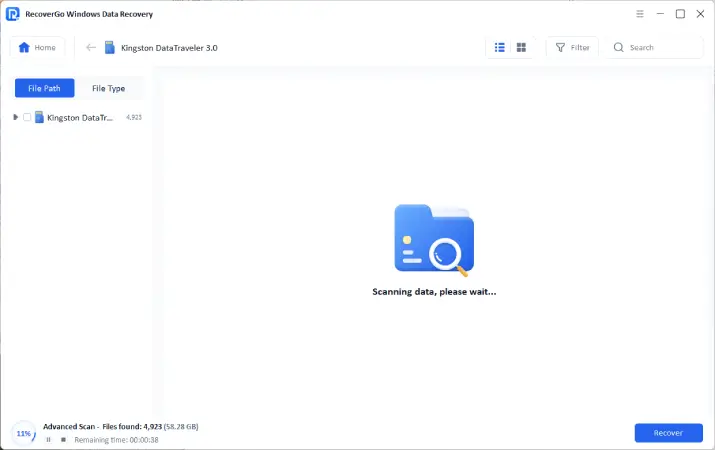
Step 3 Wait for the scan to finish. After that, you can preview the files to confirm what to recover. In the end, select the recoverable files and click on the Recover button.

Part 6: How to Prevent SD Card Not Showing Up in the Future?
It is very common to experience the SD card not showing up issue. But you can take simple steps to avoid it in the future:
- Avoid mechanical damage: You should handle the card carefully and always insert it properly. It is also a good idea to store it in a protective case when you are not using it.
- Format it in the right device: Many people format the card in whatever device they can find. This is wrong! You should only format it in the device it was designed to be used with. For example, a card that is used in a camera should be formatted via the camera’s built-in options.
- Turn off the device: You should turn off the device before removing the SD card. This little step helps you avoid file corruption or damage to the file system.
- Safely eject the SD card: Whenever you are using the card on a PC, always use the Safely Eject option.
- Only buy quality SD cards: You should avoid buying no-name SD cards. The top brands for SD cards are Kingston, SanDisk, Samsung, Sony, and Toshiba.
Conclusion
A number of reasons can make you experience SD card detection issues. We have shared different ways to fix this issue. You can assign a drive letter, run CHKDSK or initialize the card. As a last resort, you can create a partition or format the card.
What if the memory card doesn’t even show in Disk Management? Check connection and reinstall the driver. Another solid option is to use Device Manager. It lets you scan for hardware changes.
But before trying any fix, your top priority should be data recovery. Why? There’s a real chance that fixing the SD card might delete the data on it. So, the first thing you should do is use iToolab RecoverGo to scan and recover data from the memory card.
RecoverGo uses a read-only recovery process and has a 99.7% success rate. So before attempting to fix the detection issues, download iToolab RecoverGo Windows Data Recovery today and run a free scan!