

My dad had a Phillips 64 GB USB flash drive. He plugged it into the work PC and found all the files are gone. The only thing on the drive is some shortcuts with weird names. The USB drive properties says 1 GB space is still used. Does this mean the files are still there but are just hidden?
— From Reddit Community
Wondering how to show hidden files in a flash drive? You’re not alone. The good news is that hidden files are often not deleted at all. They may simply be concealed by file attribute changes, malware infections, or file system errors.
In this complete guide, we will explore why files become hidden, how to recover hidden data, and show you multiple methods to make hidden files visible again on Windows 10/11.
Part 1: Why Are My Files Hidden in Flash Drive?
Before learning how to show hidden files in a flash drive, it’s important to understand what caused them to disappear in the first place.
Let’s look at some reasons why the data becomes hidden on a flash drive:
Hidden Accidentally
Windows offers an option to mark files and folders as hidden. So, changing the attribute by accident can make the data hidden from the drive. The files with the hidden attribute will not show up in File Explorer. However, the actual data is still on the flash drive.
Malware/Virus Attack
Another reason why files become hidden is a virus or malware attack. It is quite common for flash drives to get infected with a shortcut virus.
What is a shortcut virus? It is malicious software that hides all the original files and folders. It replaces the original data with shortcut (.lnk) files with weird names. So, clicking on these shortcuts can further spread the malware.
Corrupted USB Drive
Improper ejection or drive errors can corrupt the flash drive’s file system. This leads to data loss and makes files disappear. So, it can appear that the storage space is still used. But the files do not show up in the drive.
Damaged Directory Entries
The directory entries on the flash drive can also get damaged. This mostly happens due to bad sectors and hardware issues. The storage space may still show as used, but files do not appear in the drive.
Part 2: Flash Drive Hidden Files Not Showing, How to Recover?
The best way to deal with hidden files on a flash drive is to use data recovery software first. Why? the files may have disappeared due to logical errors or data corruption.
In cases like these, it is best to start with data recovery before trying to unhide the files. This ensures your precious data is recovered safely.
Our top recommendation is iToolab RecoverGo Windows Data Recovery. It can find and recover hidden data from a flash drive with 99% recovery rate. The software supports FAT16, FAT32, and exFAT file systems commonly used in USB flash drives, and works with popular brands such as SanDisk, Kingston, Samsung, PNY, Lexar, Transcend, Toshiba, and Sony.
Key Features:
- Three scan modes: Advanced scanning technology locates lost and hidden files.
- Recover hidden files: Restore files that have become invisible due to viruses, corruption, or file system errors.
- Preview before recovery: Check recoverable files before restoring them.
- 2,000+ storage devices supported: Works with USB drives, external hard drives, SD cards, cameras, and more.
- 1,000+ file types: Recover photos, videos, documents, archives, audio files, and other data.
- Easy to use: Scan, preview, and recover with just a few clicks.
How to Recover Hidden Files from Flash Drive with RecoverGo:
Step 1 Launch RecoverGo. Select the USB drive containing the hidden files from the list. Click “Search for lost data” to start the scan.
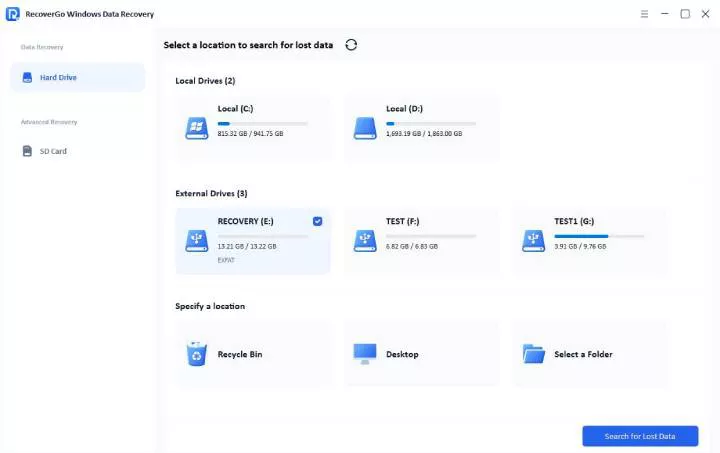
Step 2 The software starts scanning. If you remember the file name, you can also search by file filter.

Step 3 Once the scan is complete, preview the found files. Select the hidden files you want to recover and click “Recover”. Save them to a safe location.

Part 3: How to Show Hidden Files in Flash Drive?
There are multiple ways to unhide hidden files on a flash drive. Here are the best and easiest methods for Windows 10 and 11:
- Method 1: Unhide USB Files Using CMD
- Method 2: Show Hidden Files in File Explorer
- Method 3: Scan the USB Drive for Malware
Method 1: Unhide USB Files Using CMD
The flash drive shows space is still used, but the drive looks empty? You can use the attrib command to see the hidden files. This command is commonly used to see files hidden by the shortcut virus.
Let’s look at how to unhide files from USB using CMD:
- Connect the flash drive to the computer.
- Open File Explorer and check your USB drive’s letter (for example, E:).
- Press Windows key + R. Type cmd and hit Enter.
- Type this command and hit Enter: E: (Replace E with your USB drive letter)
- Now type this command and press Enter: attrib -s -h /s /d *.*
- Wait for the process to complete. Open File Explorer to check the files on the flash drive.

Is attrib -s -h /s /d safe?
Yes. Using the attrib command is completely safe. It doesn’t delete, modify, or overwrite the data on the flash drive. This command only removes the hidden attribute from files and folders.
However, you should only run the command on the affected USB drive. Running it on the entire system can also make the protected Windows files and folders visible. This will only create unnecessary clutter and increase the risk of accidental changes.
Method 2: Show Hidden Files in File Explorer
Using the command prompt sounds difficult? You can do the same thing via File Explorer! Windows offers an option to hide or unhide files through the interface.
This is how to show hidden files in a flash drive via the File Explorer:
- Open “This PC”. Find and access your flash drive.
- Click on View at the top. Make sure “Hidden items” is checked.
- This will reveal all the hidden files in the flash drive.
- Select all the data, right-click and select Properties.
- Uncheck the Hidden box. Click Apply and OK.

Method 3: Scan the USB Drive for Malware
Another way to fix this issue is to scan for malware. But this method only works if malware is the reason for hidden files.
If you notice weird shortcuts on the flash drive, then it is likely infected with malware. Windows 10 and 11 come with a built-in antivirus called Microsoft Defender that can remove malicious software.
Follow these steps to scan the drive for virus/malware:
- Open File Explorer.
- Locate the pen drive. Right-click and select “Scan with Microsoft Defender”.
- Wait for the scan to complete.
- Remove or quarantine the malicious files.
- Check if the files are visible.

Can malware hide files on a flash drive?
Yes. The shortcut virus is a common malware that hides original files and replaces them with fake shortcuts. It can spread to other drives when you click these shortcuts. Always scan your USB drive before opening files.
Part 4: How to Prevent Hidden Files in Flash Drive?
Wouldn’t it be great if you never had to deal with hidden files? With some simple steps, you can prevent this issue from happening.
Make Backups
A flash drive isn’t meant for long-term storage. Always back up important data on your pen drive. Keep a copy on the cloud or your computer’s local drive.
Eject Safely
Make a habit of using the “Safely Remove Hardware” option. Not using this option can corrupt the file system, causing files to disappear or become hidden.
Disable Autorun
Open Settings – Devices – AutoPlay. Turn off AutoPlay for all media and devices. This ensures any virus on the USB drive doesn’t execute automatically.
Create Autorun.inf Folder
Create a new empty folder on your flash drive. Name it autorun.inf and set it to “read-only”. This prevents malicious software from creating its own autorun.inf file.
Scan Regularly
Scan the flash drive regularly with a good antivirus program. If you don’t have a third-party antivirus, use Microsoft Defender. Make it a habit to scan before accessing the drive.
Conclusion
Files on a pen drive can get hidden due to multiple reasons—accidental attribute change, malware attack, or data corruption. The good news is that the data is usually still there, just invisible.
In this guide, we’ve shown how to show hidden files in flash drive using different methods. For best results, use a reliable data recovery tool like iToolab RecoverGo Windows Data Recovery to recover hidden data first. After recovery, use Command Prompt or File Explorer to unhide the files.
Remember to back up your data regularly and eject your drive safely to prevent this issue in the future.