

My 1TB Samsung hard drive had no issues yesterday. But today, it no longer shows up in the file explorer. Did I just lose 5 years of my work overnight? Is it still possible to recover data from a dead hard drive?
— From Reddit Community
We received this question from a concerned user about a failed HDD. The first thought that comes to mind is permanent data loss when we talk about a dead HDD. In reality, there are multiple scenarios where you can still recover files from a dead or damaged hard drive using the right recovery method.
In this guide, we will look at what causes drives to fail and how to tell if an HDD is dead. More importantly, we will explore effective ways to recover data from a damaged or dead hard drive.
Part 1: What Causes a Dead Hard Drive?
Solid-state drives use memory cells, while hard drives contain many moving parts. It has rotating magnetic platters where the data is stored and a head that reads the data. These moving parts make hard drives more vulnerable to damage.
On average, a hard drive can last for 4-7 years. But you must understand that a hard drive doesn’t just fail unexpectedly. We will share some of the common reasons:
Human error
Sometimes, a simple mistake can also make the hard drive appear dead even if the hardware isn’t fully damaged. For example, accidental formatting, wrong disk settings, or deleting system partitions can stop the OS from accessing it.
More serious cases include forcefully unplugging the HDD during operations or using the wrong power supply. Although these issues don’t cause physical failure, they can still make the drive inaccessible. The good news is that you can recover data from a failed hard drive if it is caused by human error.
File system corruption
The file system organizes and tracks the data on the HDD. But a corrupted file system makes the hard drive stop responding and show errors when accessed.
In cases like this, the drive is physically fine, but the data is unreadable and requires using reliable data recovery software to recover data from a dead hard drive.
Malware Attacks
Malicious software can also damage your data and corrupt the system files. In fact, there are cases where malware can make the entire HDD inaccessible. So, it appears that the HDD is dead and leaves people wondering how to recover data from a dead hard drive.
One example is the Annabelle virus. It can make files inaccessible and also corrupt the system. In fact, this virus even infects the drive’s MBR.
Overheating
Another cause for a damaged or dead HDD is overheating. Extreme temperatures can affect the drive performance.
When we combine the overheating with poor ventilation and dust build-up, even a few hours of heavy usage can damage the drive. Over the long run, this overheating can even cause complete failure of the HDD’s components.
Physical damage
Out of all the causes of a dead HDD, the most serious one is physical damage. Dropping the external drive or exposure to water can damage the HDD’s internal parts.
As the HDDs contain a lot of moving parts, they are more prone to failure due to physical damage. Once a hard disk is damaged, the entire drive can stop working and make data inaccessible.
Part 2: How to Tell If a Hard Drive Is Dead?
How to tell if an HDD is facing a temporary issue or is truly dead? In many cases, a drive that seems dead is just suffering from detection or connection problems.
Let’s look at some signs to understand if HDD is dead or recovery is still possible:
Check If the Hard Drive Is Detected in BIOS
The BIOS tells us if the computer can recognize the hardware components. There is a good chance the drive may still be recognized by the BIOS, but doesn’t show up in Windows.
If the drive is detected, it means the underlying hardware is still functional. In this case, the issue is logical, such as file system corruption.
If the drive is not detected, it could mean a serious hardware problem. But it can also be due to power issues or just faulty cables.
Check Disk Management in Windows
If the drive has disappeared from File Explorer, then you should check it in Disk Management. In many cases, it still appears in the Disk Management as the system can detect it at a deeper level.
This step is important when you are trying to figure out how to recover data from a dead hard drive. Why? Because you can recover data from even the partially recognized drives.
Press Win + X and open Disk Management.
- RAW or Unallocated Drive: It means file system corruption. The data is still present on it, and you can restore it via recovery software.
- No Drive Letter: It just means a simple misconfiguration. You can easily fix it by assigning a letter to the drive.
- Drive doesn’t appear at all: It can be due to hardware, connection, or power issues. In this case, you may be required to use advanced recovery methods.
Even if the drive is inaccessible, the fact that it still appears in Disk Management is a positive sign. As long as the system can detect it, the drive is not completely dead, and data recovery may still be possible.
Listen for Unusual Noises
A hard drive can also give audible clues when something is wrong. So, listen closely and check for any clicking or grinding sounds. Any such sound is a sign of internal mechanical failure and could mean the HDD is dead or close to failure.
But if you hear no sound from the drive and it also doesn’t show up in Windows, it means the drive is not receiving power. Another reason could be that the internal motor of the HDD has failed.
Note:
You should stop using the drive immediately if you hear abnormal noise. This is important to avoid any further damage to the drive.
Check If the Drive Is Extremely Slow
A hard drive that’s accessible but performs very slowly is a sign of a serious issue. In simple words, it means the HDD is heading towards failure!
These are some common signs that an HDD is close to dying:
- Long loading times
- Frequent freezing
- System lag when accessing the drive
These signs mean you should start considering how to recover data from a corrupted HDD. The key is to act quickly, as continued use can make the condition worse and lower the recovery chances.
Part 3: How to Recover Data from a Dead Hard Drive?
Once you know if the HDD is dead or close to failing, it gets easy to choose the right recovery method. The only thing to remember is to avoid adding new data to the HDD. This prevents overwriting and also avoids any further damage to the drive.
Let’s look at 3 easy and practical ways to recover data from a damaged/dead HDD:
- Method 1: Recover Data from a Dead Hard Drive by Running CHKDSK
- Method 2: Using Hard Drive Data Recovery Software🔥
- Method 3: Ask Professional Help
Method 1: Recover Data from a Dead Hard Drive by Running CHKDSK
CHKDSK is a tool developed by Microsoft. It can be used to scan the hard drive for any file system errors. So, if you are facing any logical errors, then you can easily fix them with the help of CheckDisk.
This tool can be run via the command prompt and allows you to fix a number of errors on the HDD. It can find and fix bad sectors on the drive. Once this utility has fixed any issues with the HDD, then it will become visible in the File Explorer again.
Note:
CHKDSK can overwrite data while trying to fix the drive. So, if your files are important, consider using data recovery software.
Follow these steps to repair the file system via this utility and gain access to your data:
- Connect the affected hard drive to the computer.
- Press Win key + X and open Windows PowerShell (admin).
- Run this command and hit Enter:
chkdsk X: /f /r
Replace X with the letter of the affected drive - Wait for the CheckDisk utility to find and fix any errors on the HDD.
- Once the process is complete, you can check if the drive is accessible. If the HDD shows up, the first thing you should do is make a backup of your important data.

Method 2: Using Hard Drive Data Recovery Software🔥
Are you wondering how do i recover data from a dead hard drive without any complicated steps? Then you should try iToolab RecoverGo Windows Data Recovery.
RecoverGo is the ideal option to recover your data if your hard disk is inaccessible, corrupted, or partially failing. It is a professional data recovery tool and offers a high success rate when compared with other methods (CHKDISK).
Key Features
- Simple Steps: You can recover files in 3 easy steps, without any command-line skills.
- User-friendly: The software has a graphical user interface helps you to recover data easily.
- Ultra-fast scanning speed: The data recovery tool scans hundreds of GB in minutes.
- 99% Success Rate: The software uses advanced algorithms to scan and recover data.
- Wide File Support: RecoverGo supports 1000+ file types and can recover any data present on the HDD.
How to Use iToolab RecoverGo Windows Data Recovery
Step 1 Download and install RecoverGo on your system and then open it. Select the affected hard drive from the main screen. Press the “Search for Lost Data” button.
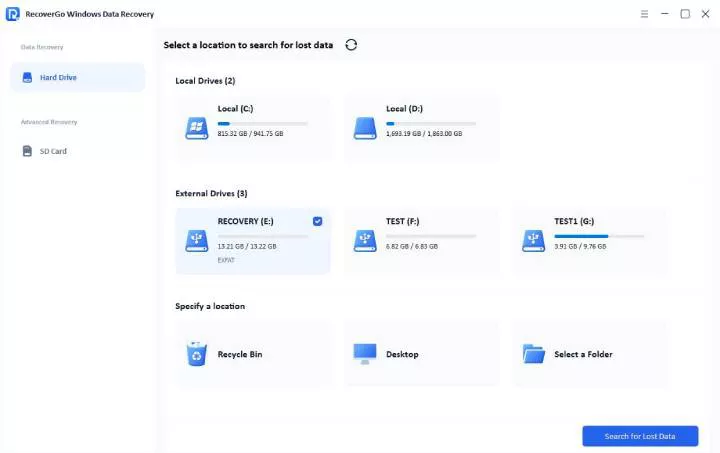
Step 2 Start the scan. Quick Scan, Deep Scan, or Advanced Scan help improve the recovery rate.

Step 3 After the scan is complete, you can select the desired files or folders, click “Preview” and then choose “Recover” to restore them.

Method 3: Ask Professional Help
If the hard drive has physical damage, then just using data recovery software won’t be enough. The issues like clicking noise, burn marks, and water damage mean internal components have failed.
In such cases, it is best to avoid DIY fixes as they can worsen the damage and lower the recovery chances. The best way to fix it is to get the help of a reliable data recovery service.
Some of the popular data recovery services you can try are given below:
- Ontrack
- SalvageData
- DriveSavers
- Seagate In-Lab Recovery
All of these service providers can handle the HDD data recovery even if it has failed or is completely dead. However, the recovery rate will depend on individual cases. Also, keep in mind that professional recovery services can be very expensive!
Practical Tips to Prevent Future Hard Drive Dead
As they say, prevention is better than cure, and the same is true for an HDD! So, here’s a list of some tips to avoid any future issues with the hard disk:
Avoid Overheating
Excessive heat is the biggest enemy of an HDD and can shorten its lifespan. Ensure proper ventilation and clean the dust regularly to keep the HDD temperature normal.
Handle Drives Carefully
As the HDDs have a lot of moving parts, it is more prone to damage. So, make sure to handle drives carefully, as physical shocks or drops can damage the internal parts.
Use a Stable Power Supply
Power surges or sudden outages can also harm the computer and the HDD inside it. You must use a surge protector and a UPS to maintain a stable power supply.
Run Regular Disk Checks
Make it a habit to run periodic scans through the CHKDSK utility. This is enough to detect any bad sectors early, so you can fix them before they lead to failure.
FAQs About Recovering Data from Dead Hard Drive
How much is it to recover data from a dead hard drive?
It depends on the type of damage and the condition of the HDD. For logical issues, you can use data recovery software, which costs $30 – $100.
But if the HDD has physical damage, then you will need to consult a professional recovery service. The charges for these services are $100 – $1000+ and depend on the condition of the HDD.
Can I recover data from a hard drive that is not detected?
Yes, it is possible to recover data in such cases. The hard drive may not be detected by Windows because of:
- File system errors
- Connection issues
- Minor corruption
A good recovery software like RecoverGo can be a good option in cases like this. But if it is not detected even in the BIOS, then it could mean hardware failure. In this case, you will have to get help from professional data recovery services.
Wrap Up
It can feel frustrating to deal with a dead or damaged hard drive. But it does not mean your data is gone forever. In fact, you can still recover the data in most cases. The only key thing required on your part is to act quickly and choose the right method.
If you want a safe option with a high recovery rate, choose a reliable tool like iToolab RecoverGo Windows Data Recovery. It is designed to deal with complex data loss scenarios. It also offers a simple and guided recovery process. So, both beginners and experienced users can use it to recover their files without risking further damage.