

Imagine plugging in your flash drive, only to realize your vital files are inaccessible. A sudden hardware failure or accidental drop can instantly make important files inaccessible. The good news? Data recovery is possible in many cases.
In this complete guide, we will walk you through proven methods to recover data from broken USB stick. By the end, you’ll know exactly which approach fits your situation.
Part 1: What to Do Before Recovering Data from Broken USB Stick?
Before you attempt to recover data from a broken USB stick, a few precautions matter greatly. These simple points below protect your files and maximize your success rate:
Tip 1: Stop Writing New Data
Avoid saving new files to the damaged drive immediately. Every write operation can overwrite recoverable data and reduce recovery chances.
Tip 2: Skip Formatting
Windows may prompt you to format the drive when it detects damage. You should always dismiss that message without clicking Format to protect files.
Tip 3: Avoid Repair Tools
Do not run repair utilities before recovering your data. Repairs may strain the drive and result in further data loss. Focus on data recovery first.
Tip 4: Check the Connection
Try connecting the USB drive to a different port. A faulty port is sometimes the actual reason the drive appears broken.
Tip 5: Avoid Heat
Keep the damaged USB drive away from direct sunlight and warm surfaces. Excessive heat can cause permanent data loss and further damage internal components.
Part 2: Can You Recover Data from Broken USB Stick?
Yes, you can retrieve data from a broken flash drive under many circumstances. Success depends on what type of damage your device sustained.
External storage caused 23% of data loss events in a 2026 consumer survey by Amagicsoft. Thus, understanding these distinct failure scenarios will determine your next exact recovery step:
Scenario A: Logical Damage
Logical damage means your USB drive is physically intact but internally corrupted. The file system becomes unreadable, making stored data invisible to Windows. Nevertheless, USB drive data recovery is quite possible in this scenario through software. Here is a quick breakdown of common symptoms, causes, and recovery possibilities:
Scenario B: Physical Damage
Unlike logical corruption, physical damage involves defects in the USB drive’s hardware. Thus, the table below covers a few causes and recovery possibilities for physical damage:
Part 3: How to Recover Data from Broken USB Stick?
The following methods explain how to recover data from both logically and physically damaged USB drives:
- Method 1: Recover Data from a Logically Broken USB Stick🔥
- Method 2: Recover Data from a Physically Broken USB Stick
Method 1: Recover Data from a Logically Broken USB Stick🔥
When your USB drive suffers logical damage, your files are still physically present. Standard Windows tools cannot read corrupt file systems or locate hidden data sectors.
iToolab RecoverGo Windows Data Recovery is a reliable solution for broken USB flash drive data recovery. It delivers a 99% success rate consistently.
Instead of relying on damaged system paths, RecoverGo directly reads the drive’s raw data sectors. This deep-level scanning locates files that Windows can no longer access.
Key Features:
- Wide device support: Recovers data from 2,000+ storage devices, including USB drives from brands like SanDisk and Kingston, supporting USB 2.0, USB 3.0, USB 3.2, and USB-C connections.
- 1,000+ file types: Supports photos, videos, documents, emails, and archives.
- Deep scanning: Bypasses corrupted file systems to read raw data sectors.
- Free preview: Free scan and file preview available.
Guide to Recover Data from a Logically Broken USB Stick via RecoverGo:
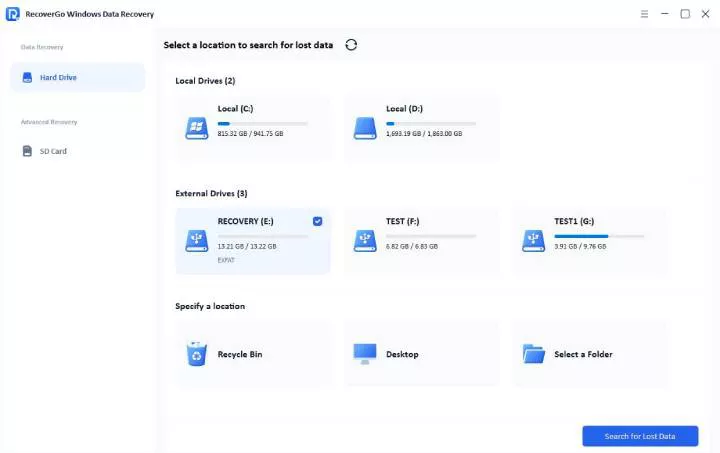
Step 1 Connect your USB drive to the computer. Then select your USB drive from the RecoverGo list and click “Search for lost data” to start the scan.
Step 2 The software starts scanning until it is finished. If you remember the file name, you can also search by file filter.

Step 3 Preview the found files to confirm they are intact. Then select the files you need and click “Recover.”

Method 2: Recover Data from a Physically Broken USB Stick
Physical damage means the USB drive has suffered structural harm. Bent connectors or burnt circuits make broken USB flash drive data recovery far more complex.
In these cases, professional data recovery services are your only reliable option. Certified technicians have specialized cleanrooms and laboratory equipment to extract data. They manually reconstruct damaged circuits to access internal memory chips.
Common Professional Data Recovery Services:
- DriveSavers: Known for high success rates and fast turnaround.
- Ontrack: Global provider with enterprise-level capabilities.
- Gillware: Affordable option for consumer recovery.
- Secure Data Recovery: Certified secure handling.
- SalvageData: Specialized in flash memory recovery.
Note:
Professional data recovery services typically cost hundred to several thousand dollars depending on damage severity. Most offer free evaluations and only charge if they successfully recover your data.
Part 4: How to Prevent Data Loss in the Future?
Prevention is as important as recovery. These habits will protect your data before damage occurs:
Back Up Data Regularly
Schedule automatic backups to cloud storage. A recent backup means losing a drive never results in permanent data loss. Use services like Google Drive, OneDrive, or Dropbox for automatic syncing.
Eject Safely
Always use “Safely Remove Hardware” before unplugging your USB drive. Abrupt removal corrupts file systems and destroys stored data. Wait for the confirmation message before physically removing the drive.
Limit Heat Exposure
Never leave your USB drive in hot areas or direct sunlight. Extreme temperatures degrade memory chips quickly. Avoid leaving drives in hot cars or near heat sources.
Scan for Viruses
Run antivirus scans on your USB drive after connecting to public computers. Malware can corrupt every file on your drive. Use Windows Defender or a reputable third-party antivirus.
Use Quality Drives
Invest in reputable, branded USB drives from trusted manufacturers. Cheap drives often misreport storage capacity and corrupt files.
Summary
A broken USB stick doesn’t always mean your files are gone forever. This guide covered every approach for broken flash drive data recovery.
Logical damage gives you a strong chance of retrieving your files. Use software like iToolab RecoverGo Windows Data Recovery for 99% recovery rate.
Physical damage requires professional intervention to avoid further data loss. Certified technicians can reconstruct damaged circuits and extract data from severely damaged drives.