

Have you ever experienced that moment when you insert your SD card into your computer and realize your photos, documents, or project files are missing? This usually happens due to accidental deletion or when the SD card becomes empty or unreadable. In most cases, it is still possible to recover files from SD card if you act quickly.
In this guide, you will learn step-by-step methods to recover files from SD card using Windows built-in tools, cloud backups, and professional recovery software.
Part 1: Is It Possible to Recover Files from an SD Card?
Yes, it is usually possible to recover files from SD card. When files are deleted or the card is formatted, the data is not immediately erased.
Until new files overwrite it, the original data still exists on the storage devices. This is why SD card data recovery tools can scan the card and rebuild lost files effectively.
Part 2: Pre-Recovery Steps to Recover Deleted Files from SD Card
Before you try to recover files from SD card, there are two important rules you must follow to avoid permanent data loss.
Stop Using the Card Immediately
If you immediately discover that you have lost some data, unplug the SD card or take it out of the device. Any other activity, such as storing photos, downloading files, or even browsing, can overwrite your deleted information, so it cannot be recovered.
Do Not Format the Card
When your computer requests you to format the card, make sure to click on Cancel. Formatting can also reduce the chances of recovering lost files from the SD card.
Part 3: Is There Any SD Card Data Recovery Online Free?
Free online data recovery of SD cards is not readily available and reliable. Recovery of data is only possible through in-depth access to the hardware of your storage device, which web browsers cannot offer in a secure way.
Free online software can be quite dangerous, as it may result in:
- Loss of data
- Malware infections
- Partial or incomplete restoration
For a safe and complete recovery, use reliable software installed on your PC.
Part 4: How to Recover Deleted Files from an SD Card without Software?
It is possible to restore deleted files on an SD card without software, if you have a backup.
- Method 1: Restore from File History
- Method 2: Restore from Cloud Backup
- Method 3: Retrieve Files from an SD Card by Using CMD
Method 1: Restore from File History
If you enable Windows’ SD card backup feature, the Windows Backup and Restore tool can help you restore the most recent SD card backup.
Here are the steps:
- Open Control Panel → System and Security → File History.
- Select the “Restore Personal Files” option.
- Find a recent SD card backup to restore.
- Click “Next” to check it.

Method 2: Restore from Cloud Backup
If you enable cloud drive backup options, such as OneDrive or Google Drive, you can check if the deleted files from your SD card are still stored on the cloud drive’s most recent backup.
Follow the steps below in OneDrive:
- Right-click OneDrive in the taskbar.
- Click on “My files” from the sidebar on the left.
- Select the files you want, then download them.

Recover SD card files from Google Drive:
- Visit drive.google.com in your browser.
- Check “My Drive” or search for the file by name.
- Right-click the file you need and download it.

Method 3: Retrieve Files from an SD Card by Using CMD
If your SD card becomes corrupted and causes data loss or missing files, you can try using the CHKDSK command to repair file system errors and potentially recover accessible data. CHKDSK is a built-in Windows utility designed to scan storage devices and fix logical issues.
How to Use CMD:
- Insert the SD card into your computer using a card reader.
- Press Win + R to open the Run dialog box.
- Type “cmd” and press Enter to open Command Prompt.
- In the Command Prompt window, enter the following command and press Enter: CHKDSK D: /f (Make sure to replace “D” with the correct drive letter of your SD card).
- Wait for the process to complete. CHKDSK will scan the SD card, fix file system errors, and attempt to recover readable data.

Part 5: How to Recover Deleted Files from an SD Card with Software?
When built-in methods or backups are not available, using professional software is the most effective way to recover files from SD card. iToolab RecoverGo Windows Data Recovery is designed for users who need a simple but powerful recovery solution without technical skills.
The software provides a clean interface and guides you through the entire recovery process in just a few clicks.
Why choose iToolab RecoverGo?
- High success rates: Helps recover files from SD card with up to 99.7% success in common data loss scenarios.
- Three scan modes: RecoverGo can perform a quick scan, deep scan and advanced scan to locate lost files that basic methods cannot detect.
- Wide compatibility with file types: It supports 1000+ file types, such as photos, videos, audio, documents, and more.
- Wide brands support: Works with a wide range of SD card brands, including SanDisk, Samsung, Kingston, Lexar, Sony, and more.
How to use RecoverGo Windows Data Recovery to restore files from an SD card:
Step 1 Download and launch iToolab RecoverGo on your computer. Connect the SD card with a card reader. You can choose the SD card drive in the list, and then click on “Search for Lost Data” button.

Step 2 The program will intensively scan the card. The Filter feature allows you to find a certain type of files.
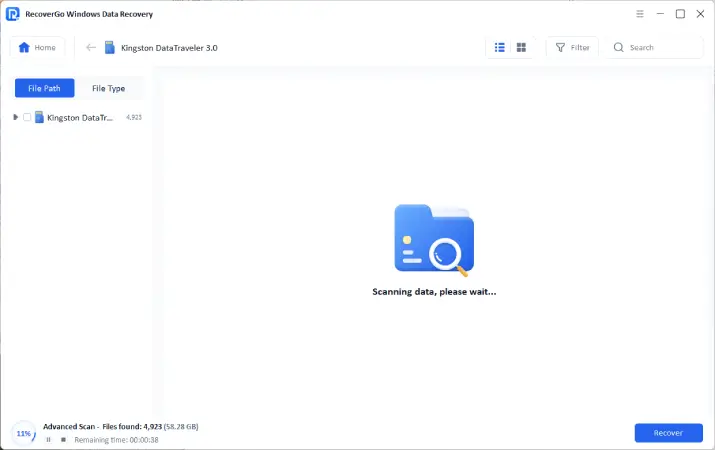
Step 3 Preview the found files and press Recover. Select a secure place to save on your computer or any other drive — not on the original SD card.

Conclusion
Losing files from an SD card can be stressful, but in most cases, recovery is still possible if you act quickly.
For the best results, professional software like iToolab RecoverGo Windows Data Recovery is recommended. It offers a simple workflow, and high success rates to help you recover files from SD card safely and effectively. Download iToolab RecoverGo now, you can restore all your precious memories and valuable files in your SD card.