

I permanently deleted a Notepad (.txt) file containing important meeting notes. It was an accident, as I thought I was deleting a totally different file. Is there a way to recover Notepad file?
— From Reddit Community
Notepad is a simple but highly convenient application. It is basically used for everything, from meeting notes to to-do lists to blog drafts and so on. It is so easy to open and use that many people also forget to save their work or accidentally delete .txt files.
So, it is common for people to wonder how to recover a lost/deleted Notepad file. The good news is that recovery of text files is possible. In this guide, we will cover how to easily recover unsaved, deleted and overwritten Notepad files.
Part 1: Can You Recover a Notepad File?
Yes. It is possible to recover notepad file. But the exact recovery method depends on how the Notepad file was lost. In general, recovering a saved .txt file is easy. Meanwhile, recovering an unsaved text is difficult because it only exists in Notepad’s temporary session data.
Let’s look at different scenarios and relevant recovery options:
- If you closed Notepad without saving: Newer versions of Notepad on Windows 11 automatically restore unsaved content and previous tabs. Therefore, you might see the text again when you start the app. But Windows 10 and older versions of Notepad don’t offer this feature to recover unsaved Notepad file. Also, this feature relies on session restoration. So, it may not work all the time.
- If you deleted a saved .txt file: You can recover the text file via the Recycle Bin, backup, Windows File Recovery, or data recovery software.
- If a Notepad file was overwritten: You can’t use standard file recovery tools in this case. Why? Because the old content is replaced with new data. The best options in this scenario are File History, Previous Versions, or OneDrive version History.
Part 2: How to Recover Unsaved Notepad Files?
Getting back an unsaved .txt file after you closed the program is quite challenging. The content in an unsaved text file only exists in temporary memory. It will not be saved on the storage device unless the text file is saved.
However, the OS offers a few options to get back the unsaved text. Let’s explore how you can recover a text file that was never saved:
- Method 1: Reopen Notepad and Check Restored Tabs on Windows 11
- Method 2: Check the Temp Folder for Unsaved Notepad Files
Method 1: Reopen Notepad and Check Restored Tabs on Windows 11
One of the most useful and helpful features of Windows 11 Notepad is session restore or session recovery. There is no such option in Windows 10 Notepad or earlier versions.
Session restore is turned on by default in the Notepad app. This feature makes it possible to reopen tabs that were unsaved. Let’s look at how you can get back unsaved Notepad files:
- Open Notepad.
- The app will check the last session. Any unsaved text will be opened automatically.
![Restore unsaved Notepad tabs on Windows]()

Still can’t find the text file? Then there’s a chance that the session restore was not enabled. You can enable it by opening Notepad > Settings. From there, look at the “When Notepad starts” option. From this, make sure the box against “Continue previous session” is checked. Once enabled, you will be able to restore unsaved text in the future.
This option is not the same as saving the file. It only recovers the text based on session memory.
Best for: Users who closed Notepad without saving on newer versions of Windows 11.
Method 2: Check the Temp Folder for Unsaved Notepad Files
The OS and other applications often leave temporary files in the Temp folder. So, there’s a chance that your unsaved text might be in the Temp folder.
These are the steps to recover notepad file via the Temp folder:
- Press Win + R. Type %temp% and then press Enter.
![Open Temp folder from Run command]()
- The Temp folder will open. You will see a lot of temporary files.
- You need to search for files with the .tmp extension. You can also sort the files by date. The idea is to find files that were created around the same time when you lost the text file.
![Search temporary files for Notepad text]()
- Open the file with Notepad.


You will have to look through multiple .tmp files to find the lost text. And the success rate of this method is very low!
Best for: Crashes, older Notepad versions, or cases where session restore does not work.
Part 3: How to Recover Deleted Notepad Files?
The recovery chances of a deleted text file are quite high. You can use one or multiple methods to recover the text.
You should start with the first method. And then work your way to the next one. Since every situation is different, we have included all the possible methods to recover notepad file:
You can use these methods if saved .txt files were deleted, moved, or removed from the original folder.
- Method 1: Press Ctrl + Z to Undo a Recent Delete
- Method 2: Restore the Notepad File from Recycle Bin
Method 1: Press Ctrl + Z to Undo a Recent Delete
The text file was deleted recently, and you haven’t done any action after it? Then, you can undo the deletion. The “Undo” option in Windows works for a lot of things. It can also be used to undo any recent delete action.
How to recover a deleted Notepad file via Undo (step-by-step):
- Open the folder from which the text file was deleted.
- Press Ctrl + Z. Or right-click anywhere on the empty space. Select Undo delete option.
![Undo deleted Notepad file from folder]()

If you copied, moved, or deleted another file, then this option won’t work for you. Also, this option won’t work if you restarted the system.
Best for: Files deleted, moved, or renamed just moments ago.
Method 2: Restore the Notepad File from Recycle Bin
A deleted file is first sent to the Recycle Bin on Windows OS. However, this option doesn’t work if files are permanently deleted ( Shift + Delete ). So, if the Notepad file was deleted normally, the chances of recovery are very high!
You can get back your file by doing the following:
- Open Recycle Bin from the desktop.
- Look for your deleted text file. If there are a lot of files, then it will be like finding a needle in a haystack. In that case, you can also use the search bar.
- Right-click on the file and choose Restore.
![Restore Notepad file from Recycle Bin]()

Recycle Bin is the easiest recovery option. But, it doesn’t work for permanently deleted files. So, if you are wondering how to recover a lost notepad file easily, start with Recycle Bin.
Best for: Situations where the .txt files are deleted normally.
Part 4: How to Recover Deleted Notepad File Not in Recycle Bin?
The Notepad file is not in the Recycle Bin? This means two things: The Recycle Bin was cleared, or the files were deleted permanently. The best solution in such cases is a data recovery tool.
A data recovery tool can scan the drive for deleted files even if Windows doesn’t show them. As long as the deleted .txt documents are not overwritten, you can get them back via a data recovery tool.
There are a lot of data recovery applications on the market. But we highly recommend iToolab RecoverGo Windows Data Recovery. It features a user-friendly interface and advanced recovery technology designed to maximize the chances of recovering deleted Notepad files.
- Works with HDD, SSD, USB, and SD card and more.
- Find lost .txt documents quickly with advanced scanning and filtering options.
- Protect your data during recovery with a read-only recovery process.
- Recover files deleted permanently even after emptying the Recycle Bin up to 99.7% recovery rate
Let’s look at how you can use RecoverGo on Windows 10/11:
- Launch iToolab RecoverGo on your system. From the main screen, select the location where the .txt file was deleted and click on “Search for lost data“.
![Select deleted Notepad file location in RecoverGo]()
- Wait for the scan to complete. After that, click on Filter and select Document under File Type.
![Filter recovered Notepad documents in RecoverGo]()
- Select the text files you want to restore. Click on Recover.
![recovergo video main.]()

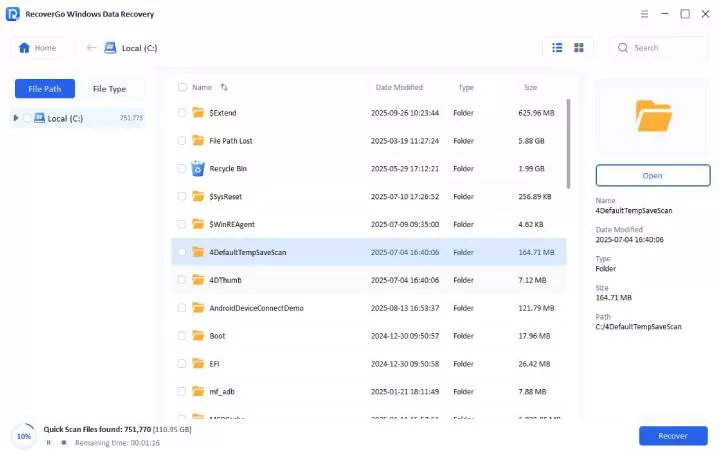

Best for: Emptied Recycle Bin, Shift + Delete, formatted drive, lost partition, or no backup.
Part 5: How to Recover an Overwritten or Previous Version of a Notepad File?
Overwriting a Notepad file is different from deleting it. Saving new content to an existing .txt file replaces the original version. In such cases, you can’t rely on the standard recovery methods.
The best option in such cases is to get an earlier version from backup or version history. Let’s look at both of these methods to recover a Notepad file that’s overwritten:
Method 1: Restore Previous Versions
Windows offers a backup option called File History. It can be used to restore earlier versions of files. But it only works if it was set up before data loss.
File History automatically saves different copies of your files at regular intervals. So, you can still recover an older copy, even if the text file was overwritten.
These are the instructions to recover notepad file via >File History:
- Open Control Panel. Click on System and Security.
- Under the File History option, click on Restore your files with File History.
- Use the arrows to select an older version of the text file.
![Restore Notepad file with File History]()
- Click on the green button to recover the file. The files will be automatically restored in the original folder.

Best for: Users who saved over a Notepad file or deleted it after File History was enabled.
Method 2: Check OneDrive Backup
OneDrive is deeply integrated into Windows 10 and 11. So, it is quite common for people to use OneDrive for syncing data to the cloud.
If you also use OneDrive, then you can download an old copy from the cloud service. This method is ideal if the text file is overwritten on the local system.
Follow these steps to recover notepad file via OneDrive:
- Login to OneDrive. Click on My files.
- Find the text file. Right-click on it and choose Version history.
- Review all the available versions of the text file. You need to choose the one that was created before the file was overwritten.
- Select a previous version and then choose Restore.

Best for: Notepad files saved in OneDrive-synced folders such as Desktop or Documents.
Part 6: What to Do After Recovering a Notepad File?
Once you have gotten your text file back, take these measures to avoid losing it again:
- Save the text files: You shouldn’t leave unsaved text in the Notepad file. So, make a habit of periodically saving the text file as you write stuff. Remember that unsaved Notepad tabs aren’t a substitute for saving your work.
- Back up the .txt files regularly: You should keep a backup on another drive and a cloud storage service.
- Enable File History or OneDrive: You should enable the File History feature on Windows 10/11. It is also a good idea to use OneDrive for online backups.
- Save the recovered file to a reliable location: After recovering the .txt file, make sure to save it in a reliable folder.
- Don’t rely on unsaved Notepad tabs: Windows 11’s session restore is helpful for sure. But it isn’t a substitute for saving your work. So, always save your text files.
- Use clear filenames and organized folders: This little tip makes it easy to find your important notes.
FAQs About Notepad File Recovery
Does Notepad autosave files?
No. There’s no autosave feature in the Notepad app on Windows 10. The Notepad on Windows 11 does offer session restore. This feature relies on session data to bring back unsaved work. But it is not the same thing as saving the .txt file. If the session data is lost due to an unexpected shutdown or another reason, the unsaved text will be unrecoverable.
Can I recover an unsaved Notepad file after restart?
Yes. It is possible to recover the unsaved text. There’s a chance that Notepad may restore your previous session after a restart (only possible in Windows 11).
But there’s no session restore feature in the older Notepad versions. So, the only place to check for an unsaved Notepad file on Windows 10 is the Temp folder. However, the chances of recovery are very low.
Where are unsaved Notepad files stored?
Windows 11 preserves unsaved Notepad files in the session state. You may also find the text file in the Temp folder. But there’s no guaranteed location, and there’s a chance you may not get back your unsaved text files.
Conclusion
This guide covers different ways to recover Notepad files. If the text file is deleted normally, you can check the Recycle Bin. If it was deleted permanently, you can use RecoverGo or online backup.
Overwritten text files can be recovered via File History or OneDrive’s version history. Unsaved text files can be recovered by checking the Temp folder. Windows 11 Notepad also offers the session restore feature. So, you can also try opening Notepad again to see if the app restores your session.
For permanently deleted text files, we highly recommend iToolab RecoverGo Windows Data Recovery. It is easy to use and has a recovery rate of 99.7%. You can easily use it to recover text or any other file with 3 simple steps (scan -> preview -> recover).