

Accidentally losing important videos on the PC can be incredibly stressful, whether they’re family memories or project work. In this case, video recovery software saves the day, but choosing between free and paid options is a task for most users. To make it seamless, this ultimate guide explains some free and paid options, guiding you to the best video recovery options in 2026.

Part 1: Free vs. Paid Video Recovery Software – Which One Do You Need?
When looking for the best video recovery software for PC, if you are confused between free and paid options, this table can help make the right choice:
Is There Any Free Video and Photo Recovery Software?
If you decide to use the free video recovery software for Windows 10, you’ll find plenty of options available. Tools like R-Photo and PhotoRec allow unlimited recovery of videos and photos, making them a practical choice for basic data recovery needs.
Part 2: Top 5 Free Video Recovery Software
To choose the free video recovery software for PC, here are 5 options given below:
PhotoRec

This is a free, open-source data recovery solution. It recovers videos and other lost data from CD-ROMs, memory cards, or USB memory drives. The tool retrieves 480 file extensions across 300+ file families. It scans for file headers to locate the data, making it a useful choice for recovering highly corrupted videos.
Pros
- Runs on Windows, macOS, and Linux.
- Automatically detects connected storage devices.
Cons
- Can’t recover fragmented or non-contiguous videos.
R-Photo

R-Photo is designed for recovering deleted videos on a PC. This software from R-TT can retrieve videos from formatted, damaged, or corrupted storage devices, such as SD cards and hard drives.
Pros
- Supports FAT12, FAT16, FAT32, exFAT, NTFS.
- Capable of recovering compressed or encrypted files.
Cons
- Outdated interface with limited recovery options.
Windows File Recovery

It’s a command-line tool from Microsoft that can recover video files from NTFS, FAT, exFAT. Furthermore, it includes an Extensive mode for recovering fragmented videos by scanning for file headers to locate and restore them.
Pros
- Advanced NTFS recovery uses file record segments to recover videos.
- Recover from formatted SD cards, USB flash drives, and external hard drives.
Cons
- Lack of a graphical interface (GUI) and has complex syntax.
Recuva
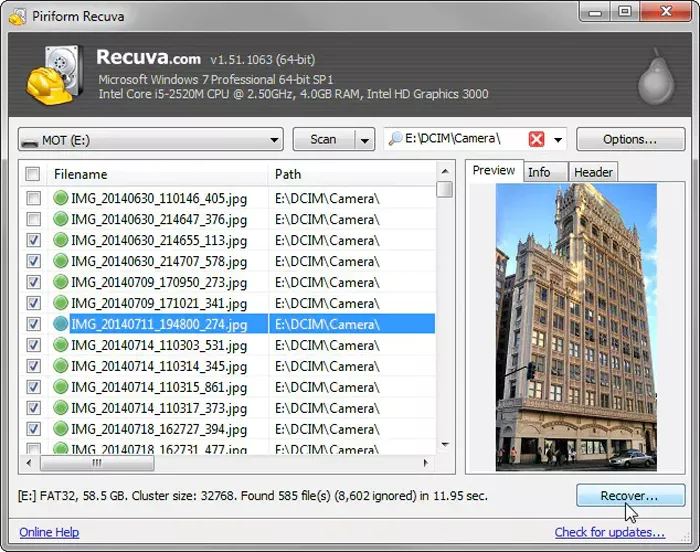
As a video recovery software for PC, this intuitive tool can recover video files in multiple formats, such as MP4, MOV, AVI, etc. It features quick and deep scan options that search every cluster of the drive to find video file headers.
Pros
- Retrieves video from SD cards, memory cards, and external USB flash drives.
- Can scan damaged, corrupted, or newly formatted partitions.
Cons
- Cannot recover from RAW, severely corrupted, or damaged drives.
TestDisk

Unlike other free options, it can recover recently deleted videos directly from FAT, exFAT, and NTFS file systems by utilizing the existing file system metadata. As an open-source tool, it is compatible with ext2/3/4, HFS+ and APFS, and requires no installation.
Pros
- Has no file-size limits to recover video files from a PC.
- GPL v2 plus allows auditing the code for safety and privacy.
Cons
- TestDisk fails if the file system metadata is missing or formatted.
Part 3: Top 5 Paid Video Recovery Software for PC
If free video recovery tools are not sufficient for complex cases, try the 5 mentioned paid software:
- iToolab RecoverGo Windows Data Recovery🔥
- Disk Drill
- EaseUS Data Recovery Wizard
- Stellar Data Recovery
- R-Studio
iToolab RecoverGo Windows Data Recovery – Top Pick🔥
This video recovery tool can easily recover video data from hard drives, SD cards, USB flash drives, and more. It supports various formats, like AVI, MOV, MP4, M4V, 3GP, 3G2, WMV, MKV, ASF, FLV, SWF, MPG, RM/RMVB, MPEG, etc. Additionally, it allows you to filter the types of videos you want to recover after the recovery process completed.
Users can pause and resume the recovery process, which can improve the efficiency. The tool also simplifies video recovery into 3 easy steps, making it accessible even for beginners.
Key Features
- Three scanning modes, including a quick scan, deep scan and advanced scan, to retrieve more lost or permanently deleted videos easily.
- Designed to handle complex data loss scenarios with a 99% high success rate.
- Support common data loss situations, such as accidental deletion, emptied recycle bin, physical damage, virus or malware attacks, formatted hard drive.
- Supports all Windows operating systems, including Windows 11, 10, 8, and 7.
Guide to Recover Videos Using iToolab RecoverGo Windows Data Recovery
Rather than using any free full-version video recovery tool, here’s how this tool works in practice:
Step 1 Select a Location: You can choose the location from which you want to recover videos, then click the “Search for Lost Data” button.

Step 2 Scan Your Device: Start the scan to locate deleted or lost videos. Use quick scan, deep scan, or advanced scan to improve recovery results.
Step 3 Recover Your Video: Once the scan is completed, you can easily locate the deleted data via file path or file type. And then click the “Recover” button to restore it.

Disk Drill

This is another video recovery software that uses specialized algorithms to reconstruct fragmented files, supporting 363+ file types. Furthermore, it can scan the storage devices at a low level to locate videos that you can preview later.
Pros
- Works on SD/CF cards, USB flash drives, hard drives, and SSDs.
- Sector-level backups prevent original data damage during secure file recovery.
Cons
- The Pro version is relatively expensive compared to competitors.
EaseUS Data Recovery Wizard

It can also recover deleted, formatted, or corrupted videos in formats like MP4 and MOV from various storage devices. Additionally, the tool features deep-scanning algorithms that can retrieve lost videos in batches, with a 99.7% success rate.
Pros
- Quick Scan and Deep Scan to locate fragmented video files.
- Works on SD cards, USB drives, cameras, and internal/external hard drives.
Cons
- The free version is limited to only 2GB.
Stellar Data Recovery

As paid video recovery software for PC, this tool supports recovery of MP4, MOV, AVI, and MKV files from formatted, corrupted, or deleted drives. In addition, it includes BitLocker encryption support and a pre-recovery video preview to retrieve videos after sector-by-sector scanning.
Pros
- Checks S.M.A.R.T. attributes for drive health, preventing further loss.
- Allows pausing a long scan and resuming later.
Cons
- Deep scans can be time-consuming in most cases.
R-Studio

This tool supports advanced signature-based search, mainly for recovering RAW video files, even when file system metadata is destroyed. Not just that, the tool features an intuitive interface that lets you explore the “Recognized” or “Extra Found Files” folders to find your video files.
Pros
- Double-click a video file to preview it.
- Create an exact disk image of the media to limit further loss.
Cons
- The demo mode is heavily restricted.
Part 4: How to Choose the Best Video Recovery Software?
To know how you can pick the best video recovery software for PC, make sure you locate the mentioned factors:
- Recovery Capabilities: Choose a tool that can easily retrieve videos from corrupted, formatted, or completely deleted storage partitions.
- Ease of Use: Seek a tool that has an intuitive interface with simple, guided steps.
- Supported File Types: Ensure the tool recognizes common video formats such as MP4, MOV, AVI, and MKV.
- Storage Device Support: Choose a program compatible with SD cards, USB flash drives, and external hard drives.
- Operating System Support: Check if the software runs natively on your specific version of Windows.
- Computer Brand: The software should work seamlessly on all Windows PCs, including Dell, HP, and Lenovo.
Part 5: What Is the Best Video Recovery Software for PC?
Of all the options, select the foremost video recovery software via the table mentioned ahead:
Pro Tips: How to Increase Your Video Recovery Success Rate
As you decide to recover deleted videos from PC, free or paid, make sure you follow the given expert tips:
- Disconnect the storage device immediately to prevent new data from being written to it.
- Do not install any recovery software or save new files onto the affected drive.
- Perform the recovery process as soon as possible before the data becomes permanently corrupted.
- Always save your recovered videos to a different drive or a separate USB stick.
Conclusion
Summing up, if you are looking for the best video recovery software, this guide has compared 10 free and paid options. Among all the options, iToolab RecoverGo Windows Data Recovery is the ideal choice for its 3-step process and a claimed 99% success rate.