

Did you lose important data from your SSD? It can happen to anyone. Data loss may be caused by accidental deletion, formatting, a corrupted drive, a system crash, or many other reasons. The good news is that the right SSD data recovery software can help you get important files back.
A quick look at the market shows that there are many SSD recovery tools available. The number of options can be confusing, especially when every tool claims to be the best. To make the decision easier, we tested and ranked the best software you can use to recover data from an SSD in 2026.
Part 1: How to Choose the Best SSD Data Recovery Software?
There are many SSD data recovery tools on the market, but they are not all equally effective. Before choosing one, consider the following factors.
Usability
A good data recovery tool should be easy to use. Look for software with a clean interface and a straightforward recovery process.
If a program is so complicated that only an expert can understand it, most everyday users should skip it.
The interface should be clean, and the recovery process should be straightforward. Ideally, users should be able to start a scan in just a few clicks without navigating complex menus.
Recovery Capabilities
Another important factor is overall recovery performance. A good tool should support common file systems and a wide range of file types.
It should also support different data loss scenarios, including accidental deletion, formatting, virus attacks, and partition issues. The recovery performance should stay consistent in both simple and advanced situations.
The data recovery tool must also support deep scanning on SSDs. More importantly, the software should be optimized for SSD recovery.
Most modern SSDs use TRIM to improve performance. The downside is that TRIM can make data recovery much more difficult. This is why using a reliable read-only recovery tool is critical.
Price
Price is another key consideration. You will find both free and paid recovery tools in the market.
Most free tools are only suitable for basic recovery tasks. Free versions also usually limit how much data you can recover. Paid data recovery tools often offer higher recovery rates and more advanced features.
Instead of choosing the cheapest tool, consider the value you get for the price. A paid tool that can recover important files may be more worthwhile than a free solution with limited features.
Part 2: Does SSD Data Recovery Software Actually Work?
A common misconception is that data recovery from SSDs is impossible. In reality, data recovery from both internal and external SSDs is possible in many cases.
One of the main factors that affects SSD recovery is the TRIM feature. Once a file is deleted, the operating system sends a TRIM command to the SSD. The SSD then marks those memory cells as free. This allows the drive to write new data to those cells quickly. TRIM helps prevent SSD slowdowns and can extend the drive’s lifespan.
In theory, TRIM is useful. For data recovery, it can be a problem because deleted data may be overwritten. Once data is overwritten, it becomes almost impossible to recover.
However, TRIM behavior is not always immediate or consistent. In some cases, especially with external SSDs or file system errors, deleted data may still remain recoverable for a period of time. This is why acting quickly and using reliable SSD data recovery software is essential.
Tips to Improve the Success Rate of SSD Data Recovery
These simple steps can help improve your recovery rate:
- Act quickly: Do not delay the recovery attempt after data loss.
- Use read-only recovery software: Avoid tools that write new data to the affected SSD during scanning.
- Use another computer if possible: Remove the internal SSD and connect it to another system through USB to reduce write activity.
Part 3: Top 8 SSD Data Recovery Software for Windows (2026 Tested and Compared)
Let’s take a look at the best SSD file recovery software based on our testing.
- 1. iToolab RecoverGo Windows Data Recovery🔥
- 2. DiskGenius
- 3. R-Studio
- 4. DMDE
- 5. UFS Explorer
- 6. Recuva
- 7. Disk Drill
- 8. EaseUS Data Recovery Wizard
1. iToolab RecoverGo Windows Data Recovery🔥
This software tops our list because it combines ease of use with strong SSD recovery performance, especially for Windows users. It is designed to recover lost or deleted data from SSDs, including formatted, corrupted, or inaccessible SSD drives in a few clicks.
iToolab RecoverGo Windows Data Recovery supports all common file types and scans drives at a low level. It also uses a read-only scan mode, which helps prevent overwriting data on the SSD.
Key Features:
- Compatible with most brands: Supports SSDs from major brands, including Samsung, Kingston, Crucial, WD, and more.
- Support most file systems: Such as NTFS, FAT32, exFAT and more.
- 1,000+ file formats: Recover images, videos, audio files, documents, and more.
- Simple recovery workflow: Recover files in just three steps, making it significantly easier than advanced tools like R-Studio or DMDE.
- Fast scan speed: Find recoverable data in just a few minutes in many cases.
- Preview before recovery: Allows users to check files before restoring them, improving accuracy and saving time.
Pros:
- Performs better on SSD recovery scenarios where tools like Recuva or Disk Drill often fail.
- Much easier workflow than professional tools like R-Studio and DMDE.
Cons:
- The scanning speed may vary depending on the size of the SSD drive.
RecoverGo is an all-rounder in terms of performance, usability, and pricing. Our testing showed a recovery rate of 99.7% even in advanced data loss scenarios.
How to Use RecoverGo to Recover SSD Data:
Step 1 Launch the tool and select the SSD drive from which you lost data. After that, click “Search for Lost Data” to start the scan.

Step 2 The tool will begin scanning your SSD, and the scan time depends on the drive size.

Step 3 The program will show a list of recoverable files. Preview the files you need, click “Recover,” and select a safe location to save the restored data.

2. DiskGenius
DiskGenius offers data recovery and disk management under one roof. A key reason why we ranked it in the second spot is that it provides multiple SSD-related utilities.
This SSD data recovery software offers a hex editor, disk imaging, and partition recovery options. These features can help recover data from an SSD. However, the interface looks outdated and is not as friendly as modern data recovery tools.

Pros:
- Built-in hex editor helps verify whether data is still present.
- Offers disk management tools for bad sector repair and partition errors.
- Supports multiple file systems, including FAT32, NTFS, exFAT, and EXT4.
Cons:
- User interface is outdated.
- Difficult to use for beginners.
- Free version only recovers files under 64 KB.
DiskGenius is a feature-rich application with strong recovery performance. However, it has a steep learning curve, and the interface feels outdated. Our tests showed an SSD data recovery rate of around 75% to 80%, depending on the situation.
3. R-Studio
The first look at R-Studio makes it clear that it is built for professionals. It includes many advanced data recovery tools for SSDs and other storage devices.
R-Studio supports different file systems and common file types. Its built-in utilities include a hex editor, disk imaging, volume reconstruction, and a bootable version.

Pros:
- Fast scanning speed.
- Supports RAID recovery.
- Users can set custom file signatures.
Cons:
- Very difficult to use for beginners.
- The free version only recovers files under 256 KB.
- The interface is outdated.
R-Studio is a powerful SSD data recovery tool with advanced features that are not found in many basic tools. However, it has a steep learning curve. In our tests, the average SSD recovery rate was 82%.
4. DMDE
DMDE offers strong recovery results along with many useful features. However, it is not designed for beginners because the overall interface is complicated.
The best part about DMDE is that it uses read-only mode for all scans. This helps ensure that nothing new is written to the SSD during the scan. It also offers a disk cloning tool and a disk editor for inspecting raw sectors.

Pros:
- Offers a portable version.
- The scanning process is very fast.
- Can learn new file signatures.
Cons:
- Outdated user interface and difficult workflow.
- File preview is very limited.
- Does not allow recovery while scanning.
DMDE offers fast scanning and strong recovery rates, making it a solid choice for experienced users. However, it has a steep learning curve. Our tests showed an 80% recovery rate in complex scenarios.
5. UFS Explorer
UFS Explorer offers advanced data recovery and disk management tools. These include disk imaging, a hex editor, parity calculation, RAID recovery, and more.
UFS Explorer also supports encrypted drives, which can be useful if the affected SSD is encrypted. It supports common file types and allows users to add custom file signatures.

Pros:
- Read-only scanning mode.
- Supports all known file systems.
- Hex editor can be used to inspect raw sectors.
Cons:
- The interface is difficult for normal users.
- File preview can be slow sometimes.
- Very expensive compared with other tools.
The interface of UFS Explorer can be overwhelming for everyday users. It provides strong features for SSD data recovery, but it is expensive and most advanced functions are unnecessary for normal users. In our tests, the average recovery rate was around 80%.
6. Recuva
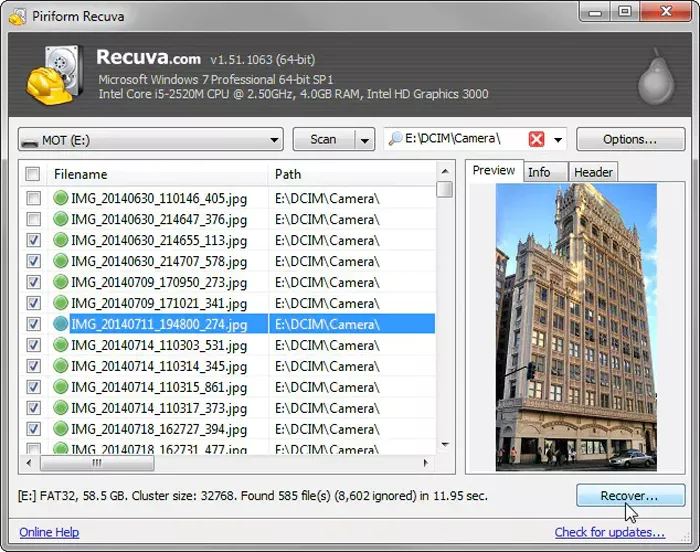
Recuva is a free data recovery software for SSDs, HDDs, and other storage devices. There is no upper cap on how much data you can recover. Its free recovery limit is one of its strongest points, but users should not expect advanced features.
The interface of Recuva is simple. The program offers a wizard that walks users through the recovery process. It also has two scan modes, Quick and Deep, which are common among data recovery tools.
Pros:
- Lightweight and fast.
- Unlimited data recovery.
- Very easy to use.
Cons:
- Low recovery rate in complex scenarios.
- Limited file signature support.
- Does not offer write protection.
Recuva is beginner-friendly, but it is best for simple data loss situations. The recovery rate drops when handling complex SSD data loss. Our tests showed that the average recovery rate of Recuva is around 60%.
7. Disk Drill
Disk Drill is a modern SSD data recovery software. It supports common file systems, including exFAT, NTFS, FAT16/32, and more.
The biggest strength of Disk Drill is that it is easy to use. It is designed for everyday users and offers a simple recovery workflow.

Pros:
- Very easy to use.
- User-friendly interface.
- Supports byte-to-byte backups.
Cons:
- The software takes more than 1 GB of disk space.
- Deep scans take a lot of time.
- The free version only recovers up to 100 MB of data.
Disk Drill is a modern SSD recovery tool with easily accessible features. However, it takes a lot of disk space and may feel slow on some devices. Deep scans can also take more time. Our tests showed a data recovery rate of 82%.
8. EaseUS Data Recovery Wizard
EaseUS Data Recovery Wizard is a popular option for SSD data recovery. The user interface is friendly and requires almost no learning curve.
It supports SSDs, HDDs, USB drives, and other common storage devices. However, the popularity of EaseUS is also connected to the company’s aggressive marketing strategy.

Pros:
- Offers fast scan times.
- User-friendly interface.
- Lightweight and not resource-intensive.
- Free version only recovers up to 2 GB of data.
Cons:
- More expensive than many other data recovery tools.
- In some FAT32 recovery cases, original folder structure may not always be preserved.
EaseUS is easy to use and can handle many data loss scenarios. Its scanning process is fast, but the paid plans are expensive. In our tests, the software achieved an 82% recovery rate.
Part 4: SSD Data Recovery Software Comparison Table
The table below provides you a quick comparison of the 8 SSD recovery tools tested in this guide.
iToolab Special Coupon
20% OFF iToolab coupon code for data recovery tool
Part 5: Which SSD Recovery Software Should You Choose?
If you want the best balance of recovery rate, ease of use, and pricing, RecoverGo Windows Data Recovery is the most practical choice for most Windows users. It offers a simple 3-step workflow and strong SSD recovery performance.
If you are an advanced user or technician, tools like DiskGenius, R-Studio, DMDE, and UFS Explorer offer deeper technical functions. However, they are harder to use and may not be necessary for normal recovery needs.
If you only need a free tool for a simple recovery case, Recuva may be worth trying. For beginners who prefer a modern interface, Disk Drill and EaseUS are also easy to use, but their free versions have recovery limits.
Bonus Tip: How to Prevent Further SSD Data Loss
After recovering your lost data, the next step is to prevent future data loss. You can follow these tips to avoid unexpected SSD problems:
- Back up your important data: Save copies of important files to another drive and cloud storage.
- Use trusted antivirus software: Keep your SSD free from viruses and malware.
- Monitor SSD health regularly: Check the drive’s SMART status to understand its health condition.
- Use a UPS: Avoid unexpected power outages that may corrupt data on the SSD.
Also Read: How to Retrieve Data from SSD Drive on Windows?
Final Verdict
No one wants to experience data loss, but it can still happen. In situations like this, it is best to act quickly and use reliable SSD data recovery software. To help you make the right choice, we ranked and tested the best data recovery software for SSD drives.
For most Windows users, we recommend iToolab RecoverGo Windows Data Recovery. It uses a clean 3-step recovery workflow, so even beginners can recover lost files in minutes. In our testing, it delivered up to a 99.7% recovery success rate across a wide range of data loss situations.
Right now, RecoverGo lifetime license is just $69.99, and you can also enjoy an extra 20% discount for a limited time, making it one of the most affordable professional recovery solutions available today.