

I played a low-spec game on my computer last night for a few hours. This morning I pressed the power button to turn on the computer, but nothing happened. I hear the beep sound and the lights also come on for a few seconds, but the computer won’t turn on. How can I fix the PC? And is it possible to recover data from computer that won’t boot?
— From Reddit Community
Nothing hits harder than pressing the power button and getting nothing. No fans. No lights. Just silence. If that happened this morning, take a breath — you’re not alone, and your data is probably still safe.
In this guide, we will show you easy ways to quickly fix the PC won’t turn on issue. We will also look at how you can recover data from a computer that doesn’t start.
Part 1: Computer Won’t Turn On? Quick Troubleshooting Table
You can use the table below to identify the causes and best solution based on the symptoms:
You can fix a computer that doesn’t turn on in most cases. The exact cause can be a loose cable or a more serious hardware fault.
Part 2: How to Recover Data from a Computer That Won’t Turn On?
A computer that won’t boot does not necessarily mean your files are lost forever. Some repair methods may put your data at risk, so you need to recover important files first. iToolab RecoverGo Windows Data Recovery can recover your data with a 99.7% recovery rate. It can also scan the drive at a low level, allowing it to locate and recover data from the storage device. If you are dealing with startup failure, accidental crash, or system corruption, RecoverGo is a practical solution.
Main Features of iToolab RecoverGo:
- Recover files from PCs that won’t boot: RecoverGo can help recover files due to startup errors, or other boot issues.
- Support 2000+ devices: Recover files from various storage devices, including internal hard drives, SSDs, external drives, USB flash drives, and SD cards.
- Support 1,000+ file types: Restore photos, videos, documents, emails, and other commonly used file formats from different data loss situations.
- Preview before recovery: Preview recoverable files before saving them to make sure you are recovering the right data.
- Beginner-friendly 3-step workflow: Scan your drive, preview found files, and recover your data with just a few clicks.
How To Use:
Step 1 Connect SSD to another computer using a USB enclosure. Install and launch RecoverGo. Then select the affected HDD/SSD from the main screen and click Search for lost data.

Step 2 The tool will scan your drive. If you remember the file name, you can easily locate it by using the file path.
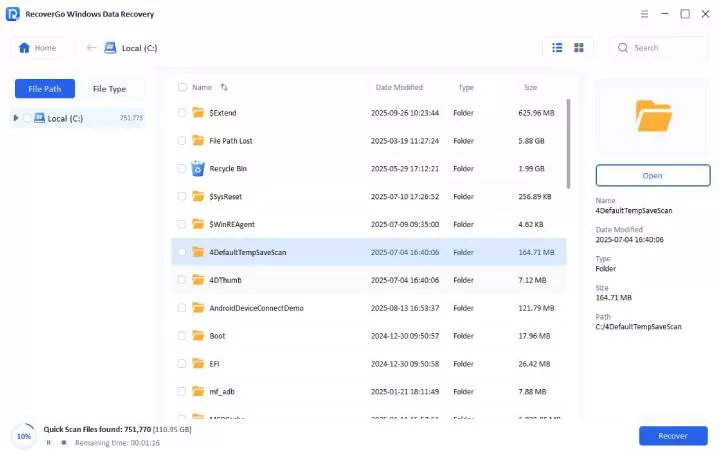
Step 3 You will see a list of recoverable files. Preview the files and click Recover.

Part 3: 13 Ways to Fix Computer Won’t Turn On
Just because a computer won’t turn on doesn’t mean you have to assume the worst. You can fix many startup problems without professional repair.
Start with the simple solutions first. Then move on to more advanced troubleshooting methods until you find something that works.
- Fix 1: Check Power Source
- Fix 2: Check the Power Supply Unit (PSU)
- Fix 3: Disconnect External Drive
- Fix 4: Check Your Monitor
- Fix 5: Troubleshoot the Power Button
- Fix 6: Listen for Beep Codes
- Fix 7: Boot into Safe Mode
- Fix 8: Reset BIOS/UEFI Settings to Default
- Fix 9: Use Startup Repair
- Fix 10: Check for Overheating Issues
- Fix 11: Check Internal Hardware Connections
- Fix 12: Reseat the RAM Module
- Fix 13: Reinstall Windows
Fix 1: Check Power Source
Before replacing hardware or opening the PC case, you can check the power source first.
You can try these steps to rule out power issues:
- Test the wall outlet with a different device. You can plug in a phone charger. Change the wall outlet if a different device also doesn’t work.
- Check the surge protector. Make sure it is turned on and plugged all the way into the outlet.
- Look at the power cable. Make sure it is properly plugged into the power supply. You can also replace it if you have a spare cable.

If the PC is still not turning on, you can move on to checking external drives or display output.
Fix 2: Check the Power Supply Unit (PSU)
If your PC is completely dead — no fans, no lights, nothing — the PSU should be your first suspect. The power supply unit delivers power to all PC components, so even a small failure can stop the PC from turning on.
Let’s look at the PSU. Start here:
- Look at the back of the PC. Make sure the PSU switch is turned on.

- Unplug and reconnect the 24-pin motherboard power cable. This is the main cable that carries power from the PSU to the motherboard.
- If the PC still won’t start, try another PSU.
Fix 3: Disconnect External Drive
A faulty external drive can stop the system from booting properly. If the issue started right after connecting a new external drive, that drive could be the cause. In some cases, an old external drive can also stop working suddenly and cause boot issues.
These are the steps to fix the issue:
- Turn off the PC.
- Unplug external drives, including flash drives, external HDDs, and external SSDs.
- Turn on the PC and check if it starts properly.
Fix 4: Check Your Monitor
Sometimes, the PC power light turns on and the fans spin, but the screen remains black. This can make you think something is wrong with the PC, but the real cause may be the monitor or display connection.
Before assuming a major hardware failure, run through these quick checks:
- Check the power light on your monitor. If it is off, press the power button.
- Make sure the display cable is properly connected.
- Try using a different cable or port.
- Test the monitor with another device.

A faulty monitor or display connection issue is a common reason why your computer won’t turn on visually. If the monitor works fine, try the fixes below.
Fix 5: Troubleshoot the Power Button
A faulty power button can prevent the PC from turning on. This button sends the start signal to the motherboard, so the computer may fail to start if the button is not working properly.
You can try these steps to fix the power button:
- Press the power button several times and check if the PC starts.
- Remove the case and check if the motherboard has a dedicated power button. If it is present, press that button and see if the computer turns on.
- Some cases come with a reset button. You can connect its cables to the power button headers. After making the connection, press the Reset button to start the PC. If this turns on the PC, your power button is faulty.

Fix 6: Listen for Beep Codes
Do you hear a beep sound when you turn on the PC? This sound can tell you a lot about why the PC is not turning on.
These sounds come from the motherboard, and the exact beep pattern can help you find the right solution. Here is how to fix a PC that won’t turn on based on beep codes:
Turn on the PC and listen carefully for the beep pattern. Is it short, continuous, or a combination of both? After identifying the cause, you can replace the defective hardware.
Fix 7: Boot into Safe Mode
Some PCs may freeze on the Windows logo screen and never load into the system. If this happens, you can trigger Windows Recovery Mode manually.
Follow these steps to boot into Safe Mode:
- Turn on the PC and interrupt the startup process. You need to do this 3 times to enter the Windows Recovery Environment.
- Select Troubleshoot > Advanced Options. From there, go into Startup Settings.
- Click Restart.
- Press F4 or 4 to boot into Safe Mode.

You can uninstall recent drivers or undo Windows updates in Safe Mode. If you recently installed software, uninstall it as well.
Fix 8: Reset BIOS/UEFI Settings to Default
The BIOS is the pre-boot environment. It contains the hardware settings for the system. The computer won’t turn on if the BIOS/UEFI settings are incorrect.
Here’s the quick way to reset it to default:
- Turn on the PC and enter the BIOS by pressing F2, F10, or Del.
- Find the reset or default option. This option might be labeled Restore Defaults or Load Setup Defaults.
- Restart the computer.

Fix 9: Use Startup Repair
The Startup Repair feature can troubleshoot many Windows startup issues. If you are wondering why your PC won’t turn on correctly, this feature may help fix it.
Follow these steps to use Startup Repair:
- Turn on the PC and interrupt the startup process. Repeat this a few times to access WinRE.
- Select Troubleshoot > Advanced Options.
- Select Startup Repair. It will automatically fix startup issues on your system.

Fix 10: Check for Overheating Issues
It may sound odd, but excessive heat can make a computer shut down unexpectedly. The PC may refuse to turn back on until it has cooled down.
Dust buildup, failed fans, or issues with the CPU cooler can cause overheating issues. You can check it with these steps:
- Check if the CPU and case fans are spinning properly.
- Inspect the system for excessive dust accumulation. If you see a lot of dust, clean it with compressed air.
- Make sure the CPU cooler is properly attached to the processor.
- Clean the air vents to ensure optimal airflow.
- Let the PC cool down for 15-30 minutes. After that, try to turn it on again.
Fix 11: Check Internal Hardware Connections
Loose internal connections can stop a computer from powering on properly. This is especially common after moving a PC or adding new components.
You can check and fix internal connections with these steps:
- Open the PC case and check all internal cables.
- Make sure the 24-pin motherboard cable is connected properly.
- Check the CPU power connector.
- Verify the GPU and storage devices are connected properly.
- Fix any loose cables and start the PC again.
Fix 12: Reseat the RAM Module
The computer won’t turn on if the RAM is not seated properly. In cases like these, you may see a black screen or hear beep sounds from the motherboard.
Follow these steps to fix this issue:
- Open the PC case and find the RAM slots on the motherboard.
- Remove each RAM stick by pressing the side clips.
- Reinsert the RAM stick firmly until you hear a click sound.
- Try turning on the PC.

If the PC doesn’t turn on, try swapping the RAM stick. A faulty RAM stick can also cause startup issues.
Fix 13: Reinstall Windows
Does the computer get stuck during startup? In that case, the issue is most likely a corrupted Windows installation. You can fix it by reinstalling Windows on the computer.
Note:
Reinstalling Windows can erase data on your drive. Always try data recovery before a fresh Windows installation.
If nothing else worked, reinstall Windows is your last resort:
- Create a bootable Windows USB. You will need another working computer for this task.
- Insert the USB into the affected PC.
- Boot from the USB and select the Install Windows option from the setup screen.
- Follow the on-screen instructions to complete the installation.
FAQs About Computer Won’t Turn On
How to wake up a PC from a black screen?
Press Win key + Ctrl + Shift + B. This shortcut resets the graphics drivers and reawakens the display.
What to do if your computer is fully charged but won’t turn on?
The issue is most likely due to a system freeze, internal hardware problem, or power circuit failure. You can fix it by performing a power reset:
- Hold the power button for 15 seconds.
- Connect the adapter into the computer.
- Try to turn on the computer.
Besides this solution, you can also try the different fixes shared in this guide.
How to start a PC if the power button is not working?
You can turn on a PC by pressing the power button on the motherboard. Another solution is to connect the power button headers to the reset button if present. This way, you can use the reset button to turn on the computer.
Final Thought
A computer that won’t turn on does not always mean your files are gone forever. If your PC still fails to boot after trying these fixes, the safest step is to recover your important data first.
iToolab RecoverGo Windows Data Recovery can scan inaccessible drives, find lost files, and help recover your data before you reinstall Windows or perform system repairs. It supports more than 1,000 file types and offers an up to 99.7% recovery rate, giving you a better chance of getting your files back.