

You hit delete on your Canon camera and your photos disappear. Wedding memories, vacation pictures, or that paid photoshoot are all gone in an instant.
There’s good news. Canon photo recovery is possible if you take quick action and use the right software.
In this complete guide, we will explain what happens when you delete photos, what steps to take first, and which Canon photo recovery software works best. We’ll cover two proven methods to recover your deleted photos safely.
By the end of this guide, you’ll know exactly how to get your Canon photos back.
Part 1: Can I Recover Deleted Photos from My Canon Camera?
Short answer: Yes, in most cases. Your Canon camera flags deleted files as available for reuse. The actual image data remains on the SD card until new files overwrite it. This means recovery is possible if you act quickly.
Popular Canon Camera Series
Your Canon camera likely belongs to one of these series:
- Canon EOS DSLR Cameras (80D, 90D, 5D, 6D, 7D, and more)
- Canon EOS R Mirrorless Cameras (R, R5, R6, R7)
- Canon PowerShot Compact Cameras (G7 X, SX series)
Popular Canon File Types
Canon cameras typically save photos in these formats:
- JPEG (default for everyday shooting)
- Canon RAW formats (CR2 or newer CR3)
- HEIF or HEIC (in newer camera models)
- Video formats (MP4, MOV)
Any Canon photo recovery software you choose must support these formats.
Part 2: Why Did I Lose Photos from My Canon Camera?
Before learning how to recover deleted photos, let’s understand why data loss happens. Here are the most common causes:
- You might accidentally delete photos or format the memory card while navigating the camera menu.
- The memory card became corrupted over time due to bad sectors, file system errors, or manufacturing defects.
- You disconnected the card from your computer without using “Safely Remove Hardware.” This can damage the file structure.
- The camera battery died during file transfer, or a power outage damaged the file structure while the card was connected to your computer.
- The SD card was removed while the camera was saving files. This can corrupt the file system and make photos inaccessible.
Where Is Recycle Bin on Canon Camera?
No. Canon cameras do not have a recycle bin or trash can like Windows or macOS. When you delete a photo on a Canon camera, it disappears from the gallery. However, the data remains hidden on the SD card.
If you transferred photos to your computer before deleting them on the camera, check your computer’s Recycle Bin or Trash first. You might also find backups in cloud services like Google Photos or Microsoft OneDrive.
Important:
In most cases, the photo data remains intact on the memory card. Recovery software can scan the card and rebuild the files. The key is to stop using the card immediately.
Part 3: What to Do Before Starting Canon Photo Recovery?
Before downloading or installing anything, take these steps to maximize your recovery chances. The next action you take could overwrite your missing files.
Step 1: Immediately Stop Using Your SD Card
Put your camera down. Stop reviewing or deleting photos. The next photo you take could overwrite where your deleted photos still sit on the SD card.
Power off your camera and remove the memory card. Store it in a safe place until you’re ready to connect it to your computer.
Step 2: Do Not Format Your SD Card Again
Beginners often think reformatting will fix the issue. It won’t. If you have already formatted the card once, stop there.
Formatting again especially a full format or in-camera “Low Level Formatting” will destroy your recovery chances. Even quick formats can overwrite needed data structures.
Step 3: Safely Remove Your SD Card
When connecting the SD card to your computer, use the “Safely Remove Hardware” feature before unplugging it. Disconnecting too soon can damage the file structure and slow down recovery.
Use a dedicated card reader rather than a USB adapter. Adapters can cause power disruptions during scanning.
Step 4: Set Up Your Computer for Recovery
Install your Canon photo recovery software on the computer’s internal drive. Never install recovery tools on the SD card you want to recover from.
Make sure you have enough free space on your computer or an external drive to store all recovered photos.
Part 4: How to Recover Deleted Photos from Canon Camera?
Can you recover deleted photos on Canon camera? Yes, you can. Let’s explore how to recover deleted photos from Canon camera free. Now that you have secured your SD card, you are ready to recover deleted photos. We will show you two methods: one using iToolab RecoverGo and another using the free QPhotoRec tool.
- Method 1: Recover Photos from Canon in Windows Using iToolab RecoverGo🔥
- Method 2: Canon Photo Recovery Software Free
Method 1: Recover Photos from Canon in Windows Using iToolab RecoverGo🔥
iToolab RecoverGo Windows Data Recovery is Windows software that scans SD cards and USB drives for deleted files. It supports over 1,000 file types, including Canon RAW photo formats. This is our recommended method for most users.
Key Features:
- Wide device support: Compatible with SD Cards, Micro SD cards, CFexpress cards, and more.
- Canon format support: Supports JPEG, Canon RAW (CR2/CR3), and many other formats.
- Deep scan modes: Bypasses normal file structures to find more files.
- Preview feature: Preview files before saving to ensure they are not corrupted.
- Simple wizard: Easy 3-step recovery process for beginners.
How to Recover Canon Photos with RecoverGo:
Step 1 Insert your Canon camera SD card into your computer using a card reader. Then open RecoverGo and click “Search for lost data.

Step 2 RecoverGo will first perform a quick scan, then a deep scan to find more deleted files.
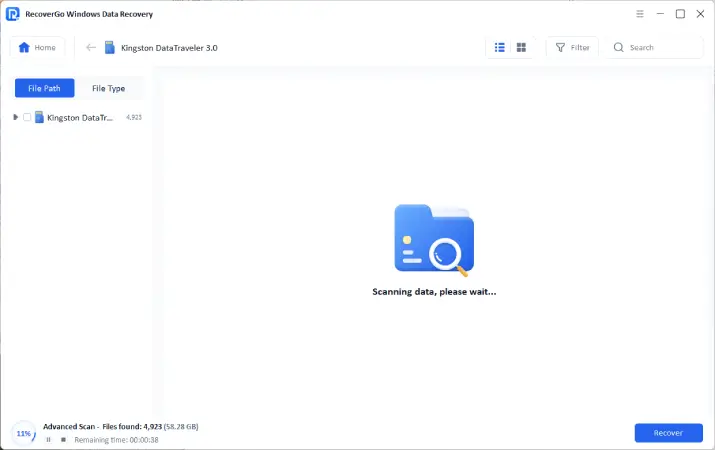
Step 3 After the scan finishes, you can filter it by file type. Then click “Recover” and choose an output folder on your computer. Do not save to the same SD card.

Method 2: Canon Photo Recovery Software Free
QPhotoRec is the graphical interface version of PhotoRec, an open-source recovery tool. It scans your SD card looking for matches to known file types. This technique is called “file carving.”
File carving takes longer and produces generic file names. However, QPhotoRec can recover files from severely damaged or formatted SD cards.
How to Recover Canon Photos with QPhotoRec:
- Visit the official download page and get the compressed archive. Extract the files and find QPhotoRec.exe.
- Connect your SD card to your computer and launch QPhotoRec.The software will show all connected storage devices.
- Click “File System Types” and select the formats you need. Choose JPG for JPEG photos. Make sure CR2 and CR3 are checked for Canon RAW files.
- Select a location on your computer to save recovered files. Do not choose a folder on the SD card.
- Press “Search” and wait for QPhotoRec to find files. The software scans sector by sector, comparing data to known file types.
- Once scanning completes, you can sort the output folder by file type or date. Then move your recovered Canon photos to your picture library.

Pros
- Completely free
- Works on damaged or formatted SD cards
- Supports most photo and video formats
Cons
- Basic interface, not beginner-friendly
- Generic file names require manual sorting
- No built-in preview for some RAW formats
Part 5: FAQs About Canon Photo Recovery
Can I recover photos if I accidentally formatted my card?
Yes, you can often recover photos after a quick formatting if you stop using the card immediately. A quick format resets the file system table, but the actual image data usually remains until overwritten.
Use tools like iToolab RecoverGo Windows Data Recovery to scan the formatted card.
Note:
If the card was low-level formatted, success is less likely because the camera may overwrite every block.
What are the best tools to recover deleted photos from Canon 80D?
For a Canon 80D, the process is the same as other EOS cameras. You can use iToolab RecoverGo that support Canon RAW formats.
QPhotoRec is a strong free option. Commercial tools offer richer previews, easier filters, and guided wizards. Always connect the 80D’s SD card through a reliable card reader and scan from your computer.
How long does Canon photo recovery take?
Recovery time depends on the card size and scan method. A quick scan on a 32GB card typically takes 5-15 minutes. Deep scans can take 30 minutes to several hours. Using RecoverGo’s optimized algorithms usually provides faster results than free tools.
Can I recover photos from a corrupted SD card?
Yes, in most cases. Both RecoverGo and QPhotoRec can recover photos from corrupted cards by bypassing the damaged file system. The deeper the corruption, the longer the scan will take. For physically damaged cards, professional data recovery services may be necessary.
Also Read: How to Recover Photos from Corrupted SD Card?
Conclusion
Can you recover deleted photos from your Canon camera? Yes, you can. If your budget is $0 and you don’t mind configuring advanced settings, QPhotoRec is an excellent free choice. It works well for damaged cards but requires more technical knowledge.
For quick, reliable recoveries from healthy SD cards, iToolab RecoverGo Windows Data Recovery is easier to use. It offers a simple interface, fast scans, and supports all Canon photo formats including CR2 and CR3.
Whichever method you choose, act quickly. Stop using your SD card immediately after data loss. The sooner you start recovery, the higher your chances of success.