

Many Windows users lose access to files after crashes, power cuts, or disk problems. Often, those files still exist on the drive but are not linked to folders. Windows tools may display messages about recovering orphaned files when they attempt to fix broken links. In fact, a survey reported by StorageNewsletter found that 63% of people lost data due to device failures and cyberattacks.
Some cases also show that missing data occurs due to a lack of proper backup. So, this guide explains these issues in simple steps and shows safe ways to recover files.
Part 1. What Does Recovering an Orphaned File Mean?
An orphaned file loses its normal file-system reference, so Windows might not show it in the expected folder. It’s not a special file type; it can be any file, like photos or documents. On Windows, recovering an orphaned file means repairing broken file references. These messages usually appear when CHKDSK fixes file system errors after crashes or bad shutdowns.
Meanwhile, Windows may move repaired files into new folders so they do not stay unlinked. This process helps turn “lost” files back into items that the system can see again. Overall, the message shows Windows is trying to clean up damage, not randomly destroy data.
Part 2. How Do Files Become Orphaned?
Files usually become orphaned when something breaks the link between stored data and its folder. Let’s explore the main situations that turn normal files into orphaned ones.
- Sudden Power or Shutdown: When power cuts or hard shutdowns happen during saving, open files lose directory links. The system stops mid-write, so data stays on disk without a proper entry.
- Damaged File System Map: Corruption in the file system can break the map that points to each file. References disappear or point to the wrong folder, leaving real data blocks with no folder assigned.
- Stopped Copy or Save: Interrupted transfers or saves may leave half-written files that no folder tracks. The temp file remains on disk, but the normal index never completes.
- Malware or Crashing Apps: Malicious software or buggy programs can delete folders or corrupt directory entries. Files themselves might stay present, but the paths that reference them are gone.
- Failing Sectors and Weak Drives: Bad sectors on an aging drive can damage areas that store file records. CHKDSK logs often show sectors marked as unusable after errors.
- Failed Installs and Uninstalls: Some installers or uninstallers remove directories but do not clear all stored data. Leftover files keep their bytes but lose the parent folder that previously owned them.
Part 3. How to Recover Orphaned Files?
Orphaned files can often be brought back using tools already included in Windows. Windows includes several built-in options for this. Let’s walk through the main ways to find these files.
- Method 1: Check the Recycle Bin
- Method 2: Restore Previous Versions
- Method 3: Try File System Restore
- Method 4: Use an Orphaned File Recovery Tool
- Method 5: Run CHKDSK Recovering Orphaned Files
Method 1: Check the Recycle Bin
The Recycle Bin holds most files that you delete from Windows folders. It acts as a holding area, keeping those files before they are permanently removed. If you deleted a file recently and it seems to be missing, here’s how you restore it:
How to Proceed:
- First, open the Recycle Bin folder on your PC and locate the orphaned files.
- Once you find that, right-click the file and click the Restore option.
- The file will be saved back to its original location.
If the Recycle Bin was emptied or the file was lost from an external drive, move to the next method.

Method 2: Restore Previous Versions
Didn’t find your files in the Recycle Bin? If you have a backup copy, Previous Versions is the next option to try. This tool lets Windows keep older snapshots of files and folders on supported drives. Here’s how this feature helps you return items to a safer, earlier state:
Step 1. Once you find the folder where the orphaned file was present, right-click Properties option.
Step 2. After that, choose the folder version from before the issue started appearing, then press the Restore button at the bottom to restore the previous version.

Method 3: Try File System Restore
System Restore is often misunderstood. If your files become orphaned after a Windows update or system change, you can try File System Restore. This Windows tool loads an earlier system state to repair damaged file references. It reverts file system metadata, so lost directory links can become active again. This can bring back orphaned files by restoring their original folder relationships. Here are the steps to follow:
Step 1. First, access the Start menu, type Create a Restore Point in the search bar, and press the Enter key.

Step 2. After that, choose the System Protection tab and press the System Restore option.

Step 3. To continue, press the Next option and follow the on-screen instructions. Choose a date from before the problem started. Confirm the restore point and let Windows finish. After the computer restarts, check whether the orphaned files have returned.

Method 4: Use an Orphaned File Recovery Tool
When important files disappear, built-in options sometimes fail to bring them back. Many recovery tools focus on general deleted-file recovery. Some of them still struggle when files lose their original folder paths completely. However, iToolab RecoverGo Windows Data Recovery helps find lost orphaned files with a 99.7% success rate. RecoverGo works perfectly with hard drives, USB drives, and SD cards.
Key Features
- Preview photos before recovery.
- Uses 3 scan modes to find files that lost their folder links.
- Supports more than 1,000 file types, like documents and photos.
- Filters files by type, path, or date to locate orphaned files faster.
- Allows you to pause and resume recovery tasks to better match your workflow.
How to Recover an Orphaned File Using RecoverGo
Step 1. Choose a Local Drive
After you open RecoverGo, choose the Hard Drive option and select a local drive. Next, click the Scan For Lost Data button to move forward.

Step 2. Scan the Device for Orphaned Files
RecoverGo starts scanning the device to locate the orphaned files. If you remember the file name, you can use filters to find it faster.
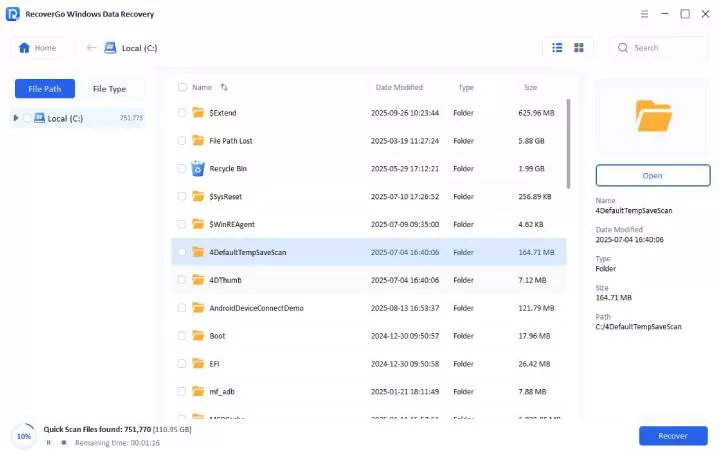
Step 3. Preview Recovered Files
Select the files you need, preview the recovered files and click the Recover button.

Method 5: Run CHKDSK Recovering Orphaned Files
CHKDSK can scan the drive directly for broken file-system links. Recovered pieces are saved as .chk files inside the hidden FOUND.000 folder. When Windows shows a message about recovering an orphaned file, it is repairing these links. Here’s how this repair process works in practice:
Step 1. First, search for the Command Prompt in the Start menu. Next, press the Run as Administrator option to open CMD.

Step 2. In the CMD window, type chkdsk X: /f /r and press the Enter key. Replace “X” with the drive letter where the orphaned files were located. Wait for CHKDSK to finish. Then, restart and check if the orphaned files reappear on that drive.

What If CHKDSK Recovering Orphaned Files Is Taking a Long Time?
CHKDSK can take minutes or many hours. The time depends on drive size, file count, bad sectors, and whether you used /r. If the percentage changes or the drive activity light is still working, wait. Large drives can look stuck while CHKDSK is processing metadata.
If your files are important, recover the data first before trying additional repair tools.
Part 4. Recovering Orphaned Files: 10 Tips to Avoid Data Loss
When recovering an orphaned file takes a long time, small mistakes can wipe the remaining data. Make sure to use these tips to keep recovery safer and more effective:
- Stop Using Drive: Stop using the affected drive immediately to avoid overwriting hidden data.
- Install Tools Elsewhere: Install recovery software on another drive, not on the damaged one.
- Save Files to a New Disk: Always save recovered files onto a different disk than the source drive.
- Avoid Cleanup Utilities: Do not run cleanup and defrag tools while recovery scans are active.
- Skip System Reinstall: Avoid reinstalling Windows onto a drive that still holds missing files.
- Close Heavy Programs: Close heavy games and apps during scans to reduce crashes.
- Label External Drives: Label each external drive to avoid selecting the wrong disk.
- Check Logs Carefully: Read recovery logs and warnings before saving files back to your computer.
- Create Backup After Recovery: Make a fresh backup of recovered data to protect against future loss.
- Stop on Clicking Noises: If the drive clicks or grinds, stop immediately and call a recovery lab.
Conclusion
A recovering orphaned file message means Windows found file records that lost their normal folder links. Sometimes CHKDSK can reconnect those files. Sometimes you need backups, previous versions, or a recovery scan to get the data back.
Windows tools cover many situations, but they have limits when drives are damaged or links are gone. In those tougher cases, tools like iToolab RecoverGo Windows Data Recovery can recover them to a safe location with a 99.7% success rate.