

exFAT is one of the most popular file systems for external storage devices. But when important files suddenly go missing, many users assume the data is gone forever.
The good news is that exFAT data recovery is possible in many situations. With the right recovery method and tools, you may be able to restore lost photos, videos, documents, and other files. This guide explains the most effective ways to recover data from an exFAT drive safely and efficiently.
Part 1: What is exFAT?
exFAT is a Microsoft file system used for storing and transferring large files. It was designed in 2006 as a modern replacement for the older FAT32 format. Unlike older formats, exFAT supports files much larger than 4 gigabytes. This makes it ideal for backups and large project archives.
In addition, exFAT is a popular choice for external SSDs, USB flash drives, and portable hard drives because it supports large file sizes and works seamlessly across different operating systems. Modern Windows systems fully support exFAT with complete read-write functionality. Likewise, current macOS versions can read and write exFAT drives effortlessly.
Part 2: Common Causes of exFAT Data Loss
Data loss on exFAT drives can happen unexpectedly for several different reasons. Yet, knowing these causes improves your exFAT data recovery chances later.
The following are the most common reasons behind unexpected exFAT file loss:
Accidental Deletion
Users sometimes delete important files unintentionally while managing drive contents daily. A simple mistake can instantly erase valuable data without warning signs.
Formatting Errors
Many users format drives by mistake before verifying stored files carefully first. This actually removes file references and makes existing data inaccessible immediately.
File Corruption
Unexpected interruptions can also damage files and make them unreadable afterward. Thus, corrupted files often disappear or fail to open through normal methods.
Improper Ejection
Removing drives without safe ejection can damage file system structures. That particular interruption often damages data and leaves files inaccessible later.
Hardware Failure
Physical damage or hardware malfunction may prevent access to stored files entirely. According to DataNumen, hardware failure accounts for approximately 40–44% of technical data loss incidents.
Can You Recover Files from an exFAT Drive?
Yes, recovering files from an exFAT drive is usually possible in many situations. Surveys from Handy Recovery Advisor confirm that over 70% of users have experienced data loss at least once. In most cases, deleted files are still available on the drive until new data replaces them. That’s the reason recovery chances remain high when you stop using the drive immediately.
Many formatted files remain recoverable through specialized scanning and recovery technologies. Moreover, using reliable exFAT data recovery software improves the recovery chances. However, recovery becomes difficult when storage sectors become heavily overwritten. Physical damage may also reduce recovery success and require professional assistance.
Part 3: What to Do Before exFAT Recovery?
Taking immediate precautionary steps preserves the integrity of your missing storage data. You must carefully manage your storage drive settings to successfully recover exFAT deleted files.
So, review the following table to prepare your storage media for scanning properly:
Part 4: 2 Ways to Recover Data from an exFAT Drive
There are multiple ways to recover lost files from your exFAT drive effectively. Some options include exFAT data recovery free methods.
Below are two reliable methods to recover data from an exFAT drive. Follow each step carefully:
- Method 1: Recover Data from Built-in Windows Backup
- Method 2: Use exFAT Recovery Software – Fast and Simple
Method 1: Recover Data from Built-in Windows Backup
Windows includes a backup feature that can restore previously saved file copies. It can help recover data from exFAT drive locations without extra software.
This method restores files from previously created backup versions. However, recently created files may not appear in older backup versions.
Follow these steps to check for available backups and restore your data:
- Launch “Control Panel” and search for “File History.” When the results appear, click the “Save Backup Copies of Your Files with File History” option.
- Then press the “Restore Personal Files” option to move forward.
- When you see the backup files, you can select your desired ones and click “Restore.”

This method only works if File History was enabled before the data loss occurred.
Method 2: Use exFAT Recovery Software – Fast and Simple
Built-in backups cannot help when no backup exists, or the drive has already been formatted. At this point, iToolab RecoverGo Windows Data Recovery is one of the best exFAT data recovery software. It is widely used for recovering data from drives affected by formatting errors and file system issues.
Additionally, RecoverGo can retrieve over 1000 file types, including multimedia files and email archives. The tool even works effortlessly across SD cards and external hard drives. Besides, its free scan and preview feature lets you verify recoverable files before recovering them. Moreover, the smart file filter helps you locate specific files quickly using type, path, or date.
Key Features of RecoverGo:
- Recovers lost and deleted files specifically from exFAT-formatted drives and partitions.
- Restores files that were hidden or deleted due to malware and virus infections.
- Completes entire data recovery through 3 simple steps: select, scan, and recover files.
- Retrieves data from over 2000 different storage devices, including HDDs and more.
Guide to Use exFAT Recovery Software and Recover Data:
Anyone can use this exFAT recovery tool to restore lost files in just a few minutes. Follow the steps below to recover files from your exFAT drive:
Step 1 Launch RecoverGo, select your connected exFAT drive. After that, click “Search for Lost Data” to start scanning for deleted or missing files.

Step 2 RecoverGo will start scanning your drive.
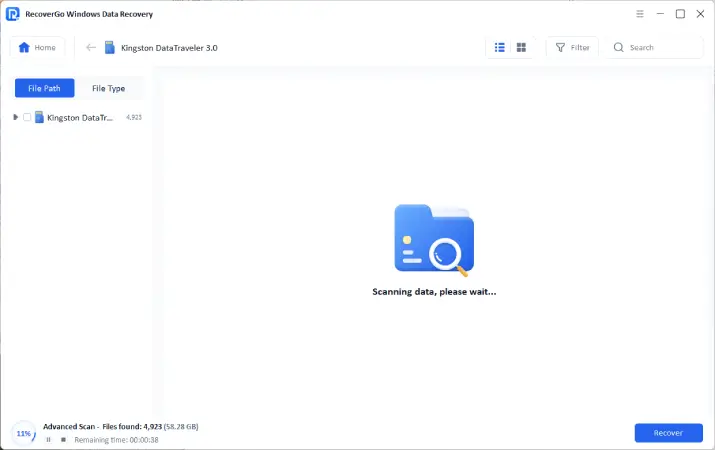
Step 3 Later on, choose which files you would like to recover and press the “Recover” button. Go ahead and make sure to choose a safe location on your system to store the recovered files.

Conclusion
To conclude, losing files from exFAT drives does not mean permanent loss. Quick action significantly improves recovery chances. Following proper preparation steps further increases recovery considerably.
Moreover, built-in backups can help when previous file copies exist. When backups are unavailable, a tool such as iToolab RecoverGo Windows Data Recovery can provide a reliable exFAT recovery solution.