

A lot of things can lead to data loss. It can be something as simple as accidental deletion or something serious like formatting, system crash, or file system corruption. In most of these cases, professional data recovery software can recover files without requiring advanced technical knowledge.
However, not all recovery tools offer the same level of performance and user experience. That’s why in this guide, we have tested and ranked the 12 best data recovery tools on the market. All you need to do is to pick the tool that works for you!
Part 1: How We Tested the Best Professional Data Recovery Software?
Finding the right data recovery software isn’t about picking something with a long feature list. You need to consider recovery rate, scan speed, ease of use, and several other factors.
That’s why we followed a rigorous testing methodology based on industry best practices to create this ranking. Each tool was evaluated using the following criteria:
Recovery Rate
The most important evaluating criteria was the recovery performance. We tested how each tool recovers data across different scenarios (deletion, formatting, file system error, & more).
Another thing worth checking is whether the recovered files are intact. After all, a recovered file is of no use if it is corrupted. The tools that restored a higher percentage of files without data corruption scored higher.
Scan Speed
People don’t have the time to spend an entire day waiting for the scan results. That’s why we picked tools that use fast and advanced scanning algorithms. We also compared the efficiency and the speed of both quick and deep scan modes.
Many tools also allow users to scan a specific partition or a folder instead of the whole drive. That’s also something that saves time. This is also an important factor that was considered when ranking the tools.
File Type Support
A good professional data recovery tool must support a wide range of file types. The coverage must be comprehensive so users can restore deleted pics, videos, documents, & other data.
With that in mind, we also considered how many file types each software supports. A tool with a high number of supported file types was given preference over others.
Ease of Use
There’s no point in using a tool that is so difficult that only the developers can operate it. Just like recovery performance and other metrics, good software must also be easy to use.
If the recovery process is easy for even beginners, then it means the software is user-friendly! So, we prioritized the data recovery software with simple and user-friendly interfaces.
Pricing & Value
A good tool must be worth its price tag. So for this ranking, we also looked at the overall price-to-quality ratio. The software that offered better value for money was ranked higher.
We also looked at what kind of features are offered and the available pricing plans. We also compared the pricing plans and the available licensing models.
Platform Support
Another metric we considered was the platform support. Good professional data recovery tools should support the latest and older OS versions.
So, we checked the software’s compatibility with different Windows versions. This was done to ensure that the recovery tool works flawlessly across different systems.
Part 2: Top 12 Professional Data Recovery Software for 2026
Now, it is time to look at all the names that made it into our list of best professional data recovery software. Our hands-on testing revealed all the good and bad things about each software. We have also shared our own experience in using the tool to help you get an idea of what to expect.
- 1. iToolab RecoverGo Windows Data Recovery
- 2. Disk Drill
- 3. Stellar Data Recovery
- 4. EaseUS Data Recovery Wizard
- 5. Recuva
- 6. Wondershare Recoverit
- 7. PhotoRec
- 8. MiniTool Power Data Recovery
- 9. R-Studio
- 10. UFS Explorer Professional Recovery
- 11. Tenorshare 4DDiG
- 12. DMDE (Windows, macOS, Linux, DOS)
1. iToolab RecoverGo Windows Data Recovery
RecoverGo scored the highest across all the metrics. This includes scanning speed, recovery performance, ease of use, and all the other factors.
The software makes the recovery workflow very easy. So, even beginners can use it to recover deleted pics, videos, documents, and other files. Overall, it supports 1000+ file types and offers support for 2000+ devices. It can also handle different scenarios like deletion, format, system crashes, and so on.
Platforms: Windows 11, 10, 8, 7
Pricing:
- Free version (Offers Free scan and preview)
- 1 Month plan ($39.99)
- 1 Year plan ($49.99)
- Lifetime ($69.99)
Pros
- Read-only scan mode. This improves recovery rate and avoids overwriting.
- You can pause and resume scans.
- Simple 3-step recovery process (select location > scan > recover).
Cons
- Windows only (no macOS version).
User Experience
iToolab RecoverGo Windows Data Recovery offers a very easy recovery process. There’s nothing complicated about it, as the recovery process is just 3 steps. It offers 3 scan modes (quick, deep and advanced) and supports common file types.
The scanning speed is also very fast, and the software was able to find all of the deleted data. We even tested it with some uncommon file types, and it was able to find all of them. There’s also a preview feature which makes it easy to view files before attempting recovery.
RecoverGo achieved a 100% usability score in our tests. Its data recovery rate was near 99.7% across different scenarios. One good thing about it is that it preserved original filenames and folder structure in most cases.
iToolab Special Coupon
20% OFF iToolab coupon code for data recovery tool
How to Use iToolab RecoverGo Windows Data Recovery
Follow these 3 steps:
Step 1 Select the drive or folder that contains the lost files. And click “Search for Lost Data” to continue.

Step 2 Scan the selected location and wait for RecoverGo to finish checking it.
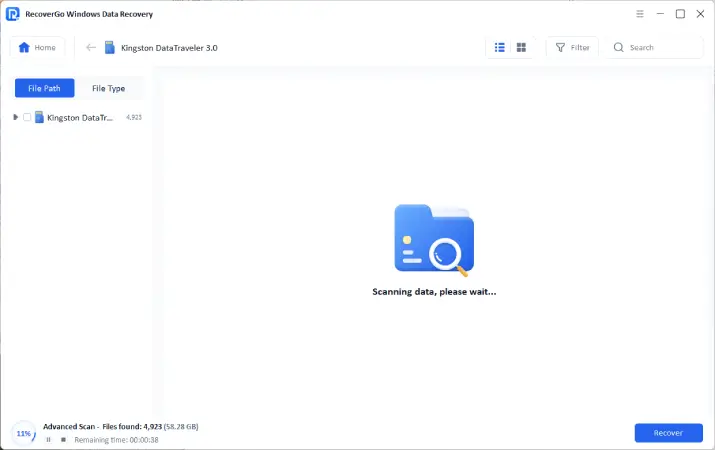
Step 3 Preview the found files and recover the ones you need.

2. Disk Drill
Disk Drill offers the right blend of ease of use and performance. It has a modern interface and all the essential features. It offers file preview, two scan modes (deep & quick), and support for all common storage devices.
The software can scan 400+ file types. This is a little lower than others. But it does include all the common file types. Overall, it is a solid data recovery tool that doesn’t require any learning curve.

Platform: Windows 11, 10, 8, 7
Pricing:
- Free plan (up to 100 MB)
- Pro 1 Year ($79)
- Pro Lifetime ($149)
Pros
- Very easy to use (no learning curve).
- Supports all major file systems.
- Strong recovery performance.
Cons
- No customer support via phone.
- Deep scans can take a long time.
- The program takes 1 GB of disk space. It also feels sluggish on old systems.
User Experience
Disk Drill has a modern and simple interface. It makes all the features readily accessible. So, user doesn’t have to jump through complex menus or multiple screens.
Quick scans were very fast, but the deep scans felt a little slow. However, the performance is solid as it recovered most of the files.
The usability rating of Disk Drill is 100% based on our tests. Its recovery performance was 91% based on multiple scenarios. Putting everything together, it’s safe to say that Disk Drill is a quality and user-friendly data recovery application. However, it feels slow on some systems as it is quite resource-intensive.
3. Stellar Data Recovery
Our list of professional data recovery tools remains incomplete without Stellar Data Recovery. It has been around since 2000. The software has also earned a good reputation over the years since its release.
Stellar supports the common file systems. This includes FAT16/32, exFAT, and NTFS. There’s also built-in support for different popular storage devices. It supports 300+ file types and includes all the common file extensions.

Platform: Windows 11, 10, 8, 7
Pricing:
- Free Trial (up to 1 GB)
- Standard ($49.99/month)
- Professional ($79.99/month)
- Premium ($89.99/month)
Pros
- Offers photo and video repair features.
- Supports all the popular storage devices.
- File preview feature.
Cons
- Expensive when compared to other tools.
- Scan speed is just average.
- Customer support service can be slow.
User Experience
Stellar offers a guided recovery process and is very easy to use. It also lists all the key features on the main screen. So, there’s no need to go through complicated menus or anything like that.
Our tests showed that it can easily handle the different file systems and storage devices. However, the photo and video repair features are only available in the more expensive plan (Premium).
The usability rating of Stellar Data Recovery is 97%. The only downside is that the icons and the font used in the software look a little weird.
But in terms of performance, it was able to recover most of the files. The average data recovery rate of Stellar was 89% during our tests. Another thing we noticed was that it is expensive. More advanced features are gatekept in more expensive plans.
4. EaseUS Data Recovery Wizard
This data recovery software offers a 3-step recovery process. So, even someone new to the whole data recovery scene can use it to restore their data.
It has built-in support for a number of data loss scenarios. This includes RAW drives, crashed systems, formatting, and deleted files. EaseUS Data Recovery Wizard supports 1000+ file types and utilizes a fast scanning algorithm.

Platform: Windows 11, 10, 8, 7
Pricing:
- Free plan (up to 2 GB data)
- 1 Month ($69.95)
- 1 Year ($99.95)
- Lifetime plan ($149.95)
Pros
- Intuitive interface and guided recovery process.
- Offers an option to pause and resume scans.
- Good customer support.
Cons
- More expensive than other modern tools.
- Preview option doesn’t always work.
- Shows ads for other products inside the software.
User Experience
It only takes 3 steps to recover a file from start to finish. So in terms of usability, EaseUS has scored a 100% rating. It also offers a search and filter option after scanning.
However, we noticed that it does take time to save the recovered files. So, while the scan speed is fast, it does get slow when it comes to recording the recovered files. So in that sense, we can say that its speed is average.
During our tests, the data recovery rate in simple scenarios was 98%. However, the performance takes a dip when we tested it against complex scenarios (formatting, lost partition, etc.). So, the overall data recovery rate of EaseUS is around 87%.
5. Recuva
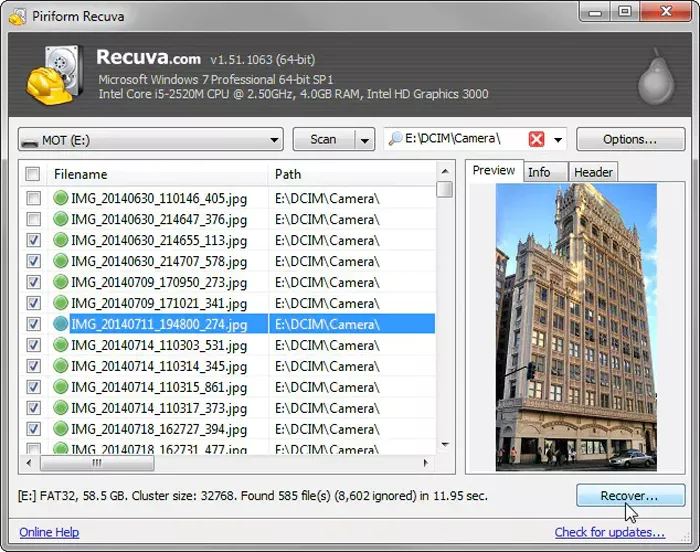
Recuva is developed by Piriform. It is the same company that offers famous tools like CCleaner and Speccy. The best thing about Recuva is that it is completely free. However, it does have a paid plan. The paid plan unlocks virtual HDD support along with automatic updates.
Recuva can be used on FAT, NTFS, and exFAT file systems. It also works on HDD, memory cards, flash drives, and other commonly used storage systems. The developers haven’t mentioned how many file types it supports. But it does offer support for the commonly used file types.
Platform: Windows 11, 10, 8.1, 7, Vista and XP.
Pricing:
- Free (unlimited)
- Professional ($24.95/lifetime)
Pros
- Free with no limit on recovering data.
- Very lightweight.
- File preview is available.
Cons
- Most of the recovered files lack original filenames.
- Doesn’t support a lot of file types.
- Recovery performance is average.
User Experience
The first impression after seeing Recuva’s UI is that it is something straight from the Windows XP era. The software also only receives minor updates.
The only thing that’s good about Recuva is that it is free and that’s about it. Our tests showed it has a recovery rate of 35%. Now, that’s very low when we compare it with any other modern data recovery tool.
On the flip side, it is lightweight and can handle simple data loss scenarios. So, if you are looking for free professional data recovery tools, you can give Recuva a try.
6. Wondershare Recoverit
Recoverit is offered by Wondershare. The company also offers a number of other software. According to Wondershare, this software supports HDD, SSD, flash drive, and other storage devices.
Recoverit comes with built-in support for 1000+ file types. It can also handle common file systems like FAT, NTFS, and HFS+. The developer does claim that RecoverIt uses AI during the recovery process. However, our testing shows that this software is like most other recovery tools. The AI claim is more of a marketing stunt than anything else.

Platform: Windows 11, 10, 8.1, 7, Vista and XP.
Pricing:
- Trial (up to 500 MB)
- Monthly plan ($45.99)
- Annual plan ($46.99)
- Lifetime plan ($82.99)
Pros
- A modern and user-friendly interface.
- 3-step recovery process.
- Supports common and uncommon file types.
Cons
- Preview feature is limited. It only works with some file formats.
- Remaining time estimate during scans is inaccurate (most of the time).
- Scan results show many duplicates.
User Experience
Every aspect of Recoverit is designed with ease of use in mind. A user can go through the recovery process without feeling lost. There’s just nothing complicated about Recoverit, and that’s its biggest strength.
However, we did notice that the preview feature is very limited. It only works for some file types and even fails to show the file in some cases. Also, the estimated time during the scanning is inaccurate in most cases.
The hands-on testing showed that Recoverit has a 75% recovery rate. For more simple data loss scenarios, it goes as high as 97%.
7. PhotoRec
PhotoRec is bundled into TestDisk. So, you need to download both to access PhotoRec. It is a completely free data recovery software and supports USB flash drives, HDDs, and other storage devices.
The name PhotoRec may make it appear that it is only for recovering photos. But in reality, it supports 480 file types. This basically covers all the common file types.
Platform: Windows 11, 10, 8.1, 7, Vista and XP.

Pricing:
- Free (unlimited data recovery)
Pros
- Portable version (no installation required).
- Completely free and open-source.
- Lightweight.
Cons
- Command-line interface (difficult to use).
- Original file names are often lost.
- Only recovers based on the file system’s metadata.
User Experience
PhotoRec can easily scare away inexperienced users. It has a text-only user interface and is very difficult to use. This alone makes it a misfit for beginners.
The good thing we noticed is that it uses a non-destructive recovery method. This ensures that the data is not overwritten and improves the recovery chances.
The average recovery rate of PhotoRec was 84% during our hands-on testing. It also doesn’t show a list of recoverable files during the scanning process. Instead, it just automatically saves the recovered data.
8. MiniTool Power Data Recovery
The next professional data recovery software in our list is MiniTool Power Data Recovery. It supports 2000+ file types, which is quite a lot when compared with other tools. The recovery process is also split into 3 simple steps.
The one thing that stands out about MiniTool is its outdated user interface. But it does include powerful features for data recovery.

Platform: Windows 11/10/8.1/8
Pricing:
- Trial (up to 1 GB of data)
- Personal ($69/month)
- Annual ($89)
- Lifetime ($99)
Pros
- Easy to use.
- Allows creation of bootable recovery media.
- Allows scanning of specific folders.
Cons
- Slow scan speed.
- File preview doesn’t always work.
- The interface feels outdated.
User Experience
MiniTool Power Data Recovery is easy to use despite its outdated UI. The recovery process is very straightforward and doesn’t require any technical expertise.
It can also handle a number of data loss scenarios. This includes RAW drives, deleted files, lost partitions, and so on. Our hands-on testing shows the scan speed is slow. It almost takes 2x more time to scan a drive when compared with other data recovery tools.
As for the performance, our testing showed an average recovery rate of 60%. In simple scenarios like deleted files, it can go up to 90%.
9. R-Studio
The target audience of R-Studio is IT professionals and advanced users. It supports all the common file systems and even old operating systems like Windows 2000.
However, the availability of advanced features makes this tool confusing for everyday users. But for professionals, the software has a number of advanced features. This includes a hex editor, RAID reconstruction, S.M.A.R.T. monitoring, and more.

Platform: Windows 11, 10, 8.1, 7, Vista, XP, and 2000
Pricing:
- Free version (up to 256 KB of data)
- Lifetime( $79.99)
Pros
- Offers advanced data recovery features.
- Built-in hex editor.
- Supports multiple file systems.
Cons
- Very difficult to use.
- Free version is very limited.
- Doesn’t show results during the scanning process.
User Experience
R-Studio is not designed for everyday users. Its feature set is better suited for IT professionals. The user interface is difficult, and the recovery performance is also average. But it does have detailed scan settings and advanced diagnostic tools.
Our tests showed the average data recovery rate of R-Studio is only 64%. The scan speed of R-Studio was good but not as fast as RecoverGo or DiskDrill.
10. UFS Explorer Professional Recovery
We have ranked UFS Explorer Professional Recovery at the #10 spot in our list of professional data recovery software. UFS Explorer is specifically designed for advanced data recovery. It also offers disk management tools, which can be viewed as an added benefit.
UFS Explorer includes a number of advanced features. This includes RAID recovery, disk imaging, a hex editor, and so on. The software supports common file types and all known file systems.

Platform: Windows 11, 10, 8.1, 7, Vista, and XP.
Pricing:
- Trial (scan and preview)
- Lifetime ($699.95)
Pros
- Advanced data recovery and disk imaging tools.
- Advanced forensic capabilities.
- Can easily handle complex data loss situations.
Cons
- Very expensive.
- Complex interface with a steep learning curve.
- No guided recovery wizard.
User Experience
UFS Explorer Professional Recovery is clearly built for professionals rather than casual users. If you are looking for a data recovery tool that’s easy to use, then this is not the right fit.
But it is literally a goldmine for professionals with its advanced features. It allows RAID reconstruction, disk imaging and file system analysis. The user can also get control over scanning parameters.
In a nutshell, it prioritizes technical capabilities over ease of use. The scanning speed is fast. The average recovery rate is near 76% based on our testing.
11. Tenorshare 4DDiG
4DDiG is a professional data recovery software from Tenorshare. It is beginner-friendly and supports recovery from dozens of data loss scenarios.
The overall interface is clean. And there’s also support for 2000+ file types. The recovery workflow is also very straightforward. It also uses a read-only mode during the recovery process. So, there’s no risk of overwriting when you use 4DDiG.

Platform: Windows 11, 10, 8, 7
Pricing:
- Trial (up to 2 GB of data)
- 1 Month ($45.95)
- 1 Year ($59.95)
- Lifetime ($79.95)
Pros
- Modern user interface.
- Filtering option for scan results.
- Supports creation of bootable disks.
Cons
- Inconsistent recovery performance.
- Deep scan takes a long time on large drives.
- Preview tool doesn’t work in some cases.
User Experience
4DDiG is easy to use from start to finish. The interface is polished and features a simple recovery workflow. There’s also an option to filter the search results. This makes it easier to locate specific files after the scan.
Our hands-on testing showed 4DDiG performs well in simple data loss scenarios. In such cases, the recovery rate is around 90%. However, the average recovery rate is only 65% when we consider the overall performance.
12. DMDE (Windows, macOS, Linux, DOS)
DMDE offers strong recovery results along with many useful features. However, it is not designed for beginners because the overall interface is complicated.
The best part about DMDE is that it uses read-only mode for all scans. This helps ensure that nothing new is written to the SSD during the scan. It also offers a disk cloning tool and a disk editor for inspecting raw sectors.

Platform: Windows 11, 10, 8, 7, XP, 2000, and 98
Pricing:
- Free (up to 4000 files at a time)
- Express ($9.95/month or $20/year)
- Standard ($48/lifetime)
Pros
- Portable version is available.
- You can add new file signatures.
- Built-in hex editor.
Cons
- Outdated user interface (very difficult to use).
- Recovery is not possible while scanning.
- Preview feature is very limited.
User Experience
DMDE focuses more on features and recovery over visual design. The interface feels outdated, and it can take time for new users to figure out how it works.
However, it does have fast scanning speeds, which is one of its strong suits. The recovery rate was near 75% based on simple and complex scenarios.
Part 3: How to Choose the Right Professional Data Recovery Software?
Use this decision framework to select the right tool for your needs:
Step 1: Identify Your Device & Platform
Start by checking if the software supports your OS and the storage device. There’s no point in picking a tool if it won’t run on your system.
Step 2: Assess Your Technical Skill
Make sure the software matches your experience level. Beginners should look for software that offers a guided recovery process. Meanwhile, advanced users can go for tools with professional features.
Step 3: Consider Your Budget
How much can you spend to recover your data? Is the software recovery performance worth its price tag? The answer to this question will help you pick the right data recovery tool. And remember that paid software usually offers higher recovery rates and better support.
Step 4: Check Recovery Needs
Consider how the data was lost. Simple deletion can be handled by most tools. But advanced scenarios require software with stronger recovery capabilities.
Conclusion
In this guide, we have ranked and tested all the popular professional data recovery software. At the end of the day, it all depends on your recovery needs, budget and technical expertise.
iToolab RecoverGo Windows Data Recovery delivered the best performance during testing. It offers the right balance of scan speed and recovery performance (99.7%). The recovery process is also split into 3 easy steps (select location> scan > recover). So, if you are dealing with a data loss scenario and need a reliable solution, go with iToolab RecoverGo.