

I take pictures occasionally with my Canon 500D (T5i). They’re saved on a Transcend Premium 400x 32GB microSD card, which is then inserted into a Transcend microSD adapter so it can be used in the camera and in the computer. Upon further inspection with chkdsk, it turns out the file format of the microSD card had turned to RAW; thus, chkdsk couldn’t be used, and the card was unreadable on the computer.
— From Reddit r/techsupport
You insert your SD card, but instead of seeing your files, Windows tells you, “You need to format the disk before you can use it.” It’s a common problem reported on forums like Reddit, and the instinct is almost the same: format it and move on. That instinct is exactly what puts your files at risk. An unreadable SD card almost never means your data is destroyed.
It usually means Windows can’t read the file system, not that the photos and files themselves are gone. This guide covers what “unreadable” actually means and how to recover your data before you touch anything else. It also walks through 5 fixes that can make the card usable again on Windows 10 and 11.
Part 1: What Does “Unreadable SD Card” Mean?
An unreadable SD card is a storage device your computer detects but can’t access or open. Windows sees the device, but it can’t read the file system that organizes your photos, videos, and documents. That’s different from a dead card. In most cases, the storage chip and your files are still intact underneath the error.
SD Card Corruption Symptoms
Many users want to know how to fix an unreadable SD card and recover their files. It is important to understand the warning signs that help you catch corruption early, as guided below:
- Format Prompt: Windows asks you to format the card before you can open it. This happens when the PC can no longer read the card’s file structure properly.
- RAW File System: The drive shows as “RAW” instead of NTFS, FAT32, or exFAT. This indicates that the file system has become corrupted, which makes the data unreadable.
- Inaccessible or Empty Drive: File Explorer shows the drive but won’t open it or shows “No Media.” It recognizes that a storage device is plugged in but cannot access any of the internal storage.
- Hidden Storage: The card appears in Device Manager but not in File Explorer or Disk Management. This points to an issue where the hardware is detected, but the storage volumes cannot be mounted.
- Recognition Failure: Media files do not appear anywhere, even after you reconnect. It is often caused by a dead card reader or an unresponsive controller chip.
Part 2: How to Recover Data from an Unreadable SD Card?
In various cases, an unreadable SD card is caused by file system corruption rather than physical damage, although hardware failure is also possible. That’s why dedicated recovery programs can bypass file system errors and scan the storage sectors in Windows and extract files from the card directly. iToolab RecoverGo Windows Data Recovery is specially designed to handle the situation where the SD card is unreadable, RAW, corrupted, or formatted, or any other drive you insert.
RecoverGo scans the SD card directly to locate photos, videos, and documents that Windows can no longer access because of file system corruption. Following this, it lets you preview and save your files before recovery. The tool includes three scan modes—Quick, Deep, and Advanced—to improve the chances of finding lost files in different data loss situations.
Why RecoverGo?
- Supports over 1,000 file types, including photos, videos, audio files, and more.
- Works with major SD card brand and capacity, include SanDisk, Samsung, Kingston, Lexar, Sony, Transcend, PNY, ADATA, Kioxia, and Delkin Devices.
- Supports recovery from memory cards used in DSLR cameras, drones, action cameras, and other digital devices.
- Reports a 99.7% recovery success rate across a wide range of supported SD card recovery scenarios.
- Safely scan your storage device without writing any new data or altering existing files.
Guide to Recover Data from an Unreadable Card Using iToolab RecoverGo
Step 1 Launch the Tool and Select the SD Card
Open RecoverGo after connecting the SD card to a card reader on your computer. Choose the card from the drive list and click “Search for Lost Data” to continue.

Step 2 Scan the Recoverable SD Card File
The tool will immediately begin scanning your SD card and searching for your recoverable files.
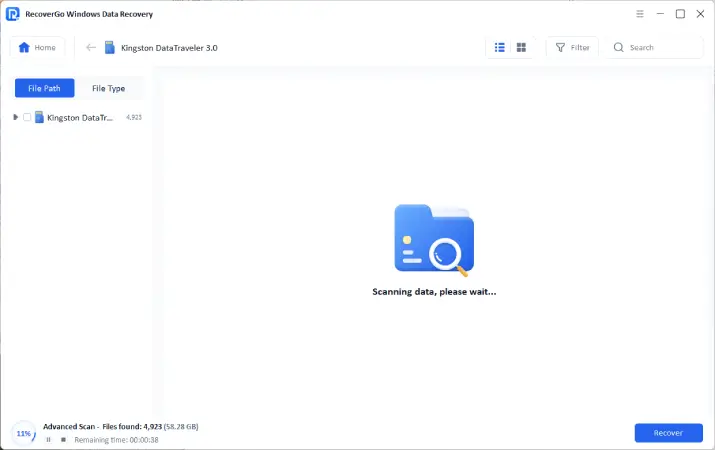
Step 3 Preview and Recover Your Files
Narrow down the scan results by filtering files by their file type or folder path, then click “Preview” to verify. Once satisfied, press “Recover” and select a destination folder on your computer’s main drive.

Part 3: 5 Proven Fixes for an Unreadable SD Card
These 5 fixes cover the most common causes of an unreadable SD card once your files are safely recovered:
Note:
Only try these after recovering your data because a couple of them can permanently erase data still on the card.
- Fix 1: Check the SD Card Connection
- Fix 2: Run CHKDSK to Repair File System Errors
- Fix 3: Update or Reinstall the SD Card Reader Driver
- Fix 4: Assign a Drive Letter to the SD Card
- Fix 5: Format the SD Card
Fix 1: Check the SD Card Connection
One of the easiest solutions is to check the card reader or the USB port. First, remove and reinsert the SD card into the slot before attempting any complex repairs. Additionally, switch to another card reader or USB port to rule out a faulty reader. The HP Support Community also suggests checking the card in another PC to verify whether the reader itself is the issue.
Fix 2: Run CHKDSK to Repair File System Errors
CHKDSK is the file system repair tool built into every version of Windows. It scans the card’s file table for the kind of corruption that makes Windows show “RAW” or ask you to format. The repair process attempts to fix file system errors, but it may modify the file system metadata. You can fix an unreadable SD card by following the given steps:
- Type “CMD” in the Windows search bar and click “Run as Administrator” to proceed further.
![Run Command Prompt as administrator]()
- Locate your SD card’s drive letter in File Explorer, such as D, and type “chkdsk d: /f” in CMD. Press “Enter” to let the tool scan to repair file system errors and mark bad sectors if found.
![Run CHKDSK command to repair SD card]()


Fix 3: Update or Reinstall the SD Card Reader Driver
All card readers, built-in or external, use a driver to communicate with Windows. If that driver is missing or gets corrupted, then Windows may not recognize a card even if the card works fine. This error frequently appears immediately following a Windows update or after a reader has not been used for a while. Follow the steps below to learn how to fix unreadable memory cards by updating SD card drivers:
- Expand “Disk Drives” after opening “Device Manager” from the Windows search bar. Right-click on the SD card reader driver and click on “Update Driver.”
![Update SD card driver in Device Manager]()
- Next, click on “Search Automatically for Driver” and let Windows install any updates it finds.
![Search automatically for SD card driver]()


Fix 4: Assign a Drive Letter to the SD Card
Windows uses drive letters to display storage devices in File Explorer, and a card can lose its letter or never get one in the first place. Disk Management may detect the card even though File Explorer does not. This makes an accessible card look like an unreadable SD card. To assign a drive letter to the SD card and complete an unreadable SD card recovery, follow the steps guided below:
- Navigate to “Disk Management” and right-click on the connected SD card. After that, find and select “Change Drive Letter and Paths” from the drop-down list.
![Change SD card drive letter paths]()
- Click “Add” to assign a new drive letter from the list and press “OK.”
![Assign new drive letter to SD card]()


Fix 5: Format the SD Card
Formatting creates a new file system, making the card usable again, which resolves the unreadable SD card error, according to Microsoft. This fix should be your last option and should be tried only after you have recovered your files, since it will permanently erase all data. To format the SD card and learn how to fix memory card corrupted and unreadable, adhere to the steps below:
- Right-click on the “SD card” in “File Explorer” and select “Format” from the drop-down menu.
![Format SD card from File Explorer]()
- Choose “FAT32” from the “File System” menu and ensure that the “Quick Format” checkbox is ticked. After that, click on the “Start” button to initiate the process and format the drive.
![Choose FAT32 file system and Quick Format]()


Part 4: How to Prevent SD Card Unreadable Issues in the Future?
Everyone must also take active steps to avoid dealing with an unreadable storage drive again. Follow these tips to prevent unreadable SD card issues in the future after recovering your files:
Also Read: SD Card Not Showing Up on Windows 11/10: Recover Data and Fix It Fast
Conclusion
Most unreadable SD cards are caused by file system problems, which means your photos and files are usually still there. Recover what you need first using tools like iToolab RecoverGo Windows Data Recovery, and then work through the provided ways to know how to fix an unreadable SD card. If nothing brings the card back, then formatting is the only option left. Download iToolab RecoverGo now and recover your photos in minutes.