

“I gave my USB to a friend to get some documents printed. He returned it after doing the work. However, all the files on the USB flash drive are now gone. What’s strange is that the PC tells me that 5 GB out of 32 GB is still used. So, the files are still on the drive but I can’t see or access them. Is there any way to get them back?”
— From Reddit Community
We received this question from a user who is wondering why files disappeared from flash drive. This situation can fill anyone with panic upon realizing the important files on the drive are gone.
The good news is that data recovery is still possible in most cases. When files disappear from a USB drive, they’re often still there – just hidden or temporarily inaccessible.
In this guide, we’ll explore why files disappear from USB drives, common symptoms to look for, and walk you through 5 proven methods to recover your data.
Part 1: Why Did Files Disappear from Flash Drive?
There can be multiple reasons why files go missing from a USB drive. In most cases, the data isn’t really gone – it just becomes hidden or temporarily inaccessible. Understanding these causes helps you choose the right recovery approach.
Accidental Deletion
Sometimes the issue is as simple as accidentally deleting a file or folder from the drive. Unlike files deleted from your computer’s hard drive, Windows doesn’t send files deleted from USB drives to the Recycle Bin by default. This means they’re removed permanently unless you change this setting beforehand.
Virus or Malware Attack
Some viruses and malware specifically target removable drives. If you connected your flash drive to an infected computer, especially a public one, that’s likely the reason for your missing files. These malicious programs can hide your actual files while making it appear as if the drive is empty or showing fake shortcuts.
Improper Ejection
Removing a flash drive without using the “Safely Remove Hardware” option can corrupt data and damage the file system. While improper ejection doesn’t always cause data loss, the risk increases significantly if you remove the drive while files are being written or read.
File System Corruption
Most USB drives use file systems like exFAT or FAT32. These can become damaged due to bad sectors, sudden power loss, or repeated unsafe removals. When the file system gets corrupted, the files are still present on the storage device, but the system cannot access them properly.
Hardware Failure
If your computer doesn’t recognize the USB drive at all, you might be dealing with hardware failure. This can happen due to damaged memory cells or controller chip failure. Flash memory has a limited lifespan, and storage cells can wear out over time with heavy use.
Part 2: Common Symptoms of File Loss on USB Flash Drive
How do you know you’re dealing with file loss on a USB drive? You’ll likely experience one or more of these symptoms:
Storage Space Still Shows as Used
A common sign is that your USB drive shows storage space is still occupied, but no files are visible when you open the drive. This indicates the data is still there – it’s just hidden or unreadable by the system.
Files Turned Into Shortcuts
You might notice your files have been replaced with shortcut files that have strange icons. Clicking these shortcuts doesn’t open your files. This is a clear sign of virus or malware infection, where the malicious software hides your real files and creates fake shortcuts.
“Access Denied” or Unreadable Files
Sometimes files still appear in the drive, but Windows shows errors like “Access denied” or “File/Directory is unreadable” when you try to open them. This typically happens due to bad sectors or file system damage.
Drive Shows 0 Bytes
Your USB drive might show “0 bytes used” and “0 bytes free” even though it contained files before. This usually indicates partition table corruption or file system errors. The good news is that recovery is still possible in most cases.
Part 3: How to Recover Files Disappeared from Flash Drive?
There are multiple methods available to recover data that has disappeared from a USB drive. Start with the first method and try each one until you find a solution that works for your situation.
- Method 1: Unhide Files via File Explorer
- Method 2: Scan Flash Drive for Viruses and Malware
- Method 3: Use Flash Drive Recovery Software – 99% Success Rate🔥
- Method 4: Run chkdsk to Check Disk Errors
- Method 5: Format the USB Flash Drive
Method 1: Unhide Files via File Explorer
If your files are still on the drive but just hidden, you can easily make them visible again through File Explorer. This is the simplest method and should be tried first.
Steps to Unhide Files:
- Connect your flash drive to the computer and open File Explorer.
- Navigate to your USB flash drive.
- Click on the “View” tab at the top of the window.
- Check the “Hidden items” box in the Show/hide section.
- All hidden files should now become visible in the drive.

If this method works, your files were simply hidden. However, if the files remain invisible, try the next method.
Method 2: Scan Flash Drive for Viruses and Malware
A virus or malware infection can hide your files and make them appear gone. Scanning and removing malicious software often restores access to your files.
Steps to Scan for Viruses:
- Connect your flash drive to the computer.
- Open “This PC” or “File Explorer” and locate your USB drive.
- Right-click on the drive and select “Scan with Microsoft Defender” from the context menu.
- Wait for the scan to complete. If any threats are found, follow the prompts to remove them.
- After removal, check if your files are now visible in the drive.

You can also use other antivirus software if you prefer. Microsoft Defender is usually sufficient for most cases and comes built into Windows.
Method 3: Use Flash Drive Recovery Software – 99% Success Rate🔥
When simple fixes don’t work, professional data recovery software like iToolab RecoverGo Windows Data Recovery offers the most reliable solution. This tool can find hidden files and recover data that’s no longer accessible through normal means.
Why iToolab RecoverGo Works Well for USB Recovery?
iToolab RecoverGo uses advanced scanning algorithms, which designed to locate files that have become hidden or inaccessible. This tool can recover data that was deleted and bypassed the Recycle Bin, as well as files lost due to file system corruption or virus attacks. The read-only scanning process ensures your data remains intact during recovery.
Key Features:
- Advanced algorithms significantly increase your chances of getting files back.
- Recovers photos, videos, documents, emails, and many other file formats.
- Scan your USB drive and preview recoverable files at no cost before purchasing.
- Handles accidental deletion, formatting, virus attacks, and file system corruption.
- Works with USB drives, SD cards, external hard drives, and more.
How to Recover USB Files Using iToolab RecoverGo?
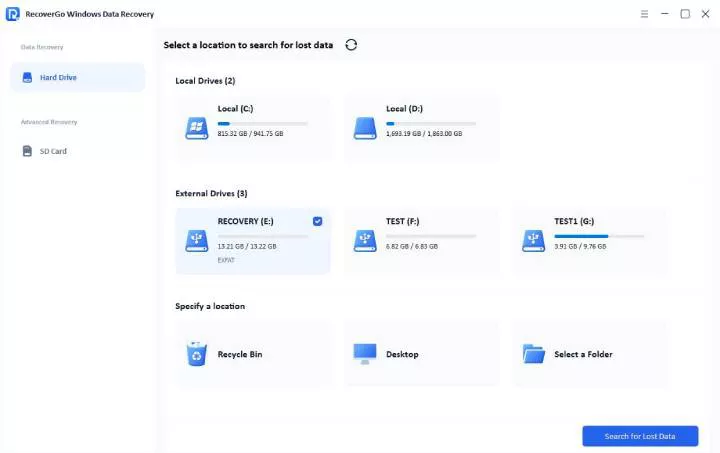
Step 1 Select your USB flash drive from the list under “External Drives” and click “Search for lost data” to begin scanning.
Step 2 The tool will perform a thorough scan to find all hidden and deleted files.
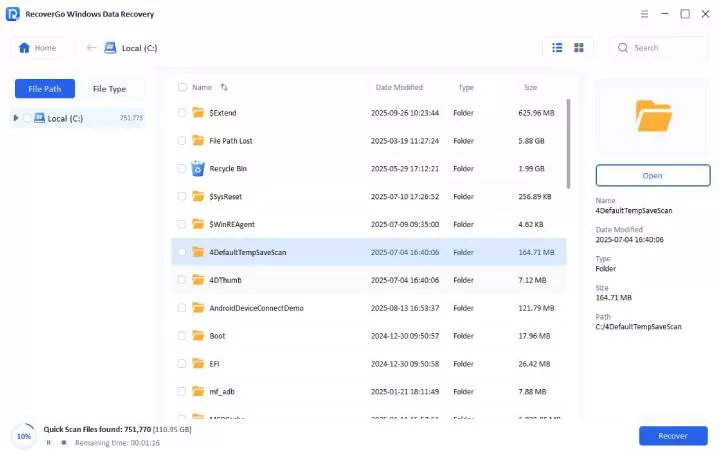
Step 3 Once it’s finished, you can browse through the scan results and preview the files to confirm they’re what you need. Select the files you want to recover and click the “Recover” button.

Method 4: Run CHKDSK to Check Disk Errors
CHKDSK is a built-in Windows tool that checks and fixes file system errors. It can repair directory errors, bad sectors, and other issues that might be preventing access to your files.
Steps to Run CHKDSK:
- Connect your USB flash drive to the computer.
- Open “This PC” and right-click on your flash drive. Select “Properties” from the menu.
- Click on the “Tools” tab, then click the “Check” button under Error checking.
- Windows will automatically scan the drive and fix any errors it finds.
- After the process completes, check if your files are now visible and accessible.

Alternatively, you can run CHKDSK from Command Prompt for more control:
- Open Command Prompt as administrator.
- Type the following command and hit Enter: chkdsk E: /f /r
- Wait for the process to complete and check your files.

Method 5: Format the USB Flash Drive
Formatting creates a fresh file system and can fix persistent issues that other methods cannot. This method is suitable for drives with severe file system corruption that can’t be fixed by other methods, or drives showing as RAW. Here’s how to format your USB drive:
Steps to Format USB Drive:
- Connect your USB flash drive to the computer.
- Open “This PC” and right-click on your flash drive. Select “Format” from the menu.
- In the format window, make sure “Quick Format” is checked.
- Select the desired file system (FAT32 for drives under 32GB, exFAT for larger drives).
- Click “Start” to begin formatting. Wait for the process to complete.

After formatting, you can use iToolab RecoverGo to recover files from the formatted drive. The software can often retrieve data even after formatting, as long as you haven’t saved new files to the drive.
Important Warning:
Formatting will erase all data on the USB drive. Use this method only after attempting data recovery with Method 3. Always recover your files first before formatting.
Part 4: Pro Tips to Prevent USB Data Loss in the Future
Following these preventive measures can save you from the stress of data loss:
Always Eject Safely
Use the “Safely Remove Hardware and Eject Media” option before unplugging your flash drive. This ensures all data is properly written and prevents file system corruption. Simply right-click the USB icon in your system tray and select “Eject.”
Implement Regular Backups
Don’t rely on a single USB drive as your only copy of important files. Back up your data regularly to cloud storage services like Google Drive, OneDrive, or Dropbox. You can also use external hard drives or create duplicate USB copies.
Scan for Viruses Regularly
Make it a habit to scan your USB drives for viruses, especially after using them on public computers or shared systems. A quick scan can prevent malware from hiding or corrupting your files.
Watch for Warning Signs
Pay attention to early warning signs of drive failure: slow file transfers, frequent errors, strange noises, or files becoming corrupted. If you notice these symptoms, back up your data immediately and consider replacing the drive.
Avoid Extreme Conditions
Protect your USB drives from extreme temperatures, moisture, and physical shock. Don’t leave them in hot cars or expose them to water. Physical damage can make data recovery much more difficult or impossible.
Part 5: FAQs About File Disappeared from Flash Drive
How to recover data from USB flash drive not recognized?
If your USB drive isn’t recognized, first try connecting it to a different USB port or another computer. If it still doesn’t show up, open Disk Management to see if the drive appears there. You can assign a new drive letter or use data recovery software like iToolab RecoverGo to recover files from unrecognized drives.
Why is my USB showing space used but no files?
This happens when files are hidden, corrupted, or affected by malware. The data is still on the drive, but the system can’t display it properly. File system corruption can also cause this issue.You can try unhiding files using Method 1, scanning for viruses with Method 2, or using recovery software with Method 3.
How to recover lost files on a USB stick?
You can recover lost files by trying several methods: unhiding files through File Explorer, running CHKDSK to fix file system errors, or using data recovery software. For reliable results, professional tools like iToolab RecoverGo offer the highest success rate at 99% and can recover files in most scenarios.
How to recover corrupted files from USB without losing data?
The most important step is to stop using the drive immediately to prevent overwriting the corrupted files. Then use professional data recovery software like iToolab RecoverGo. Its read-only scanning process ensures your data remains intact during recovery, and the 99% success rate maximizes your chances of getting files back.
Conclusion
Experiencing files disappeared from flash drive is frustrating, but recovery is possible in most cases. The key is understanding why it happened and choosing the right method for your situation.
This guide covered five effective methods to recover missing files. Start with simple fixes like unhiding files or scanning for viruses. For more complex situations, professional recovery software like iToolab RecoverGo Windows Data Recovery offers the most reliable solution with a 99% success rate. It can find hidden files and recover deleted data while keeping your original files intact.
Remember to act quickly when you notice files are missing, and always back up important data to prevent future losses. With the right approach, you can get your files back and continue your work without major disruption.