

Experiencing the “files not showing in USB drive” problem? This issue is more common than many users realize and is often caused by malware, hidden files, file system corruption, or improper USB removal.
The good news is that missing files are not always permanently deleted. In many cases, the data still exists on the USB drive but has become hidden, inaccessible, or unreadable due to logical issues. Acting quickly and using the right recovery method can significantly improve your chances of restoring the lost files.
In this guide, you’ll learn why files are not showing on a USB drive, how to recover hidden or missing data, and the most effective ways to prevent the problem from happening again.
Part 1: Files Not Showing in USB? Here’s the Reason!
The pen drive data not showing issue usually stems from software or settings problems, according to PCWorld. Knowing why your USB files disappear helps you choose the right fix faster.
Below are the most common reasons that cause this USB visibility issue:
Hidden Files
Windows may hide USB files when hidden attributes, view settings, or malware change visibility. This setting makes your data invisible without actually deleting anything from storage.
Virus Attack
Malware infections can force your USB files to become hidden or inaccessible. Honeywell’s 2024 USB Threat Report confirms that 51% of malware attacks specifically target USB devices.
File System Error
A damaged file system prevents Windows from reading your USB drive contents properly. An EaseUS Q1 2025 report reveals that small USB drives under 64GB face a 4 times higher data loss probability.
Drive Corruption
Corrupted USB drives fail to display stored files even when storage space is used. Corruption can result from improper ejection or repeated unsafe removal from your computer.
Outdated Drivers
An outdated USB driver stops Windows from correctly communicating with your storage device. Kaspersky confirmed that 33% of users globally faced on-device threats spread through removable USB drives in 2025.
Part 2: How to Recover Files from a USB Drive?
Before attempting any fix, recovering your data should be the priority. Any repair method can permanently overwrite files still stored on the drive. This makes using a reliable recovery tool essential before proceeding.
When a USB drive is not showing files, a tool such as iToolab RecoverGo Windows Data Recovery can help. It delivers an impressive 99% success rate for recovering hidden files.
RecoverGo supports 1,000+ file types, including deleted photos, documents, videos, and more. Moreover, it supports recovering files from popular USB flash drive brands, including SanDisk, Kingston, Samsung, PNY, Lexar, Toshiba, Sony, Transcend, Verbatim, and HP.
Key Features of RecoverGo:
- Offer a free scan and preview before recovery.
- Support multiple scenarios, such as deletion, formatting, and system crashes.
- Three scan modes help you find more hidden files.
- File Filter feature lets you locate specific files quickly via date, type, or path.
How to Recover Files from USB Drive Using RecoverGo:
Step 1 Launch RecoverGo, select your connected USB drive section, and then click “Search for Lost Data”.
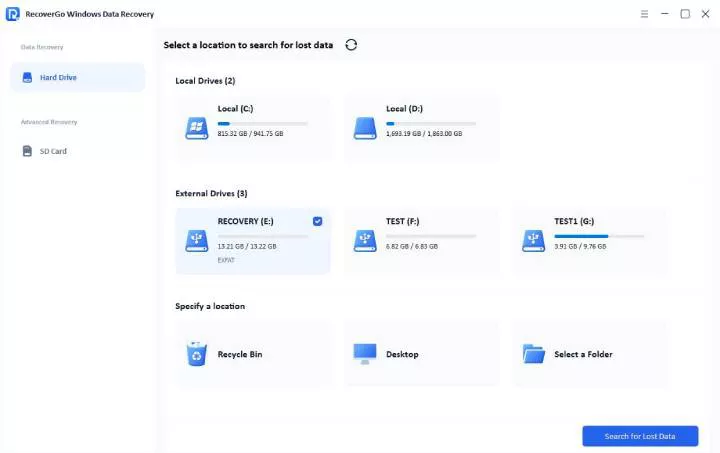
Step 2 The software begins scanning. After scanning, use filters to narrow results by file type. You can also search by file name.

Step 3 Preview the found files to confirm they are intact. Select the files you need and click “Recover.” Choose a safe location (not the USB drive) to save your recovered data.

Part 3: Files Not Showing in USB Issue – 4 Quick Fixes!
Resolving the file not showing in USB issue becomes easier when you use the right methods. This section covers 4 proven fixes that can restore your USB file visibility:
- Method 1: Plug the USB Drive into a Different Computer
- Method 2: Reveal Hidden Files on the USB in Windows Explorer
- Method 3: Repair USB Drive Issues Using CHKDSK in Windows
- Method 4: Format the USB Drive
Method 1: Plug the USB Drive into a Different Computer
Sometimes, the USB flash drive not showing files issue is caused by your computer itself. A faulty USB port or outdated system drivers can trigger false visibility errors.
Connect your USB drive to a different computer to rule out these possibilities. If your files appear normally on another device, the problem lies with your original system. This simple test saves time before attempting advanced solutions.
Method 2: Reveal Hidden Files on the USB in Windows Explorer
A common reason for USB drive files not showing is the hidden file attribute setting. Windows can automatically hide files on your USB drive without any warning. This makes your stored data invisible without actually deleting it.
You can reveal hidden files through simple settings. Follow the steps below:
- Connect your USB and open “File Explorer.”
- Click the “View” tab, expand the “Show” section, and tick “Hidden Items.”

Method 3: Repair USB Drive Issues Using CHKDSK in Windows
When USB flash drive files are not showing due to file system errors, CHKDSK can help. This native command tool scans your drive and fixes detected logical errors automatically.
File system corruption from unsafe removal often causes USB files to disappear. CHKDSK repairs these internal errors without requiring any software installation.
Follow the steps below to run this command:
- Open the “Start” menu, search for “Command Prompt,” and click “Run as Administrator.”
- Type chkdsk X: /f in the CMD window and press “Enter.” Replace “X” with your USB drive letter to begin the scan and repair process.

Method 4: Format the USB Drive
Formatting becomes necessary when you notice USB drive files not showing but space is used. This situation indicates your file system is too corrupt for standard repairs. Formatting wipes the corrupted structure and rebuilds a fresh file system.
Warning:
Always recover your important data before starting this process.
Follow these steps to format your USB drive:
- Open “File Explorer,” right-click your “USB Drive,” and select “Format.”
- Make sure “Quick Format” is enabled and click “Start.”

Final Word
Files not showing on a USB drive can be frustrating but manageable with the right approach. Start by identifying the root cause before attempting any repair method.
Simple fixes like revealing hidden files or running CHKDSK resolve most visibility issues. However, always prioritize recovering your data before formatting or repair. Tools like iToolab RecoverGo Windows Data Recovery help restore all your invisible or lost USB files.