

When the HDD suddenly disappears from File Explorer, it feels like all of your data is gone. But in most cases, the problem is not permanent.
A hard disk which is not detected can be caused by many factors ,such as loose cables, drive errors, and even partition issues.
In this guide, we will look at the reasons that can make an HDD not show up on your PC. Next, we will look at practical ways to fix the HDD issues. In the end, we will look at how to recover data from HDD which is not detecting.
Part 1: Diagnose Your Hard Drive First
Hard drive issues can show up in many different forms. If your HDD has also become unreadable by the computer, then it could be due to these reasons:
| Scenario | Cause | Symptoms | Recovery Rate | Best Solution |
|---|---|---|---|---|
| Hard drive spinning but not detected | Loose connection, outdated drivers | HDD is spinning but not visible in File Explorer | High | Check cables, update drivers |
| Detected in BIOS but Not in Windows | File system corruption, missing drive letter, partition issues | Visible in BIOS but not in File Explorer | High | Assign drive letter, repair or format |
| No Response at All | Power failure, mechanical failure | No sound, no vibration, not detected in BIOS or Windows | Low to medium | Seek professional data recovery services |
Scenario 1: Hard Drive Spinning but Not Detected
A spinning and vibrating HDD means it is receiving power. Some reasons why it may have disappeared from the disk management/file explorer are:
- Connection problems
- Outdated drivers
- Logical errors
The good news is that most of these issues can be easily fixed. Once the underlying issue is fixed, the HDD will start to appear once again in the File Explorer.
Scenario 2: Hard Drive Detected in BIOS but Not in Windows
This scenario means the drive is recognized by the system. However, the operating system is unable to access the drive effectively. This problem is commonly linked to:
- File system errors
- Partition issues
- Configuration problems
You may find that the drive appears as unknown/unallocated in the system utilities. In some cases, the drive may be marked as RAW (this also prevents normal access). This issue tells us that the drive itself may still be intact, but the structure is damaged.
Scenario 3: Hard Drive No Response at All
Look closely at any signs of activity from the hard drive. If there is no spinning, no noise, and no BIOS detection, then it means a hardware issue. Normally, the hard drive showing no response is due to:
- Power issues
- Circuit board damage
- Mechanical failure
In some cases, the issue arises due to external factors (a damaged port or a faulty power adapter). But if the drive remains unresponsive in different systems, then it is definitely a hardware-related fault.
Part 2: How to Fix Hard Drive Not Detected in Windows?
If you’re trying to figure out how to recover data from HDD which is not detecting, then know this: Fixing the detection issue is often the first step.
Once you know the cause of why the HDD is not detected, it becomes easy to fix it. In most cases, the issue can be fixed without any advanced technical skills.
So, let’s look at all the different scenarios along with different solutions to fix them. We have provided multiple solutions for each issue to ensure the HDD shows up, so you can access your data.
- Scenario 1: Hard Drive Spinning but Not Detected
- Scenario 2: Hard Drive Detected in BIOS but Not in Windows
- Scenario 3: Hard Drive No Response at All
Scenario 1: Hard Drive Spinning but Not Detected
This issue arises due to connection problems or system-level errors. A hard drive with a spinning internal platter is a sign that it is indeed receiving power. The only issue is that the computer and the drive cannot communicate with each other.
Solution 1: Check the Data Cable
A loose or faulty SATA/USB is one of the leading reasons why an HDD isn’t detected by the system. You can follow these steps to fix it:
- Turn off the computer.
- Reconnect the cable securely on both ends.
- Turn on the computer and check if the HDD shows up.
The hard disk still doesn’t show up? Try a different cable or a USB port. Use a different SATA port on the motherboard if it is an internal drive.
In most cases, the issue is usually a slightly loose connection. This little issue prevents the drive from being recognized properly, even though it receives power.
Solution 2: Check Drivers in Device Manager
Sometimes, the issue is as simple as an outdated driver. This prevents Windows from recognizing a healthy drive.
You can follow these steps to update the drivers and fix the HDD issue:
- Press Windows key + X. From the options, select Device Manager. And expand the Disk drives section and select your HDD.
- Right-click on the drive and then select “Update driver”.
- Choose the “search automatically for drivers”. This allows Windows to search online and install the best driver for your HDD (the process is automatic, and you don’t have to do anything).
- Restart the computer and then check if the hard drive shows up.

Scenario 2: Hard Drive Detected in BIOS but Not in Windows
In this scenario, the system is able to detect the hardware. However, Windows can not access it due to misconfiguration or file system issues. Once you fix the issues, you may not have to worry about how to recover data from an undetected hard disk.
Solution 1: Open Disk Management
Disk Management is a tool available in the Windows OS. It can be used to view and manage all the connected drives. So if the hard drive does not show up, you can fix it via disk management:
- Press Win key + X and choose Disk Management.
- Now, find the problematic hard drive. You can easily find it by checking its size.
- Right-click on it and select Online.
- If it shows as “Not initialized”, then right-click and choose Initialize Disk. After that, select GPT or MBR and click OK.
- If the space is unallocated, right-click on it and choose New Simple Volume. Follow the rest of the wizard to create the partition.

Note:
If the drive shows as RAW, then it means file system corruption. You will likely need to repair or format it (covered in later steps).
Solution 2: Assign Drive Letter
Is the hard drive showing up in Disk Management but missing from File Explorer? Then there’s a good chance that it is missing a drive letter.
When an HDD doesn’t have a letter, then Windows can not display or access the drive. This is how you can fix it by assigning a drive letter:
- Press Windows key + X and open Disk Management.
- Right-click on the partition (the blue bar area and not the disk label). Choose the Change drive letter and paths option.
- Click on Add.
- Choose a letter from the dropdown. And click on OK to confirm.

Once a letter is assigned, open the File Explorer and check if the hard drive shows up under This PC.
Solution 3: Update/Reinstall Drivers
Believe it or not, outdated drivers can also make the HDD disappear. So, even if the hard disk is detected by the system at the hardware level, it will not show up in Windows due to the drivers.
So, if you are thinking about how to recover data from not detected hard disk, then try updating the drivers.
You can follow these steps to fix the driver’s issue:
- Press Win key + S and search for Device Manager. From the search results, open the Device Manager.
- Locate the hard drive in the Disk Drives section.
- Right-click on it and choose Update Driver.
- Select the “search automatically for drivers” option.
- Restart the computer.
Solution 4: Format Hard Drive
Another way to fix the issue is to format the hard drive. This only applies if the hard drive appears as RAW or inaccessible. This is a simple process that can rebuild the file system and allow Windows to read and write data.
Note:
Formatting will erase all the data on the drive. So, only proceed if you already have a backup or you plan to use data recovery software.
- Open Disk Management.
- Right-click on the hard drive and select Format.
- Enter a name and choose a file system (NTFS/exFAT).
- Choose the quick format option. Click OK to confirm the action.

Scenario 3: Hard Drive No Response at All
If the drive doesn’t show any signs, the bad news is that software fixes will not work. In a case like this, you have to stop any DIY attempts and seek professional help.
Before you consider how to retrieve data from an undetected hard drive with the help of data recovery services, you must know the pros and cons.
Pros
- High success rate.
- Can recover data from failed drives.
- Safe handling of the drive reduces further damage.
Cons
- Expensive compared to DIY methods.
- Recovery can take days or even weeks.
- Privacy risk.
Part 3: How to Recover Data from HDD Which Is Not Detecting?
Is the hard drive still not detected after trying all the basic fixes? And you are thinking about how to recover not detected hard disk without any technical knowledge? Then you need to use a dedicated recovery software.
One of the commonly used tools for this purpose is iToolab RecoverGo Windows Data Recovery. It is designed to recover lost or inaccessible files from HDD, SSD, and a number of other storage devices.
RecoverGo scans the storage device at a low level instead of relying on Windows visibility, even if the HDD doesn’t show up in File Explorer.
So, if you are wondering how to recover data from HDD which is not detecting, then the answer is RecoverGo! It has a simple UI, and the entire process from scanning to recovery requires very little technical knowledge.
Key Features of iToolab RecoverGo
- Powerful algorithms deliver up to 99% recovery rate.
- Recover data in just a few clicks.
- Three scan modes used to find lost or hidden files.
- A simple interface is ideal for beginners.
- Works with 1000+ file types, for example photos, videos, documents, and audio files.
- Support 2000+ devices, such as internal HDD, external drives, and USB devices.
How to use iToolab RecoverGo
Step 1 Install and launch the tool, and select the HDD from the list. After that, click on “Search for lost data”.
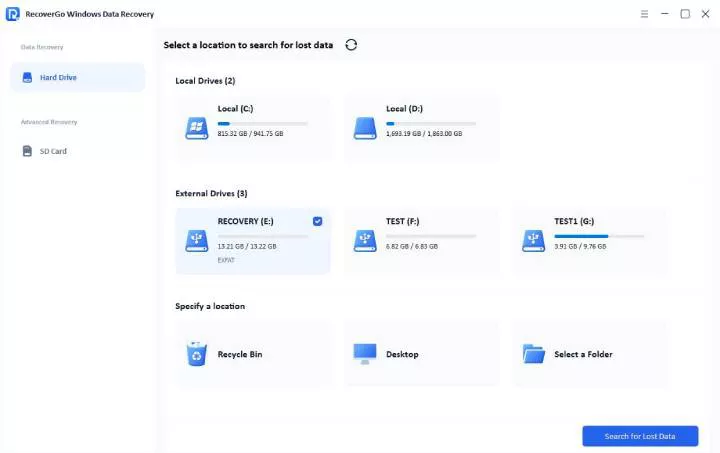
Step 2 The tool will begin scanning your HDD, you need to wait for the scan to complete.

Step 3 Once it’s finished, you can click “Preview” and press the “Recover” button to restore them.

Bonus Tips to Prevent Disk Issues in the Future
It is always a good idea to take steps to prevent hard drive problems rather than trying to fix them later. You can follow these simple steps to reduce the chances of any HDD issues:
Always Safely Eject External Drives
Never unplug the drive without properly ejecting it. Why? Because it interrupts the active read and write processes (this leads to data corruption).
Always use the “Safely Remove Hardware” option before disconnecting the external drives.
Avoid Sudden Power Loss
An unexpected shutdown can damage the file system and also cause drive errors. A quick fix for this issue is to use a UPS and always avoid forced shutdowns.
Backup Data Regularly
Nothing beats regular backups! Making backups on a periodic basis means you do not have to worry about data loss even if a storage device fails.
Sum up
Just because the HDD is non-detectable doesn’t mean your data is gone. In many cases, the issue is caused by a minor problem which can be easily fixed. By identifying and fixing the root cause, you can gain access to your precious data.
But if the basic fixes don’t work, you can try tools like iToolab RecoverGo Windows Data Recovery. This tool can help you recover files even if the HDD doesn’t show up in the File Explorer. Compared with expensive professional recovery services, iToolab is a more affordable option at only $49.99 while still offering a high recovery success rate.