

“I have a USB flash drive that is not recognized by my computer. When I plug it in, nothing happens. The drive doesn’t show up in File Explorer or Disk Management. Is there any way to recover my files from this drive?”
— From Reddit Community
We received this question from Reddit Community. A user struggle with recovering data from USB flash drive not recognized. This scenario may happen to everyone. Before you assume your photos or work documents are gone forever, take a deep breath. It is entirely possible to recover data from a USB flash drive not recognized on Windows 10/11.
A USB flash drive may stop being recognized by Windows for various reasons. You might see error messages like “USB device not recognized” or find that the drive doesn’t appear at all. This can be alarming when you have important files stored on the drive.
In this guide, we’ll explain why USB drives fail to be recognized and show you how to recover your data safely. We’ll cover professional recovery software, data recovery services, and 8 proven fixes to get your USB working again.
Part 1: Why Is the USB Flash Drive Not Recognized?
The main causes of USB flash drive not recognized include hardware damage, software conflicts, corrupted file systems, or outdated drivers. Below are several common reasons for an unrecognized USB flash drive.
Outdated Drivers
Drivers allow the operating system to communicate with hardware devices. If the USB drivers are outdated or damaged, Windows may fail to recognize the flash drive. Common signs include “USB device not detected” and intermittent connection problems. So, keep your drivers updated to prevent flash drive issues.
Faulty USB Ports
Sometimes the problem is not with the flash drive itself. A damaged or underpowered USB port may fail to detect storage devices correctly. Try testing the USB drive:
- On another USB port.
- On another computer.
- Using a powered USB hub.
File System Error
A corrupted file system is common reasons why a USB drive becomes unreadable. This may happen because of sudden removal, virus attacks, or interrupted file transfers. Some common symptoms include:
- USB shows but does not open.
- “You need to format the disk” error appears.
- Drive shows RAW format but appears healthy.
Part 2: How to Recover Data from USB Flash Drive Not Recognized?
There are multiple methods to recover data from an unrecognized USB drive. Here are the two most effective options:
- Option 1: Using USB Data Recovery Software – 99% Success Rate🔥
- Option 2: Asking Data Recovery Services for Help
Option 1: Using USB Data Recovery Software – 99% Success Rate🔥
When your USB files become inaccessible, the actual data often remains on the drive. It stays there until you overwrite it with new data. The most reliable solution is to use professional data recovery software – iToolab RecoverGo Windows Data Recovery is an excellent choice.
RecoverGo scans the drive sector-by-sector to locate recoverable file structures. It can retrieve files even when Windows cannot access the drive normally with a few simple steps.
Key Features:
- Various data loss situations: Recovers data from corrupted USB drives, formatted partitions, and more.
- 1000+ file types: Supports many file formats, such as photos, videos, documents, and so on.
- Three scan modes: Quick, deep and advanced scan modes detects files even when partitions are unreadable.
- 99% success rate: Aim for 99% recovery success through advanced algorithms.
- Wide device compatibility: Works with USB flash drives, HDDs, SSDs, SD cards, and external drives.
Steps to Use iToolab RecoverGo:
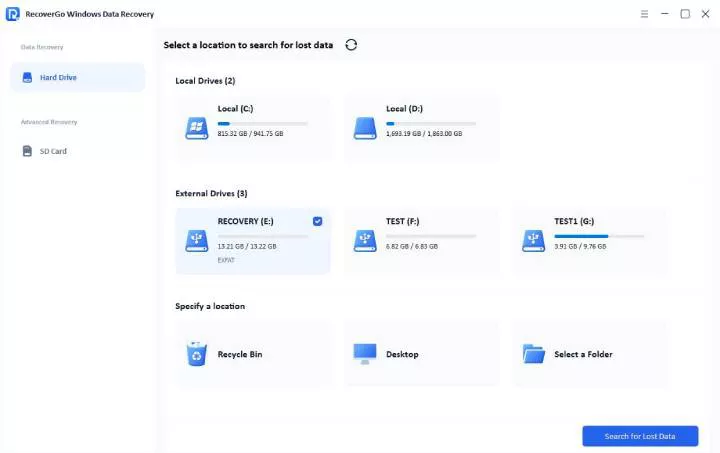
Step 1 Launch the iToolab RecoverGo and connect your USB flash drive. Then click “Search for Lost Data”.
Step 2 The software will scan your drive. You can pause and resume the scan at any time.
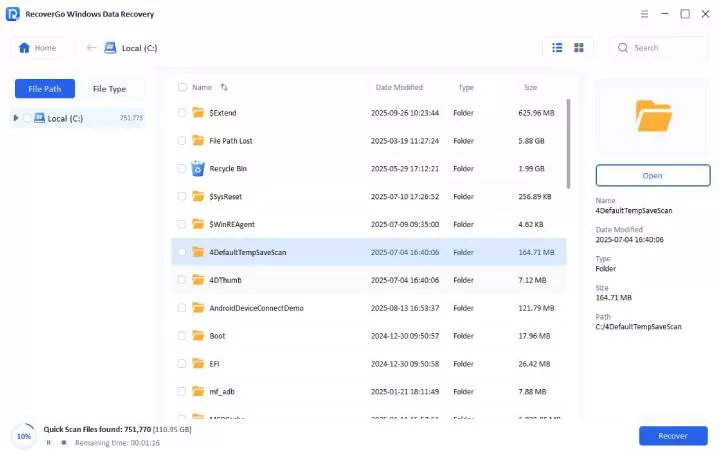
Step 3 Once it’s finished, you can click the “Recover” button and choose a save location on your computer’s hard drive. Do not save back to the USB drive to avoid overwriting data.

Option 2: Asking Data Recovery Services for Help
This is especially true if your USB has severe physical damage. Professional recovery labs can help in these situations.
Contact a professional data recovery service if:
- The USB is physically broken.
- The computer cannot detect the drive at all.
- The USB overheats.
- The drive makes unusual sounds.
- Recovery software fails to find your files.
Pros:
- High success rate.
- Advanced hardware repair tools.
- Better success for physical damage.
Cons:
- Time-consuming process.
- Risk of privacy leakage.
- High cost.
Note:
The repair process may result in data loss. We recommend restoring your data first before proceeding with the repair.
Part 3: How to Fix a USB Drive That Is Not Recognized?
After recovering your data, you can try these methods to fix the USB drive. Here are 8 proven solutions:
- Fix 1: Connect USB Drive in a Different Port
- Fix 2: Restart Your Computer
- Fix 3: Check Disk Management
- Fix 4: Assign a Drive Letter
- Fix 5: Update or Reinstall USB Drivers
- Fix 6: Format an Unrecognized USB Drive
- Fix 7: Disable USB Selective Suspend
- Fix 8: Adjust USB Root Hub Settings
Fix 1: Connect USB Drive in a Different Port
Sometimes the current USB port is faulty or underpowered. Trying a different port can quickly resolve the issue.
Here are steps:
- Safely remove the USB drive from your computer.
- Insert it into another USB port on your computer.
- Check if the drive appears in File Explorer.
- Try another computer if the issue persists.

Fix 2: Restart Your Computer
Restarting your computer refreshes system drivers and USB controllers. This simple step can resolve temporary software conflicts.
Steps to restart your computer:
- Disconnect the USB drive from your computer.
- Restart your computer or laptop completely.
- Wait for Windows to fully load after startup.
- Reconnect the USB drive and check if it’s recognized.
Fix 3: Check Disk Management
Check through Disk Management to see if Windows detects the drive internally. The drive may appear even if it doesn’t show in File Explorer.
Steps to check Disk Management:
- Press Windows + X on your keyboard.
- Select “Disk Management” from the menu.
- Look for your USB drive in the list.
- Check the status of the drive:
- Unallocated: The drive has no partition.
- RAW: The file system is corrupted.
- Offline: The drive is disabled.

Fix 4: Assign a Drive Letter
Assigning a drive letter can make the USB recognizable again. This works when the drive is detected but has no letter assigned.
Steps to assign a drive letter:
- Right-click the Start button and select “Disk Management”.
- Locate your USB drive in the list.
- Right-click the volume of your USB drive.
- Select “Change Drive Letter and Paths”.
- Click “Add” if there’s no letter, or “Change” to assign a different one.
- Choose a drive letter from the dropdown menu.
- Click “OK” to confirm.

Fix 5: Update or Reinstall USB Drivers
A USB device may not be recognized because its driver is corrupted. At this time, reinstalling the driver can resolve this issue.
Steps to update or reinstall USB Driver:
- Open the Start menu and type “Device Manager”.
- Select “Device Manager” from the results.
- Expand the “Disk drives” section.
- Right-click on your USB device.
- Select “Uninstall device” from the context menu.
- Confirm the uninstallation.
- Restart your computer.
- Reconnect your USB device. Windows will automatically reinstall the driver.

Fix 6: Format an Unrecognized USB Drive
If other methods fail, formatting the USB drive may be necessary. This will erase all data on the drive. Make sure you have recovered your files first.
Steps to format an unrecognized USB:
- Open Disk Management from the Start menu.
- Right-click on your USB drive.
- Select “Format” from the context menu.
- Choose a file system (FAT32 for compatibility, NTFS for larger files).
- Check “Perform a quick format” option.
- Click “OK” to start formatting.

Note:
Formatting will erase all data on the USB drive. Recover your files before formatting.
Fix 7: Disable USB Selective Suspend
USB Selective Suspend is a power-saving feature in Windows. It disables USB ports when not in use to save battery power. Sometimes this can cause recognition issues.
Steps to disable USB selective suspend:
- Type “Edit power plan” in the Windows search bar.
- Open the first result.
- Click “Change advanced power settings”.
- Expand the “USB settings” dropdown menu.
- Expand “USB selective suspend setting”.
- Change both “On battery” and “Plugged in” to “Disabled”.
- Click “Apply” and “OK” to save changes.

Fix 8: Adjust USB Root Hub Settings
USB Root Hub settings can interfere with flash drive recognition. Adjusting these settings can resolve the issue.
Steps to adjust USB root hub settings:
- Open Device Manager.
- Click the “View” menu at the top.
- Select “Show hidden devices”.
- Expand “Universal Serial Bus Controllers”.
- Right-click “USB Root Hub” and select “Properties”.
- Go to the “Power Management” tab.
- Uncheck “Allow the computer to turn off this device to save power”.
- Click “OK” to save.
- Restart your computer for changes to take effect.

BONUS: How to Avoid Future Data Loss in Your USB?
After resolving the USB recognition issue, take steps to prevent future data loss. Here are some important tips:
Always Safely Remove the USB: Use “Safely Remove Hardware” before unplugging. This prevents file system corruption caused by sudden removal.
Create Regular Backups: Store important files in multiple locations. Use cloud storage, external hard drives, or secondary USB devices. This ensures you have copies if one drive fails.
Scan for Viruses Regularly: Malware can corrupt files and damage the file system. Install reliable antivirus software and scan your USB drives regularly.
Keep Drivers Updated: Updated drivers improve hardware compatibility and stability. Install Windows updates frequently to maintain USB compatibility.
Avoid Interrupting File Transfers: Never unplug the USB during file transfers. Wait for the transfer to complete before removing the drive. This prevents file corruption and drive errors.
Use Quality USB Drives: Cheap or low-quality USB drives are more prone to failure. Invest in reliable brands for storing important data.
Protect from Physical Damage: Keep USB drives away from water, extreme temperatures, and physical impact. Use protective cases when carrying them.
Conclusion
A USB flash drive not being recognized can be a frustrating issue, especially when you have important data stored on it. In most cases, the files are still recoverable. The key is to act quickly and avoid writing new data to the drive.
For most users, professional recovery software like iToolab RecoverGo Windows Data Recovery offers the best solution. It provides a high recovery rate with an easy-to-use interface. For severe physical damage, professional recovery services may be necessary.
Once you recover your data, use the 8 fixes in this guide to make your USB recognizable again. Remember to back up your important files regularly to prevent future data loss.