

Accidentally deleting camera photos feels bad when they capture important moments. According to a Kaspersky press release, more than 77% of users have lost important photos. In a Reddit comment, one user described accidentally deleting photos stored on a digital camera SD card.
Camera users often need a dedicated tool to recover deleted photos. This guide explains how to recover deleted photos from a camera with safe tools and clear steps. You will learn what to do right after deletion and how to keep new photos safer.
Part 1. Do Cameras Have a Recycle Bin?
Some digital cameras offer a small “Recycle Bin/Trash” folder that stores deleted photos temporarily. If this feature is turned on, deleted images go into a special folder rather than disappearing immediately. You can open that folder on the camera and get them back. Samsung Support confirms that some Samsung digital cameras offer a Recycle Bin feature in their menu settings.
Check your camera’s playback or settings menu for any “recently deleted” option. Many Canon, Nikon, Sony, Fujifilm, and other cameras do not offer a true recycle bin, so users often need SD card recovery tools.
Part 2. Things to Do Before Recovering Deleted Camera Photos
When photos disappear, the first steps you take can protect the data still on the card. These simple actions make it much easier to bring deleted camera photos back. Next, prepare your camera card before you get into the recovery steps.
Stop Using the Memory Card
Turn off the camera as soon as you notice photos are missing. Remove the memory card carefully and keep it away from all devices. Avoid taking new photos or videos or copying files onto that card. Once the card is safe, you can connect it to a computer to scan it.
Don’t Save Recovered Data to the Same SD Card
Choose your computer drive or an external disk as the save location. Never pick the same SD card as the recovery destination in software. Saving to that card can overwrite other deleted photos still waiting to be found. Using a different storage location keeps the card clean for deeper recovery scans.
To recover the photos safely, you will need a dedicated recovery program, which we will focus on next.
Part 3. How to Recover Deleted Photos from the Camera?
If camera photos are missing and built-in options do not help, third-party tools can step in. Many data recovery programs in 2026 offer safer ways to scan memory cards and drives. These tools handle accidental deletions and other common photo-loss issues. Tools like iToolab RecoverGo give a free scan and free preview, so you can check results before paying.
iToolab RecoverGo Windows Data Recovery can help in many recovery cases, though results vary. It can restore digital photos from 2000+ devices, like Windows PCs, hard drives, SD cards, USB drives, and more. The tool also recovers deleted photos from SD cards of many camera types and sizes, making it a practical option when simple methods fail.
Key Features
- Recovers many RAW camera formats like RAF, ARW, and more.
- Lets you preview found photos before recovering them.
- File filter helps quickly find photos by type, folder path, or date.
- Supports recovery from major camera brands, like Nikon, Canon, and more.
- Pause and resume recovery anytime without losing progress.
Quick Guide: How to Recover Deleted Photos from the Camera Using RecoverGo
Now that you know what RecoverGo offers, here’s how to use it on your camera’s SD card. If your camera photos are not showing up, follow the steps below to learn how to recover them from a Canon or other camera:
-
Select SD Card for Photo Recovery
Once you enter the main interface, connect the SD card to your PC and select the card drive. After that, press the “Search for Lost Data” button to move forward.
![recover data from sd card]()
-
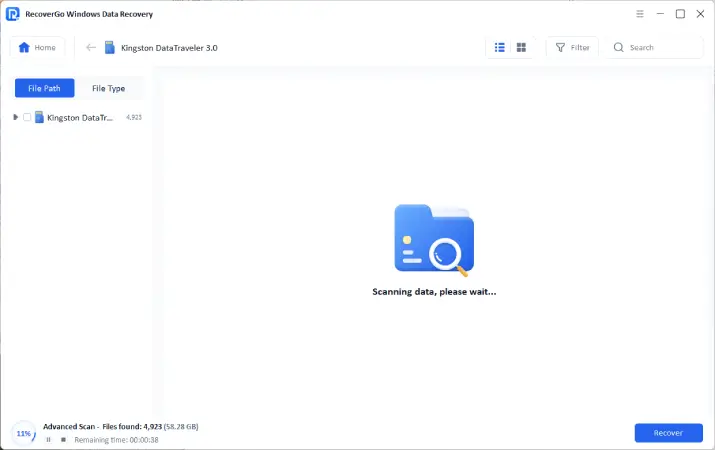
Scan SD Card for Lost Photos
Now, RecoverGo will start scanning the SD card to locate the photos you deleted. The three scanning modes, including quick scan, deep scan, and advanced scan, help improve recovery chances.
![recovergo windows sd card scan]()
-
Preview and Export the Recovered Photos
Once done, view the photos in the “Preview” panel. Press the “Recover” button again, then choose a location to save them.
![external drive preview photo]()


Part 4. How to Prevent Photo Loss in the Future?
Many people still lose camera photos because they never maintain a consistent backup routine. Techspot reports a Western Digital survey where 63% of people have already experienced data loss. Use these tips before you ever need to recover deleted photos from a digital camera again:
- Back Up Your Photos: Keep photos on an external drive separate from your main working computer. Update this drive after each shoot so it does not cost you everything.
- Transfer Photos Promptly: Move fresh photos from the camera card to the computer and backup drive right away. This quick transfer keeps cards safer and protects images before any card problems appear.
- Avoid Overwriting: If pictures disappear from the card, stop saving new files on it. New files may replace deleted data, making later recovery attempts much less effective.
- Simple Backup Schedule: Pick one day each week to copy recent photos to backup locations. This small routine adds up over time and helps you avoid big losses if something fails.
Final Thoughts
Losing photos from your camera does not always mean they are gone. By following the steps above, you can lower your risk of losing photos. If something still goes wrong, these recovery steps may help bring your memories back. When built-in options fail, tools like iToolab RecoverGo Windows Data Recovery can scan your camera card and restore missing photos. Download RecoverGo and scan your SD card today to get your photos back.