

Many people lose important screen recordings while working, cleaning, or restarting their computers. If you are trying to figure out how to recover deleted screen recording files, the good news is that Windows often gives you a few practical ways to get them back.
This guide shows how to recover deleted screen recording videos safely on Windows 10 and 11. By the end, you will know when a deleted clip is still in the Recycle Bin, when File History can help, and when a recovery tool is the faster path.
Part 1. Where Do Deleted Recordings Go?
On Windows, most deleted screen recordings first move into the Recycle Bin, not vanish instantly. Permanent deletions mark their space as free, while unsaved clips may sit in hidden temp folders or cloud trash.
- Normal deletes move the recording into the Recycle Bin on your computer.
- Permanent deletes leave their data on disk but marked as free space.
- Failed or interrupted recordings can stay inside the app’s temp or cache folders.
- Saved clips often sit in the Captures or Screen Recordings default folder.
- Synced recordings usually appear in the trash area of cloud storage services.
Part 2. Can You Recover Deleted Screen Recording?
Yes, deleted screen recordings can often be brought back if they were saved as video files. Recovery usually works if that part of the drive has not been overwritten yet. If the clip was permanently deleted, a backup or a recovery scan may still bring it back.
Part 3. How to Recover Deleted Screen Recording on a Laptop?
- Way 1. Recover Deleted Screen Recording from Recycle Bin
- Way 2. Restore Deleted Screen Recording from File History
- Way 3. Recover Deleted Screen Recording from Cloud Backup
- Way 4. Use iToolab RecoverGo Windows Data Recovery
Way 1. Recover Deleted Screen Recording from Recycle Bin
The Recycle Bin keeps deleted screen recordings instead of removing them from your laptop immediately. Recordings stored there can be brought back to their original folders on Windows.
How to Proceed:
- Once you find that your screen recording is deleted, open the Recycle Bin folder.
- Locate the missing screen recording in the list.
- After you find that, right-click the file or folder and press the Restore button.
- You can also restore all files by selecting Restore All Items if the Recycle Bin has more screen recordings.

Way 2. Restore Deleted Screen Recording from File History
If the recording isn’t in the Recycle Bin, or it’s already been emptied, File History is the next option. File History can restore an earlier copy only if it was enabled before the recording disappeared.
1. First, search for and open Restore Your Files with File History from the Start Menu and make sure that File History is turned on. After that, press the Restore Personal Files button.
2. Locate your deleted screen recording or folder by date and time and click the Green Restore icon to restore the file to its original location.

Way 3. Recover Deleted Screen Recording from Cloud Backup
If File History wasn’t turned on and has no backup, check your cloud storage account next. Cloud backup stores extra copies of your screen recordings on online storage services.
Procedure:
Once you open cloud storage like OneDrive, choose the My Files option in the left-side panel. Then locate the screen recording video you lost from your laptop.
After you find the missing file, select it and press the Download option in the top options bar.

Way 4. Use iToolab RecoverGo Windows Data Recovery
If screen recordings disappear after a crash or deletion, built-in options may not be enough. Many data recovery tools in 2026 offer safer ways to scan drives and check for lost clips.
Tools like iToolab RecoverGo Windows Data Recovery add deeper scans and previews to help work around some of these limitations. It can handle files lost after deletion, system issues, or formatting on computers.
Key Features
- Compatibility with 2,000+ devices, including HDDs, SSDs, external drives, USB drives, SD cards, and cameras.
- Support for 1,000+ file types, including MP4, MOV, AVI, WMV, MKV, MPEG, and other common video formats.
- Read-only scanning that does not alter the original data during the scan.
- Filters for file type, path, and modified date, which help narrow large scan results.
- Quick, Deep, and Advanced scan modes help you find more lost screen recordings.
- Helps find files using filters for type, path, or modified date.
- Recover permanently deleted screen recordings with a 99.7% success rate.
How to Recover Deleted Screen Recording Files Using RecoverGo
RecoverGo walks you through recovering deleted screen recording files on Windows. If you lost important screen recordings, here is how to recover deleted screen recording files using the app.
Step 1. Choose a Drive with a Missing Recording
After you open RecoverGo, choose the Hard Drive option and select a local drive where the screen recording used to be. Then press the Scan For Lost Data button to start the scan.

Step 2. Scan the Drive
You can use Quick Scan, Deep Scan, and Advanced Scan to help find the screen recording faster.
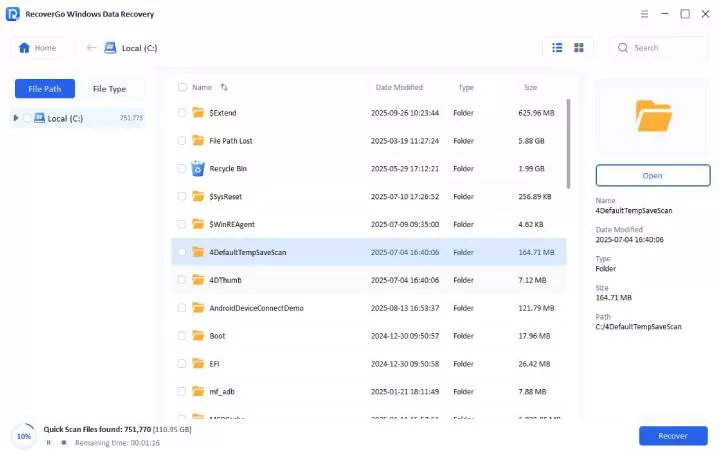
Step 3. Preview and Export the Screen Recording
Once the scan is complete, preview the recovered screen recording. Then click Recover to save it to a different location.

Part 4. Best Practices to Prevent Screen Recording Loss
Screen recordings are often lost when drives fail or folders are renamed without warning. Knowing how to recover permanently deleted screen recording files helps, but avoiding loss in the first place is even better.
- Fix a Save Folder: Choose one stable folder for recordings and confirm it after software updates. This way, you’ll notice quickly if a file goes missing.
- Check Free Space: Look at available disk space before long recordings to avoid a sudden stop or corruption. Low space increases the risk of incomplete videos and later recovery problems.
- Avoid Recording to Risky Drives: Do not record directly to failing external drives or almost-full USB sticks. Use a healthy internal drive first, then copy the finished recording to another location.
- Backup Finished Recordings: Copy important recordings to another drive or the cloud the same day you create them. Extra copies protect your videos when the main device crashes or gets lost.
- Stop Using the Device After Loss: If a recording disappears, do not save new files to the same drive. Avoiding new writes on that drive gives recovery tools a better chance to find the clip.
Also Read: How to Recover Deleted Videos from PC on Windows 10/11?
Summary
To summarize, Windows doesn’t erase deleted screen recordings right away, and having a backup or File History enabled gives you more ways to get them back. If the built-in methods do not work, iToolab RecoverGo Windows Data Recovery can still help you scan the drive and preview recoverable clips.