

“My USB drive suddenly stopped working and Windows is asking me to format it. I have important files on there that I can’t lose. Is it possible to recover files from a corrupted USB?”
— From Reddit Community
We received this question from a user facing how to retrieve files from corrupted USB drive. This scenario is more common than you might think, and the good news is that recovery is possible in most cases.
A corrupted USB drive can prevent access to important files, but the data often remains on the drive. You might see error messages like “USB not recognized” or be prompted to format the drive. Sometimes the USB appears empty even though it contains files. In this guide, we’ll explain what causes USB corruption and walk you through proven methods to retrieve your files.
Part 1: What Causes a USB Drive to Become Corrupted?
Before learning how to recover data from a corrupted USB drive, we need to understand what causes corruption in the first place. Here are the common causes:
Improper USB Removal
One of the biggest causes of corruption is unplugging the USB drive while files are still being transferred. You need to first click the “Safely Remove Hardware” option. Removing the USB unsafely can lead to missing files, RAW file systems, or “USB needs formatting” errors.
Malware Infection
Malware can hide or delete files stored on USB drives. Some viruses also make the drive unreadable by corrupting the partition structures.
File System Errors
Many factors can corrupt your flash drive’s structure, such as sudden power failure, interrupted transfers, and bad sectors. When this happens, Windows may show errors like “Drive is not accessible,” “You need to format the disk,” or “File or directory is corrupted.”
Physical Damage
Physical damage can prevent the computer from detecting the drive entirely. USB flash drives are portable and vulnerable to several factors, such as water damage, heat exposure, dust buildup, and electrical surges. This type of damage makes data recovery more difficult.
Part 2: How to Retrieve Files from Corrupted USB?
If your USB drive becomes unreadable, stop using it immediately. Similarly, if your USB still appears in Disk Management, there’s a strong chance your files can be recovered. Below are the proven methods to retrieve files from corrupted USB flash drive safely and effectively.
- Method 1: Use iToolab RecoverGo – Fast and Simple🔥
- Method 2: Recover Data from Corrupted Pen Drive for Free
Method 1: Use iToolab RecoverGo- Fast and Simple🔥
One of the easiest ways to recover files from a corrupted USB is to use iToolab RecoverGo Windows Data Recovery. This professional tool offers a99% recovery rate and works effectively on corrupted, damaged, or inaccessible drives. In a corrupted USB, files are often still physically present on the drive. RecoverGo scans deep storage sectors to locate and retrieve deleted or inaccessible data, without relying on the damaged file system.
Key Features:
- User-friendly Interfaces: An easy-to-read interface allows beginners to recover deleted files in just a few clicks.
- 1000+ File Types: Recovers files regardless of format, including photos, videos, documents, and more.
- File Filter: Quickly locate lost data by filtering by file type, path.
- Preview Before Recovery: View files before recovery.
- No Technical Skills Required: Simple three-step process – scan, preview, and restore.
- Pause And Resume: Ensures a smoother recovery process by allowing you to pause and resume scans.
How to Recover Files Using iToolab RecoverGo?
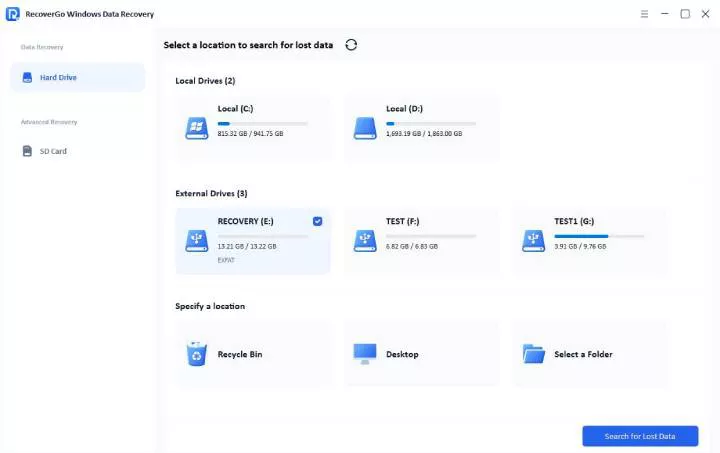
Step 1 Launch the iToolab RecoverGo and connect your USB flash drive. Select your USB from the list and click “Search for Lost Data”.
Step 2 The tool will perform a deep scan to find lost files. You can pause and resume the scan at any time.
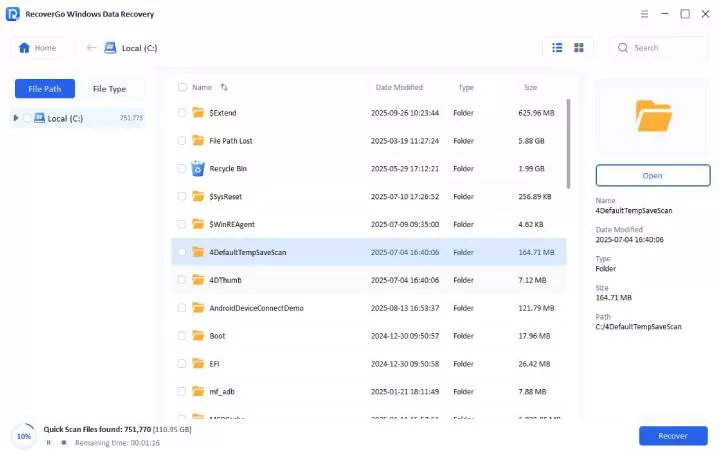
Step 3 Select the files you want to recover and click the “Recover” button. Choose a different drive (such as your computer’s hard drive) as the save location to avoid overwriting data.

Method 2: Recover Data from Corrupted Pen Drive for Free
Windows File Recovery is a Microsoft free command-line tool. While it lacks a graphical interface, it can be effective for recovering data from corrupted USB drives.
Steps to Use Windows File Recovery:
- Download Windows File Recovery from the Microsoft Store. This tool requires Windows 10 (May 2020 Update or later) or Windows 11.
- Open the Start menu, search for “Windows File Recovery,” and launch it. Click “Yes” when prompted by User Account Control.
- Open Command Prompt or Windows Terminal. Enter the following command (replace X: with your USB drive letter):
winfr X: C:\Recovered /extensive - Wait for the scan to complete. The recovered files will be saved in the “Recovered” folder on your C: drive. Open this folder to verify your files.

Pros
- Completely free to use.
- Good for basic recovery needs.
Cons
- Command-line interface can be confusing for beginners.
- Limited support for different file types and file systems.
- Lower success rate on severely corrupted drives.
Verdict
Windows File Recovery is a free option for free data recovery. But its command-line interface is not suitable for beginners. If you want to recover your lost data in simple steps, iToolab RecoverGo is a good choice for you.
Also Read: Windows File Recovery Stuck at 99%? Here’s How to Fix It Fast
Part 3: How to Fix a USB Flash Drive That Is Corrupted?
After recovering your files, you may want to repair the USB drive itself. Here are four effective fixes to try.
- Fix 1: Assign a Different Drive Letter
- Fix 2: Run CHKDSK Command to Repair File System Errors
- Fix 3: Reinstall and Update the Drivers
- Fix 4: Format the Corrupt USB Flash Drive
Fix 1: Assign a Different Drive Letter
Sometimes Windows cannot detect the USB properly because of a drive letter conflict. This quick fix may restore access instantly.
Best for:
USB drives that don’t appear in File Explorer but show up in Disk Management.
Steps to assign a different drive letter:
- Press Windows + X and select “Disk Management” to open it.
- Locate your USB drive in the list. Right-click on it.
- Select “Change Drive Letter and Paths” and click “Change.”
- Choose a different letter from the dropdown menu. Click “OK” to confirm.
- Safely remove and reconnect the USB. It should now appear normally in File Explorer.

Fix 2: Run CHKDSK Command to Repair File System Errors
The CHKDSK command can repair minor corruption under specific conditions. It works when the drive shows as “Healthy” in Disk Management and has a drive letter.
Best for:
Minor file system errors. Works only if the drive is not RAW and has a drive letter assigned.
- Type “cmd” in the Start menu search bar. Right-click on Command Prompt and select “Run as Administrator.”
- Type the following command (replace H: with your USB drive letter) and hit Enter:
chkdsk H: /f - Wait for the scan to complete. CHKDSK will automatically fix any file system errors it finds.
- Restart your computer and check if the USB drive is now accessible.
Steps to run CHKDSK command:

Fix 3: Reinstall and Update the Drivers
If your flash drive isn’t working properly, reinstalling the drivers can often resolve the issue.
Best for:
USB drives that aren’t recognized due to driver issues or software conflicts.
Steps to reinstall and update the drivers:
- Open Control Panel and navigate to “Device Manager.”
- Expand the “Disk drives” section by clicking the “+” symbol. Look for your USB drive with a downward arrow icon.
- Right-click on your USB drive and select “Uninstall device” from the menu.
- Unplug your USB and plug it back in. Windows will automatically reinstall the latest drivers.

Fix 4: Format the Corrupt USB Flash Drive
This method is only suitable for severely corrupted drives that can’t be repaired by other methods. Formatting will erase all data on the USB drive, so you may use only after recovering your files.
Steps to format the corrupt USB flash drive:
- Right-click the Start button and select “Disk Management.”
- Right-click your USB drive and select “Format.”
- Check the “Perform a quick format” option if you want a faster process. Select the file system (FAT32 for drives under 32GB, exFAT for larger drives).
- Click “OK” to begin formatting. Wait for the process to complete.

Part 4: FAQ About Recovering Files from Corrupted USB Drive
How to open files on a corrupted USB drive?
You can try several methods: use CHKDSK to repair file system errors, run data recovery software, change the drive letter, or reinstall drivers. The most reliable approach is using professional recovery software, which can access files even when the file system is damaged.
How to recover corrupted USB files?
Use trusted recovery software like iToolab RecoverGo or Windows File Recovery to scan the corrupted device and restore accessible files. Professional software offers higher success rate and can recover files in most corruption scenarios.
Is it possible to recover deleted files from a flash drive?
Yes, deleted files often remain on the drive until overwritten by new data. Stop using the USB immediately to prevent overwriting, avoid formatting, and use recovery software quickly for the best chance of successful recovery.
Conclusion
A corrupted USB drive may seem impossible to recover data from at first, but it doesn’t always mean permanent data loss. Most data can be successfully restored if you use the right approach.
This guide covered multiple methods to retrieve files from a corrupted USB. For the most reliable results, professional recovery software like iToolab RecoverGo Windows Data Recovery provides a beginner-friendly way to scan and recover inaccessible files with a 99% success rate. Advanced users can use Windows File Recovery for free recovery attempts.