

I accidentally deleted important files from my NVMe SSD. I’ve heard that SSDs work differently from HDDs when it comes to data recovery. Is it still possible to recover my files? What should I do?
— From Reddit Tech Support
Yes, NVMe data recovery is possible in many cases. However, recovering files from NVMe SSDs is more challenging than traditional hard drives. The reason? NVMe drives use TRIM technology, which can permanently erase deleted data blocks quickly.
Your recovery success depends on several factors: how quickly you act, whether the drive is still detectable, and whether the failure is logical or physical. This guide covers everything you need to know about recovering data from NVMe drives in 2026.
Part 1: What Makes NVMe Data Recovery Different?
Before diving into recovery methods, it’s important to understand why NVMe data recovery differs from traditional HDD recovery.
The main obstacle is TRIM. When you delete a file on an NVMe SSD, the TRIM command tells the drive which data blocks are no longer needed. The SSD controller then erases these blocks to prepare them for new data.
TRIM improves SSD performance and extends its lifespan. However, it significantly reduces your recovery chances. Once TRIM activates, deleted data may be permanently erased before recovery software can scan the drive.
TRIM does not guarantee immediate data destruction. Recovery success depends on timing, drive firmware, and whether the issue is logical or physical. However, for recently deleted files, TRIM can destroy data within minutes or even seconds.
When Recovery Is Most Likely to Succeed:
- Your files exist in a cloud backup or synced folder.
- The drive powers on, is detected by Windows, and TRIM has not yet processed the deleted blocks.
- Data loss resulted from corruption, accidental formatting, or partition damage rather than deletion.
Part 2: What to Do After NVMe Data Loss?
Stop using the drive immediately. This is the most critical step. Continued use can overwrite recoverable data or allow TRIM to permanently erase deleted blocks.
Immediate Actions:
Power off if necessary: If the lost files are critical, shut down your computer. According to data recovery experts, deleted data on some SSD controllers can be destroyed within minutes.
Check drive visibility: Open Disk Management to see if Windows detects the NVMe drive. If the drive appears (even as RAW or unallocated), software recovery may work. If the drive doesn’t appear at all, you may need an NVMe-to-USB adapter or professional services.
Install recovery software on a different drive: Never install recovery tool on the affected NVMe drive. Doing so can overwrite the very files you’re trying to recover.
Part 3: How to Recover Data from NVMe?
Three primary recovery methods exist. Start with the simplest and least expensive option.
- Method 1: Check Cloud Backups
- Method 2: Use NVMe Data Recovery Software
- Method 3: Professional Data Recovery Services
Method 1: Check Cloud Backups
Before attempting any recovery software, check your cloud storage services. Many users don’t realize their files were automatically synced.
Recover data from Google Drive:
- Go to drive.google.com in your browser.
- Check “My Drive” or search by file name.
- Right-click on a deleted file and download it.

Follow the steps in OneDrive:
- Right-click the OneDrive icon in your taskbar.
- Click “My files” in the left sidebar.
- Select the files you want and download it.

Cloud backup recovery is the safest first step since it doesn’t involve the affected drive at all. If your files exist in the cloud, you can recover them in minutes without any risk.
Method 2: Use NVMe Data Recovery Software
If cloud backups don’t contain your files, iToolab RecoverGo Windows Data Recovery offers a reliable solution for NVMe data recovery.
RecoverGo supports over 1,000 file formats and works with all NVMe SSDs including PCIe 3.0 and PCIe 4.0 drives from Samsung, WD, Seagate, Kingston, SanDisk, Crucial, and Transcend. The software supports NTFS, FAT32, and exFAT file systems and delivers a 99% recovery rate.
Key Features:
- NVMe optimized: Designed specifically for modern SSD architectures.
- Free preview: Scan and preview recoverable files at no cost.
- Pause and resume: Interrupt scans anytime and continue later.
- Wide compatibility: Works with HDDs, SSDs, USB drives, and SD cards.
How to Recover NVMe Files with RecoverGo:
Step 1 Launch RecoverGo and select your NVMe drive. Click “Scan” to search for recoverable files.
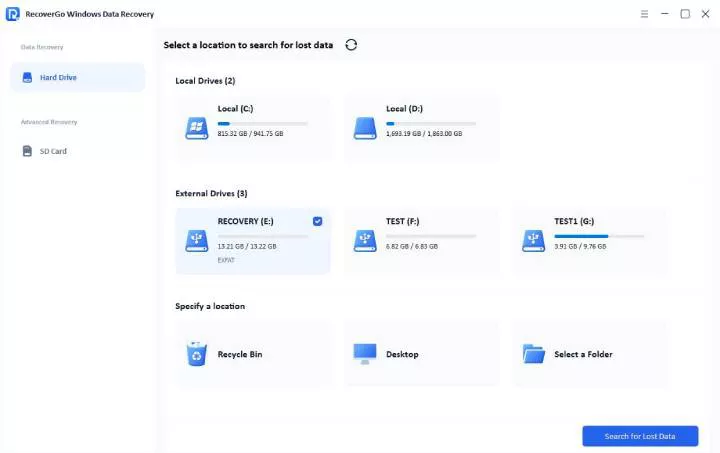
Step 2 The software starts scanning. The scan time depends on the drive and data.

Step 3 Preview the found files to verify they’re recoverable. Then select the files you need and click “Recover.” Save them to a different drive.

Method 3: Professional Data Recovery Services
Software cannot recover data from physically damaged drives. If your NVMe has hardware failure, professional recovery services offer the best chance.
When to Use Professional Services:
- The drive doesn’t appear in BIOS.
- The drive shows 0 bytes or incorrect capacity.
- The drive suffered physical damage (dropped, water, heat).
- Recovery software finds no results.
NVMe Recovery Service Costs
Professional NVMe recovery typically costs between $200 and $2,500, depending on the failure type:
Professional recovery is the last resort when software fails. Most reputable services offer free evaluations and operate on a “no data, no charge” basis—you only pay if they successfully recover your files.
FAQs About NVMe Data Recovery
What’s the difference between M.2 and NVMe?
M.2 refers to the physical form factor—the shape and size of the drive. NVMe is the communication protocol that determines how fast data transfers. Most modern M.2 drives use NVMe, but some budget M.2 drives still use SATA (which is slower).
Can I recover data from a dead NVMe SSD?
It depends on the failure type. Logical failures (corruption, firmware issues) often respond to software recovery. Physical failures (controller damage, NAND failure) require professional services. In either case, stop using the drive immediately to maximize recovery chances.
How long do NVMe SSDs typically last?
Most NVMe drives are rated for 5-10 years of regular use. Manufacturers measure durability in TBW (Terabytes Written). Entry-level drives may be rated for 150 TBW, while high-end drives can reach 1,200+ TBW. Factors like heat, power surges, and heavy workloads can reduce lifespan.
Final Verdict
NVMe SSDs deliver exceptional speed and reliability, but data loss can still occur. Act quickly before TRIM permanently removes recoverable data. If the data loss is caused by accidental deletion, corruption, or partition issues, a reliable tool such as iToolab RecoverGo Windows Data Recovery may help recover your files. For physically damaged or undetectable SSDs, professional recovery services are often the best choice.
Time is critical. The sooner you act, the higher your recovery chances.