

The power went out while transferring the data from my 64 GB USB drive. The Windows no longer recognizes it. I get an error asking me to format the drive. It shows as RAW in Disk Management. Is there a RAW USB drive fix that can help me recover my data?
— From Reddit Tech Support
Looking for a reliable RAW USB drive fix? If your USB drive has suddenly become RAW, don’t panic. In many cases, the files are still stored on the device and can be recovered before the drive is repaired or reformatted.
In this guide, you’ll learn what a RAW USB drive is, how to recover files from it, and the best ways to repair it without losing data.
Part 1: What Does a Raw USB Drive Mean?
A RAW USB drive means the Windows can not recognize the file system. Most USB drives come with the FAT32 or the exFAT file systems. But when file system is corrupted or damaged, Windows starts to show the drive as RAW.
The OS shows these messages when you access a RAW drive:
- Drive is not accessible.
- You need to format the disk before you can use it.
So, what causes a USB drive to turn RAW? Well, there are multiple reasons:
Data Corruption
A pen drive can become corrupted due to a virus or improper ejection. This damages the data and the file system on the drive.
Formatting Interruption
Interrupting the formatting process can also make a drive appear as RAW. During the format, Windows creates a new file system and erases existing data. However, interrupting this process leaves the drive with a damaged or no file system.
Wear and Tear
A USB drive is also susceptible to wear and tear like all electronic devices. It can develop bad sectors over time. A bad sector is a portion of the pen drive that can’t store data.
The drive becomes RAW when the bad sectors appear in the area holding the file system. Any damage to the boot sector can also make the drive unreadable by the OS.
Partition Table Error
Any issues with the partition table can also make it impossible for the system to recognize the drive. As a result, the drive become inaccessible and Windows starts asking you to format it.
This happens when the pen drive is removed during data transfer. Turning off the computer while the drive is in use can also damage the partition table.
Windows may prompt you to format the RAW drive to regain access. While formatting can make the drive usable again, it will also erase the existing data. If the drive contains important files, recover your data before attempting any repair or formatting procedures.
Part 2: How to Recover Files from Raw USB Drive?
The best option for RAW USB data recovery is to use iToolab RecoverGo Windows Data Recovery. It is modern and easy-to-use data recovery software.
RecoverGo uses three scan modes to scan through the RAW drives. It can recognize 1000+ file types and can recover data even if the drive is missing the file system information.
One thing that makes RecoverGo stand out from others is its 99% recovery rate due to its advanced algorithms. It also helps you find the files you need in no time.
Main Features of RecoverGo:
- Simple 3-step recovery process.
- Preview files before recovery.
- Recover files from RAW, inaccessible, corrupted, and unrecognized USB drives without formatting.
- Recover documents, photos, videos, archives, and other files from RAW USB drives.
- Locate specific files by name, type, extension, or date.
How to Recover Files from RAW USB Drive with RecoverGo:
You can follow these simple steps to recover data from RAW USB drive:
Step 1 Connect the RAW pen drive to the computer. Launch RecoverGo and then select the pen drive from the main screen. Click on the “Search for lost data” button to start the scan.
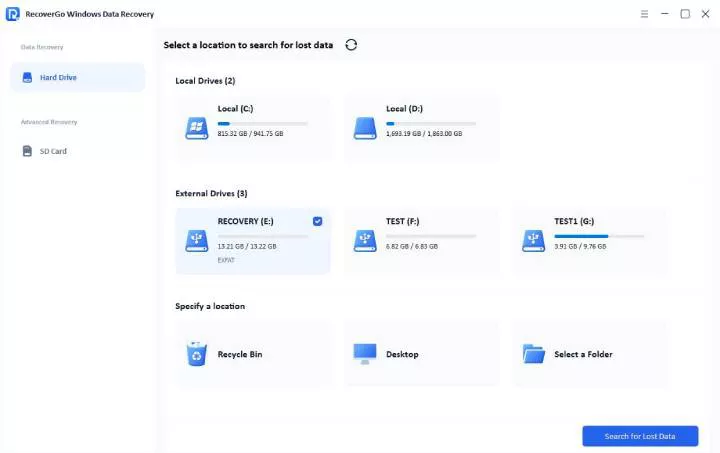
Step 2 The software starts scanning. If you remember the file name, you can also search by file filter.

Step 3 Once the scan is complete, you can preview the files. After selecting the files, click on Restore.

You can retrieve the lost data in 3 simple steps. This simple workflow is why RecoverGo is the best option. Also, RecoverGo can retrieve your lost files even if you can’t access the RAW drive normally.
Test Results
A 64 GB flash drive was used in this test. It appeared as RAW in Disk Management. The drive was not accessible via the File Explorer.
The drive had around 1 GB worth of video and image files on it. RecoverGo managed to recover 109/110 files. The scanning process only took 3 minutes, which is quite fast. All the recovered data had original filenames and folder structures. This made it very easy to find the files we needed.
Part 3: How to Fix Raw USB Drive?
Once you have recovered the data, you can start looking for a RAW USB drive fix. After all, you will need to fix the pen drive to continue using it.
Let’s look at 2 easy ways for RAW USB flash drive repair:
Fix 1: Fix a RAW USB Drive Using CMD
Windows offers a free utility called DiskPart. It can be used to manage storage devices like HDD, SSD, and pen drives.
DiskPart is ideal for this situation. Why? Because it scans at a lower system level. So, even if the USB drive is inaccessible in File Explorer, DiskPart can still return it into a usable state.
In this method, we will use DiskPart to clean the USB drive and create a partition. After that, we will use the utility to format the drive and make it usable again. This process erases all the files on the pen drive. So, only proceed if you have already recovered the existing data.
Follow these steps to use:
- Press Win + S. Type cmd and wait for Windows to give suggestions. Choose the “Run as administrator” option and launch the Command Prompt.
- Type diskpart and hit Enter.
- Now run this command to list all the disks: list disk
- Select the USB drive with this command:
select disk X (Replace X with your USB drive’s letter)
- Type clean and press Enter.
- Run this command to create a new partition: create partition primary
- Format the drive with this command (The 1st one is for exFAT and the 2nd one is for FAT32):
format fs=exfat quick
or
format fs=fat32 quick


The USB drive will now be accessible once again in the File Explorer. But if it doesn’t work, then try Fix 2.
Fix 2: Format the Raw USB to FAT32 File System
Formatting the drive creates a new file system and makes it functional again. For most USB drives, the FAT32 file system is the best choice. If you think about it, a corrupted file system is what makes a USB drive appear as RAW. So by replacing the corrupted file system with a new one, you can read and write data on the drive again.
Warning:
Formatting the drive will erase all the data. Also, never use the full format option if you have important data on the drive. A Full format makes it nearly impossible to recover the data.
Method 1: Format using File Explorer
You can follow these simple steps to format the raw flash drive:
- Connect the USB drive to the computer. Wait for Windows to detect the device.
- Go to “This PC” and find your USB drive. Right-click on it and select Format.
- Select FAT32 under the file system option.
- Make sure the Quick Format option is checked.
- Click on Start to initiate the format process.

After the format, you will be able to access the drive normally. However, the data on the drive will be deleted during the format process.
Method 2: Format using Disk Management
The File Explorer fails to format the drive in some cases. If this happened to you, then you can try Disk Management. It is a built-in utility that can be used to manage the storage devices.
Follow these steps to format the USB drive using Disk Management:
- Press Win + X. Open Disk Management.
- Find the RAW USB drive. It will be labeled as RAW or unallocated space.
- Right-click on the drive and choose Format.
- Select the FAT32 file system and check the “perform a quick format” option.
- Click OK to start the format process.

This process will add a healthy FAT32 file system to the pen drive. It will also fix any other storage issues and make the pen drive usable again.
Part 4: Watch the Video Guide to Fix a RAW USB Drive
Did you enjoy this tip? Subscribe to iToolab YouTube Channel
Final Thought
Recovering data from a RAW flash drive is a very straightforward process. If you are dealing with a RAW pen drive, we highly recommend iToolab RecoverGo Windows Data Recovery.
RecoverGo can completely scan the RAW USB drive to look for the lost files. You can then preview these files and restore them to another drive. One thing that makes RecoverGo stand out from other software is its 99% success rate!
You can proceed to fixing the USB drive once the data is recovered. We have shared multiple ways to make the USB drive usable in this guide. The right RAW USB drive fix can help you restore access to your device.
Remember always prioritize data recovery. Use RecoverGo and then try the different methods to fix the RAW flash drive.