

A USB flash drive is a convenient way to store and transfer data. But people frequently format USB drives as they are removable media. This increases the risk of accidentally losing important data.
The first thought after formatting is that all your files are gone forever. Fortunately, data recovery is still possible in most cases. Even if it appears your data is gone, the files often remain on the drive until overwritten.
In this guide, we’ll explain what happens when you format a USB drive and share 5 proven methods to recover your files. We’ll cover everything from built-in Windows tools to professional recovery software like iToolab RecoverGo Windows Data Recovery.
Part 1: Can I Recover Data from Formatted USB Drive?
The short answer is yes. You can recover data from a formatted USB drive in most cases. However, success depends on several factors.
When you format a USB drive, the operating system removes the file system structure. The computer no longer knows where the files are stored. But the actual data may still exist on the drive.
There are two types of formatting:
- Quick Format: This method only removes the file system structure. The data remains on the drive until overwritten. Recovery is highly possible.
- Full Format: This method overwrites all data with zeros. Recovery is extremely difficult or impossible.
Most users perform a quick format by default. Recovery is still possible after a quick format. The data remains if it hasn’t been overwritten.
However, full format overwrites existing data. It scans the drive for errors too. If you performed a full format, data recovery becomes much harder or impossible.
Part 2: What to Do Before Recovering Data from a Formatted USB Drive?
Before attempting recovery, follow these important steps to maximize your chances of success:
- Stop using the drive immediately: Any new data written to the USB can overwrite your lost files.
- Do not reformat the drive again: Additional formatting increases the risk of permanent data loss.
- Attempt recovery as soon as possible: The longer you wait, the higher the chance of data being overwritten.
Part 3: 5 Proven Ways to Recover Data from Formatted USB
We’ve compiled 5 effective methods to help you recover data from a formatted USB drive. Choose the one that best fits your situation:
- Method 1: Restore USB Files with Backup
- Method 2: Recover Formatted Flash Drive Using CMD
- Method 3: Recover Data from Formatted USB Drive Free
- Method 4: Use USB Drive Data Recovery Software🔥
- Method 5: Try Data Recovery Services
Method 1: Restore USB Files with Backup
If you regularly back up your USB drive, this is the easiest recovery method. You can restore your files from a previous backup without any additional tools.
How to Restore from Cloud Backup:
- Log in to your cloud storage service (Google Drive, OneDrive, Dropbox).
- Navigate to the folder where your USB files were synced.
- Select the files you want to restore.
- Download them to your computer or a new USB drive.

Pros
- Fast and simple recovery process.
- Original file structure is preserved.
- No technical skills required.
Cons
- Sync must have been enabled before formatting.
- Free cloud storage space may be limited.
- Large files can take time to download.
Overall, it is a safe and easy way to recover files from formatted pen drive. However, it only works if the data was actually backed up to the cloud before formatting.
Method 2: Recover Formatted Flash Drive Using CMD
Another option is to use the Windows File Recovery. It is a command-line tool to recover data from formatted drives. This tool works by deep scanning the drive’s storage sectors. Once the drive is scanned, the files are then recovered by using the file signatures.
Steps to Recover Files Using CMD:
- Search and download Windows File Recovery.
- Press Ctrl+S and type cmd.
- Click on “Run as administrator” to launch the Command Prompt.
- In the Command Prompt window, type the following command and press Enter:
winfr E: D:\folder /extensive
Replace E: with the pen drive’s letter. Also replace D: with destination folder. The /extensive mode is best for formatted drive. - Once the process is complete, check the destination folder for the recovered files.

Pros
- It is a completely free tool from Microsoft.
- Deep scan mode is quite powerful.
Cons
- Difficult to use (It is command line tool).
- CMD cannot recover permanently deleted files.
- Scans take a long time and no file preview feature available.
Windows File Recovery is a good tool and is completely free. However, there’s no GUI and incorrect commands can lead to incomplete recovery or complete data loss.
Method 3: Recover Data from Formatted USB Drive Free
Recuva is a popular free data recovery tool from CCleaner. It can help recover deleted files from formatted USB drives. However, its success rate varies depending on the formatting type.
How to Use Recuva:
- Download and install Recuva from the official website. Install it on your computer’s hard drive, not the formatted USB.
- Launch Recuva and click “Next” to start the wizard. Select “All Files” or choose a specific file type.
- Click “Next” to continue.
- Enable “Deep Scan” for formatted drives and click “Start” to begin scanning.
- After scanning, browse the results and check the files you want to recover. Click “Recover” and choose a save location on your computer.

Pros
- Lightweight and quick to install.
- Simple user interface.
- Can recover various file types.
Cons
- Lower recovery rate for formatted drives.
- Deep scan can take a long time.
- May not recover file names correctly.
Don’t expect a high recovery rate with Recuva for formatted drives. It’s a free tool with limitations. For better results, consider professional recovery software.
Method 4: Use USB Drive Data Recovery Software- Quick and Simple
Professional data recovery software offers the highest success rate for formatted USB drives. iToolab RecoverGo Windows Data Recovery is one of the most effective tools for this purpose.
RecoverGo scans the drive at a low level, bypassing the damaged file system. It uses advanced algorithms to locate file signatures and reconstruct your data. This allows it to recover files even after formatting, as long as the data hasn’t been overwritten.
Key Features:
- 99% High recovery rate: Aim for 99% recovery success through three scan methods.
- 2000+ file types: Recovers photos, videos, documents, and many other file formats.
- Simple 3-step process: Scan, preview, and recover your files easily.
- Multiple loss scenarios: Handles formatted drives, system crashes, virus attacks, and more.
How to Recover Data from Formatted USB Using iToolab RecoverGo?
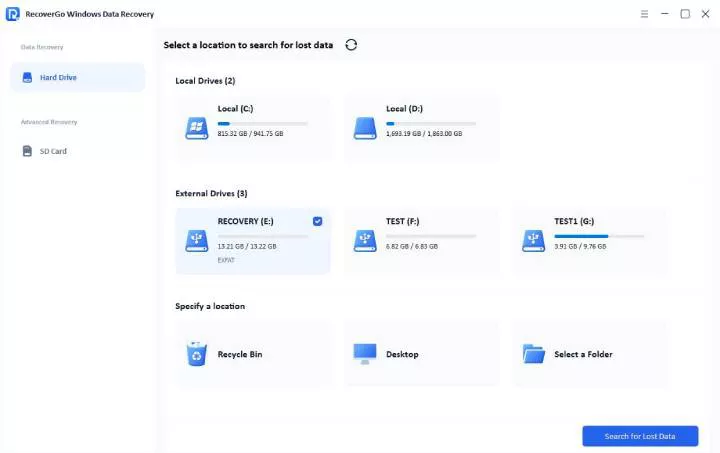
Step 1 Launch the iToolab RecoverGo and connect your formatted USB drive to the computer. Then Click “Search for Lost Data”.
Step 2 The software will scan your drive using three scan modes. The scan time depends on your drive and data.
- The USB drive has physical damage or is not recognized by any computer.
- The data is extremely valuable and worth the higher cost.
- The data on the drive is extremely important.
- Highest success rate possible.
- Can recover from physical damage.
- Professional and secure handling.
- Most expensive option.
- Can take several days or weeks.
- No guarantee of success.
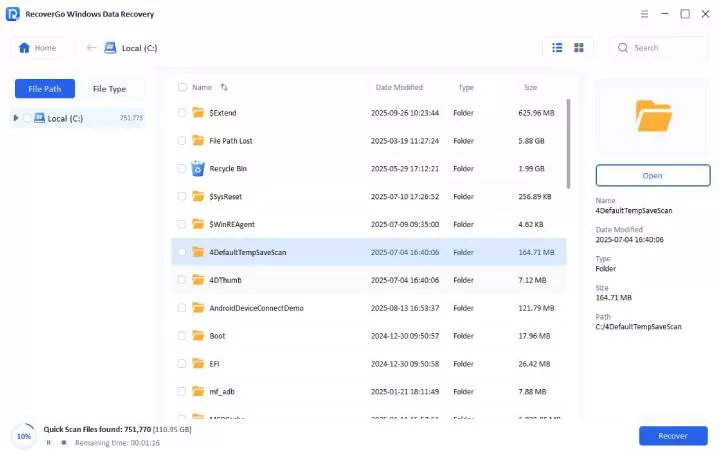
Step 3 Once the scan is complete, you can recover files via the “Recover” button.

Method 5: Try Data Recovery Services
If software methods fail, professional data recovery services can help. They can recover data from physically damaged or severely corrupted drives.
When to Use Professional Services:
Pros
Cons
If the data is really important to you and the DIY solutions don’t work, then you should go for a data recovery service.
Part 4: Conclusion
Recovering data from a formatted USB drive is possible in most cases. The key is to act quickly and avoid writing new data to the drive. Your success depends on the type of formatting and whether the data has been overwritten.
For most users, professional recovery software like iToolab RecoverGo Windows Data Recovery provides a high recovery rate and simple interface for all skill levels.
Remember to always back up your important data regularly. This prevents future data loss situations. Use the methods in this guide to recover your formatted USB data safely and effectively.