

I had a 64 GB SD card in my Lumix DMC TZ80. I turned off the camera while filming. Now, it says the card needs to be formatted. The PC shows it as RAW. How can I recover data from this RAW SD card?
— From Apple Community
A concerned user posted this question “How can I recover data from RAW SD card?” on a tech forum. The good news? Data recovery is possible in cases like this.
A RAW SD card means Windows cannot recognize the file system. Your photos, videos, and documents are still on the card—but you can’t access them through normal means.
In this complete guide, we will explain what causes a RAW SD card, how to recover your data safely, and how to fix the card without formatting. By the end, you’ll know exactly what steps to take.
Part 1: What Does “RAW SD Card” Mean?
A RAW SD card indicates that Windows cannot recognize the file system. Normally, SD cards use exFAT or FAT32 file systems. When the file system is damaged, the OS stops recognizing the card.
What Damages the File System?
Sudden Interruption
Disconnecting the SD card while files are being copied, moved, or saved can damage the card over time. Turning off the camera during file transfer causes similar issues.
Abrupt Removal
Removing the SD card without safely ejecting it corrupts the file system. This commonly happens when users remove the card without proper ejection. However, file system corruption can occur even after a single improper removal.
Bad Sectors
Memory cards can develop bad sectors over time. Aging is a key factor that leads to bad sectors on storage devices. Physical damage from heat or moisture can also cause this issue.
Incomplete Format
Interrupting the format process can also make the card appear as RAW. This can happen due to power failure, system crash, or human error.
Windows will show error messages like “Drive is inaccessible” or “Format the disk before using it” when the connected SD card is RAW. You will not be able to access the files on the memory card.
Part 2: Can You Recover Files from a RAW SD Card?
Yes! Data recovery is possible even if the card shows as “RAW.” In most cases, only the file system is damaged. The files may appear lost, but they are still on the drive.
A data recovery tool is the best solution in this situation. It can locate file fragments and reconstruct them into usable files.
However, the success rate of RAW SD card recovery depends on your actions:
Important:
Do NOT format the SD card, even if Windows prompts you to do so! Formatting can rebuild the file system, but it also overwrites data structures, which lowers recovery chances. A “Full Format” can make it nearly impossible to recover data.
Part 3: How to Recover Data from a RAW SD Card?
You can easily recover data using RAW SD card recovery software. The key is finding a tool with a user-friendly interface and a high success rate.
iToolab RecoverGo Windows Data Recovery is an ideal solution. The software is easy to use and has a 99% success rate. RecoverGo can analyze the drive and reconstruct fragmented files even if the SD card’s file system is corrupted.
Note:
You should not try to fix the RAW SD card before recovering the data. Doing so could further damage the data or overwrite it entirely. Even if Windows tells you to fix the card, ignore it and focus on data recovery first.
Key Features of RecoverGo:
- RAW recovery: Recover data from a RAW or corrupted SD card.
- Easy to use: Simple recovery in 3 steps.
- Three scan modes: Quick, deep and advanced scan help you find more lost files.
- Wide format support: 1,000+ file types supported.
- Preview feature: Preview files before recovery to ensure quality.
How to Recover Data from RAW SD Card with RecoverGo:
Step 1 Launch RecoverGo and click on the “SD Card” option in the sidebar. Then select the SD card from the list and click “Search for lost data.”

Step 2 The softaware start scanning. This may take several minutes depending on the card size.
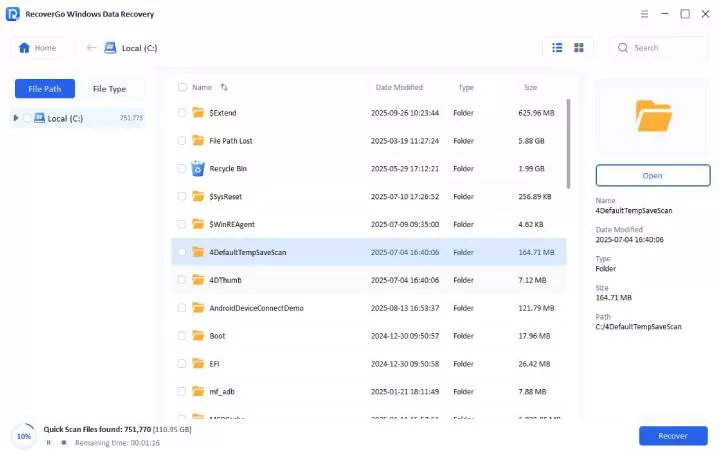
Step 3 Once the scan completes, you can select the files you want to recover. Then click “Recover” to save the files to a safe location.

After recovering the data with RecoverGo, you can move on to fixing the SD card.
Part 4: How to Fix a RAW SD Card Without Formatting?
There are multiple ways to repair the RAW error on SD cards. Try each method in order until you find one that works.
- Method 1: Use Another SD Card Reader or USB Port
- Method 2: Add or Change the Drive Letter
- Method 3: Update or Reinstall Drivers
- Method 4: Use the Error Checking Tool in Windows
- Method 5: Run DiskPart
- Method 6: Run CHKDSK Command
Method 1: Use Another SD Card Reader or USB Port
The problem might not be with the SD card itself. It could be a faulty USB port or card reader.
This is how to fix the issue:
- Insert the card reader into a different USB port.
- Check if the card is accessible.
- If the card still shows as RAW, try a different card reader.
This simple step can sometimes resolve the issue without any further action.
Method 2: Add or Change the Drive Letter
A drive letter is assigned automatically when a storage device is connected. Conflicts can arise when two devices have the same drive letter. This can make the SD card appear as RAW.
Follow these steps to add/change the drive letter:
- Press Win+X and open Disk Management.
- Right-click on the SD card and select “Change Drive Letter and Paths.”
- If there is no drive letter, click Add. If a letter exists, click Change.
- Assign a drive letter and click OK.
- Click OK again to finish.

Try accessing the SD card again. If it opens properly, the issue was related to the drive letter.
Method 3: Update or Reinstall Drivers
Every device connected to the computer requires drivers to function. Outdated or corrupted drivers can prevent access to the SD card.
This is how you can update the drivers and fix the SD card issue:
- Press Win+X and open Device Manager.
- Click on the Disk drives section.
- Right-click on the SD card and click “Update driver.”
- Choose “Search automatically for drivers.”

Restart the computer after updating the drivers. If the card is still RAW, the issue is not driver-related.
Method 4: Use the Error Checking Tool in Windows
Another way to fix a RAW SD card is to use the Windows error-checking tool. It is a built-in tool that can be used to fix issues with the storage devices.
Follow these steps to scan and fix the SD card’s errors:
- Open “This PC.”
- Right-click on the SD card and click Properties.
- Go to the Tools tab and click Check.
- Select “Scan and repair drive.”

Check if the SD card is now accessible.
Method 5: Run DiskPart
A common problem with SD cards is that the read-only attribute is enabled. This prevents writing new data or changing existing data.
This is how you can fix it by using the DiskPart utility:
- Press Win+X and open Windows PowerShell (Admin).
- Type diskpart and press Enter.
- Choose list volume and press Enter.
- Click select volume 3 (replace 3 with your SD card’s volume number).
- Type attributes disk clear readonly and press Enter.

Method 6: Run CHKDSK Command
CHKDSK is a powerful Windows tool that can fix file system errors on storage devices.
Warning:
Using CHKDSK can overwrite data. Recover your data first before using this tool.
This is how you can use the chkdsk to fix the RAW SD card:
- Press Win+X and open Windows PowerShell (Admin).
- Type chkdsk E: /r /x (replace E: with your SD card’s drive letter).
- Wait for the tool to scan and fix errors.

If CHKDSK fails to fix the RAW SD card, you may need to format the card as a last resort. Make sure you have recovered all your data first.
Can CHKDSK Fix a Raw SD Card?
Sometimes. CHKDSK can fix file system errors on some RAW drives. However, it may not work if the file system is severely damaged. Always recover your data first before running CHKDSK, as it can potentially overwrite files.
Conclusion
The ideal way to deal with a RAW SD card is to recover the data first. Use specialized software like iToolab RecoverGo Windows Data Recovery for this purpose. RecoverGo scans the SD card at a deeper level to locate file fragments and reconstruct them.
Once your data is safe, you can try the six methods in Part 4 to fix the RAW SD card without formatting. Start with the simplest solutions—changing the USB port or drive letter—before moving to more advanced options like CHKDSK or DiskPart.
The bottom line: It is possible to recover data from a RAW SD card. Even in worst-case scenarios, you can format the card and start using it again—after you have recovered your files.