

You plug in your USB drive to access a file, only to find it deleted. This happens often. Don’t worry—you can still restore it. In this guide, we’ll show you how to recover deleted files from a USB without software quickly and safely, and explain when using data recovery tool is necessary.
Part 1: Can You Recover Deleted Files from USB Without Software?
Yes. It is possible to recover deleted USB files without third-party software. The operating system handles USB file removals by deleting file references, while keeping the original data intact. Until new data overwrites those physical storage sectors, the original files remain recoverable by using built-in system tools, backup features, or cloud sync services.
Pre-Recovery Essentials to Recover Deleted Files from USB
- Stop using the USB drive immediately, as any new data may overwrite deleted files.
- Eject the USB drive before proceeding to work on another PC.
- Make a complete byte-for-byte duplicate of the drive.
These steps matter because once deleted sectors are overwritten, recovery chances drop sharply.
Part 2: Is It Possible to Recover Deleted Files from USB Free Online?
No. The website does not provide file recovery services. If you want to recover deleted files from a USB drive, you need physical access to the device and any local backup copies.
Users can access free recovery options through downloadable desktop software and built-in system tools, existing cloud backup services.
In short, you can recover files without paid software, but not through an online, browser-based service.
Part 3: How to Recover Deleted Files from USB Without Software?
Here are three practical methods you can try:
- Method 1.Recover Deleted Files from USB Flash Drives with CMD
- Method 2. Restore Deleted Files from Pen Drives with File History
- Method 3. Retrieve Deleted Files from USB Drives with Backups and Cloud Sync
Method 1. Recover Deleted Files from USB Flash Drives with CMD
Windows provides two commands that often solve common visibility and file system errors.
Option 1: Run Chkdsk to Repair File System Errors
- Open Command Prompt as an administrator and run: chkdsk X: /f
- Replace X with the correct drive letter code.

Using this method, you can correct all faults that cause file disappearance.
Option 2. Reveal Hidden Files with Attrib
You can use attrib -H -R -S /S /D X:*.* to remove hidden, read-only, and system attributes from everything on the drive. In some cases, malware or incorrect attribute settings can cause files to disappear.
After running these commands, check the drive in File Explorer.
The CMD procedures are quick and safe when the drive shows no physical problems, but it only works if the files are hidden or affected by minor file system errors.

Method 2. Restore Deleted Files from Pen Drives with File History
If File History was enabled in advance, you can restore lost files from Windows backups.
- Right-click the folder or drive in File Explorer.
- Choose Properties, then open Previous Versions.
- If Windows has stored snapshots or File History copies, you will see older versions. And click on Restore.

Note:
File History must have been configured before the deletion, and external flash drives are not always backed by default.
If you set File History to include those folders or copied files into a synced library, this method can restore deleted files without any third-party program.
Method 3. Retrieve Deleted Files from USB Drives with Backups and Cloud Sync
If your files sync with a cloud service, they are probably backed up. Google Drive and OneDrive let you restore them easily.
Follow these steps to recover deleted files from Google Drive:
- Open Google Drive and sign in with your account.
- Click on the Trash folder and find the files.
- Click on the 3 dots and then choose Restore.
- The files will now be available in “My Drive”.

These are the steps on how to recover deleted files via OneDrive:
- Open Microsoft OneDrive on your browser and log in with your account.
- Click on the Recycle Bin.
- Locate the deleted file.
- Click on Restore.

If you routinely use cloud sync or scheduled backups, you can prioritize checking those locations.
Part 4: How to Recover Deleted Files from USB with Software?
When built-in methods fail, using data recovery software like iToolab RecoverGo Windows Data Recovery becomes the most practical way. It’s safe and extremely easy to use. It helps you recover deleted files from USB without backup. You can free download the tool to scan your USB drive and see exactly which files are recoverable before deciding whether to proceed with the recovery.
Main Features
- Supports most data loss scenarios: Handle many data loss cases, such as accidental deletion or system crash.
- 99% High recovery rate: This software has advanced algorithms to improve your success rate.
- Command lines are not required: Recover deleted files from USB and other devices without requiring command-line skills.
- Simple-step workflow: Recover files with a few simple steps, just click scan, preview, and recover.
- Support 1000+ file types: Such as deleted photos, documents, videos, and other file types.
- Permanent data recovery: Quickly retrieve permanently deleted files from USB drives.
How to use iToolab RecoverGo Windows Data Recovery
Step 1 Select a Location: Choose the USB drive or flash that you lost your files on, then click the “Search for Lost Data” button.
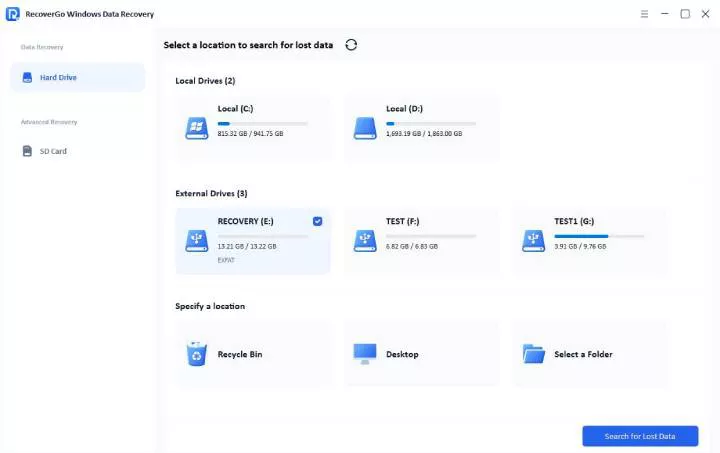
Step 2 Scan Your Device: Start the scan to locate deleted or lost files. Advances algorithms increase the success rate.

Step 3 Preview and Recover Your Data: Once it finished, you can click the “Preview” and then click the “Recover” button to restore it.

Conclusion
Recovering deleted files from a USB drive without installing software is often possible, especially when files were hidden or when system backups were active.
You can begin with File History or cloud backups. CMD tools may also help recover hidden files or fix small issues, but they don’t always work.
If these methods don’t work, iToolab RecoverGo Windows Data Recovery offers a more powerful solution. With advanced algorithms, it can recover lost, deleted, or inaccessible files even in complex scenarios. Don’t risk losing your data permanently—download RecoverGo now and restore your files in just a few clicks!