

DSLR and modern cameras capture photos and videos in RAW format. Why? RAW preserves maximum details, making it different from compressed formats. RAW files also contain unprocessed data, giving you more control in post-processing.
However, RAW files can go missing from an SD card. This can happen due to corruption, deletion, formatting, or other issues. The result? Hours of works gone in an instant.
In most cases, it is completely possible to recover RAW files from an SD card. Whether you shoot with Canon, Nikon, Sony, or Fujifilm, your files can often be restored.
In this complete guide, we will show you two proven methods to recover RAW image and video files. We’ll also cover what to do before recovery and how to prevent data loss in the future.
Part 1: Things to Know Before Recovering RAW Files from an SD Card
Take these steps to prevent overwriting your RAW files (DNG, CR2, NEF, ARW). Following them improves your chances of successful recovery.
Tip 1: Stop Using the SD Card
Once you notice RAW files are missing or inaccessible, stop using the SD card immediately. Also, don’t try to save any new data on the SD card, as it can overwrite the deleted files.
Every new photo you take could be writing over your lost RAW files. So, you need to remove the card from your camera and set it aside until you’re ready for recovery.
Tip 2: Avoid CHKDSK
Many people recommend CHKDSK to fix storage device errors. It is a useful built-in Windows utility. CHKDSK can repair bad sectors and logical errors. However, it can also overwrite data on the SD card.
If you are serious about recovering RAW images, do not run CHKDSK until after you have recovered your files. Once the files are safe, you can use CHKDSK to fix the card.
Tip 3: Do NOT Format the SD Card
Another important rule: do not format the SD card!
Formatting erases file structure information. Recovery tools need this information to restore RAW files. A full format overwrites data and makes recovery nearly impossible.
Quick format recovery is still possible, but it is best to avoid any type of formatting.
Important:
Different cameras use different RAW formats. Canon uses CR2 and CR3. Fujifilm uses RAF. Nikon uses NEF. Sony uses ARW. Some mobile cameras store images in DNG format. Make sure your recovery tool supports your specific RAW format.
Part 2: How to Recover RAW Files from an SD Card?
Regardless of the file format, you can use these methods to recover RAW files. Choose the one that best fits your situation.
- Method 1: Use SD Card Data Recovery Software🔥
- Method 2: Recover RAW Files Free with Windows File Recovery
Method 1: Use SD Card Data Recovery Software🔥
A data recovery tool is the best option to recover deleted or lost RAW files from an SD card. We recommend iToolab RecoverGo Windows Data Recovery .
Why RecoverGo?
RecoverGo uses advanced scanning modes to find RAW files. Its algorithms can locate nearly all lost files. The built-in preview feature lets you verify images before recovery.
RecoverGo Supports All Major RAW Formats:
- Canon: CR2, CR3
- Fujifilm: RAF
- Nikon: NEF
- Sony: ARW
- Mobile cameras: DNG
Most importantly, RecoverGo has a 99% recovery rate. This was derived from testing on both simple and complex data loss scenarios. Even in serious situations, you can rely on the software to find your files.
Key Features:
- Ultra-fast scanning speed: Scans hundreds of GB in minutes.
- User-friendly interface: A simple UI interface guides users to recover data quickly..
- Simple process: Recover RAW files in 3 simple steps.
- 1,000+ file types: Supports images, videos, documents, and more.
- 2,000+ devices: Works with SD cards, USB drives, hard drives, and more.
How to Recover RAW Files with RecoverGo:
Step 1 Download and install the software and choose on the “SD Card” option in the sidebar. Then click “Search for lost data” to start the scan.

Step 2RecoverGo will begin scanning your drive. Three scan modes help you to find more deleted files.
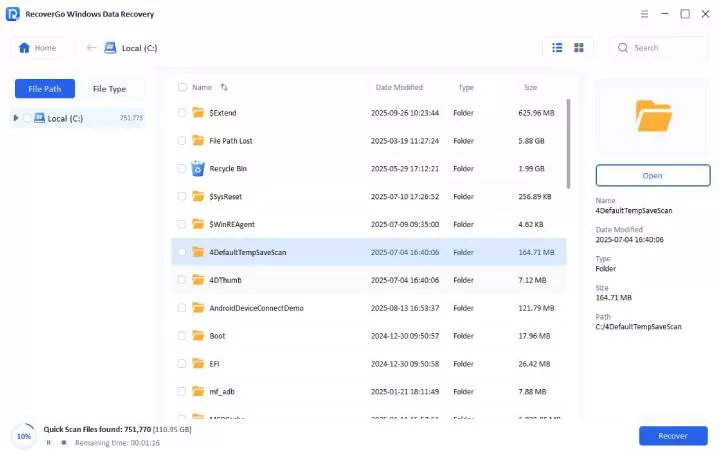
Step 3 Once finished, you can preview the files and click “Recover.” Then you can choose a location on your computer to save the restored images or videos.

Method 2: Recover RAW Files Free with Windows File Recovery
Windows File Recovery is a free tool from Microsoft. It can recover data from SD cards and other storage devices. The downside: it runs via command prompt, so it is best for users comfortable with basic commands.
This command-line tool supports various file types, including RAW formats like DNG, NEF, CR2, and more.
Pros
- Completely free
- Supports common file types
- Two scan modes (regular and extensive)
Cons
- No file preview feature
- Command-line only (difficult for beginners)
- Wrong commands can cause data loss
How to Recover RAW Files with Windows File Recovery:
- Insert the SD card into your computer. Note the drive letter of the memory card.
- Download Windows File Recovery from the Microsoft Store.
- Press the Start menu button and type “command prompt.” Then click “Run as administrator.”
- Run the recovery command. Use this syntax:
- winfr source-drive: destination-drive: /mode /switches
- Example for recovering RAW files: winfr E: D: /regular /n *.cr2 /n *.nef /n *.arw /n *.dng
- Wait for recovery. The tool will scan the SD card and find matching RAW files. Once found, it will automatically recover them to the destination folder.
- Check the destination drive for your recovered RAW files.

This is a free tool, but its recovery capabilities are limited. For better results and easier operation, consider a modern tool like RecoverGo.
Also Read: Windows File Recovery Stuck at 99%? Here’s How to Fix It Fast
Part 3: How to Prevent Data Loss on SD Cards in the Future?
Preventing data loss is as important as recovering files. Follow these tips to protect your data:
Best Practices for SD Card Safety:
- Backup files regularly: Copy RAW photos and videos to your computer or cloud storage. Never rely on the SD card as your only backup.
- Safely eject the SD card: Turn off the camera before removing the memory card. Use “Safely Remove Hardware” on your computer.
- Keep multiple copies: Never rely on a single storage location. Use the 3-2-1 rule: 3 copies, 2 different media types, 1 offsite.
- Format in-camera: Always format the card on the device you will use it on, not on your computer.
- Leave 5-10% space empty: This reduces the risk of data corruption and helps the card manage wear leveling.
Part 4: FAQs About SD Card RAW File Recovery
Why do my recovered RAW files show up as corrupted or half-grey?
Recovered RAW files can appear half-grey if the recovery tool only recovered a partial file. This happens when the software recovers the header but misses the actual image data. SD cards often store large RAW files in fragments. When the software fails to map fragments correctly, you get corrupted or half-grey images.
Using a professional recovery tool like RecoverGo reduces this risk because it properly reconstructs fragmented files.
Can I recover RAW photos from a physically broken SD card?
Yes, recovery from a physically damaged SD card is possible. However, chances are lower, and you cannot do it with DIY recovery tools. The safest option is to use a professional data recovery service.
Why are my RAW files corrupted?
A RAW file can become corrupted due to:
- Power failure during write operations
- Virus attack
- SD card damage
- Improper SD card removal
- Bad sectors on the card
A corrupted RAW file may fail to open or appear partially grey. In these cases, prioritize file recovery first, then try methods to fix the SD card.
What is the difference between RAW and JPEG recovery?
RAW files are larger and more complex than JPEG files. They contain more data and are often stored in fragments across the SD card. This makes RAW recovery more challenging, but simple recovery tools may only recover partial files. Luckily, professional tool like RecoverGo is designed to handle fragmented RAW files and reconstruct them properly.
Conclusion
The key is to act quickly when trying to recover RAW files from an SD card. Your chances of recovering deleted or lost files are very high with the right data recovery software.
Free tools like Windows File Recovery can help. However, they are difficult to use, and the recovery rate is lower. The command-line interface makes them unsuitable for beginners.
That is why we recommend iToolab RecoverGo Windows Data Recovery for any type of RAW file recovery. RecoverGo is fast, efficient, and user-friendly recovery tool. It supports various RAW formats (CR2, CR3, NEF, ARW, RAF, DNG) and simplifies the entire recovery process. You can recover files in just 3 steps with a 99% success rate.
Remember: stop using your SD card immediately after data loss. The sooner you act, the higher your chances of successful recovery.