

Many users depend on SanDisk cards for storing important photos daily. But one wrong tap can make all those photos disappear instantly. When data disappears, quick SanDisk card photo recovery becomes essential for recovery.
Common issues like mistaken deletion or corruption often cause unexpected data loss. Therefore, understanding your recovery options helps you restore photos safely without risking further damage.
In this guide, we’ll explain what causes photo loss on SanDisk cards and show you proven methods to get your images back. We’ll cover official SanDisk recovery options, professional software like iToolab RecoverGo Windows Data Recovery to recover lost images efficiently.
Part 1: What Causes Photo Loss on a SanDisk Card?
Before attempting recovery, you must understand what caused the loss. Here are the common reasons your photos suddenly disappeared from the card:
Deletion by Mistake
A wrong tap can remove your photos instantly. Many users delete files by mistake while reviewing photos.
Sudden Formatting
Cameras or computers sometimes prompt users to format the card unexpectedly. Formatting wipes the entire card structure. This makes all photos seem permanently gone, but recovery is often still possible.
Card Corruption
A corrupted SanDisk card can make all stored photos inaccessible. This often happens when the card is transferred between different devices repeatedly. File system errors accumulate over time and eventually cause corruption.
Physical Damage
Bending or water exposure can damage the card’s internal structure badly. Physically damaged cards often stop being recognized by cameras and computers. This type of damage requires professional recovery services.
Improper Removal
Pulling your SanDisk card out without ejecting it first can cause file errors. This interrupts ongoing read or write operations and leads to unexpected data loss. Always use the “Safely Remove Hardware” option.
Part 2: Does SanDisk Offer Data Recovery?
Yes, SanDisk does offer data recovery options for users who lose their files. However, it works through partner services and bundled software rather than direct recovery. Recovering images through official channels has clear benefits but also real limitations.
Below are the 2 main recovery options SanDisk currently provides to its users:
Option 1: SanDisk Data Recovery Plan (Paid Service)
SanDisk offers its official recovery software called RescuePRO through its partner LC Technology. This paid tool helps users recover deleted photos and other files from SanDisk devices. Experts note RescuePRO-style tools succeed in SD deletion cases.
Follow these steps to use RescuePRO effectively:
- Download and launch the RescuePRO tool on your computer. Select the “Recover Photos” option from the main interface.
- Select the drive where your photos were deleted previously. Press the “Start” button.
- As the scan completes, you will see the recovered files. Use the “Preview” feature to check the photos before recovery.
- Press the “Output Folder” button to export your recovered files to your desired location.

Pros:
- Money-back guarantees protect users when recovery attempts fail.
- Guided procedures simplify complex claims with customer assistance.
- Official SanDisk partner software ensures compatibility.
Cons:
- Users receive only one professional recovery attempt per plan.
- Shipping devices can cause delays of several days.
- Paid service requires additional cost beyond the card price.
Option 2: Third-party Recovery Partners
When software tools cannot recover photos from a SanDisk SD card, professional lab services become necessary. SanDisk officially recommends trusted third-party partners for handling serious physical and logical data loss.
Official SanDisk Partners:
- Ontrack: SanDisk’s primary global partner. Offers free evaluation service for users.
- Datarecovery.com: Provides a 10% discount on SanDisk flash media for all customers.
- DriveSavers: Operates cleanroom facilities and provides specific discount codes for users.
These external labs specialize in recovering data from SD cards and HDDs. SanDisk lists them as Platinum Third-Party Data Recovery Service Providers on its official website. However, recovery success is never guaranteed and depends entirely on the type of damage.
Can SanDisk Recover Your Photos?
Yes, SanDisk can help you recover deleted photos through its tools and partners. The RescuePRO software effectively handles logical issues such as corruption and formatting errors. For serious physical damage, SanDisk refers users to certified partner labs like Ontrack. Nonetheless, recovery success is never fully guaranteed in every data loss situation.
Does SanDisk Have Recovery Software?
SanDisk has its own official recovery software called RescuePRO, developed by LC Technology. It is available in two versions: RescuePRO Standard and RescuePRO Deluxe.
- RescuePRO Standard: Costs $39.99 annually. Recovers photos and many other file types.
- RescuePRO Deluxe: Priced at $59.99 annually. Additionally supports fragmented video recovery from professional cameras and drones.
How Much Does It Cost to Recover Photos from an SD Card?
Recovery costs vary widely depending on the type of damage and the method you choose:
- Free software: Tools like Recuva are completely free to use.
- Paid software: Licenses typically range between $40 and $90 for a full version.
- Standard lab recovery: Without physical damage, usually costs between $95 and $300.
- Severe physical damage: Requiring chip-off work can cost up to $800 or more.
Part 3: Key Actions to Take Before SanDisk Card Photo Recovery
Taking the right steps increases your chances of getting photos back. Here are the key actions every user must follow:
Stop Using the Card Immediately: Prevent new data from overwriting your hidden photos. Any new files saved to the card can permanently destroy recoverable data. Remove the card from your camera or device right away.
Check Card Connectivity: Clean the metal contact strips on your SanDisk card. Use a reliable external card reader instead of connecting through your camera. This ensures stable device recognition during recovery.
Create a Sector Backup: Establish a full byte-by-byte clone of your card. Scan the virtual copy safely without stressing the physical card. This protects your original data during the recovery process.
Avoid Direct Edits: Never repair files or run system fixes on the original card. These operations can cause permanent file loss.
Verify Battery Levels: Keep your laptop or camera fully charged during the process. Sudden power loss during recovery can cause further damage to your data.
Part 4: How to Recover Deleted Photos from a SanDisk SD Card?
The right software can help you recover deleted photos from a SanDisk memory card quickly. According to multiple sources, 72% of SD card data loss cases can be recovered successfully. Here are the 2 methods available for getting your lost images back:
Method 1: iToolab RecoverGo – 99% Success Rate🔥
When critical files vanish from your storage devices, finding a reliable tool becomes essential. iToolab RecoverGo Windows Data Recovery is a powerful choice for SanDisk card photo recovery on Windows. It handles all major data loss scenarios, including formatting and virus attacks.
RecoverGo has free scan and preview feature letting you check recoverable files before recovery. Its file filter tool helps you locate specific photos by type, date, or file path. The pause and resume feature makes the process flexible for users.
RecoverGo uses advanced scanning algorithms to locate deleted photos at the sector level. Even after deletion or formatting, photo data often remains on the card until overwritten. RecoverGo can find and reconstruct these files, giving you the best chance of recovery.
Key Features:
- 99% success rate: Recovers permanently deleted files from any device effectively.
- 1000+ file types: Supports photos, videos, emails, archives, and premium HD image formats.
- 2000+ devices: Compatible with SD cards and many other storage devices from various brands.
Steps to Recover Deleted Photos from SanDisk SD Card:
Step 1 Download and install iToolab RecoverGo on your computer. Connect your SanDisk SD card to the computer using a card reader. Then click “Search for Lost Data”.

Step 2 The tool will scan the card for deleted photos. Three scan modes help you find more lost files.
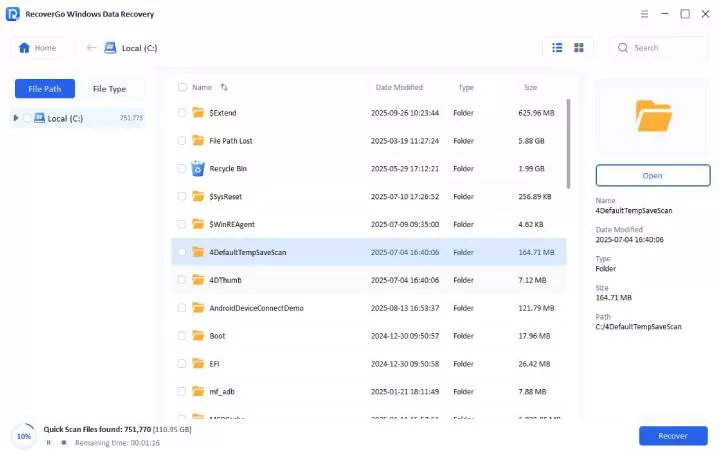
Step 3 Once finished, you can select the required files and click “Recover”. Choose a secure folder on your computer to save the restored data. Do not save back to the original SD card.

Method 2: SanDisk SD Card Recovery Free
When paid tools fall out of budget, free alternatives can still deliver solid results. Recuva is a free Windows tool that makes SanDisk photo recovery accessible for everyday users. It scans SD cards and previews recoverable files before you commit to restoring them.
Steps to Use Recuva:
- Download and run Recuva on your computer. Choose your connected SanDisk SD Card from the designated dropdown box. Click “Options” to configure scan settings.
- Go to the “Actions” tab. Check “Deep Scan” and “Scan for Non-Deleted Files” options. Click “OK” to save settings.
- Click “Scan” to start the recovery process. When the tool completes scanning, choose the desired photos to preview them.
- Click “Recover” to export your selected photos. Choose a safe location on your computer to save the files.

Pros:
- Completely free with no hidden recovery cap.
- Built-in preview mode to verify photos before restoration.
- Simple interface for beginners.
Cons:
- Lower recovery success rate compared to professional tools.
- Struggles with RAW or seriously corrupted SD cards.
- Limited technical support available.
Verdict:
Recuva is a good free option for simple photo loss scenarios. However, for formatted cards or severe corruption, professional software like RecoverGo offers better results. The 99% success rate of RecoverGo justifies the cost when your valuable photos are at stake.
Part 5: Tips for Avoiding Data Loss on SanDisk Card
Following these simple habits will protect your SanDisk card from data loss:
Create Regular Backups: Always back up your card photos to a computer or cloud storage. Use automated backup software to ensure you never forget.
Use Safe Ejection: Never remove your SanDisk card while the device is still actively reading it. This prevents file system corruption.
Avoid Overfilling: Keep your card storage below 80% capacity. Leave some free space for proper file system operation.
Scan for Viruses Regularly: Regularly scan your SanDisk card for malware before connecting it to computers. Viruses can corrupt files and damage the file system. Use trusted antivirus software for protection.
Handle Cards Carefully: Protect your SanDisk cards from physical damage. Store them in protective cases when not in use. Avoid exposing cards to extreme temperatures, moisture, or magnetic fields.
Conclusion
Losing important memories does not have to mean permanent loss. Performing successful SanDisk card photo recovery is achievable using the right tools and methods.
For most users, professional software like iToolab RecoverGo Windows Data Recovery offers the best balance of effectiveness and ease of use. Its 99% success rate and simple interface make it the top choice for photo recovery.
For minor issues, free tools like Recuva can help. For severe physical damage, professional recovery services from SanDisk partners may be necessary. Remember to back up your photos regularly to prevent future data loss.