

Typically, users plug in their USB drive and expect it to work immediately. Instead, Windows shows a frustrating error with zero bytes and no media. This is one of the most confusing storage errors any user can face. Many people become anxious and think their important documents are lost forever.
Nonetheless, this is a more prevalent and correctable situation than you may realize. Before doing anything, you need the right USB no media 0 bytes fix approach. Therefore, this guide helps you explore some common causes, followed by quick and easy solutions to fix them.
Part 1: What Does “USB No Media 0 Bytes” Mean?
This error means the computer recognizes the port but cannot read internal flash storage data. Seeing a “blank USB drive no media 0 bytes” indicator points to a deep partition or hardware faults.
The following are a few common reasons that cause this confusing storage failure:
Virus Attack
Malware or viruses can silently corrupt the file system on your USB. This corruption causes Windows to display zero bytes with no readable media.
Driver Conflict
An outdated or corrupted USB driver may prevent the device from being recognized. Thus, the operating system reports no media at all without the correct driver.
Physical Damage
Internal physical damage inside the USB chip disrupts normal drive recognition entirely. Newsfile Corp also reports that hardware failure remains the leading technical cause of data loss, accounting for 40–44%.
File System Error
A damaged file system makes Windows completely unable to read USB contents. Over two-thirds, specifically 67%, of all data loss cases are directly caused by hard drive crashes or system failures, according to Truelist.
Incorrect Formatting
An improperly formatted USB drive may prevent Windows from accessing its file system correctly. Windows cannot read a drive that lacks a correctly structured file system.
Part 2: USB No Media 0 Bytes Troubleshooting Table
Different drive errors show unique behavioral symptoms depending on the underlying source fault. Identifying these patterns helps you address a frustrating USB 0 bytes no media issue.
Use the quick breakdown below to match your device errors with clear repair expectations:
Part 3: How to Recover Data from USB No Media 0 Bytes?
Data recovery is always the first thing to do before repairing the drive. In such a case, tools like iToolab RecoverGo Windows Data Recovery can become your most reliable solution. It is designed to handle the USB drive no media 0 bytes fix situations.
RecoverGo supports data recovery from over 2000 different storage devices and media types. Along with that, it recovers more than 1000 file formats, including documents and audio files. The software fully supports USB flash drives, even when they are corrupted or unreadable.
Key Features of RecoverGo:
- Ensure a recovery rate of 99% for permanently deleted files.
- Offers a free scan and preview before recovering any lost files.
- Recover data from USB drives showing No Media errors.
- Supports a wide range of file systems from storage devices, including NTFS, FAT32, exFAT.
How to Recover Data from USB No Media 0 Bytes via RecoverGo:
Step 1 Connect the USB drive and press “Search for Lost Data” to locate deleted files.
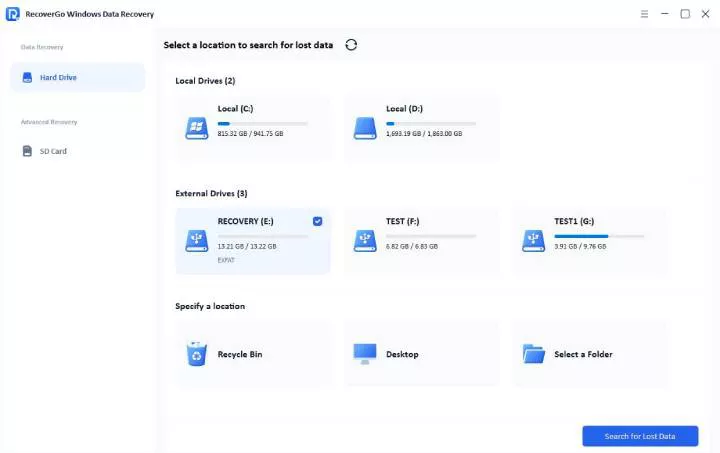
Step 2 Start the scan to locate deleted or lost files. Three scan modes can increase the success rate.

Step 3 Preview the files and click the “Recover” button. Then, pick a secure folder on your computer to save the restored files safely.

Part 4: How to Fix USB No Media 0 Bytes?
Applying a proper pen drive 0 bytes fix involves running specific system diagnostics to rebuild broken storage connections.
- Fix 1: Try with Another USB Port and Computer
- Fix 2: Check the Device Manager
- Fix 3: Use CHKDSK to Repair the File System
- Fix 4: Format the USB Drive
Fix 1: Try with Another USB Port and Computer
Many times, the problem comes from the connection rather than the USB itself. A faulty USB port may prevent Windows from detecting storage correctly. Likewise, temporary system glitches can trigger misleading drive recognition errors.
Before attempting advanced repairs, test the drive using another available USB port. Additionally, connect it to a different computer and check the detection results. Many “USB flash drive 0 bytes no media” errors disappear after this basic test.

If the drive works on another port or computer, your original port or system drivers are likely the problem.
Fix 2: Check the Device Manager
A corrupted or outdated driver may also cause the USB flash drive no media 0 bytes error. Windows relies on proper drivers to communicate with connected storage devices correctly. When a driver malfunctions, your USB drive becomes completely invisible to the operating system.
Device Manager lets you detect and fix these issues by updating or reinstalling the affected devices. Hence, adhere to the steps below to inspect and update your USB drivers:
- In the “Device Manager” window, you need to click the “USB Connector Management” section. Upon expanding it, right-click on the “USB” driver and opt for “Update Driver.”
- Here, select “Search Automatically for Drivers” and allow the system to search for and update it. After a few minutes, you will have to reboot your system to apply this update.

This particular fix works well when outdated or corrupted USB drivers cause detection problems.
Fix 3: Use CHKDSK to Repair the File System
A damaged file system can make your USB drive appear completely unreadable to Windows. Fortunately, you can use the CHKDSK command in CMD to fix “USB no media 0-byte” errors. This native tool scans your drive and automatically corrects detected file system issues.
Go through the steps below to run this repair command successfully:
- To initiate, you need to use the “Run as Administrator” option to run “Command Prompt.”
- On the upcoming screen, enter the chkdsk X: /f command and hit “Enter.” Make sure to replace “X” with the letter assigned to your USB drive to start scanning and repairing.

This method only works if the USB drive still has a drive letter assigned.
Fix 4: Format the USB Drive
When USB shows 0 bytes in disk management, but the capacity is still visible. In this case, formatting the USB Drive can help. A full format completely wipes the corrupted file system and rebuilds it from scratch. This method resolves persistent storage errors that other software-based fixes cannot fully address.
Check the steps below to learn how you can format your drive:
- Upon launching “Disk Management,” right-click the shown USB drive and opt for “Format.”
- As you see a small prompt, make sure to enable “Perform a Quick Format” and press “OK.”
- When a confirmation dialog box appears, you need to click “OK” for complete formatting.

Formatting is an effective last resort when the USB capacity is visible, but the file system is too corrupted to repair.
Final Thought
In summary, dealing with sudden external flash storage device errors remains a stressful computer user experience. Each USB no media 0 bytes fix shared above targets a specific underlying cause effectively. Nonetheless, you should always prioritize securing your lost files before running partition formatting routines.
Utilizing a specialized data retrieval tool like iToolab RecoverGo Windows Data Recovery ensures your vital documents remain protected against permanent overwriting.