

Hello, I have a USB drive with data that I really don’t want to lose. I plugged it into my Windows laptop and I got the error “you need to format the disk in e: before you can use it”. I’m pretty sure that formatting it would wipe the data. I followed a YouTube tutorial and got “chkdsk is not available for raw drives” when running chkdsk in cmd. Is there any way that I can retrieve my data? I keep seeing posts saying that I should use tools, but a lot of them sound like advertisements and afraid that they might be malware. I would really appreciate the help!
— From Reddit
Imagine you run CHKDSK to fix a drive that is experiencing problems. Instead of a repair, you get an error: “The type of the file system is RAW. CHKDSK is not available for RAW drives.” Now the drive will not open at all, and you may wonder what the error means and how to fix it.
That error means Windows cannot recognize the drive’s file system anymore, not that your files are gone. This problem is fixable, and your data is still recoverable in most cases, as this guide will explain.
Part 1. What Does “CHKDSK Is Not Available for RAW Drives” Mean?
This error means Windows cannot recognize the drive’s file system, such as NTFS, FAT32, or exFAT . Without that file system, Windows has no map of where your files live on the drive and identifies the partition as RAW.
CHKDSK needs the same map to do its job because it checks and repairs the file system’s own records. On a drive with no readable file system, there is nothing for CHKDSK to check in the first place. This is why CHKDSK is not working and instead shows this error.
How to Tell If a Drive Has Become RAW
A RAW drive usually gives itself away in a few places:
- CHKDSK returns this exact message: “The type of the file system is RAW. CHKDSK is not available for RAW drives.”
- File Explorer shows the drive with 0 bytes of capacity, or prompts you to format it before you can open it.
- Disk Management lists the file system simply as “RAW” instead of NTFS or FAT32.
Does a RAW Drive Mean Your Files Are Deleted?
No, RAW does not mean your files were deleted. They are still physically sitting on the drive, laid out exactly where they were before the error appeared. Windows just lost the index that tells it what is there and where. That is why dedicated RAW drive recovery software can usually still read past the problem and find them.
Avoid formatting the drive because this can overwrite file system information and reduce recovery chances. Try the recovery methods designed for RAW partitions before you make any changes to the drive.
Part 2. Why Does a Drive Become RAW?
While you learn how to fix CHKDSK is not available for RAW drives, note that a drive does not turn RAW without a reason. Below are the most common causes, roughly in order of how often they show up:
Can CHKDSK Fix a RAW Drive?
Rarely. CHKDSK usually cannot fix a RAW drive because Windows cannot recognize the drive’s file system. The one exception is a drive where the NTFS boot sector remains intact beneath corruption. In that case, CHKDSK can occasionally repair it, though this is uncommon and depends heavily on exactly what went wrong.
Running CHKDSK repeatedly on a RAW drive will not change the outcome. It cannot fix what it cannot read, and this is why it should not be considered a standard RAW hard drive recovery method. If you have already tried CHKDSK once and seen this error, move on to recovering your files first, then fix the drive with one of the methods below.
Recover Data First Before Fixing the RAW Drive
If you format the drive or run any repair tool before you have recovered the files, it can permanently overwrite the data you want to save. That includes tools that claim to preserve your files during the process. Use RAW drive recovery methods first to save your files, and then repair or format the drive.
Part 3. How to Recover Data from a RAW Drive (Step-by-Step)?
A RAW drive still has your files on it; Windows just cannot read the file system that would normally point to them. This is why standard tools like File Explorer or CHKDSK come up empty. iToolab RecoverGo Windows Data Recovery works differently and scans the drive’s sectors directly for recoverable data. It can recover files even when a drive shows RAW or formatted.
As for the scan, you can choose from 3 different options: quick, deep, and advanced. This scan is free, and users get a 100% free preview option before they save the files. You can also pause and resume the scan, and sort files by name and type after they are found.
Why iToolab RecoverGo?
- Allows you to recover over 1,000 file types without further data loss.
- Performs safe, read-only scans that never modify the RAW drive.
- Works with HDDs, SSDs, external drives, USB flash drives, and SD cards.
- Fully optimized to run on Windows 11, 10, 8.1, 8, and 7 systems.
- Allows saving files as soon as they appear in the scan results.
How to Recover Data from a RAW Drive using iToolab RecoverGo
As the suggested RAW hard drive recovery method, here is how to recover data with RecoverGo:
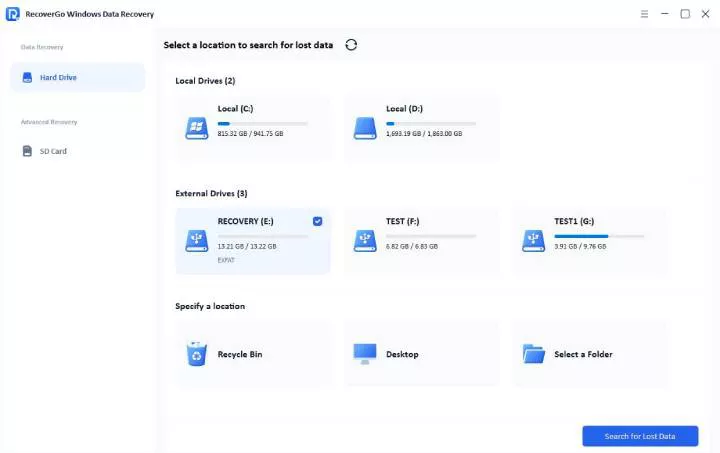
Step 1 Select the Search for Lost Data Option
Open RecoverGo and select the RAW drive from the list. Tap on Search for Lost Data to start the scan.
Step 2 Start the Scan
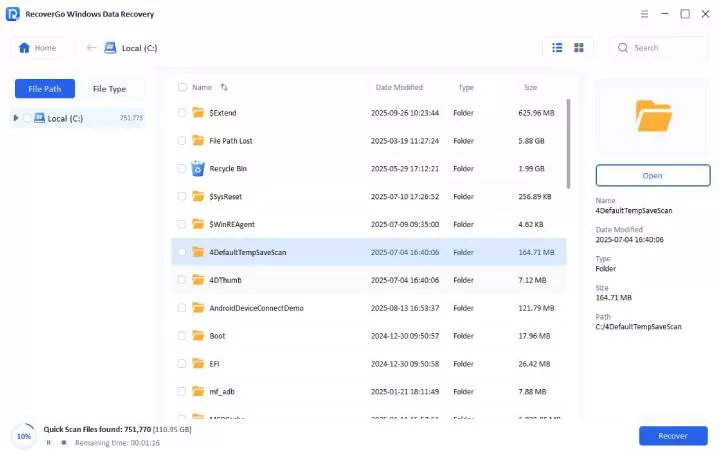
The tool will perform a quick, deep or advanced scan to find everything on it. Wait until you get the Scan Complete prompt.
Step 3 Preview Files to Recover with RecoverGo
Filter and preview the results, then choose the Recover button to save the data.

Part 4. How to Fix the “CHKDSK Is Not Available for RAW Drives” Error?
When CHKDSK is not working, these fixes help rebuild the drive’s file system from scratch. Each one takes a slightly different route to the same result, so pick whichever fits the tools you already have on hand.
Note:
Only attempt these fixes after you have recovered your data.
- Fix 1. Fix a RAW Drive with CMD
- Fix 2. Use Third-Party RAW Drive Repair Tools
- Fix 3. Format the RAW Drive by Disk Management
Fix 1. Fix a RAW Drive with CMD
Command Prompt formats a RAW drive through Diskpart, a built-in Windows tool with more direct control than File Explorer or Disk Management. The trade-off is that Diskpart has no undo button, so check the disk number before you commit to any command. After you have performed a RAW hard drive recovery method, follow the steps below:
- Search for cmd and tap on Run as Administrator, then choose Yes to continue.
- Type diskpart and press Enter, then type list disk and press Enter to see all connected drives.
- Enter select disk X, replace X with the number of your RAW drive, then press Enter.
- After that, run clean, create partition primary, and format fs=ntfs quick.

Note:
Press the Enter key each time you type these commands.
Fix 2. Use Third-Party RAW Drive Repair Tools
If your RAW drive was caused by partition or boot sector corruption, TestDisk is worth trying because it can sometimes repair those issues without formatting the drive. It has no graphical interface, so every step runs through the keyboard rather than a mouse. Success is not guaranteed on every drive, which is why RAW hard drive recovery should always come first.
- Download TestDisk and run testdisk_win.exe from the extracted folder.

- Choose whether to create a log file, then select the affected drive and press Enter to Proceed.

- Confirm the partition table TestDisk detects, then select the Analyze and Quick Search options.

- Select the partition marked P, choose Write, and press Y to confirm.

Fix 3. Format the RAW Drive by Disk Management
Formatting rebuilds a new, healthy file system on the drive from scratch. That is exactly why it clears the RAW status for good, no matter what caused it. Disk Management is the more reliable route when a drive does not show up cleanly in File Explorer. This erases everything on the drive, so only do this after you have recovered what you need.
- Right-click on This PC to select Show More Options and Manage.

- Choose the Storage section in the new window and click on Disk Management.

- Right-click on the RAW drive and tap on the Format option.

- In the popup, choose a file system such as NTFS or exFAT, then check Perform a Quick Format and click OK.

Part 5. How to Prevent RAW Drive Errors in the Future?
After you know how to fix CHKDSK is not available for RAW drives, note that most RAW drive errors trace back to a handful of preventable habits.
Conclusion
When you get the error ” CHKDSK is not available for RAW drives,” recover the data first. That order matters more than the specific fix you choose, since formatting or repairing before recovery can turn a fixable problem into a permanent one.
The error looks alarming, but it is rarely the end of your files. iToolab RecoverGo Windows Data Recovery offers a free scan and preview, so you can see exactly what is recoverable before you commit to anything. The repair steps above are ready whenever you need them, and the drive itself can often be restored once your files are safely off.