

One of your partitions has turned RAW, and now your files are inaccessible? It can happen due to virus attacks, formatting errors, failed operations, and many other reasons. People often panic when this happens because they think the files are gone.
The good news is that a RAW partition does not always mean permanent data loss. In this guide, you will learn what a RAW partition means, how to recover RAW partition without formatting, and how to recover data from RAW partition safely before trying any repair.
Part 1. What Is a RAW Partition?
Partitions usually use file systems like FAT32, exFAT, or NTFS. A partition turns RAW when the operating system cannot access its file system. Once this happens, Windows cannot read the partition structure, so you are locked out of the files and folders on that partition.
Common causes include:
- Power failure
- Bad sectors
- Virus attack
- Corrupted partition table
- Interrupted formatting
- Failed disk or partition operations
Here is a simple way to understand it:
You can think of the file system as the table of contents in a book. The pages are still inside the book, but the table of contents tells you where each chapter begins. When the table of contents is torn out, the chapters do not disappear. You just cannot quickly find them. A RAW partition works the same way: your data may still be on the partition, but Windows does not know where to locate the files.
You may encounter these errors when accessing a RAW partition:
- You need to format the disk before you can use it.
- The directory is corrupted and unreadable.
Remember that a RAW drive does not mean your files are deleted. The data may remain on the drive, but the operating system cannot locate it because the file system metadata is damaged.
Note:
Do not format the partition if Windows suggests it. Formatting can overwrite data and make recovery more difficult. The first thing you should do when dealing with a RAW partition is recover your data first. After that, you can try to repair or recover the RAW partition.
Part 2. Can I Recover Data from RAW Partition?
Yes. Data recovery from a RAW partition is possible in most cases. A partition turning RAW usually means the problem is with the file system, not necessarily with the actual files. You will have a higher chance of recovery as long as the data has not been overwritten.
You can take these steps to improve the chances of recovery:
- Do not format the partition. Windows may suggest formatting the drive to make it usable, but formatting can also wipe existing data and make file recovery difficult or even impossible.
- Do not write new data. Avoid adding new files to the RAW partition because new data may overwrite recoverable files.
- Use reputable data recovery software. A good option is iToolab RecoverGo Windows Data Recovery. Avoid suspicious recovery apps because they may make the problem worse.
Part 3. How to Recover Data from RAW Partition?
Your first step should be data recovery. After that, you can move on to fix the RAW partition. Below are two methods to recover files from a RAW drive.
You can start with the first method because it works for most users and requires less time and effort. The second method is more complicated and should be used only if you are comfortable with command-line tools.
- Method 1. Use Professional RAW Recovery Software – 99.7% Success Rate
- Method 2. Recover Data from Raw Partition Free
Method 1. Use Professional RAW Recovery Software – 99.7% Success Rate
The first choice for dealing with a RAW partition should be data recovery software. iToolab RecoverGo Windows Data Recovery is an excellent choice for this situation.
RecoverGo can handle RAW partitions and scan the drive content without relying on the original file system. This makes it suitable for RAW drive data recovery. It also has a 99.7% recovery rate, giving you a strong chance of recovering important data. After the data is recovered, you can try different methods to recover RAW partition.
Key Features:
- Bypasses damaged file systems and reads data directly from disk sectors.
- Supports 1000+ file types, including documents, photos, videos, archives, and more.
- Offers free scan and preview, so you can check recoverable files before purchasing a license.
- Uses read-only scanning and never modifies or overwrites RAW drive data.
- Works on HDDs, SSDs, external drives, USB drives, and SD cards.
How to Use:
Step 1 Scan the Partition
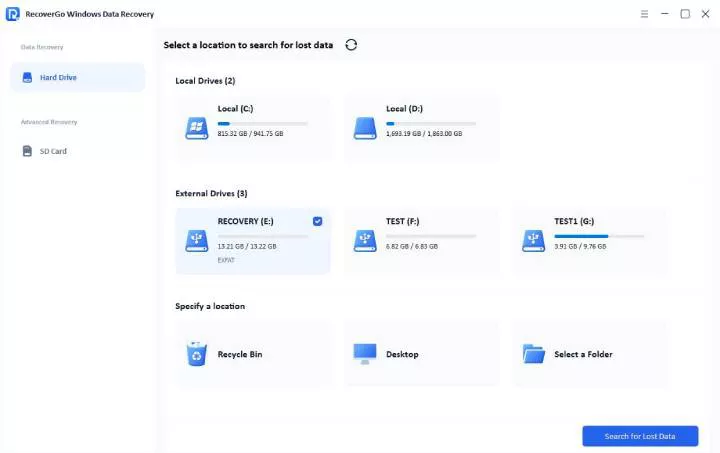
Install and launch RecoverGo on your system. Select the RAW partition from the main screen and click Search for Lost Data to start the scan.
Step 2 Preview Files
Wait until the scan is complete. The tool will show the prompt “Scan completed” You can preview the files by clicking the Preview button.

Step 3 Recover Data
Select the data you want and click Recover. Next, choose a safe destination to save the recovered data.

Method 2. Recover Data from Raw Partition Free
Another way to recover files from RAW partition is PhotoRec. It is a free and open-source data recovery tool. It can be useful when the file system data is missing or damaged because it relies on signature-based scanning to find data on RAW partitions.
However, PhotoRec is a command-line tool. It has no GUI and can be difficult to use. If you are not an advanced user, be prepared for a steep learning curve. PhotoRec also relies on file signatures, which means the original filenames and folder structure may not be preserved.
Follow these instructions to recover data from a RAW partition via PhotoRec:
- Download PhotoRec from CGSecurity’s official website. Extract the .zip file and open photorec_win.exe.
- Select the disk and hit Enter.

- Choose the RAW drive using the arrow keys and select the Search option.

- Select the file system. Choose the Other option if the partition was formatted as NTFS, FAT32, or exFAT.

- Select the Whole option. This scans the entire partition.

- Select a destination folder to save the recovered files.
- Press C to start the recovery process.
- Open the destination folder to view the recovered files. Most files may not keep their original names, so it may take time to find what you need.
Can I recover data from a RAW partition without software?
No. You need recovery software to scan and extract files from a RAW partition. Windows shows a partition as RAW when it cannot read the file system, which makes the partition inaccessible. Windows does not provide a built-in way to scan the RAW partition and locate existing files.
If you have important files on the RAW drive, your best option is to use a reliable data recovery tool.
Part 4. How to Recover RAW Partition without Formatting?
There are multiple ways to repair RAW partition. One option is to use TestDisk, a feature-rich tool that can help recover partitions without formatting. Another option is to use the built-in command-line utility offered by Windows.
These methods can repair or recreate the file system. Once the file system becomes readable, you can access the drive normally again.
Method 1. Use TestDisk to Recover Lost Partitions
The developers of CGSecurity include TestDisk and PhotoRec together. TestDisk is mainly used to recover lost partitions or fix other logical disk issues.
TestDisk is similar to PhotoRec because both come without a GUI. So, you need to use the command line to fix your partition.
Follow these steps to fix RAW partition without losing data:
- Download TestDisk from the official website and unzip the file.
- Launch the testdisk_win.exe file.
- Choose the Create option. This will create a new log file.
- Select the storage device that contains the RAW partition.

- Choose the partition table type and press Enter.

- Select Analyse and hit Enter.

- The tool will find the RAW partition. Highlight it and press P.
- Press Enter to return to the previous screen. From here, select the Write option to save the recovered partition table.
- Confirm the changes and restart the computer. This can recover RAW partition without formatting.
- Open Command Prompt as an administrator.
- Type this command and hit Enter: chkdsk D: /f
Replace D with the partition’s drive letter. - Wait for CHKDSK to complete the repair process.
Method 2. Fix RAW Partition Using CMD
Windows offers a utility called CHKDSK. You can use it to fix file system errors. However, this only works if the drive was previously using the NTFS file system and turned RAW. This option mainly fixes the damaged boot sector.
Fix RAW partition with these steps:

You may see a “CHKDSK is not available for RAW drives” error. In that case, recover your files with data recovery software first. After that, you can use TestDisk or format the partition to make it usable again.
Final Thought
At first glance, a RAW partition can feel like a worst-case scenario. But this does not mean your files are gone. The data usually stays on the partition, while the operating system cannot read the file system.
The best way to deal with this is to recover your data first. iToolab RecoverGo Windows Data Recovery is a strong option for recovering data from a RAW drive. It can scan the RAW partition and recover your important data in just 3 steps.
After recovery, you can recover the RAW partition via TestDisk or the Check Disk utility. If these options do not work, format the partition only after your data has been recovered.