

I updated windows 10 and D drive doesn’t work. D drive is now showing file system raw. I tried chkdsk which looks to have done something but intel rapid storage technology disconnects the hard drive. Are there ways to recover files from a D drive that is now in file system raw status? Does software like DMDE and Disk Drill help with recovering files? I added some photos.
— From Reddit
Many users discover a RAW file system after file system corruption, unsafe removal, power loss, or partition damage. A user on the Microsoft support forum reported that one external hard drive stopped working after a forced system restore.
The drive suddenly showed no files, though nothing had been deleted. This guide explains why drives turn RAW and how recovery still stays possible. You will also learn safe steps to take before running any repair tool.
Part 1: What Is a RAW File System?
A drive showing a RAW file system means Windows cannot recognize the drive’s format at all. Normal drives use NTFS or FAT32 to keep files organized and readable, according to Microsoft Learn. RAW means no accessible file system, but your files are still physically on the drive. This differs from a healthy drive that Windows can read without any issues.
Windows relies on that structure to find and list every file correctly. When the structure breaks, the drive becomes unreadable even though nothing was deleted. This usually happens after an interrupted transfer or unsafe removal. An external hard drive showing a RAW file system often follows a sudden disconnect or power loss.
The same problem also appears on flash drives or even memory cards. These signs can help you identify whether Windows has detected a RAW file system:
These symptoms often appear when an external HDD RAW file system suddenly develops on a drive that previously worked without issues. A failed file transfer or an interrupted partition change can also trigger the same result.
Part 2: Can You Recover Data from a RAW File System Drive?
Yes, you can recover data from an unrecognized drive in most cases. The drive showing RAW file system problems often still keeps your files safe. In many cases, the problem comes from damaged file system information rather than physical damage to the drive. A Microsoft forum discussion also confirms that RAW drives cannot be converted back safely without formatting.
The operating system cannot read the file system, but your files may still remain on the drive. You have a better chance of recovering your files when a failed update or file system error causes the problem. However, recovery becomes much harder if the drive has serious physical damage or many bad sectors because some files may already be lost.
Formatting a RAW drive fixes the file system, but it also erases everything on it. Therefore, you should recover your files before you format or run any RAW file system recovery software. Some tools claim to preserve files during repairs, but they can’t guarantee it on a RAW drive.
If you’ve already formatted the drive, stop using it immediately. Apart from that, never save anything else on it before you try to recover what was there.
Part 3: How to Recover Data from a RAW File System Drive?
A RAW drive prevents Windows from opening your files, but the data may still be recoverable. Recovering these files usually requires data recovery software for a RAW file system. iToolab RecoverGo Windows Data Recovery fits that exact need, built for such recovery cases. The software scans the drive to find recoverable files even when Windows cannot open the original file system.
With RecoverGo, users can recover more than 1,000 file types from RAW drives. Furthermore, it can restore files from lost partitions without requiring the original partition to remain accessible. This tool even supports recovering unlimited files from your RAW drive without file size limits. Along with this, it works with NTFS and exFAT file systems across many Windows storage devices.
Key Features
- Supports data recovery from 2,000+ storage devices, including hard drives and memory cards.
- Lets you search recovered files by name before restoring important documents or files safely.
- Preview files before recovery with a free scan to verify whether your lost data can be restored.
- Deep scan RAW and corrupted drives to find files that quick recovery methods may fail to detect.
- Pause and continue scans anytime so you can recover data from large-capacity drives more efficiently.
Follow the step-by-step guide below to recover lost data from your RAW drive:
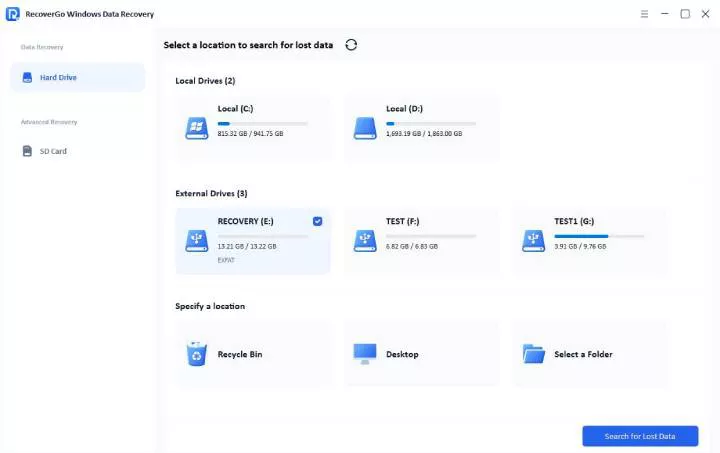
Step 1 Select the Drive to Retrieve Data
From the Hard Drive tab, select the drive showing the file system error and click the Search for Lost Data button.
Step 2 Scan the Chosen Drive for Recovery
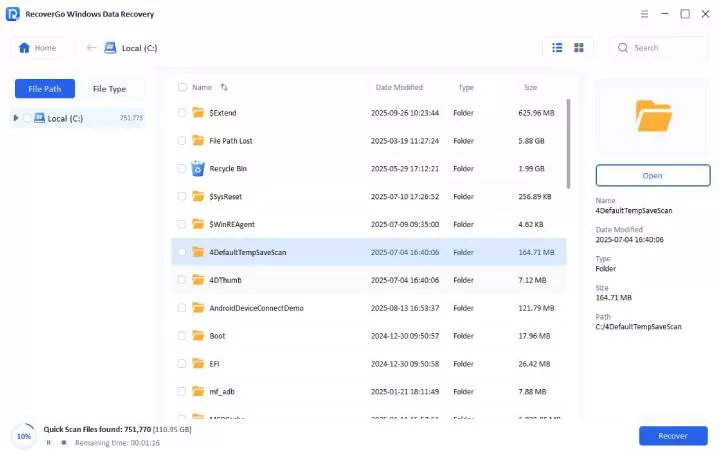
After this, RecoverGo scans your selected drive for any recoverable files. The scan may take a few minutes depending on the drive size.
Step 3 Preview and Recover Your Data
Select the files you want to recover and click the Recover button. Choose a safe output location on a different, healthy drive to save them.

Part 4: How to Fix a RAW File System Drive?
Formatting creates a new, healthy file system on the drive, which is what actually fixes the RAW error. For this need, File Explorer is a pre-built Windows tool that can help fix a drive showing a RAW file system error. It formats the drive and creates a new file system that Windows can read again. This removes the RAW error and makes the drive usable again.
You can pick NTFS if you only use the drive with Windows computers. Meanwhile, select exFAT if you want the drive to work with Windows and other supported devices. Remember, formatting removes access to your existing files. Follow the steps below to format your RAW drive after recovering your files:
- When you open File Explorer, right-click the drive and select Format.
- Choose NTFS(Default) and check Quick Format for a faster format. Finally, click Start to confirm the warning, and wait for the format to finish.


Part 5: How to Prevent RAW File System Errors in the Future?
Simple habits can help prevent an external hard drive showing a RAW file system. Review the table below for practical tips that help prevent future storage problems:
Summary
A RAW file system does not always mean your files are gone. Windows only lost the index pointing to your files, not the files themselves. Recover your data first with iToolab RecoverGo Windows Data Recovery to get back your important files, then format the drive to clear the RAW status for good.