

What comes to mind when the laptop doesn’t turn on? That you have lost all the files! But a “dead” laptop does not mean all of your data is lost. In many cases, problems are caused by power failures, hardware issues, or system crashes. In such scenarios, the data stored on the internal drive is often recoverable.
In this guide, we will walk you through what a dead laptop means and in which situations data recovery is possible. Next, we will look at how to retrieve files from a dead laptop using three easy methods.
Part 1: What Does a Dead Laptop Mean?
It is important to understand what a dead laptop actually means. A laptop is made up of many different components. This includes battery, screen, keyboard, motherboard, hard drive, and other components. When someone says their laptop is dead, it means one or multiple non-storage components have failed.
In most cases, a dead laptop actually has a healthy hard drive. All of your data is on the hard drive, and it is possible in most cases to recover the data!
Here, “dead” means the laptop has a hardware or system issue that prevents it from operating normally.
A laptop is considered “dead” if:
- It doesn’t power on at all.
- It gets stuck at the startup.
- Turns on but shows a blank screen.
- Becomes unresponsive or crashes.
It is important to understand why the laptop isn’t working. It helps in troubleshooting and deciding how to recover data from a dead laptop the right way. Here are some common reasons for a dead laptop.
Power Supply/Battery Failure
One reason why a laptop appears dead is an old battery or a damaged power cable. These issues stop the laptop from receiving power and thus won’t start even after pressing the power button.
Motherboard Failure
All the components inside the laptop are connected to the motherboard. It can fail or malfunction due to liquid spills, overheating, or a power surge.
The laptop will not start when the motherboard fails. Even pressing the power button will do nothing. In some cases, the power light may turn on briefly, but the laptop will show no display.
Corrupted Operating System
Is the laptop stuck at the loading screen or showing an error message? This means a software-related issue is preventing the system from starting properly.
This usually happens because of a logical issue (software-related) and has nothing to do with the hardware. So, if you are also facing this issue and wondering how to retrieve files from a dead laptop, there’s good news! It is quite easy to get the data back as the HDD/SSD is usually alright in such cases.
Hard Drive Failure
The laptop powers on but shows “No Bootable Device Found”? This particular error means the system cannot access the drive and thus fails to load.
This means the hard drive is failing, or you just have connection problems. In some cases, the issue is a faulty SATA or USB cable.
Is It Possible to Retrieve Data from a Dead Laptop?
Yes! Data recovery is possible from a dead laptop in most cases. A laptop usually fails because of battery, power supply, or motherboard issues. These issues may stop the laptop from turning on, but it does not affect the storage drive itself.
Your files are stored on the HDD/SSD. You can still access the data on it as long as the storage drive is healthy.
But recovery is only possible if the drive is still intact. If the storage drive is damaged, you may have to get help from a data recovery service.
Part 2: Quick Checks before Recovering Data
Before you start wondering how to recover files from a dead laptop, you must rule out simple issues first. You will be surprised to know you can fix a laptop that seems dead with basic checks.
Let’s look at some quick checks before you attempt data recovery:
Check Charger and Cord
Make sure the charger is properly connected to the power outlet and the laptop. Also, check the cable for any signs of damage, as a faulty cable can also prevent the laptop from turning on.
In some cases, the charger or the cables can fail due to electrical fluctuations or just wear and tear. So, try using a different charger to see if it fixes the issue.
Perform a Hard Reset
Remove the battery from the laptop if possible. Then press and hold the power button for 20–30 seconds. This process clears any residual power and fixes minor startup issues.
In the end, reconnect the battery and check if the laptop is now working fine or still dead.
Remove External Devices
Although it is rare, external devices can also interfere with the boot process. So, it may appear the laptop is dead, but it could be just a faulty external device.
Solution: Unplug all the external devices like USB drives, memory cards, and all other peripherals. If the laptop becomes functional after the removal of external devices, then it is not really dead!
Test Display
What if the laptop is working fine, but the screen has failed? To test this, connect the laptop to an external monitor to rule out any display issues.
Part 3: How to Retrieve Files from a Dead Laptop?
Have you tried all the checks, and the laptop still refuses to turn on? No need to panic, as there’s a good chance your data is still safe on the storage drive. We have listed 3 different ways to recover files from the hard drive of a dead laptop:
- Method 1: Use Data Recovery Software🔥
- Method 2: Transfer the Files to a New PC
- Method 3: Professional Data Recovery Service
Method 1: Use Data Recovery Software🔥
An easy way to restore data from a dead laptop is via a data recovery tool. The iToolab RecoverGo Windows Data Recovery is a good option in this case. Why? You can use it to restore data in a few simple steps.
RecoverGo works because it doesn’t have to rely on the laptop being able to boot. It directly scans the hard drive and can easily handle different cases: data corruption, system crash, or unbootable Windows.
So, even if data appears as corrupted or has disappeared, you can still use this tool to restore files!
Key Features
- 99% recovery rate.
- Restore lost files in 3 simple steps.
- Support 1000+ file types, for example images, videos, documents, and more.
- Work with 2000+ devices, such as SSD, USB flash drives, external hard drives, SD memory cards and more.
- Fast scanning speed — quickly scans hundreds of GB of data.
- Users can choose to scan individual folders, specific partitions, or the whole disk.
How to Use iToolab RecoverGo Windows Data Recovery
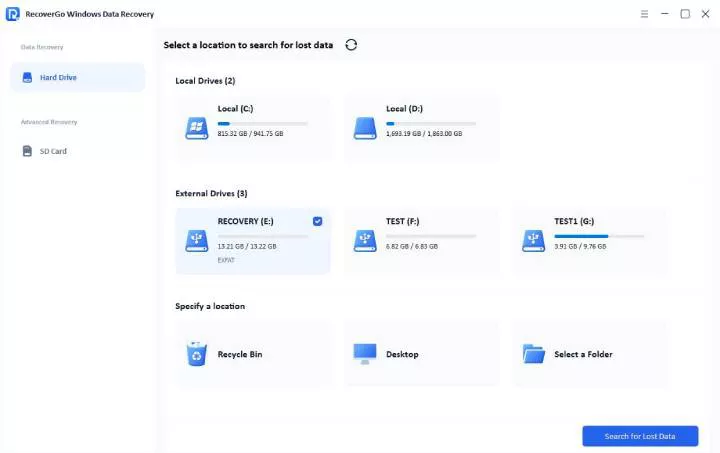
Step 1 Install RecoverGo on the computer and launch it. Select the drive from the main screen and click on the “Search for Lost Data” button.
Step 2 This software starts the scan. The scan time depends on your drive’s condition.

Step 3 Once it is complete, you can click “Preview” to view the files. In the end, click on the “Recover” and select a save location for the data.

Note:
Do not install it on the same drive on which you are attempting data recovery. It is essential to avoid overwriting and to ensure a high recovery rate.
Method 2: Transfer the Files to a New PC
You can also access your files by connecting the drive to another system. But this method won’t work if the data or the file system is corrupted.
- Turn off the laptop. Remove the battery.
- Open the back panel of the laptop and locate the drive.
- Disconnect the SATA cable.
- Slide out the drive without bending connectors.
- Connect it to another PC using an external enclosure.
- Copy the files to another storage device on the PC.
Note:
It doesn’t work if the drive has logical issues. There is also a risk of damage, and the process can be difficult for beginners.
Method 3: Professional Data Recovery Services
If the hard disk of the laptop has physical damage, then there’s a high chance you won’t be able to access it. In such cases, the only option left is to get help from a professional data recovery service.
These services use cleanroom environments and specialized tools to recover data from severely damaged drives. You can use this method when:
- The drive has physical damage.
- It is not detected by the computer.
- Previous recovery attempts have failed.
Limitations
- More expensive than other methods.
- Recovery time can take days or weeks.
- There’s no 100% guarantee of data recovery.
- Requires visiting a service center or shipping the drive.
How much does professional data recovery cost?
It can cost you $100 – $500 for simple issues and can easily go up to $2000+ for physically damaged drives. The pricing goes up depending on the damage level and the complexity of the situation.
So, if you are thinking about data recovery from a faulty laptop, know that it costs more than DIY options! Why? Because it requires special tools and skilled technicians!
FAQs about Retrieving Files from a Dead Laptop
Can you transfer data from a computer even if it won’t turn on?
You can transfer the data even if the system doesn’t turn on. You have to remove the storage device and connect it to another PC for access.
Can data be recovered from a dead SSD?
Yes, you can recover data even from a dead SSD. If the SSD only has logical errors, then it is very easy to recover data using software. But an SSD with physical damage will need to be sent to a file recovery specialist.
Also Read: Can You Recover Data from a Dead SSD in 2026? Answered Here
Why is my laptop not turning on but has power?
It is due to one of these or multiple reasons:
- Display issue
- RAM fault
- Motherboard problem
Conclusion
Just because the laptop doesn’t turn on doesn’t mean you have lost your data. In most cases, the issue is with non-storage components, and your data is perfectly fine inside the SSD/HDD. In this guide, we have shared multiple methods on how to retrieve files from a dead laptop.
An easy way to recover data from a faulty laptop is to use iToolab RecoverGo Windows Data Recovery. It is designed to scan inaccessible or unbootable drives and can be used to recover files without any technical expertise. It has a 99% recovery rate, which means you can get back all of your files.