

My old SSD has just died out of blue and it had a lot of valuable files. I know it is my mistake that I didn’t made a backup. But is it still possible to recover data from dead SSD?
— From Reddit Community
We received this question from a user worried about losing important data. It is actually a common question among SSD users.
SSDs deliver better performance and are more power efficient than traditional hard drives. Hard drives usually show a slow decline, which can be viewed as a warning sign. However, SSDs tend to fail with easily overlooked warning signs and leave users unable to access their data.
In this guide, we will explore the signs of a dead SSD and what causes it. Next, we will show you practical ways to retrieve data from dead SSD.
Part 1: How to Diagnose a Dead SSD?
In general, solid-state drive failures are less obvious than those of traditional HDDs, as they lack moving parts and fail electronically.
While the SSD may not give any audible warnings, there are still some signs that can tell you if your SSD is dying:
Data Corruption
One of the first signs of an SSD slowly dying is data corruption. You will notice that files become unreadable or disappear on a routine basis. You may also see errors when opening files or entire folders disappearing all of a sudden.
Windows may display the error: “The file or directory is corrupted and unreadable.” If this error occurs repeatedly, it should not be ignored.
Slow Performance
If your system suddenly becomes slow during boot-up or file transfers, it may be a sign that the SSD is struggling with read and write operations.
SSDs slow down when the memory cells wear out over time. As a result of this, performance can degrade as the controller has to work extra hard to manage data. This means you will experience a slowdown during erase or write operations.
System Crashes and Boot Failures
Another warning sign is frequent system crashes, boot failures, or blue screen errors. You are also likely to see the “No boot device found” error frequently when your SSD is slowly dying!
If your RAM and CPU are fine, but you still see these errors, the problem may be related to the SSD. Since the operating system is also stored on the SSD. And any problem with the drive can make the OS temporarily or even permanently inaccessible.
Ignoring these signs for too long eventually leads to SSD failure and potential data loss.
File System Repair Errors
Do you see Blue Screen of Death (BSOD) messages saying the file system needs repair. This is a sign that Windows files are experiencing data corruption and your SSD is slowly dying.
In some cases, data corruption can be caused by software. But if you start to see this message multiple times, then it most definitely points to a failing SSD.
Bad Sectors or I/O Errors
Another sign of a dying solid-state drive is repeated input/output errors. These errors usually show up with messages like these: “Data error (cyclic redundancy check)”. You are likely to see errors during file transfer.
These errors indicate that some areas on the drive can not be read. Over time, the damage may worsen, making more sectors inaccessible.
Note:
If you see any of these signs, then immediately back up your important data! An SSD showing these signs can fail at any time, leaving users unable to access their data.
Part 2: What Is the Most Common Cause of SSD Failure?
Many people think an SSD is immune to damage because it lacks moving parts. But it can still fail due to internal electronics, firmware, and usage patterns.
Here’s a quick list of reasons why SSDs fail:
Power and Electrical Failures
One of the leading causes of SSD failure is power failure. Unexpected shutdowns can interrupt read and write operations. This leaves data in a corrupted or incomplete state, which ultimately affects SSD performance or stability.
Power surges or unstable voltage can also damage the SSD’s NAND chips and the controller. In some cases, a power failure can also make the entire SSD undetectable.
Controller Chip Failure
The controller is one of the critical components of an SSD. It is responsible for managing the communication between the storage cells and the system. When the controller fails, the entire drive becomes unusable.
Controller failure can prevent the SSD from being recognized by the OS. The recovery process in such cases is very complex and requires professional expertise.
Firmware Corruption
It is fair to say the firmware is the brain of the SSD. It controls how the data is stored and accessed from the drive.
Over time, the firmware corruption can lead to SSD failure. Firmware gets corrupted due to failed updates, bugs, or sudden power loss during operations.
Physical Damage
SSDs are very durable. But they are still prone to physical damage. An SSD can get damaged from pressure, drops, or extreme conditions.
Overheating can also damage the solid-state drive over time and eventually cause sudden failure. Therefore, you should be cautious about physical damage and overheating.
Part 3: Can Dead SSD Data Be Recovered?
It is possible to recover files from a dead SSD. But the process is more complex than a traditional HDD and requires disabling TRIM.
What is TRIM? It is an advanced technology that informs the OS no longer in use and can be cleared. The TRIM feature improves the performance and also increases the lifespan of the SSD.
There is no doubt that TRIM is a useful feature, but it also makes data recovery impossible. So, if you want to attempt data recovery, the first step is to disable the TRIM.
How to Disable TRIM for data recovery
TRIM is enabled by default on modern solid-state drives. So follow these steps to disable it:
- Connect the SSD to your computer internally or via an external enclosure. Make sure the drive is detected by the system.
- Press Win key + R. Type cmd and press Enter to open Command Prompt.
- Enter the following command and hit Enter to check TRIM status:
fsutil behavior query DisableDeleteNotify - If the result is 0, it means TRIM is enabled. A result of 1 means the feature is disabled.
- If the result shows TRIM is enabled, run this command and hit Enter:
fsutil behavior set DisableDeleteNotify 1 - Confirm the change by running this command again:
fsutil behavior set DisableDeleteNotify 1


-
Note:
- Stop using SSD, as continued use can cause overwriting.
- Act quickly, as even a small delay puts you one step closer to data loss.
- Improper handling or repeated attempts may lead to permanent data loss.
Part 4: How to Recover Data from a Dead SSD?
Can you extract data from a failed SSD? Yes, it is possible by using these two methods:
Method 1: Use SSD Data Recovery Software🔥
One of the easiest ways to recover files from an SSD is via professional data recovery software. One popular option is iToolab RecoverGo Windows Data Recovery, which offers a 99% recovery rate.
Even if it appears dead, it still holds the data. RecoverGo scans the drive deeply to find more lost files. This makes it a highly effective option for data recovery from a failing SSD.
Features of iToolab RecoverGo Windows Data Recovery
- Easy recovery steps: Quickly recover any loss or deleted data with simple steps.
- 99% High recovery success rate: Advanced algorithms increase the recovery rate.
- Three scan modes: The software uses the latest scanning to find more lost or corrupted files from SSDs.
- Beginner-friendly interfaces: Simple and easy-read interface allows beginners to recover lost files.
- Support most data loss situations: Such as physical damage, virus or malware attacks, dead hard drive.
- Works with most devices: Recover data from 2000+ devices, such as SSD, USB flash drives, external hard drives, SD memory cards and more.
How to use iToolab RecoverGo?
You can follow these simple steps to recover data from a failing SSD:
Step 1 Install and launch RecoverGo. From the main screen, you can select the SSD from which you want to recover the data. After that, click on the “Search for lost data button”.
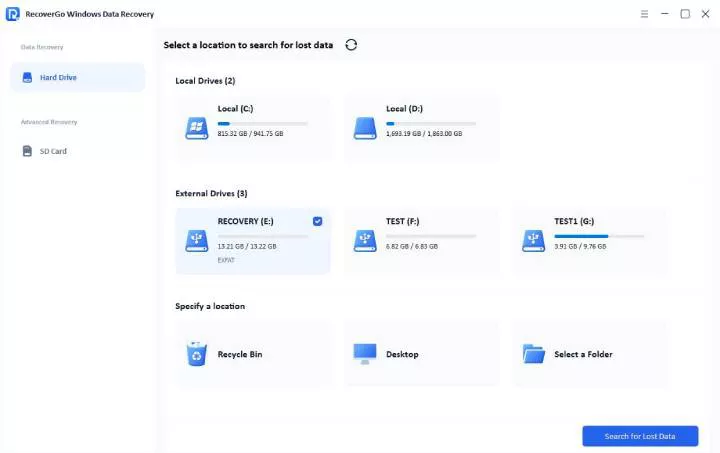
Step 2 The tool will begin scanning your SSD. It offers quick scan, deep scan and advanced scan to increase the recovery rate.

Step 3 Once it’s finished, you can click the “Preview” button to check if the files are the right ones. Then click “Recover” button and choose a different location to save the recovered file.

Method 2: Use a Professional Data Recovery
Another option is to seek help from a professional data recovery center. However, this should be considered a last resort when the SSD is completely unresponsive, as the process involves certain risks and can be costly.
In general, professional recovery is considered safe. But you must understand there’s no 100% guarantee of success. And if the SSD has severe physical or chip-level damage, then the chances of recovery get even lower.
You should also avoid DIY attempts to open and repair the drive. Any improper handling can make the recovery process harder. Last but not least, always use a reputable service provider for SSD data recovery.
How much does it cost to recover data from a dead SSD?
Data recovery from a dead SSD can cost anywhere from $300 to $2500+. It all depends on the complexity of the failure as opposed to the storage capacity. The good news is that many service providers offer a free evaluation before starting work.
This is how much you can expect to pay:
- Logical Issue ($300-$1000)
- Firmware Corruption ($600-$1500)
- Physical Damage ($900-$1800)
- Controller Failure ($1200-$2500)
Why is SSD recovery so expensive?
SSD recovery costs more than traditional drives due to their complexity. Modern SSDs use technologies like TRIM and encryption. These technologies make it hard to recover data.
Also, the recovery process requires special tools and a clean environment. This makes the entire process time-consuming and very resource-intensive.
Bonus Tip: Protect Your SSD in the Future
Protecting your SSD helps you avoid any future worries. This is how to protect your solid-state drive:
Plug in Your SSD Regularly
The flash cells inside the SSD need an electric charge to retain data. So, leaving the SSD unused for long periods can lead to data loss.
A simple tip to keep an SSD in good shape is to plug it in regularly. This little step will ensure that the Error Correction Code (ECC) software can continue to maintain stability inside the SSD.
Store it in Proper Conditions
Keep your SSD in a cool, dry, and climate-controlled environment. Avoid exposure to moisture and extreme temperatures, as they can damage internal components.
Make Backups
No matter how well you maintain your SSD, failure is still possible. The best strategy is to keep multiple backup copies of your data on different devices.
FAQs About Recover Data from Dead SSD
Can an SSD suddenly die?
It may feel like the SSDs suddenly die, but they do give many signs. The traditional HDDs have moving parts, so their signs of failure are more apparent. In contrast, the signs of SSD failures are less obvious. This is why many people ignore them and then think the SSDs suddenly die.
Common signs of a failing SSD include data corruption, slow performance and frequent system crashes.
Can a dead SSD be repaired?
It depends on the condition of the solid-state drive. If the drive is still detectable or only minor components have failed, then it can still be repaired.
However, costs can increase significantly if critical components like the controller chip are damaged. And if the SSD is physically damaged, the repair costs go even higher.
In many cases, data recovery is still possible through professional services, but it can be costly.
Can data be recovered after TRIM?
Recovering the data with TRIM enabled is extremely difficult. This feature permanently erases the unused data blocks to optimize performance, which can make recovery more challenging. In some cases, disabling TRIM beforehand may help improve the chances of data recovery.
Conclusion
It is possible to recover data from a dead SSD, and we have shared how to do it in this guide. One option to recover data from a solid-state drive is to get help from a professional data recovery center. But you must remember it can get costly.
A more affordable option is to use data recovery software. One good option is iToolab RecoverGo Windows Data Recovery, which makes it very easy to restore lost data from an SSD. The tool offers a beginner-friendly interface and allows data recovery from an SSD in just a few simple steps. With a high recovery rate (99%), you can restore your precious data in no time with the help of RecoverGo.