

Your hard drive may look completely normal until one day a partition suddenly disappears. This can happen due to a mistake during disk management, power loss, hardware failure, or other issues. Luckily, recovery is still possible in most cases by using a good partition data recovery software.
In this guide, we will look at the top ten partitions data recovery software. This article will help you find the most reliable option based on real performance and practical use.
Part 1: What Is the Most Common Cause of Partition Data Loss?
There’s always a trigger that can lead you to lose an entire volume in the blink of an eye. Let’s look at some common reasons for the data loss:
Accidental Deletion
Some users accidentally delete or format the wrong partition via disk management tools. This is a key reason for data loss on entire partitions. In cases like this, the data is still on the drive, but the system can no longer recognize where it is stored.
System Crash
Unexpected shutdowns also lead to major data loss. A system crash during these operations can also make the data inaccessible:
- Partition resizing
- OS installation
- Updates
- Partition merge
All of these things damage the partition tables and thus can make the entire partition inaccessible to users.
Malware
Malware can also corrupt the file system or hide entire partitions. In more extreme cases, malware can even overwrite critical disk information.
A partition may become RAW, inaccessible, or even disappear completely from the system. However, lost partition data recovery software can fix this issue and bring back your data.
Hardware Issue
Physical issues with the storage device can also cause data loss across an entire partition. Hard drives and SSDs can develop bad sectors over time. This can cause the internal components to fail.
A partition becoming inaccessible is a common sign of a hardware issue. In some cases, overheating and improper handling can also accelerate hardware damage and affect your data.
Part 2: How We Tested Partition Data Recovery Tools?
To ensure a fair ranking, we tested each tool based on three criteria: usability, recovery ability, and supported file systems/storage devices.
Usability
We looked at how easy it is to use the tools for everyday users. This includes the overall interface and how many steps it takes to complete the recovery process. The key thing we checked was whether a user can recover data without technical knowledge.
Recovery Rate
The most important factor to look into in any data recovery software is its recovery ability. We tested and ranked all the tools based on the scanning speed, depth of scan, and recovery success rate.
Supported File Systems
Another factor was how well the recovery tool works with different file systems and storage devices. A good tool should work on all file systems (NTFS, FAT32, exFAT, and more). Similarly, it must also support HDD, SSD, and all the other common storage devices.
Tools that supported more file systems and storage devices ranked higher than others. By combining these criteria, we were able to identify which tools truly deliver reliable recovery performance.
Part 3: Best 10 Partition Data Recovery Tools – Ranked by Real Performance
There are a lot of partition data recovery software in the market. In fact, many people often get confused about which tool to trust for data recovery!
So, we have rounded up the popular partition data recovery software and only picked the best 10 from it. This list will help you quickly compare them and then pick the best software for your situation:
- iToolab Windows Data Recovery🔥
- TestDisk
- R-Studio
- Disk Drill
- EaseUS Partition Master
- Stellar Data Recovery
- Recoverit
- MiniTool Partition Wizard
- Active@ Partition Recovery (Windows)
- DiskGenius (Windows)
iToolab Windows Data Recovery🔥
iToolab RecoverGo Windows Data Recovery is the best option in terms of partition data recovery. This tool recovers files from a formatted, crashed, or lost partition, or even a virus attack with 99% success rate. The overall interface is very user-friendly and thus can be used by both beginners and professionals.
Features
- Supports 1000+ file types and 2000 storage devices.
- Supports multiple scenarios such as partition loss, formatting, system crash, and deletion.
- It provides three scan modes to deeply scan your partition and locate permanently deleted data effectively.
- Ultra-fast scanning speed allows the software to recover files from exFAT drives in just minutes.
How to use RecoverGo
Step 1 Launch the tool and select the partition where data loss occurred. Then click the “Search for Lost Data”.
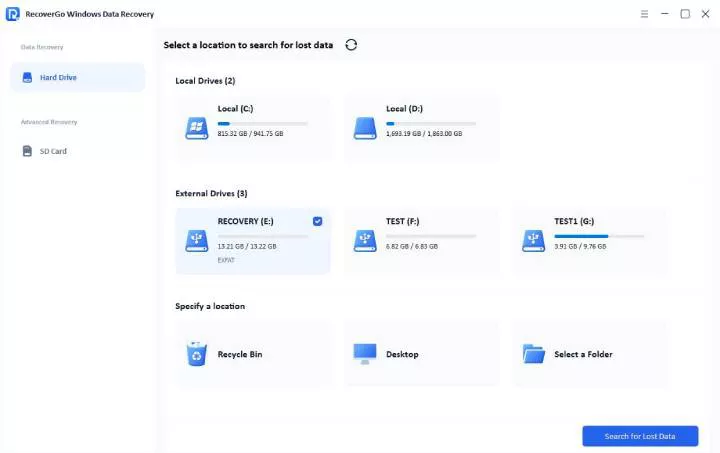
Step 2The tool will begin scanning. It offers three scan modes to increase the recovery rate.

Step 3 Once it’s finished, you will start to see all the recoverable files in the list. You can preview them and then click on “Restore” to recover them.

User Experience
iToolab RecoverGo Windows Data Recovery is the only tool in our list with a high recovery rate (99%) and is also the easiest to use. We tested it in multiple scenarios and were able to recover files in just 3 simple steps.
Our tests also showed that RecoverGo was able to scan the entire partition (500 GB) in just a few minutes. It was also able to find and recover 595 out of 600 files.
TestDisk

TestDisk is a freeware option that supports a wide range of file types and storage devices. So, users looking for partition data recovery software free download can try TestDisk.
It is basically a command-line tool that mostly focuses on the recovery of lost partitions. However, it is not so good at undeleting files and other data loss scenarios besides partition loss.
Features
- Supports all the Windows file systems. This includes FAT32, NTFS, exFAT, and more.
- Rebuilds partition tables and recovers formatted partitions.
- Works well with different partition map types (GPT, MBR, and more).
- Repairs boot sectors on FAT32 and NTFS drives.
Pros
- Completely free.
- Portable version requires no installation.
- Lightweight.
Cons
- Command line interface (it can be difficult for most users).
- Doesn’t support signature-based recovery.
- The file recovery feature is very limited.
User Experience
Our tests show that it does a very good job at recovering data from partitions. However, it feels a bit limited when it comes to file recovery when compared to other modern tools.
The biggest downside is that it is not user-friendly and requires command-line skills. Although the developers provide documentation on their website, it can still be challenging for beginners.
But if you prefer an open-source option and have command-line skills, you can definitely use it to recover lost partitions or to repair boot sectors.
R-Studio

We have ranked R-Studio at the 3rd spot because it does a very good job at recovering data from partitions. However, the overall design and its features are designed for IT professionals and advanced users. So, an average user might find most of the features confusing.
R-Studio can also handle data recovery from RAID arrays and network drives. And there’s also a special RAID reconstruction module that can be used to fix broken arrays. Once again, that’s a pretty advanced feature that might not be useful for a normal user.
Features
- Supports NTFS, FAT, ReFS, UFS, and other file systems.
- Users can also add custom file signatures.
- Offers S.M.A.R.T. monitoring, a hex editor, and disk imaging tools.
- Supports RAID reconstruction and network recovery.
Pros
- Advanced data recovery features.
- Supports old and new Windows versions.
- Retains original file names and folder structure (most of the time).
Cons
- UI is very complicated.
- The scan process is slow on large drives.
- Very difficult to use.
User Experience
Our first experience with R-Studio was that it was too difficult to use! It is designed for very advanced users, but this also complicates the recovery process.
The average recovery rate of the R-Studio is around 85%. It also uses advanced scanning algorithms, which takes some time but can uncover a lot of lost files. The tests also showed that R-Studio needs to work on improving its RAW file format support.
Also Read: R-Studio Full Review: Is It Still Good for Data Recovery?
Disk Drill

The next partition data recovery software in our list is Disk Drill. It perfectly combines solid recovery performance with a modern interface. The overall UI and easy-to-use recovery process make it a popular option for everyday users.
Disk Drill can be used to recover data from lost/deleted partitions and can also handle formatted drives. The best part is that it keeps the entire process very easy, even in complex scenarios.
Features
- Supports common and uncommon file types.
- All the major file systems (exFAT, FAT32, NTFS) are supported.
- Built-in file preview.
- Supports RAID and NAS recovery.
Pros
- Big library of file signatures.
- Multiple scanning algorithms.
- Very easy to use with a modern interface.
Cons
- The free version offers limited recovery.
- Deep scans are slow.
- Doesn’t support the creation of custom boot disks.
User Experience
Our testing showed Disk Drill performs well for basic to moderate recovery tasks. So, you can definitely use it to recover data from partitions.
However, Disk Drill struggles in complex cases. For example, the recovery rate is not that good when we try data recovery from a corrupted partition.
The overall recovery rate of Disk Drill is 82%, based on multiple tests. That’s a pretty solid success rate when we look at the competitors. The only reason why Disk Drill is below R-Studio is that it lacks advanced features.
Also Read: Disk Drill Data Recovery Software Full Review: Is It Worth it in 2026?
EaseUS Partition Master

EaseUS Partition Master is offered by EaseUS. The developers market it as a partition management tool, but it also has a partition data recovery module. So, you can also use the EaseUS Partition Manager to recover data from a deleted/lost partition on Windows.
Since it is a complete disk utility suite, users can also expect a lot of advanced features. The software can be used to clone, resize, convert, and recover partitions.
Features
- Full disk management toolkit (delete, format, split, merge, and more).
- Supports FAT32, NTFS, GPT, MBR, exFAT, and more.
- Supports bootable media creation.
- Disk cloning and OS migration.
Pros
- Easy to use.
- Advanced partition management and recovery.
- Clean and user-friendly interface.
Cons
- Frequent ads about other EaseUS products.
- Advanced features are not available in the free version.
- Operations may require a system restart (it disrupts the workflow).
User Experience
EaseUS Partition Master has a beginner-friendly interface, but it does include too many ads about other EaseUS products. But if you are willing to put it aside, the software does offer a lot of tools to manage and recover partitions.
The recovery rate is around 81%, which is quite good. However, our tests showed that the recovery rate drops when you attempt deep data recovery. So, it works best when the partition structure is still somewhat recoverable.
Stellar Data Recovery

Stellar Data Recovery has been around since 2000. Although the software has been around for so long, it has received periodic updates.
Stellar supports a wide range of storage devices. This includes HDD, SSD, USB drive, and even optical media. It also comes with a step-by-step wizard, making the recovery process easy even for beginners.
Features
- Quick and deep scan modes.
- Supports disk imaging to recover data from failing drives.
- Support major file systems (NTFS, FAT32, exFAT, APFS, HFS+).
- File preview and sorting based on type, size, and date.
Pros
- The free version offers 1 GB of data recovery.
- Easy to use with a guided recovery process.
- Supports RAW recovery.
Cons
- More expensive than other tools.
- Scanning is slow compared to other tools.
- The interface cannot be resized.
User Experience
If you have used any other Stellar software, you would have no issue navigating Stellar Data Recovery. The overall recovery process is very simple, and the average success rate is 80%.
However, the software feels a little expensive when we look at other partition data recovery software. And it also lacks advanced tools, which should have been present given its high price tag.
Also Read: Stellar Data Recovery Review: Is It Really Free or Worth It?
Recoverit

Wondershare Recoverit is relatively new when compared with other tools in the list. However, it does offer powerful recovery with a modern interface.
The tool is specifically designed for users who want a simple recovery solution. So, while you may notice that it lacks advanced features, it makes up for it with its easy recovery process.
Features
- Quick and deep scan modes.
- Offers video repair for fixing damaged media files.
- Supports 1000+ file types.
- Recovery is possible during the scanning process.
Pros
- Modern and beginner-friendly interface.
- Strong performance in photo/video recovery.
- Fast scanning speed.
Cons
- The free version only allows 500 MB of data recovery.
- Lacks support for less common file types.
- No advanced features for professional users.
User Experience
We tested Recoverit to see how well it performs in recovering partition data. While the scanning speed was quite good, the recovery rate was only near 78%. Even then, some of the recovered files were partially corrupted, and some had weird names.
Despite the downsides, Recoverit is a solid option for beginners who want a step-by-step workflow. However, the developers need to work on improving its capabilities in more complex cases.
Also Read: Recoverit Data Recovery Review: Is It the Best Data Recovery Tool?
MiniTool Partition Wizard

MiniTool Partition Wizard is more of an all-in-one tool for all partition-related tasks. You can use it to manage the disk partitions and recover partition data. However, the recovery feature is only available when you buy a Pro Platinum or Pro Ultimate license.
This tool also offers other features such as disk cloning, resizing, and optimization. However, it doesn’t feel right that you can’t unlock data recovery and partition data recovery with the Pro license.
Features
- Full partition management toolkit.
- Surface test to check bad sectors.
- Disk cloning and migration.
- Supports common file systems (exFAT, FAT32, NTFS)
Pros
- User-friendly interface.
- Supports recovery from RAW partitions.
- Can be used to convert FAT to NTFS.
Cons
- Data recovery is only available in high-tier plans.
- File system support is limited.
- Deep scans are slow.
User Experience
The free version can be used to create, move, delete, and format the partitions. However, the useful features, such as data recovery and file recovery, are only reserved for the high-tier plans. But if you are willing to pay the extra bucks, then the software can be used to recover data from lost partitions.
The average recovery rate is around 76%. To be honest, that’s a little low when compared with competitors. The scanning speed also feels slow when scanning large drives.
Active@ Partition Recovery (Windows)

Active@ Partition Recovery focuses entirely on data recovery from lost or deleted partitions. The best part about Active@ is that it stays true to its roots and doesn’t try to be a full partition manager.
The scanning modes are very solid, but the UI looks a little old and less flashy. But if you are willing to look past the old-style layout, Active@ Partition Recovery does a pretty good job.
Features
- Offers QuickScan and SuperScan modes.
- Repairs GPT, MBR, and boot sectors.
- Offers “Last Chance” recovery method. This allows recovery from highly damaged file systems.
- Supports common file systems.
Pros
- Highly reliable with several scan modes.
- Can create a bootable ISO.
- Fast scanning speed.
Cons
- The interface looks old.
- Requires knowledge about partition concepts.
- The free version doesn’t offer all features.
User Experience
The interface of Active@ is not something that instantly clicks with the users. But if we look beyond the appearance, it does have a strong recovery performance when it comes to partition data recovery.
However, the lack of partition management tools might be off-putting for users. Our tests showed that the partition data recovery rate of Active@ is 80% in simple scenarios. However, it drops to 70% for reformatted or old partitions.
DiskGenius (Windows)

DiskGenius falls somewhere in the middle between a DIY recovery and a professional tool. Although the user interface looks outdated, DiskGenius does offer data recovery and partition management features.
DiskGenius also offers support for RAID recovery and has a built-in hex editor. However, some of the features are only available in the paid version. But for basic recovery tasks, the free version of DiskGenius is more than enough.
Features
- Full partition management tools.
- Disk cloning and backup features.
- Offers a hex editor and a bad sector repair tool.
- Recovers data from RAW, formatted, or lost partitions.
Pros
- Advanced tools for disk management and recovery.
- Works well with large partitions.
- Option to create bootable USB devices.
Cons
- The user interface looks ugly and outdated.
- The recovery process requires technical knowledge.
- The free edition only allows 1 GB of data recovery.
User Experience
DiskGenius covers a wide range of data loss scenarios, which is its biggest strength. It can be used to create new partitions, clone an HDD, or even recover lost partitions. However, its biggest drawback is its user interface, which looks old, and the data recovery process is also not beginner-friendly.
The partition data recovery rate of DiskGenius is around 72%-75%, which is quite reasonable. If the software had better usability, it would have ranked higher in our list.
Part 4: Which Tool Is Best? Full Comparison of 10 Partition Data Recovery Tools
| Features | OS Support | Price | Beginner Friendly | Recovery Rate | Scan Speed |
|---|---|---|---|---|---|
| RecoverGo 👍 | Windows 11/10/8/7 | $39.99 | Yes | 99% | Very Fast |
| TestDisk | Windows 11/10/8/7 | Free | No | 75%–85% | Fast |
| R-Studio | Windows 11/10/8/7/Vista | $79.99 | No | 85% | Moderate |
| Disk Drill | Windows 11/10/8/7 | $79 | Yes | 82% | Fast |
| EaseUS Partition Master | Windows 11/10/8/7 (+Server editions) | $59.95 | Yes | 81% | Fast |
| Stellar Data Recovery | Windows 11/10/8/7 | $49.99 | Yes | 80% | Moderate |
| Recoverit | Windows 11/10/8/7 | $64.99 | Yes | 78% | Fast |
| MiniTool Partition Wizard | Windows 11/10/8/7 | $59 | Yes | 76% | Slow |
| Active@ Partition Recovery | Windows 11/10/8/7 | $39.95 | No | 70%-80% | Fast |
| DiskGenius | Windows 11/10/8/7/XP | $69.90 | No | 72%-75% | Moderate |
Tips for Successful Partition Data Recovery
- Stop using the drive immediately.
- Act quickly when data loss happens. That’s a simple yet powerful way to improve the recovery rate.
- Use deep or advanced scanning methods in data recovery software.
- Avoid restoring data to the same drive.
Final Thoughts
In this guide, we explore ten options for partition data recovery in 2026. If you want a cost-effective tool with strong recovery performance, iToolab RecoverGo Windows Data Recovery is your reliable option. It offers an easy-to-use interface, fast scanning speed, and a high recovery rate to help you restore lost data quickly and safely.