

An archive is a single file to Windows, but it often holds dozens of documents or an entire project folder. One accidental deletion can remove every file inside, and nothing opens until recovery finishes. That is what makes RAR recovery more urgent than restoring an ordinary document.
This guide shows 5 easy ways to recover a deleted RAR file on Windows, from the fastest built-in options to a more complete recovery method when the archive is permanently deleted.
Part 1. Is It Possible to Recover Deleted RAR Files?
Yes, deleted RAR files can often be recovered if you act before new data replaces them. Windows usually removes the file from view instead of erasing it right away. It marks the storage space as available for future files, and until new data uses that space, the deleted archive may remain recoverable.
Even though File Explorer no longer shows the archive, the file may still exist on the drive. Your RAR recovery success depends on how much the drive changed after deletion. Recently deleted files usually have a much better recovery chance than older missing archives.

Before trying any deleted RAR file recovery method, understand the factors that affect recovery success:
- Deletion Method: A normal Delete moves the archive to the Recycle Bin for easy recovery later. Shift + Delete and removable devices skip the bin, requiring recovery software instead.
- Drive Activity: Using the drive after deletion may replace the space holding your missing archive.
- SSD Storage: Many SSDs remove deleted file data through background cleanup, which can make recovery harder than on traditional hard drives.
- Archive Size: Large RAR archives contain more data, increasing the chance of partial file damage. Missing parts may stop the archive from opening or extracting correctly.
- Drive Format: A quick format leaves more deleted data behind than a complete drive format. A full format reduces recovery chances because it replaces more original data.
Part 2. How Do I Recover Deleted RAR Files on My Computer?
Several simple methods can help with successful RAR recovery. Start with the quick options first, then move to professional recovery software if the archive was permanently deleted or no backup is available.
- Method 1. Undo the Deletion Right Away (Ctrl + Z)
- Method 2. Recover the Archive from the Recycle Bin
- Method 3. Restore a Previous Version of the Folder
- Method 4. Download the Archive from OneDrive or Google Drive
- Method 5. Professional RAR Recovery with RecoverGo
Method 1. Undo the Deletion Right Away (Ctrl + Z)
If you deleted a RAR file only moments ago, Windows may still reverse the action. File Explorer keeps a short undo history for recently deleted files, and the feature works when you have not performed other file actions afterward.
This method restores the archive to its original folder without using RAR recovery software. However, it only works immediately after deletion and before another file operation.
- Open the folder where the RAR file was deleted.
- Press Ctrl + Z immediately to undo the deletion.
- Check whether the RAR archive appears in its original location again.

Method 2. Recover the Archive from the Recycle Bin
When you delete a file normally, the Recycle Bin may temporarily store it for recovery. A normal Delete usually moves your archive there instead of removing it permanently. The archive stays there until you restore it or empty the Recycle Bin. Files deleted from external storage devices may not appear there.
Follow the steps below to perform RAR file recovery from the Recycle Bin:
- Press Win + R, type shell:recyclebinfolder, then click Browse to open the Recycle Bin. You can also access the Recycle Bin from your desktop or Start menu.
![open recycle bin folder]()
- Find your deleted RAR file, right-click it, then choose Restore.
![choose RAR file to restore]()


Method 3. Restore a Previous Version of the Folder
Previous Versions lets Windows restore an earlier copy of a folder saved before deletion. It uses File History or System Protection to recover files from an earlier version of the folder.
This RAR recovery method only works if the feature was enabled before your archive disappeared. Follow these steps to recover your deleted archive:
- Right-click the folder that used to hold the RAR file, then select Show More Options.
![select show more options]()
- Select Restore Previous Versions.
![choose restore previous version]()
- Go to the Previous Versions tab and pick a version dated before the deletion. Click Restore to bring the folder back.
![restore RAR file previous version]()


Method 4. Download the Archive from OneDrive or Google Drive
Cloud backup keeps a safe copy away from your hard drive. You can download the archive again from OneDrive or Google Drive without scanning your device. If sync is enabled, deleting the file on your computer may also delete the synced cloud copy, which then moves to the cloud recycle bin.
Both OneDrive and Google Drive keep deleted items for a limited time. Go through the guide below to recover deleted RAR files from cloud storage:
- Open Google Drive or OneDrive in a browser and sign in to the account holding your backup.
- Click the three dots icon next to your archive and select Download to save a fresh copy.
![download cloud RAR file copy]()

Method 5. Professional RAR Recovery with RecoverGo
Sometimes, built-in methods cannot help when your archive was permanently deleted and no backup is available. At that point, scanning the drive can help before new data replaces the deleted archive. iToolab RecoverGo Windows Data Recovery is a reliable RAR recovery software that scans drives and finds deleted archives that Windows no longer displays.
Along with RAR archives, RecoverGo can recover 1,000+ file types such as ZIP archives, documents, images, and videos. It can perform deep scans on formatted drives and find older deleted archives. You can also preview deleted archives before saving, which helps confirm the correct files appear during scanning.
Key Features
- Recovers RAR files even after the Windows Recycle Bin has been emptied.
- Scan your drive safely with a read-only process that keeps your original data untouched.
- Quick Scan finds recently deleted archives within minutes before deeper searching begins.
- Works across 2000+ storage devices, including USB drives, HDDs, SSDs, SD cards, and external hard drives.
- Resume interrupted scans without losing previous recovery progress or discovered archive results.
- Filter results by file type, location, or modified date for faster archive searching.
Guide to Recover Deleted Archives with iToolab RecoverGo
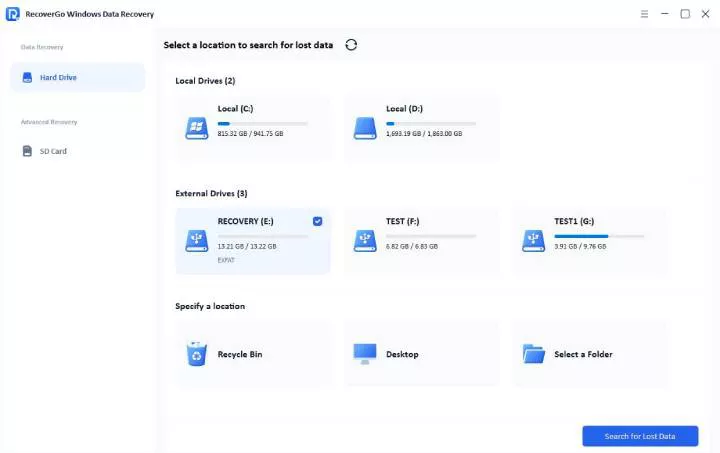
Step 1 Select the Deleted Archive Location
Choose the drive or external device where the RAR file was stored. Click Search for Lost Data to begin.
Step 2 Run the Scan and Filter for Archives
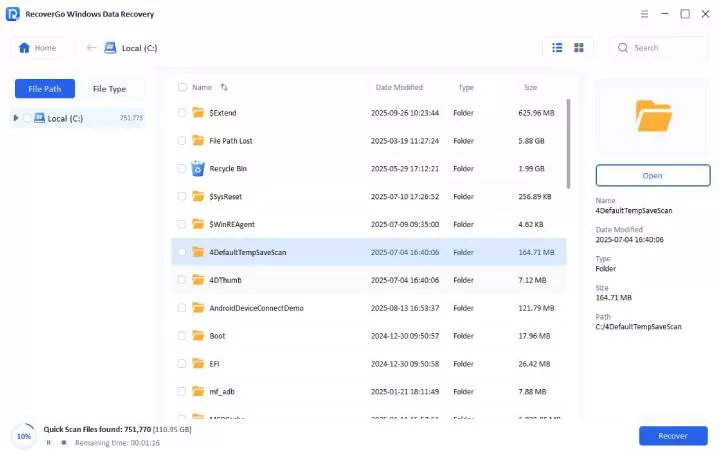
RecoverGo starts finding recoverable RAR files through quick scanning. Wait for the scan to complete, then filter or search the results to locate your archive faster.
Step 3 Preview the RAR File and Recover It
Click Preview to confirm you have the right archive, then click Recover. Save it to a different drive so nothing overwrites data still waiting to be found.

Part 3. Prevention Tips for RAR Recovery
Simple habits can reduce the need for RAR file recovery after accidental file loss. Below are practical tips to protect your archives from future data loss problems:
The Recovery Record is one of the most useful RAR features because it helps repair damaged archives. RAR 5.0 recovery records can repair damaged archives, while separately created .rev recovery volumes can rebuild a missing or damaged archive volume if enough recovery data is available.
Final Thought
Deleted archives are not always gone forever if you act before new data replaces them. Windows offers several ways to recover deleted RAR files without extra software. Still, those methods cannot help in every recovery situation.
When deleted archives remain missing, RAR recovery software becomes the better choice. Tools like iToolab RecoverGo Windows Data Recovery can scan your drive and restore important archives with ease.