

I had 3 partitions on my 1 TB hard drive. I used the shrink volume option on the D: partition. However, the process was interrupted, and now the D: partition is gone from File Explorer. Can I recover lost partition and the data on it?
— From Microsoft
If you’re reading this, chances are one of your partitions just vanished—and that sinking feeling is totally understandable. The good news: a lost partition doesn’t mean your data is gone. In most cases, the partition has simply turned into unallocated space in Disk Management while your files are still sitting on the drive, untouched. Here’s the right way to handle it: recover your data first, then restore the partition.
In this guide, you will learn how to recover data from a deleted partition first, then try three methods to restore the lost partition safely.
Part 1. Can You Recover a Lost Partition?
Short answer: yes. You can get a lost partition back—but you need to pick the right approach for your situation. If you just want the files back, that’s data recovery. If you want the whole partition Structure restored, that’s partition recovery. They’re not the same thing, and doing one wrong can mess up the other.
A partition can become lost due to:
- File system errors
- Malware attacks
- Power failure
- Interrupted disk operations
- Accidental deletion
- Corrupted partition tables
These are the most common causes, though there are others. A classic sign is that the partition disappears from File Explorer. In most cases, the data stored on the drive may still remain intact.
The partition table stores information such as partition type, size, and file system. Once that information is unavailable or corrupted, the space occupied by the partition can appear as unallocated. At this stage, Windows cannot locate the partition, but the data may still remain on the drive and can often be recovered before new data overwrites it.
The best approach is to recover the data first. Once your files are safe, you can try to restore the lost partition by assigning a drive letter, using a partition recovery tool or checking the drive status.
Part 2. How to Recover Data from Lost Partition?
Your most reliable option for recovering data from a lost or deleted partition is data recovery software. You need a tool that can handle complex data loss scenarios and scan the disk directly. iToolab RecoverGo Windows Data Recovery is a strong option for this situation.
RecoverGo is suitable for partition recovery because it can handle both simple and complex data loss cases. It also keeps the recovery process simple: select the location, scan, preview, and recover.
Key Features:
- Bypasses damaged file systems and reads data directly from disk sectors.
- Supports over 1,000 file types, including images, videos, documents, and other files from the lost partition.
- Uses read-only scanning and never modifies or overwrites drive data.
- Works on HDDs, SSDs, external drives, USB drives, and SD cards.
How to Use:
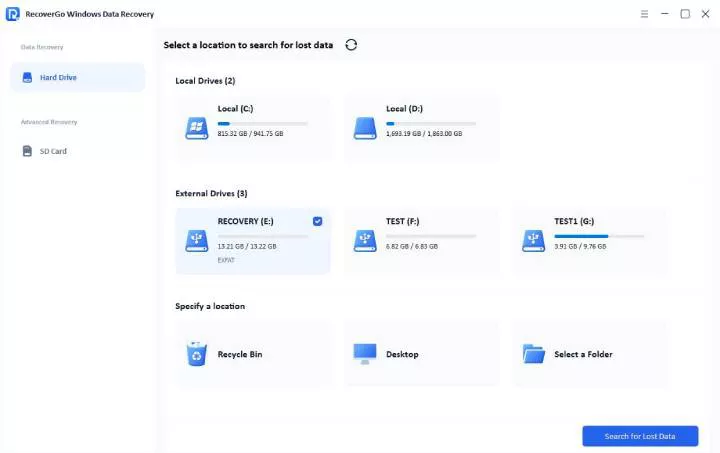
Step 1 Select Location
Install and launch RecoverGo on your PC. You will see the connected storage devices. Select the lost partition from the list and click Search for Lost Data.
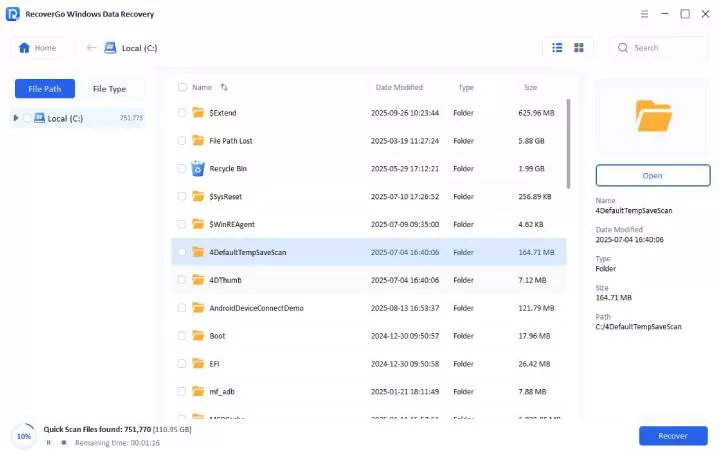
Step 2 Scan and Preview
The program will scan the partition and find recoverable data. Wait until the scan is complete, then preview files and folders to confirm they are the ones you need.
Step 3 Recover Data
Select the data you want and click Recover. Choose a safe folder on another drive to save the recovered files.

Part 3. How to Restore a Lost Partition in Windows?
There are multiple methods to recover a deleted partition, but the right method depends on why the partition disappeared. In some cases, the only issue is a missing drive letter. In others, the partition table may be damaged or deleted by mistake.
The solutions below are sorted from simple to advanced. Start with the first method, then move to the next until you get the partition back.
- Method 1: Check Partition Status in Disk Management
- Method 2: Reassign a Drive Letter
- Method 3: Use Partition Recovery Software
Method 1: Check Partition Status in Disk Management
The first step is to check whether Windows can still detect the partition. Disk Management lets you view the status of every connected drive and partition.
Follow these steps:
- Press Win + X and open Disk Management.
![check lost partition status in Disk Management]()
- Find the affected partition and check its status.

You may see one of these statuses:
- Healthy but no drive letter: The partition is present but has no drive letter. Try Method 2.
- Unallocated: The partition was deleted or lost. Use Method 3.
- RAW: The file system is damaged or corrupted. Recover data with RecoverGo first, then format the partition if needed.
Method 2: Reassign a Drive Letter
Windows does not show a partition in File Explorer when it has no drive letter. In this case, the partition is not truly lost. It simply needs a new drive letter.
Follow these instructions to restore the lost partition:
- Press Win + X and select Disk Management.
- Locate the partition. It should be marked as healthy but have no drive letter.
- Right-click it and select Change Drive Letter and Paths.
![change drive letter and paths in Disk Management]()
- Click Add, select a letter from the list, and click OK.
- Restart the computer, then open File Explorer to see whether the partition is visible again.

If the partition shows as unallocated, proceed to the next method.
Method 3: Use Partition Recovery Software
If Disk Management shows the volume as unallocated, the issue is likely a missing partition table. You can use TestDisk to detect and restore lost partitions.
Recover your important files before using TestDisk. The tool is generally safe, but any partition repair carries some risk.
How to recover a lost partition on Windows 10/11 with TestDisk:
- Download TestDisk from the CGSecurity website. Extract the zip file and run testdisk_win.exe as an administrator.
- Select the Create option to create a new log file.
- Select the disk that contains the lost partition and press Enter.
![select lost partition disk in TestDisk]()
- Choose the correct partition table type. TestDisk can usually detect the right one automatically, so select the highlighted option.
![choose partition table type in TestDisk]()
- Select the Analyse option and press Enter.
![select Analyse option in TestDisk]()
- Wait for the scan results. If the missing partition appears, highlight it and press P to list files.
- Return to the previous screen and select Write to save the recovered partition table.
![write recovered partition table in TestDisk]()
- Restart your computer and open File Explorer to verify that the partition has been restored.


Restore Lost Partition FAQs
Can CHKDSK recover a lost partition?
No. CHKDSK cannot recover a lost partition. It is designed to check and repair file system errors on an existing partition, such as corrupted file records, damaged indexes, or directory problems. It cannot rebuild a deleted partition table or restore a partition that no longer appears in Disk Management.
If a partition is missing, appears as unallocated, or has disappeared from File Explorer, running CHKDSK may not solve the problem and could reduce the chances of successful data recovery. The safe way is to recover your important files first with iToolab RecoverGo Windows Data Recovery, then repair or recreate the partition if necessary.
What should I avoid after losing a partition?
Remember these rules when you are dealing with a lost volume:
- Avoid formatting the drive.
- Do not create a new partition.
- Stop saving new data.
These simple steps help prevent existing data from being overwritten. Recover your files first, then try the different methods to restore the partition.
Can a lost partition be caused by a Windows update?
Yes. Although it is not common, a failed or interrupted Windows update can corrupt partition information. As a result, your partition may go missing after the update. This is usually a logical issue rather than a physical drive failure.
Final Words
A lost partition does not always mean the data is gone. In many cases, both the files and the partition can be recovered. The right method depends on the situation.
Before doing anything else, recover your data from the affected partition. After that, you can safely fix the partition issue. A good option for recovering data from a lost partition is iToolab RecoverGo Windows Data Recovery, which uses a read-only process to recover files safely.
Once the data is restored, you can move on to fixing the partition. If the partition is healthy but has no drive letter, assign a new letter from Disk Management. If the partition is unallocated, try TestDisk to rebuild the partition table. If you cannot access your files, recover the important data first before attempting partition repair.