

Losing files from an SSD can be stressful, especially on a work computer. Whether it’s accidental deletion or a drive that’s not working properly, your files aren’t always gone forever. You might wonder: Can I retrieve data from SSD drive? The answer depends on several factors, especially the TRIM command status and how quickly you act after the loss.
In this guide, we’ll explain why SSD drive recovery differs from traditional hard drives, what affects your success rate. We’ll cover everything from built-in Windows tools to professional recovery software like iToolab RecoverGo.
Part 1: Why SSD Drive Recovery Is Different?
SSDs store data differently than traditional hard drives, which makes recovering deleted files more challenging. Unlike HDDs that use spinning magnetic platters, SSDs use flash memory chips managed by sophisticated controllers.
What is TRIM?
TRIM is a command that helps SSDs run efficiently. When you delete a file, TRIM tells the SSD that those storage blocks are no longer needed. The SSD then clears those blocks to prepare them for new data. While this improves performance, it makes data recovery much harder.
How TRIM Affects Recovery Success
The table below shows how TRIM changes your recovery chances:
Does TRIM Permanently Delete Files?
TRIM doesn’t delete files instantly when you press delete. Instead, it schedules those blocks for erasure, which happens shortly after. Once the SSD completes that process, recovery becomes nearly impossible using standard software. However, if you act quickly before TRIM finishes, recovery tools may still retrieve your files.
Part 2: Can Data Be Retrieved from an SSD Drive?
Yes, you can often restore files from your SSD. However, your success rate depends heavily on how the data was lost. Understanding your specific situation helps determine the best recovery approach.
High Success Scenarios:
- Accidental deletion: Files moved to Recycle Bin are easily recoverable.
- Quick format: Only the file system is cleared, actual data remains on the drive.
- Partition errors: Data still exists, only the partition table is damaged.
- TRIM disabled: Deleted files stay untouched until overwritten.
Lower Success Scenarios:
- Full format: TRIM is triggered, making recovery very difficult.
- TRIM enabled and run: Blocks have been permanently erased.
- Physical damage: Requires professional recovery services.
- Data overwritten: New files have replaced your deleted data.
Studies show that over half of users who attempt DIY recovery successfully restore their files. The key is acting quickly before TRIM runs or data gets overwritten.
Part 3: What to Do Immediately After SSD Data Loss?
To protect your missing files and maximize recovery chances, follow these steps right away:
Stop Using the SSD Immediately
Stop saving or updating anything to avoid overwriting deleted data. Every new file you save could potentially overwrite your lost files, making them permanently unrecoverable. This includes downloading files, installing programs, or even browsing the web.
Turn Off Your Computer
Shut down your Windows PC completely to stop background data changes. Windows constantly writes data to your SSD during normal operation – system logs, temporary files, and updates. Shutting down prevents these background writes.
Unplug External Storage
Disconnect your drive immediately if you lost files from external storage. External SSDs continue to receive power and background commands even when not actively used.
Avoid System Updates
Postpone all Windows updates until you finish the recovery process. Updates can write large amounts of data to your SSD, potentially overwriting lost files.
Install Recovery Software on a Different Drive
Never install recovery software on the same SSD you want to recover data from. You can use a different internal drive or external storage for the software installation to avoid overwriting your lost files.
Following these steps immediately increases your chances of recovery. Time is critical – every minute counts before TRIM runs or data gets overwritten.
Part 4: How to Retrieve Data from SSD Drive?
You can choose from effective methods to find your lost files. Let’s explore the 4 best options available:
- Method 1: Check the Recycle Bin
- Method 2: Recover Data Using File History
- Method 3: Use SSD Data Recovery Software🔥
- Method 4: Use Professional SSD Recovery Services
Method 1: Check the Recycle Bin
The Recycle Bin is the simplest recovery option on Windows. It temporarily stores deleted files before they’re permanently removed. You can easily restore files with a single click if they’re still here.
Steps to Restore from Recycle Bin:
- Open the Recycle Bin on your desktop.
- Locate the file you want to recover, right-click it, and select “Restore” from the menu.
- The file will return to its original location.

Method 2: Recover Data Using File History
File History is a built-in Windows feature that automatically saves copies of your files at regular intervals. If you had this enabled, you can restore previous versions of your files easily.
How to Use File History to Recover Files:
- Browse to the file you want to retrieve, then right-click it and open the “Properties” option.
- Go to the “Previous Versions” tab and see the list of restore points and their dates and times.
- You will then have to choose which version you wish to recover and click “Restore” to restore your file.

This method only works if you enabled File History before losing your files. If it wasn’t set up, try Method 3 instead.
Method 3: Use SSD Data Recovery Software🔥
When built-in options don’t work, you need reliable SSD data recovery software like iToolab RecoverGo Windows Data Recovery. This tool delivers an impressive 99% success rate across various recovery situations.
Why iToolab RecoverGo Works Well for SSD Recovery?
iToolab RecoverGo uses advanced scanning algorithms specifically designed for SSD data structures. It can perform deep scans to find deleted file signatures even after TRIM has run. The software also supports recovering data from formatted, corrupted, or damaged SSD partitions.
Key Features:
- 99% High recovery success rate: Advanced algorithms improve your recovery rate.
- Wide file compatibility: Support 1000+ file type, such as photos, videos, documents, emails, and more file types.
- Multiple loss scenarios: Handle many data loss cases, such as accidental deletion or system crash,formatting, virus attacks.
- Many device support: Support 2000+ devices, for example, hard drives, USB drives, SD cards, and more.
How to Recover SSD Data Using iToolab RecoverGo?
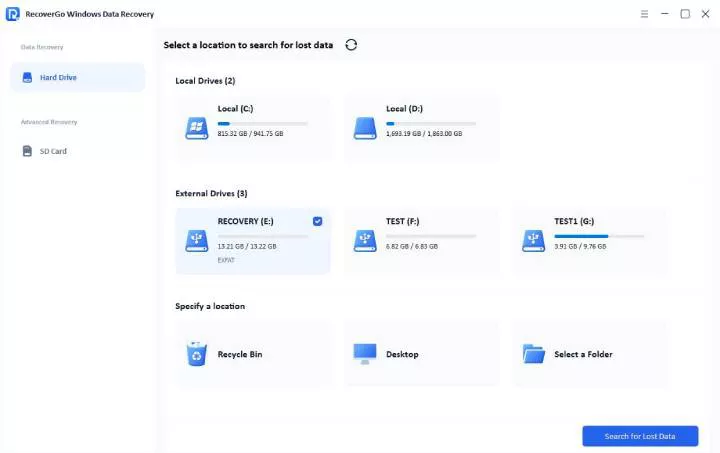
Step 1 Download and install iToolab RecoverGo on a different drive (not the SSD you want to recover). Launch the program, select your SSD from the main interface, then click “Search for Lost Data”.
Step 2 The tool will begin scanning your SSD. This scan time depends on drive size. Once completed, you can preview them to confirm they’re what you need.
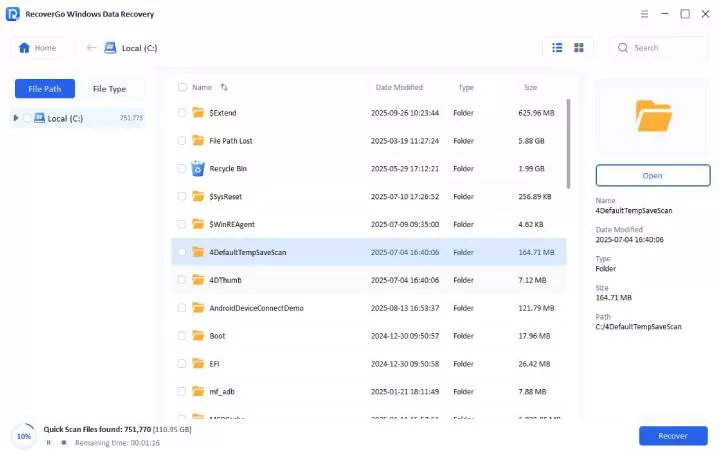
Step 3 Select the files you want to recover and click the “Recover” button. Choose a different drive as the destination to avoid overwriting data. After that, your files will be safely recovered and saved.

Method 4: Use Professional SSD Recovery Services
Professional recovery experts use specialized tools to handle hardware failures. They work in clean room environments to safely rebuild broken components and extract data directly from flash memory chips.
Best for:
Severely physically damaged SSDs, controller failures, or when all software methods fail.
When to Use Professional Services:
- Your SSD is physically damaged (burnt, water damaged, dropped).
- The SSD makes unusual clicking or grinding noises.
- Controller chip failure has occurred.
- All software recovery methods have failed.
How Much Does SSD Data Recovery Cost?
SSD recovery costs vary significantly based on the type of issue:
- Simple Copy: $200
- Logical issue: From $250
- Firmware problems: $600-$1,200
- NAND swap: $1,500-$2,500+
Most professional services offer free evaluation to determine the exact cost before starting work. The final price depends on the complexity of recovery and the value of your data.
Important: Don’t attempt to open or repair a physically damaged SSD yourself. This can cause permanent data loss.
Part 5: Pro Tips for Preventing SSD Data Loss
Following these proven strategies can help you avoid ever needing SSD disk data recovery:
Follow the 3-2-1 Backup Rule
The 3-2-1 backup rule is considered the gold standard for data protection:
- 3 copies: Keep at least 3 copies of your important data (original + 2 backups).
- 2 different media: Store backups on 2 different types of storage, like an SSD and an external hard drive.
- 1 off-site: Keep 1 copy off-site, either in cloud storage or at a different physical location.
This strategy ensures that even if one backup fails, you still have other copies to recover from.
Enable Cloud Storage Sync
Use cloud services like OneDrive, Google Drive, or Dropbox for automatic file syncing. This creates an off-site backup that protects your data from local hardware failures. Set it to sync important folders automatically.
Turn On Windows File History
Enable File History in Windows to automatically back up your files at regular intervals. This built-in feature creates version history, allowing you to restore previous versions if needed.
Avoid Sudden Shutdowns
Always shut down your computer properly rather than forcing it off. Sudden power loss can interrupt SSD write operations and cause data corruption or firmware damage.
Maintain Free Space
Keep at least 20% of your SSD empty. This allows the drive’s wear-leveling algorithms to work efficiently and prevents performance issues that can lead to data problems.
Monitor Drive Health
Use diagnostic tools like CrystalDiskInfo or your SSD manufacturer’s software to check drive health, temperature, and remaining lifespan. Early detection of issues gives you time to back up data before failure.
Following these preventive measures, you can aovid expensive data recovery services and irreplaceable data loss.
Part 6: FAQ About Retrieving Data from an SSD Drive
Is SSD recovery possible after formatting?
Yes, formatted SSD drives can still have recoverable files in many cases. Quick format only clears the file system without erasing actual data. However, full format on modern Windows triggers TRIM, making recovery much harder. You can use reliable recovery software like iToolab RecoverGo immediately after formatting improves your chances.
How to recover data from a dead SSD?
A dead SSD that’s undetectable usually requires professional data recovery services. Experts use specialized hardware to access flash memory chips directly in controlled clean room environments. Don’t attempt DIY repairs on a dead SSD, as this often causes permanent data loss.
Also Read: Can You Recover Data from a Dead SSD in 2026?
Can professionals recover SSD data?
Yes, professional technicians successfully recover SSD data in many difficult situations. They use advanced chip-reading equipment and specialized techniques in controlled environments. Success depends on the damage level and how quickly you contact a recovery specialist.
Final Thought
This guide covered four working methods to retrieve data from SSD drives on Windows. You can check the Recycle Bin first for the simplest option. If you have backups, File History can restore previous versions easily. What’s more, for data loss without backups, professional tools like iToolab RecoverGo offer high success rate with free preview.